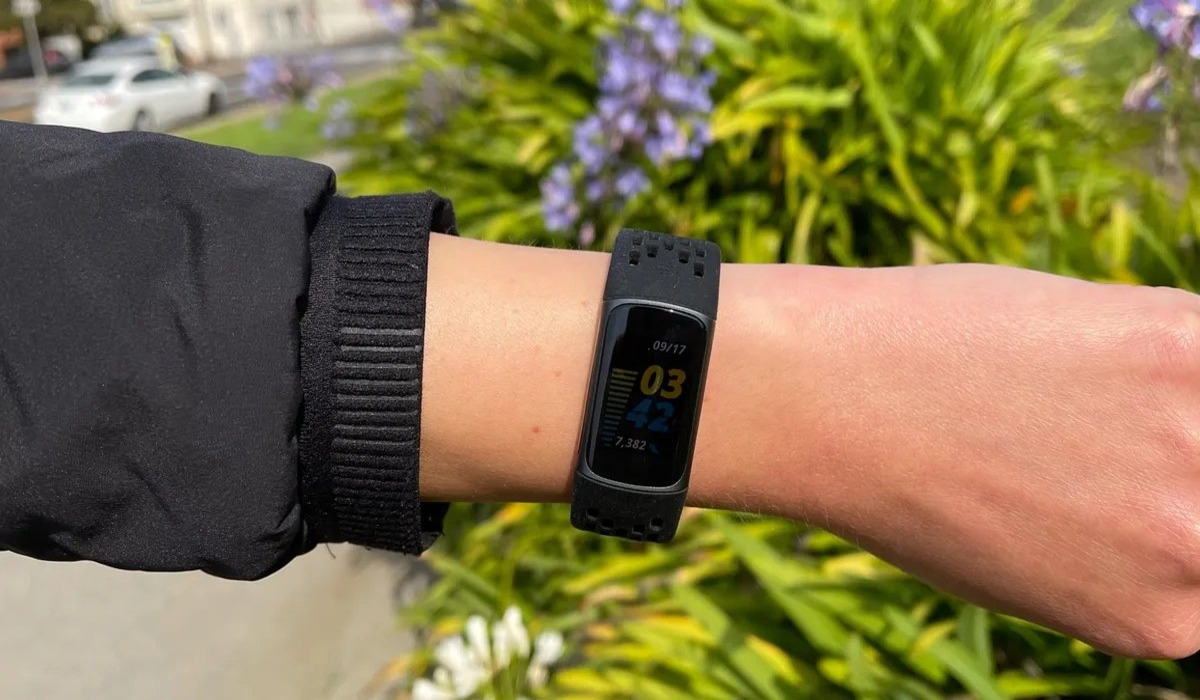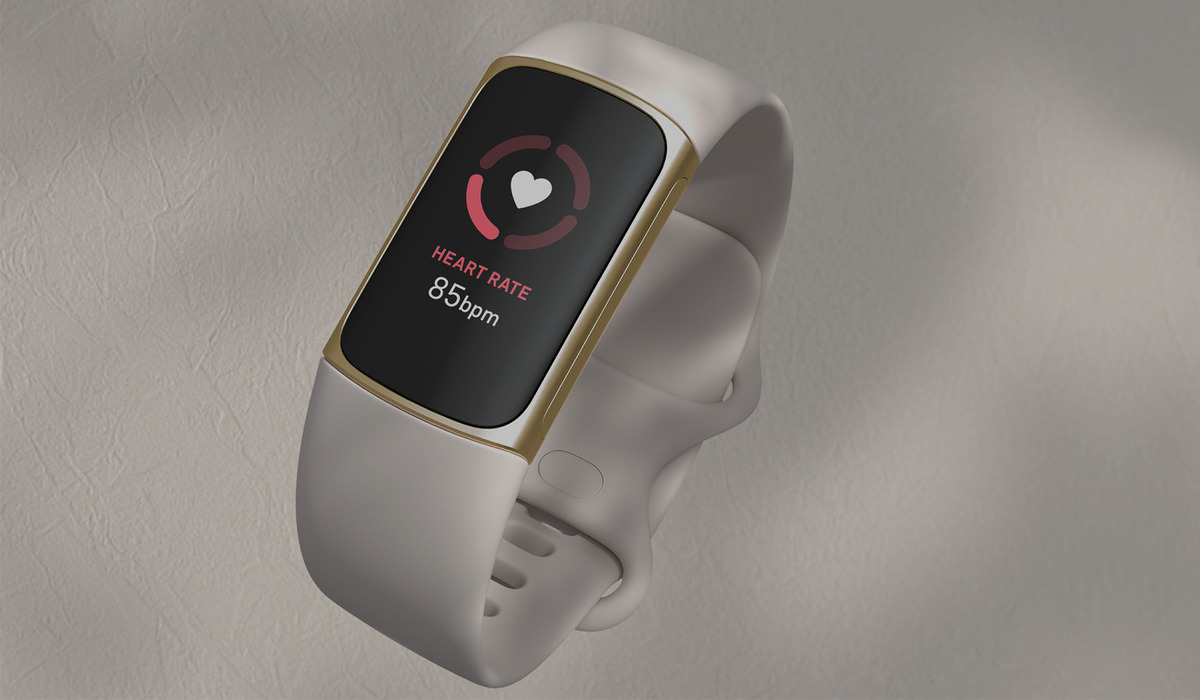
To restart your Fitbit Charge 5, you have two official methods: one from the tracker screen for a responsive device, and one using the charging cable for a frozen or unresponsive screen. Neither method will erase your data or settings, so you can safely restart Fitbit without losing your progress.
Restart Fitbit Charge 5 from the tracker screen
Use this method when your Charge 5 screen is responsive and you can navigate the menus.
- Wake the tracker by tapping the screen or pressing the button.
- Swipe down from the clock screen to find the Settings app.
- Tap Settings.
- Tap Restart Device.
- Tap Restart to confirm.
Press and hold the button on the side of your Fitbit Charge 5. Continue holding the button until you see the Fitbit logo appear on the screen. Release the button and wait for your device to finish restarting. This method is documented for both the Charge 5 and Charge 6.
Method 2: Restart using the charging cable
Use this fallback method when the screen is unresponsive or frozen and you cannot navigate the settings menu.
- Connect your Charge 5 to its charging cable.
- Press the button on the flat end of the charger 3 times.
- Pause 1 second between each press.
- Wait about 10 seconds, or until the Fitbit logo appears.
Fitbit also documents an alternate sequence: unplug the charger, wait a second, plug it back in, and repeat this 3 times in an 8-second interval. Then wait 10 seconds until the device restarts. Both sequences achieve the same result.
What about a factory reset?
If you need to clear your personal data from the device, you will need to delete the device from your account. Open the Fitbit app on your smartphone or tablet. Tap on the Account tab at the bottom right corner of the screen. Select your Fitbit Charge 5 from the list of devices. Scroll down and tap on "Clear User Data". Follow the on-screen instructions to confirm the factory reset. Once the factory reset is complete, you will need to set up your Fitbit Charge 5 as if it were a new device. This includes pairing it with your smartphone, setting your personal preferences, and syncing your data. For instructions on how to delete my old Fitbit and add a new one, see our separate article on removing a device from your Fitbit account.
Frequently Asked Questions
Will restarting erase my data?
No. The official restart methods do not erase your activity, sleep data, or settings. Your data remains on the device and syncs to your account after the restart.
What if the screen does not respond?
Wait 10 seconds for the Fitbit logo to appear. If your Fitbit Charge 5 doesn't respond after restarting, ensure that your device is charged by connecting it to the charger for at least 10 minutes. If the issue persists, perform a factory reset on your Fitbit Charge 5. This can be done by going to the Settings menu in the Fitbit app and selecting the device option. Look for the "Factory Reset" or "Clear User Data" option. If none of the above steps work, contact Fitbit customer support for further assistance.
Does this work for iPhone and Android?
Yes. The restart steps are performed on the tracker itself and do not require the Fitbit app. The Fitbit app is available for Apple devices through the Apple App Store and Android devices through the Google Play Store.
How often should I restart my Charge 5?
There is no recommended frequency. Restart only when you experience issues such as freezing, unresponsiveness, or syncing problems.
Related reading: Where Is The Reset Button On Fitbit Charge 5.