For families tired of public albums and compressed messaging previews, a private group chat built around downloadable files can be a practical alternative. ShareIt Online’s browser-based Group Chat lets invited members discuss photos and videos and attach reusable file links. The workflow works across mobile and desktop browsers, and the family can verify downloaded files against the originals.
How the Private Family Exchange Works
Step 1: Create the Group and Send Invitations
Open a desktop or mobile browser and go to ShareIt.onl. Navigate to Group Chat and sign in with a Google-connected account. Create a new group, then share the invitation link with family members. Each recipient must also sign in with a Google-connected account to join. Because the group is invitation-only, send the invitation only to intended members.
Step 2: Upload Files to My Files
Before attaching anything to the chat, upload your photos and videos to the My Files section. Each upload can contain up to 100 files and a total of 3 GB. On an iPhone, use Safari or Chrome to select files from your camera roll; on Android, the file picker works similarly. Desktop browsers allow drag-and-drop. Once the upload finishes, ShareIt.onl generates a web link and a QR code.
Step 3: Attach the Link in Group Chat
Copy the link from My Files and paste it into a Group Chat message. The link remains active according to the expiry you set (you can choose a duration when creating the share). Because the original file stays in My Files, you can issue a fresh link later without re-uploading. The chat message itself is encrypted end-to-end with AES-256-GCM, meaning the service stores ciphertext it cannot read. The attached link, however, uses ShareIt’s normal controls—it is password-protectable and can be set to one-time use.
Step 4: Recipients Download
Family members tap the link in the chat and download the file in their browser. Save locations vary by browser and device. To confirm the file is as expected, compare its size and dimensions with the sender’s original.
Storage and Cleanup Routine
The free account includes 20 GB of storage. Files in My Files remain even after a sharing link expires, so you can reuse them. For a sensible cleanup, delete old uploads from My Files once every family member has downloaded and verified them. This keeps storage available for new batches.
Common Mistakes and Troubleshooting
“The link expired before everyone downloaded.”
Set a longer expiry when creating the share—up to the maximum allowed by the service. If the link has already expired, go to My Files, generate a new link, and paste it into the chat.
“I can’t find the downloaded file on my iPhone.”
After tapping the link, you may need to choose “Save to Files” rather than relying on automatic download. On Android, check the Downloads folder or your file manager.
“I cannot find an important link.”
Ask the sender to post a fresh link from My Files. Group Chat has no threads or message search, so keep filenames and messages descriptive.
“I don’t want to use a Google account.”
Group Chat requires a Google-connected sign-in. If that is a dealbreaker, consider alternatives like SwissTransfer or Wormhole for one-off transfers, or LocalSend for local Wi-Fi sharing without any account.
Privacy Limits and Caveats
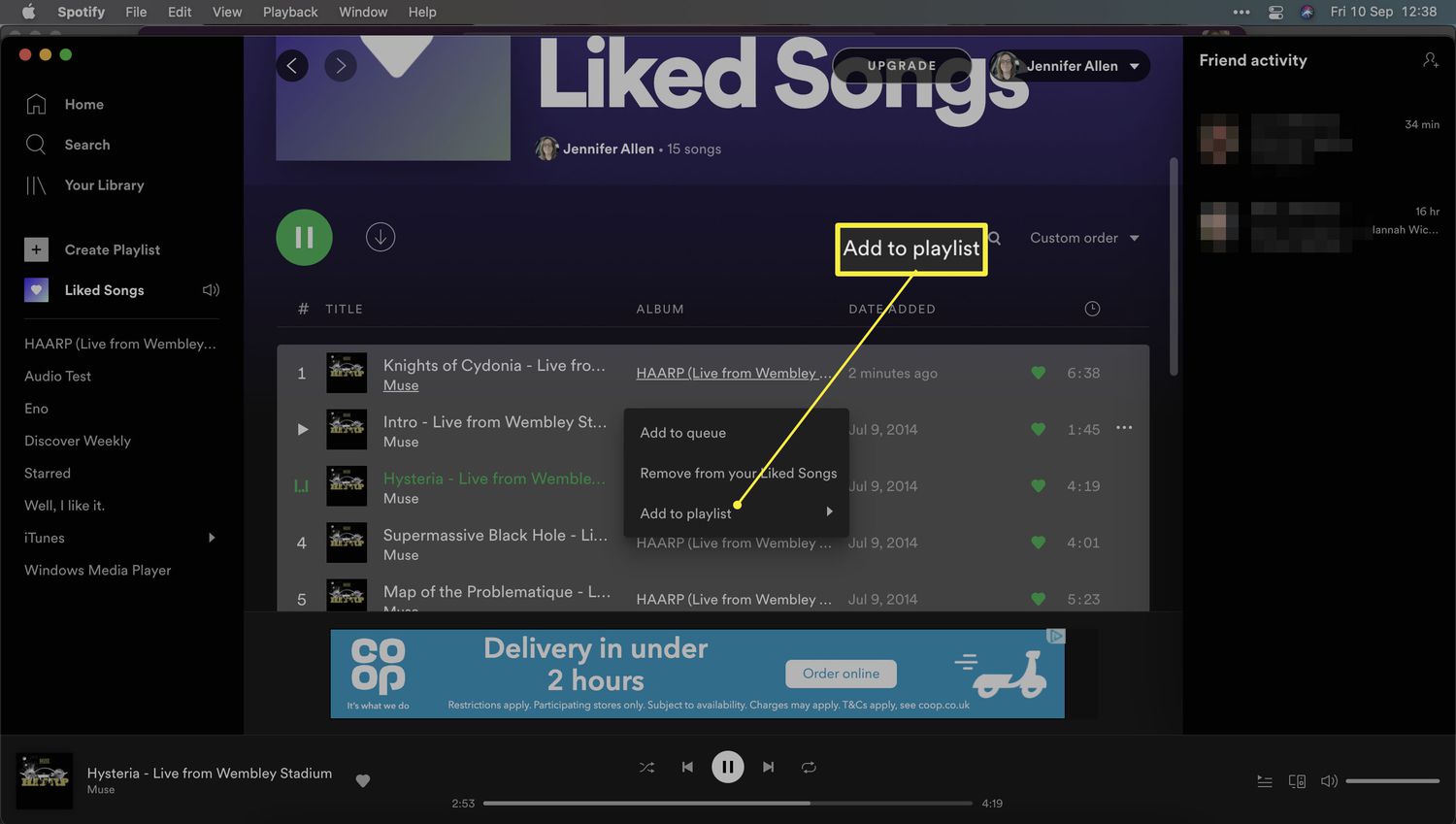
- Group Chat message text, filenames, and new chat attachment copies are encrypted in your browser before upload. ShareIt stores only ciphertext and states it cannot read it.
- Original files in My Files are separate from the chat copies and retain their normal ShareIt controls (password, expiry, one-time links). The service does not claim end-to-end encryption for these ordinary file links.
- The group owner can see who is in the group, but the official page does not specify whether email addresses are visible to all members.
- There are no push notifications, message editing, threads, or bots. The chat is plain text only.
When to Choose a Different Tool
ShareIt.onl Group Chat works best for families who want an invitation-only discussion plus file links. If your family prefers no account for a one-off transfer, SwissTransfer allows up to 50 GB without registration, with optional password protection and availability up to 30 days. For transfers over local Wi-Fi, LocalSend requires no internet or account but must be installed. Proton Drive offers end-to-end encryption for files and metadata, with a free 5 GB plan. Google Drive supports granular permissions and its 15 GB allowance is shared across Google services. WeTransfer’s free account permits up to 10 transfers or 3 GB total in a rolling 30-day period, with transfers available for 1 to 3 days. Apple’s Shared Albums work within the Apple ecosystem, but platform behavior changes by OS version.
Final Advice
Test the workflow with a single photo before inviting the whole family. Confirm that the downloaded file matches the original resolution. Set a recurring calendar reminder to clean up old uploads from My Files every few months. If you need push notifications or message editing, Group Chat is not the right fit—but for a private photo exchange that works across platforms, it delivers exactly what it promises.