To get more hotspot data, you need to add a hotspot add-on or upgrade your plan through your carrier, and the exact steps depend on your provider and device. The most direct path is to purchase additional data from AT&T, T-Mobile, Verizon, or Boost Mobile using their specific app or website menus, rather than looking for a button in your phone's settings.
How to get more hotspot data from your carrier
The exact path to get more hotspot data varies by carrier, but each of the major U.S. providers documents a specific menu route for buying an add-on or one-time pass. Here are the direct steps for each one.
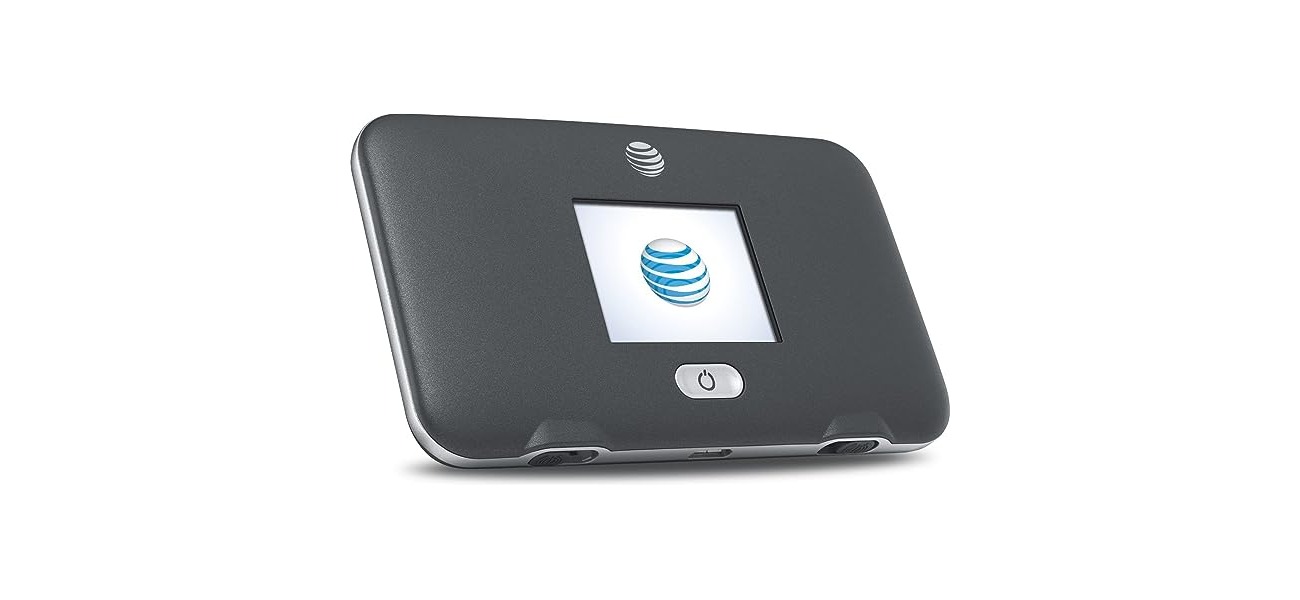
AT&T
- Go to your wireless add-ons on the AT&T website.
- Sign in if asked.
- Choose the line to update by selecting Switch.
- Scroll to Get new add-ons and select Hotspot data.
- Choose Monthly or One time.
- Select Add to device and follow the prompts.
AT&T lists a $15 for 10GB hotspot add-on, available as a one-time purchase for 30 days or as a recurring monthly add-on. The add-on path includes selecting 'Switch' to choose the line to update.
T-Mobile
T-Mobile documents hotspot/data passes in both the website and the T-Life app. On the website, go to Account, then Manage Add Ons and Benefits, or the One-Time Data Pass area after selecting the line. In the T-Life app, open the Account tab, select the line, and under Benefits choose Manage add-ons and data, then One-time Data Pass. The pass can start immediately or on a selected date, and the effective date can be changed in the T-Life app if it is future-dated.
Verizon
Verizon documents Data Boosts for hotspot devices and some connected tablets. If you run out of Mobile Hotspot data, you can add a Data Boost, which gives an extra 5 GB. You can add up to 5 Data Boosts per line, per bill cycle through Customer Service or My Verizon.
Boost Mobile
Boost Mobile documents that Data Hotspot Add-On data is accessible by the Hotspot feature. You can add it in your account online, in the Boost Mobile app, or by contacting Boost Customer Care.
Understanding your hotspot data allowance
Hotspot data is the allowance your carrier provides for tethering, which lets you share your phone's cellular internet connection with other devices like laptops or tablets. Supported devices for hotspot sharing are iPhone or iPad (Wi‑Fi + Cellular). On iPhone, Personal Hotspot uses the cellular data connection of an iPhone or iPad (Wi‑Fi + Cellular) and is only available with an activated carrier plan that includes Personal Hotspot service. Apple notes Personal Hotspot uses the cellular line selected for cellular data if the iPhone uses two SIMs. Apple says you cannot use Personal Hotspot to share a Wi‑Fi connection; it shares cellular internet only. On Android, Google's help page covers sharing a mobile connection by hotspot or tethering, but whether hotspot works and whether it is limited is controlled by the device and carrier. On Android, menu names for hotspot settings vary by manufacturer.
Apple and Google document how to turn hotspot on and monitor usage, but neither documents a separate "buy more hotspot data" button in phone settings. Carriers are the ones who document how to buy more hotspot data when that is allowed, which is why the add-on paths above go through carrier apps and account portals. Hotspot data allowances are often separate from or part of your main cellular plan, and the limits exist because carriers control the tethering feature at the network level.
How to monitor your hotspot usage
Monitoring your hotspot usage helps you avoid running out unexpectedly. On iPhone, the Personal Hotspot setting is at Settings > Personal Hotspot, and Apple documents how to turn it on and off from there. On Android, the help page is Share a mobile connection by hotspot or tethering on Android, which covers turning on hotspot and connecting another device, though menu names vary by manufacturer.
For carrier-controlled hotspot limits, the carrier app or account portal is what many carriers document for adding more data. T-Mobile documents usage tracking in its app and website, and most carriers provide data usage alerts. You can also use your phone's built-in data usage tools to see how much data each connected device is consuming, which helps you identify data-heavy apps or devices before you hit your limit.
Frequently Asked Questions
Can I get more hotspot data without upgrading my whole plan?
Yes, most carriers offer a standalone hotspot add-on or one-time data pass. AT&T offers a monthly or one-time hotspot data add-on, T-Mobile offers a One-Time Data Pass, and Verizon offers Data Boosts of 5 GB each.
Why doesn't my phone have a "buy more hotspot data" button?
The purchase path is through your carrier's app or website.
Is hotspot data the same as my regular cellular data?
Not always. Some plans include a dedicated hotspot data allowance, while others draw from your overall data pool. The carrier controls whether hotspot is limited and how it is counted, so check your plan details or carrier app for specifics.
How do I know when I'm close to my hotspot data limit?
Most carriers offer data usage alerts in their apps or websites, and your phone's built-in settings can show how much data each connected device is using. T-Mobile and other carriers document usage tracking in their apps and account portals.
Can I use my hotspot to share a Wi-Fi connection?
No. Apple states that Personal Hotspot shares cellular internet only, not a Wi-Fi connection. On Android, hotspot shares your mobile connection, and whether it works is controlled by the device and carrier.
Can I track my hotspot data usage to ensure I don't exceed my allowance?
Yes, you can track your hotspot data usage through your carrier's app or website, where most providers document usage tracking and alerts. Your phone's built-in data usage tools also show how much data each connected device is consuming, helping you monitor usage and avoid exceeding your allowance.
Related reading: Who Offers Unlimited Hotspot and Checking Data Usage and Account Balance on Carriers.