Resolution is the number of pixels displayed horizontally and vertically on a screen, and it directly determines the sharpness and clarity of an image. Understanding what is resolution helps you choose the right display for your needs and adjust settings for the best visual experience.
What is resolution?
Resolution, in the context of digital displays and images, refers to the number of pixels or dots that can be displayed horizontally and vertically. It is a measure of the sharpness and clarity of an image or display. The higher the resolution, the more pixels are packed into a given area, resulting in greater detail and definition. Resolution is typically measured in terms of width x height, such as 1920x1080 (also known as Full HD or 1080p) or 3840x2160 (commonly known as 4K Ultra HD).
Key takeaways
- A higher resolution means more pixels and greater detail, while a lower resolution may result in a blurry or pixelated image.
- You can adjust resolution in your device's display settings to balance sharpness with text size and performance.
Understanding pixels and Pixel density
A pixel is the smallest unit of a digital image, represented by a single dot on the screen. These dots are arranged in a grid-like pattern to form the complete image. Pixel density refers to the concentration of pixels within a given area. Pixel density is calculated by dividing the total number of pixels by the area of the display. Higher pixel density results in sharper images because more pixels are packed into each inch of the screen, making individual pixels less visible to the eye.
Common display resolutions
Common display resolutions include High Definition (HD) at 1280x720 pixels, Full HD (FHD) at 1920x1080 pixels, and 4K (Ultra HD or UHD) at 3840x2160 pixels. HD is often used for smaller screens or budget devices, Full HD is the standard for most monitors and laptops, and 4K provides the highest detail for large screens, professional photo editing, and immersive gaming.
Aspect ratio explained
The aspect ratio of a display is the proportional relationship between its width and height. Common aspect ratios include 16:9 (widescreen) and 4:3 (standard). Different aspect ratios affect how content is displayed on the screen; for example, 16:9 is ideal for movies and modern games, while 4:3 may be used for older applications or specific professional work.
How to change resolution in Windows 11
- Right-click on the desktop and select "Display settings."
- Scroll to the "Display resolution" section.
- Choose from the dropdown menu.
- Click "Keep changes" to confirm.
How to change resolution in macOS
- Go to the Apple menu and select "System Settings."
- Click "Displays."
- Select your desired resolution from the options, which are often presented from "Larger Text" to "More Space."
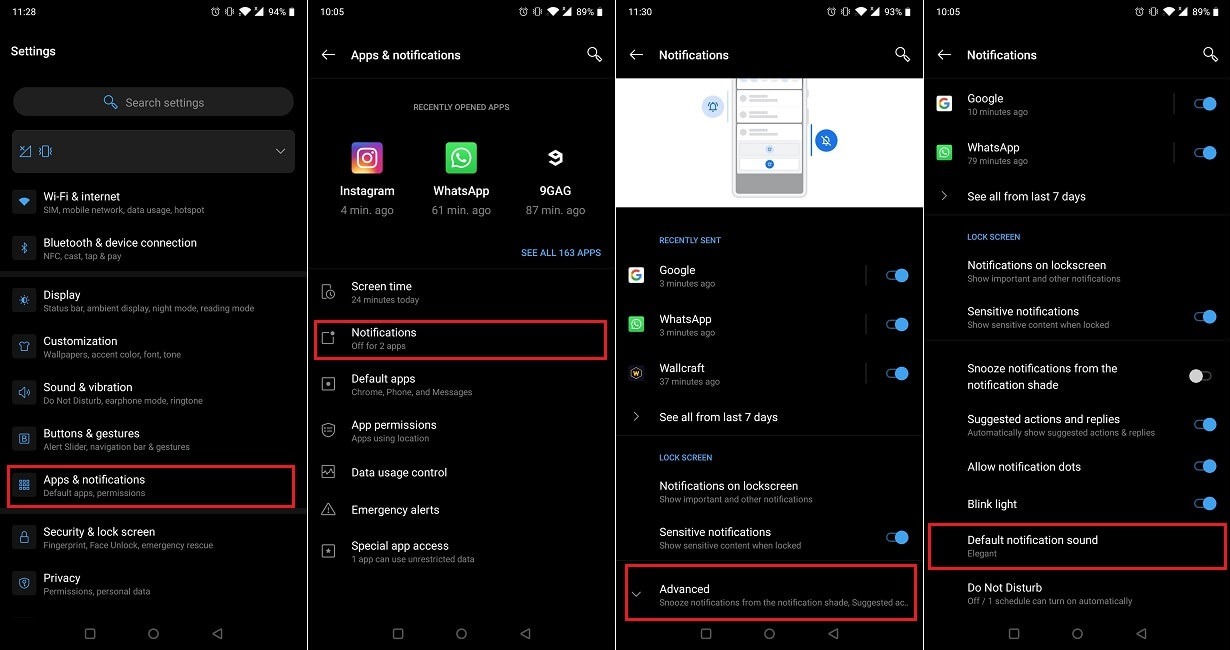
For mobile devices, you can adjust similar settings in your phone's display and home screen settings to optimize text size and visual clarity.
Frequently Asked Questions
Does higher resolution always mean better image quality?
Higher resolution provides more detail, but overall image quality also depends on factors like screen size, pixel density, and the quality of the content being displayed. On a small screen, the difference between Full HD and 4K may be less noticeable.
What resolution should I use for gaming?
For gaming, Full HD (1920x1080) offers a good balance of visual quality and performance on most systems, while 4K provides the sharpest image but requires more powerful hardware to run smoothly.
Can I set a resolution higher than my monitor's native resolution?
You can, but the display will scale the image down, which often results in blurry text and reduced clarity. It is generally recommended to use your monitor's native resolution for the best results.
Why does text look too small at higher resolutions?
Higher resolutions pack more pixels into the same screen size, making interface elements appear smaller. You can adjust scaling settings in your operating system to enlarge text and icons without changing the resolution.
Related reading: What Is Rosetta?, Why Is The Light On My Fitbit Dim, and How To Increase Brightness On Fitbit Inspire 2.