






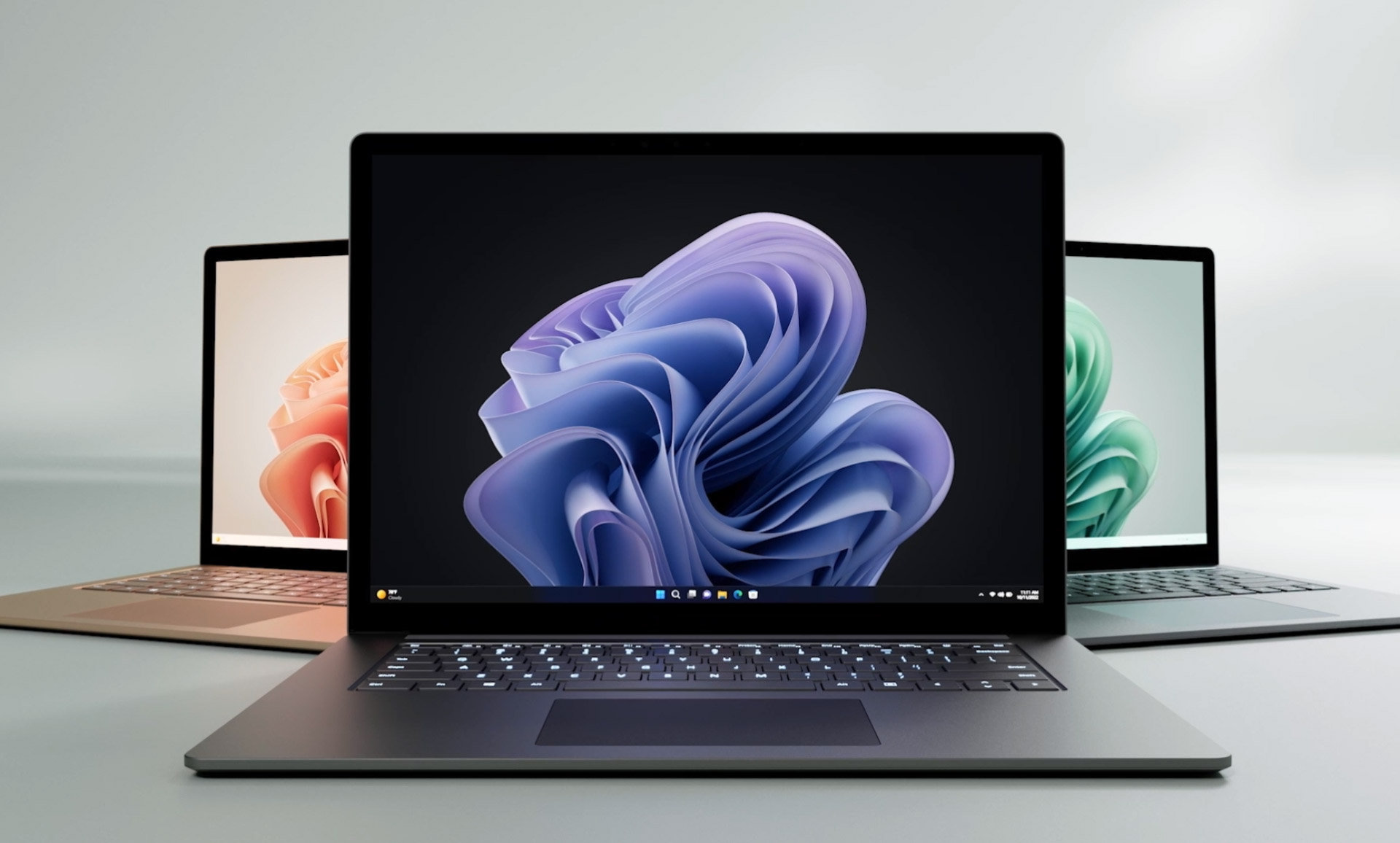
To connect hotspot to laptop, turn on your phone's mobile hotspot and connect your laptop to it like any Wi‑Fi network. This gives you internet access on your laptop wherever you have cellular service, without needing a regular Wi‑Fi network.
How to connect a hotspot to your laptop via Wi‑Fi
The most common way to connect your laptop to a phone’s hotspot is through Wi‑Fi. On an iPhone, go to Settings, tap Cellular, then tap Set Up Personal Hotspot (or just Personal Hotspot if already set up) and toggle “Allow Others to Join” on. Your phone will display a network name (SSID) and a Wi‑Fi password that you’ll need to enter on your laptop.
On a Windows laptop, click the Wi‑Fi icon in the taskbar, find your phone’s hotspot network name in the list, select it, enter the password, and click Connect. On a macOS laptop, click the Wi‑Fi icon in the menu bar, choose your iPhone from the “Personal Hotspots” list, and enter the password if prompted. If both your Mac and iPhone are signed into the same Apple ID, the connection can be faster and may not require a password.
Connect your laptop using Bluetooth
Using Bluetooth to connect your laptop to a phone’s hotspot saves battery and doesn’t occupy the Wi‑Fi radio, which can be useful when you need to stay connected to a separate Wi‑Fi network. To do this, ensure Bluetooth is enabled on both your phone and laptop. On the laptop, open Bluetooth settings, select your phone to pair them, and then follow the on‑screen prompts to complete the connection. Once paired, the laptop can use the phone’s internet connection through Bluetooth tethering.
Use a USB cable for a wired hotspot connection
A USB cable provides the most stable and fastest connection, ideal for large downloads or video calls. To connect an iPhone to a Windows PC, plug the iPhone into the PC with a USB cable and ensure the latest version of Apple Devices or iTunes for Windows is installed, this provides the necessary drivers. For an iPhone to Mac connection, use the USB cable that came with the iPhone. If prompted, tap “Trust” on the iPhone and “Allow” on the Mac. The connection will then appear as a network interface on your laptop.
Troubleshooting common hotspot connection issues
If the hotspot doesn’t connect, start by checking the signal strength on your phone, moving closer to the phone or away from obstructions can help. Verify that you’ve entered the correct network name and password; a single typo will prevent connection. Also confirm that your cellular plan supports hotspot usage, as some carriers charge extra fees or impose separate data allowances for connecting devices to a hotspot. If you are using a mobile hotspot device, ensure it is turned on and broadcasting the Wi‑Fi signal. Outdated or incompatible Wi‑Fi adapter drivers can cause hotspot connection issues; update drivers by visiting the manufacturer's website for your specific laptop model. Antivirus software or firewalls can block the hotspot connection; temporarily disable them to test, then adjust security software settings to allow the connection. If the connection drops or is slow, check whether you’ve reached your hotspot data limit, contact your carrier to confirm. Overloaded hotspot device: if multiple devices are connected, disconnect unnecessary ones to free up bandwidth and improve performance. Finally, if you’re using a dedicated hotspot device, try turning it off and on again to clear temporary issues.
Frequently Asked Questions
Can I connect multiple laptops to a single hotspot?
Yes, most modern smartphones support multiple simultaneous connections. Check your phone’s hotspot settings to see the current number of connected devices; the limit depends on your phone model and carrier. The number of devices you can connect to a laptop's hotspot may be limited by the laptop's hardware capabilities or the internet service provider's restrictions.
What if my laptop doesn't have Wi‑Fi capability?
If your laptop lacks built‑in Wi‑Fi, you can still use a hotspot by connecting via USB tethering or Bluetooth. Alternatively, a USB Wi‑Fi adapter can add Wi‑Fi capability to your laptop.
How do I use a Chromebook as a hotspot?
To use a Chromebook as a hotspot, open Settings, go to Network, then “Mobile data” or “Hotspot,” and toggle “Share my internet connection.” Other devices can then connect to the Chromebook’s Wi‑Fi network.
Does hotspot usage use my phone's data plan?
Yes, hotspot usage consumes data from your phone’s cellular plan. Some plans include a separate hotspot data allowance, while others may throttle speeds or charge extra after a certain limit. Check with your carrier for details.
Why does my laptop keep disconnecting from the hotspot?
Frequent disconnections can be caused by weak cellular signal, reaching your hotspot data cap, or the phone’s power‑saving settings that turn off the hotspot after inactivity. Moving the phone closer or adjusting power settings may help.

















