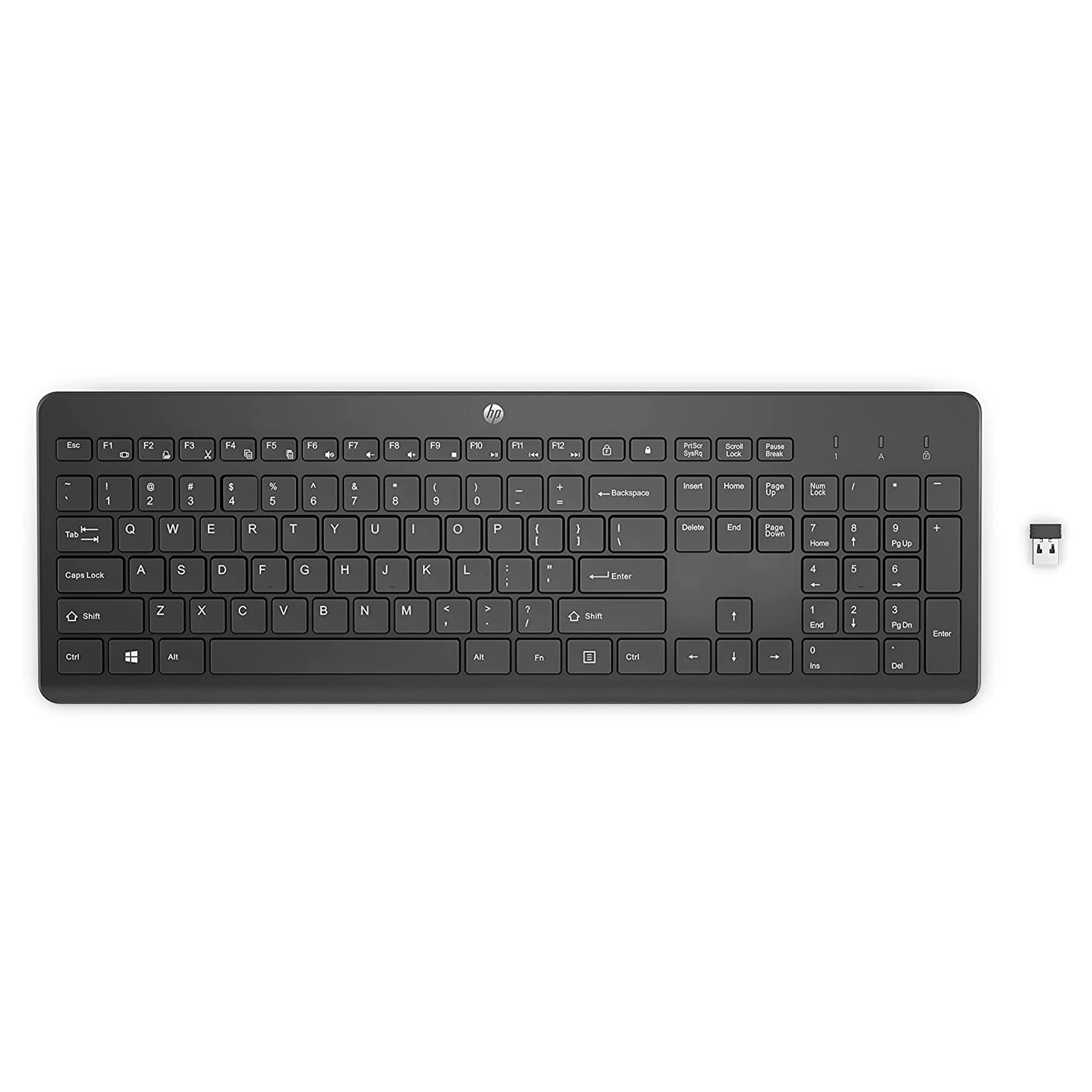
To connect an HP wireless keyboard, press and hold Bluetooth button 1 or 2 on the keyboard for three seconds until the white pairing light blinks, then select the matching device name from your computer or phone's Bluetooth settings. This process works for Windows PCs, laptops, iPhones, and Android devices, making it easy to use the same keyboard for typing on a computer and then switching to reply to messages on a phone or tablet.
How to connect an HP wireless keyboard
Pairing with a computer or phone
- On the keyboard, press and hold Bluetooth button 1 or 2 for three seconds. The white pairing light will blink to show the keyboard is in pairing mode.
- Complete the pairing within forty seconds, or the keyboard will exit pairing mode and you will need to press the button again.
- On your computer or phone, open the Bluetooth settings menu and turn Bluetooth on if it is not already enabled.
- Under "Available Devices" or "Other Devices," select the entry that matches the button you pressed: HP keyboard bt_1 or HP keyboard bt_2.
- When a six-digit code appears on the screen, type that code on the keyboard.
- The pairing light turns solid white when the connection is successful.
If you use the keyboard with a computer for work and then want to type on a phone or tablet without re-pairing, the keyboard can save connections to two Bluetooth devices at once.
Switching between paired devices
To switch between the two saved Bluetooth connections, press the Computer icon or the Bluetooth button for the device you want to use. The keyboard will disconnect from the current device and connect to the other saved device. This lets you move from typing on a desktop to answering texts on a phone without going through the pairing process again.
Troubleshooting connection problems
If the keyboard will not reconnect, reset it to default settings. Turn the keyboard off using the ON/OFF switch on the back, then turn it back on. After a reset, any previously paired Bluetooth devices must be set up again by following the pairing steps from the beginning. Before resetting, check that the batteries are installed correctly and have enough charge, as low power is a common cause of connection failures. If you have other wireless devices nearby, such as wireless gaming controllers, move them farther away to reduce signal interference.
Frequently Asked Questions
Can this be done on iPhone and Android?
Yes. The pairing is done from the phone's Bluetooth settings menu, where you select the HP keyboard entry and enter the six-digit code shown on the screen.
How many devices can it remember?
You can switch between them using the Computer icon or Bluetooth button without re-pairing.
What if pairing fails?
Reset the keyboard by turning it off and on using the ON/OFF switch on the back, then re-pair previously connected devices. Make sure you complete the pairing within forty seconds after the white light starts blinking.
Does the keyboard work with a USB receiver instead of Bluetooth?
Some HP wireless keyboards include a USB receiver for a direct wireless connection that does not require Bluetooth. If your keyboard came with a receiver, plug it into a USB port on your computer, turn on the keyboard, and it should connect automatically without going through Bluetooth settings.
Why is the pairing light not blinking when I press the Bluetooth button?
Check that the keyboard is turned on using the ON/OFF switch on the back and that the batteries are fresh. If the light still does not blink, replace the batteries and try pressing and holding the Bluetooth button again for a full three seconds.