






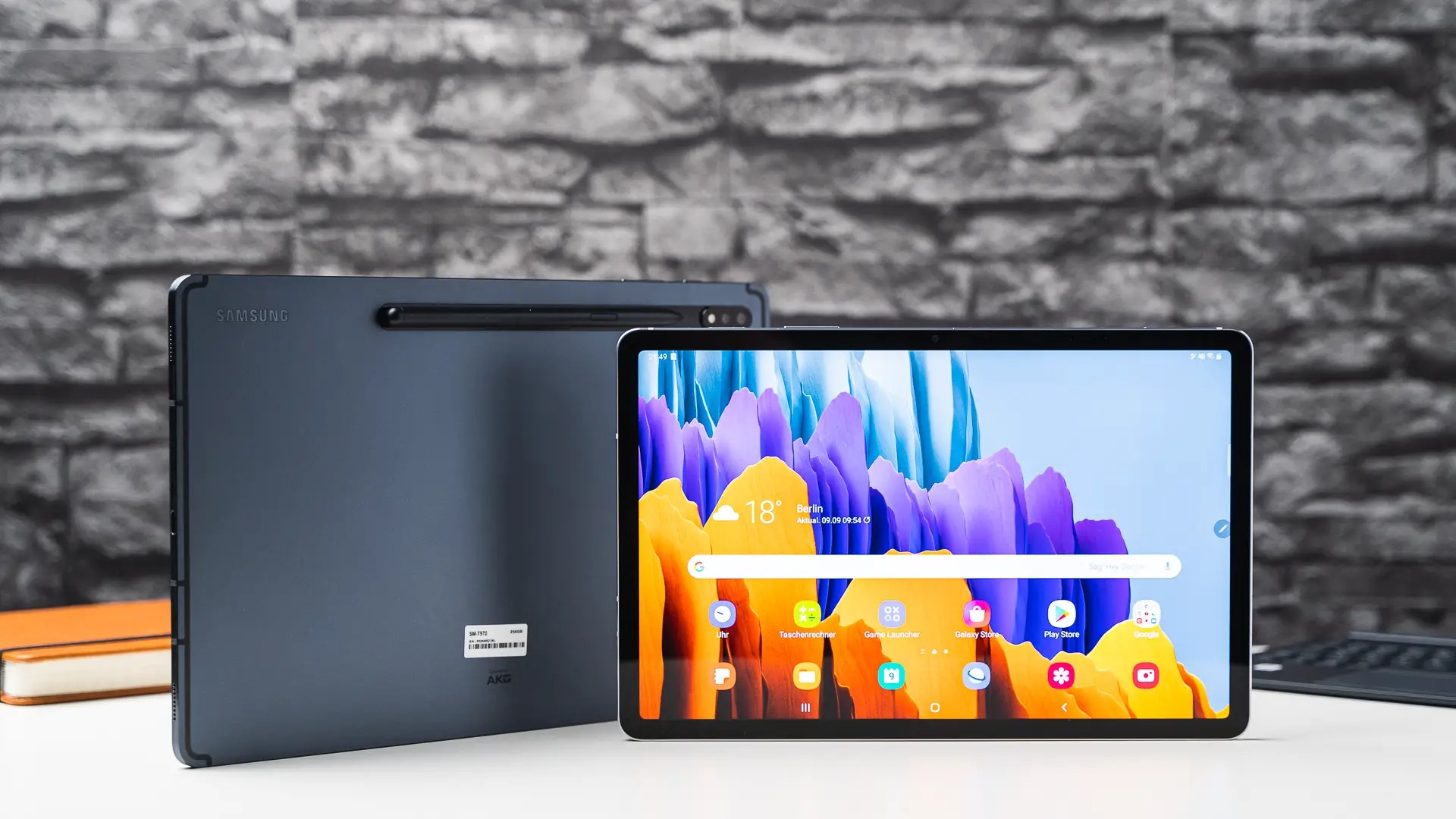
To make your tablet a hotspot and share its internet connection, you first need a tablet with cellular data capabilities and a carrier plan that specifically allows hotspot or tethering. Only then can you turn your tablet into a Wi-Fi network for other devices using your mobile data.
Before you start: can your tablet be a hotspot?
The hard prerequisite is that only tablets with cellular data, and a carrier plan that permits hotspot or tethering, can share their internet connection. Wi‑Fi‑only tablets cannot become hotspots because they lack the necessary mobile radio. Apple, Google, and Samsung all document this feature only for devices with mobile service.
How to make your iPad a hotspot
- Open Settings.
- Tap Personal Hotspot. (Apple also says you may need to go to Cellular > Personal Hotspot.)
- Turn on Allow Others to Join.
- If prompted, check that your wireless carrier has enabled hotspot and that your plan supports it.
How to make your Android tablet a hotspot
- Swipe down from the top of the screen.
- Tap Hotspot. If Hotspot is missing, tap Edit at the bottom left and drag Hotspot into Quick Settings.
- Touch and hold Hotspot to configure settings like the network name and password.
How to make your Samsung Galaxy tablet a hotspot
- Open Settings.
- Tap Mobile hotspot and tethering. On Galaxy phones and tablets, this can also appear as Connections > Mobile Hotspot and Tethering.
- Tap Mobile hotspot, then toggle it on.
Connect another device to your tablet's hotspot
On the device that will connect, open its Wi‑Fi settings, choose the hotspot name, and enter the password. For an Apple device, keep the hotspot screen open until the other device connects. Nearby devices should have Wi‑Fi and Bluetooth turned on to see the hotspot. If hotspot connection issues occur, restart both the tablet and the connecting device, ensure stable cellular data, and verify the hotspot is enabled with the correct password.
Change your hotspot name and password
Apple
In Settings > Personal Hotspot, tap Wi‑Fi Password. Apple requires at least 8 ASCII characters and does not support non‑ASCII symbols.
Samsung
Go to Settings > Mobile hotspot and tethering > Mobile hotspot > MORE > Configure Mobile hotspot. Change the network name and password, then tap SAVE.
Android
Touch and hold Hotspot in Quick Settings. Under Security, tap None if you do not want a password. Some devices also allow setting a data limit for the hotspot to avoid excessive data usage, setting a timeout that determines the duration of inactivity before the hotspot turns off automatically, and specifying the IP address range for the hotspot network.
Maximize compatibility on newer iPads
Apple includes a Maximize Compatibility toggle in Personal Hotspot settings for iPhone 12 or later, iPad Pro 11‑inch (3rd generation or later), iPad Pro 12.9‑inch (5th generation or later), and iPad mini (6th generation). This setting can help older devices or those that can’t detect the hotspot on some network bands.
Frequently Asked Questions
Can I use my tablet as a hotspot?
Only if it has cellular data and your carrier plan allows hotspot or tethering. Wi‑Fi‑only tablets cannot act as hotspots.
How many devices can connect to my tablet's hotspot?
The number varies by tablet model and carrier. Check your device’s specifications or your carrier’s tethering policy for the exact limit. Some devices allow limiting the number of devices that can connect simultaneously.
Does using my tablet as a hotspot use my mobile data?
Yes. Every device connected to your hotspot uses data from your cellular plan. Data‑intensive activities like video streaming will consume more.
Will I be charged extra for using hotspot?
Some carriers require a specific plan or charge an additional fee for tethering. Check your plan details or contact your carrier to confirm any extra costs.
Can I use my tablet as a hotspot while roaming?
Roaming hotspot availability depends on your carrier’s roaming agreements and policies. Check with your carrier before using the hotspot while roaming to avoid unexpected charges.
For the wider topic, see connecting devices to a hotspot.

















