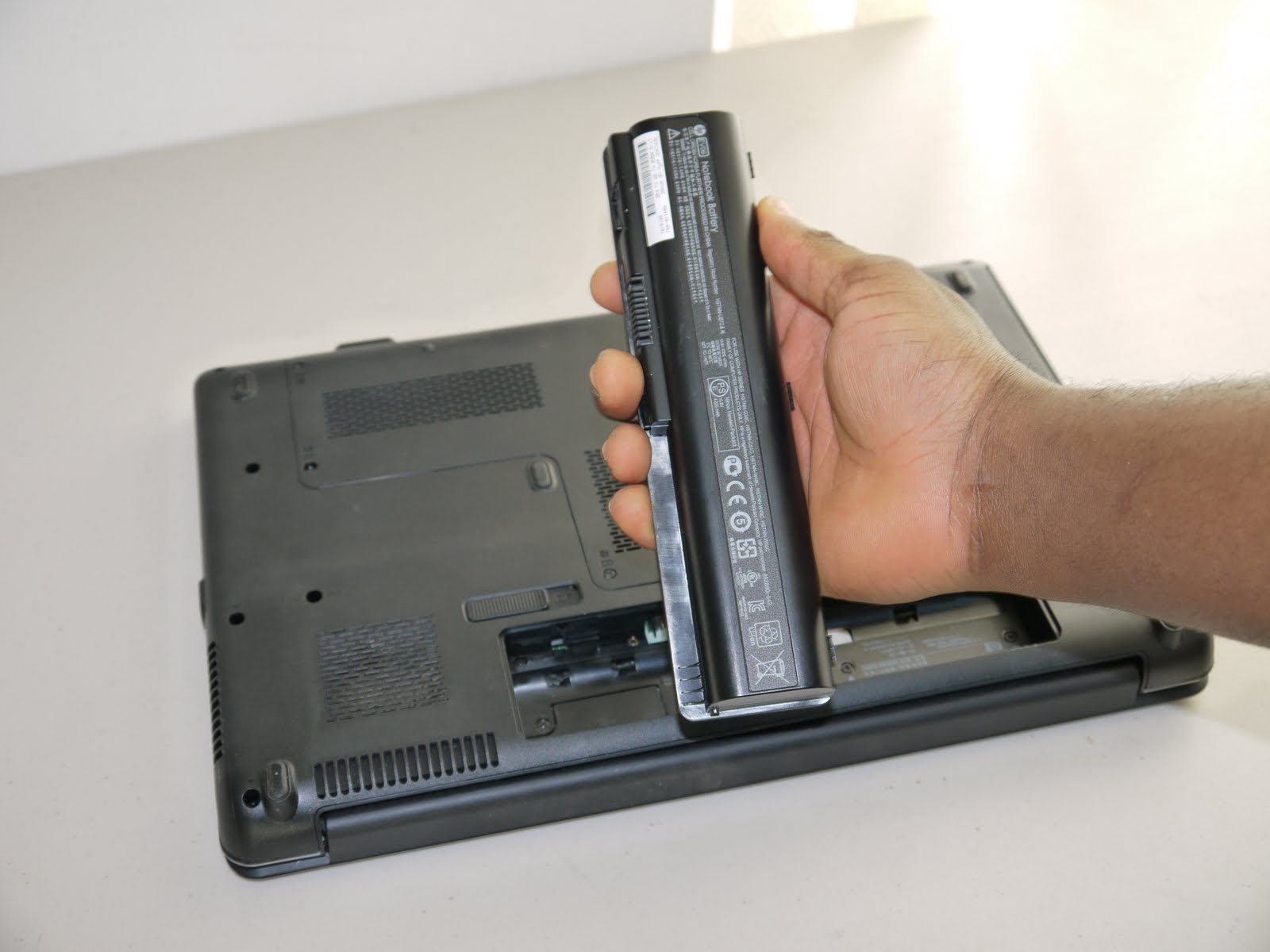
To remove an HP laptop battery, you must first identify which type of battery your model has, as the removal process differs significantly between user-replaceable and internal batteries. For user-replaceable batteries, you simply shut down the laptop, slide the battery lock latch to unlock it, then slide the battery release latch to release and lift the battery out. For internal batteries, you must remove the base enclosure, disconnect the battery cable, and unscrew the battery before lifting it off the alignment pins.
Before you remove your HP laptop battery: identify your model type
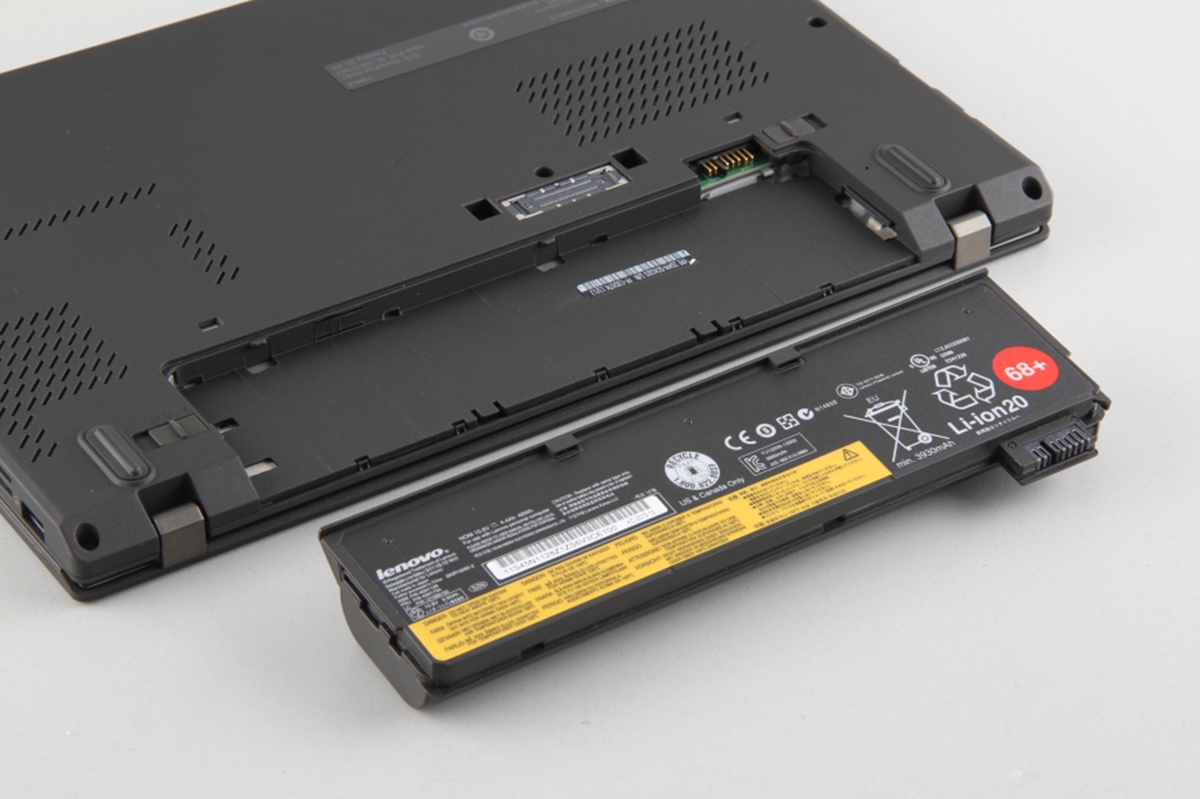
HP laptops generally fall into one of two categories: those with a user-replaceable battery and those with an internal battery. User-replaceable batteries are accessible from the bottom of the laptop and are held in place by latches you can operate without tools. Internal batteries are sealed inside the chassis and require disassembly of the base enclosure to access. To determine which type you have, look at the bottom of your laptop for a battery icon or a visible latch mechanism. If you see a sliding latch or a battery-shaped icon, you likely have a user-replaceable battery. If the bottom panel is smooth with no visible battery release, your model likely has an internal battery that requires opening the case.
How to remove a user-replaceable HP laptop battery
This method applies to HP notebooks with an external, removable battery. The process is straightforward and requires no tools.
- Shut down the HP laptop completely and disconnect it from any power source.
- Place the laptop upside down on a flat, stable surface with the battery facing you.
- Locate the battery lock latch on the bottom of the laptop. Slide this latch to the unlock position.
- Locate the battery release latch, which may be marked with a battery icon. Slide this latch to the release position to partially eject the battery.
- Lift the front edge of the battery and remove it from the battery bay.
After releasing the latch, you should feel a slight click or hear a soft pop, indicating the battery is free. Grip the battery firmly but gently and lift it straight out of the bay, taking care not to pull on any attached cables.
How to remove an internal HP laptop battery
For HP models with a sealed, internal battery, the removal process requires opening the laptop chassis. This procedure is more involved and should be done carefully to avoid damaging internal components.
- Shut down the laptop and disconnect it from all power sources.
- Remove the base enclosure by unscrewing the screws that secure it to the chassis. The number and size of screws vary by model.
- Once the base enclosure is removed, locate the battery cable connected to the motherboard or system board. Disconnect this cable before removing the securing screws.
- Remove the screws securing the battery to the chassis. These screws hold the battery in place on alignment pins.
- Lift the battery off the alignment pins and remove it from the laptop.
HP service videos show that the exact screw count and screw sizes differ across notebook models, so consult your specific model's service documentation if you are unsure. After disconnecting the battery cable and removing the securing screws, the battery should lift off the alignment pins without resistance.
Safety tips and what to do next
Before removing any battery, ensure the laptop is completely powered down and unplugged. Handle the battery with care, avoiding excessive force or bending. After removal, inspect the battery for signs of damage such as bulging, leaking, or corrosion. If you notice any abnormalities, dispose of the battery properly and replace it with a compatible unit. If you are removing the battery for long-term storage or to perform maintenance, keep it in a cool, dry place away from direct sunlight. For related maintenance, you may also need guidance on replacing watch and device batteries, which requires a different set of tools and precautions than laptop battery removal.
Frequently Asked Questions
Can every HP laptop battery be removed this way?
No. HP documents two distinct procedures: one for user-replaceable batteries using latches, and another for internal batteries requiring disassembly. The correct method depends entirely on your specific HP model.
Does HP say to use the battery icon to find the latch?
Some HP model instructions identify the release latch with a battery icon, but not all models include this marking. If you do not see a battery icon, look for a small sliding switch or button near the battery bay.
Are screw counts and sizes the same on all HP laptops?
No. HP service videos show different screw counts and screw sizes for different notebooks. Always check your model's specific service guide to avoid stripping screws or damaging the chassis.
Related reading: How To Print From A Mobile To An HP Printer Using An OTG Cable and How To Turn On Privacy Screen On Hp Laptop.