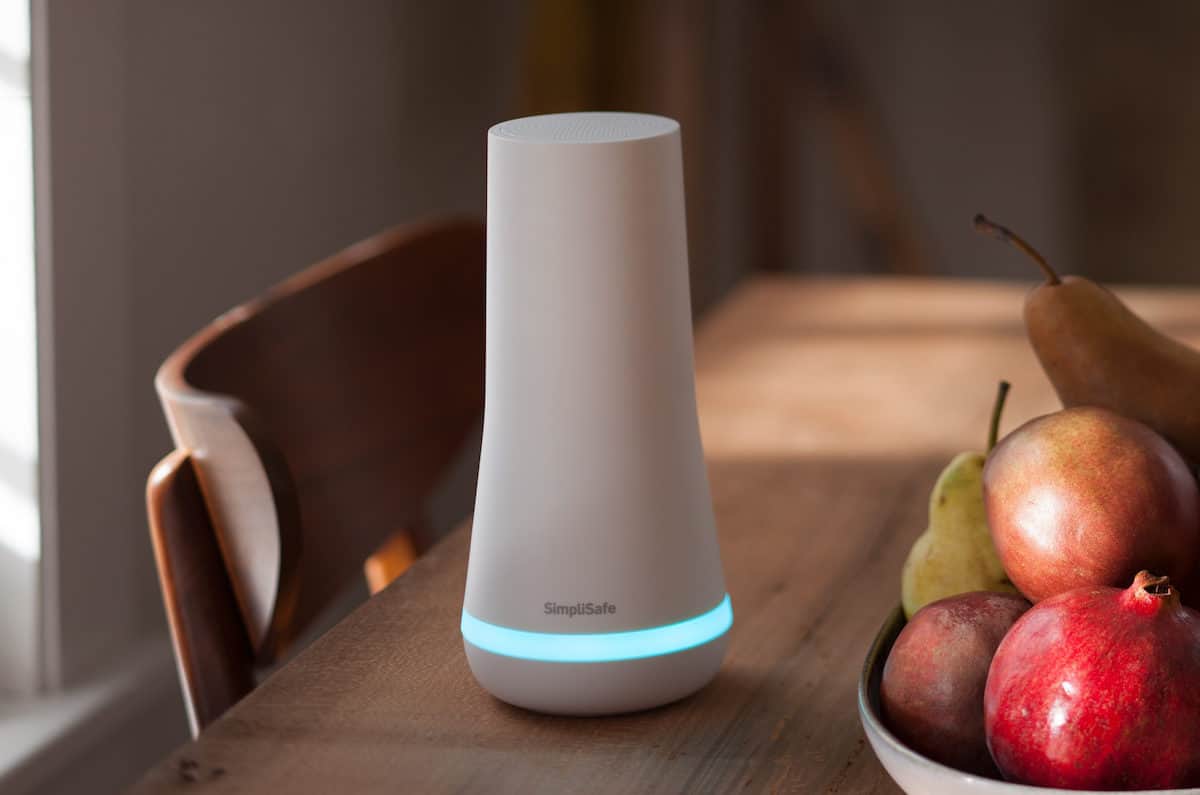
To turn off the blue light on your SimpliSafe Base Station, use the Base Station Light toggle in the SimpliSafe mobile app or on the Keypad. This setting controls the front status LED that glows solid blue when your system is armed.
What the blue light on your SimpliSafe Base Station means
The front blue light on the Base Station is a system-status indicator. A solid blue light means the system is armed in Home or Away mode, or that it is in Test Mode. For the original SimpliSafe Base Station, a blinking blue light means there is a message on the Keypad about an error or recent event, while a solid blue light means the system is armed or in Test Mode. The Base Station also has a separate blue light on the rear called the Wall Power Light, which confirms the power adapter is supplying electricity.
How to turn off the blue light in the SimpliSafe app
- Open the SimpliSafe Mobile App on your smartphone or tablet.
- Tap My System from the bottom navigation bar.
- Select Base Station Settings.
- Tap Status Lights.
- Toggle Base Station Light to Off.
- Tap Save in the upper right corner.
This same path in the app also includes a separate Wall Power Light toggle for the rear light. You can control both lights from your phone settings and controls without needing to walk over to the Base Station.
How to turn off the blue light using the Keypad
- Press Menu on the Keypad.
- Enter your Master PIN.
- Select System Settings.
- Scroll to Base Station Light and turn it Off.
The Keypad also has a separate Wall Power Light setting under the same Menu > System Settings path.
Turning off the rear wall power light
The rear blue light on the Base Station is controlled by the Wall Power Light toggle, found in the same Status Lights area of the app or under System Settings on the Keypad. Turning this off does not affect the front status light, and vice versa.
What to know before you turn it off
SimpliSafe warns that disabling status lights can hide important system alerts and state information. The Base Station light settings control whether the LED illuminates to show system statuses, warnings, and similar events. The wall power light confirms the Base Station is plugged in and receiving power at a glance. Changing these settings may reduce visible status information about the Base Station or overall system state.
Frequently Asked Questions
Can the blue light always be turned off?
Yes. SimpliSafe documents an Off option for both Base Station Light and Wall Power Light in the settings menus, so both can be disabled whenever you choose.
Can I turn off the blue light on my SimpliSafe base station permanently?
It is not possible to turn it off permanently, only manually when desired.
Is there a way to dim the brightness of the blue light on the SimpliSafe base station?
SimpliSafe does not offer a feature to adjust or dim the brightness.
Does the app path differ by region?
Yes. SimpliSafe’s support pages show a UK-style path using My System > General Settings > Base Station Light on one page, and a newer path using My System > Base Station Settings > Status Lights > Base Station Light on another. Check your app version for the correct path.
Which devices are supported for this setting?
SimpliSafe documents use of the SimpliSafe Mobile App on a smartphone or tablet and the Keypad. The support pages do not list a model-specific phone requirement or app version for this setting.
Will turning off the light affect system performance?
No. The light is only an indicator. Turning it off does not affect the Base Station’s ability to monitor your home security, receive signals from sensors, or sound alarms.
Is there any documented limit to turning off the light?
Related reading: How To Turn Off Blue Light On Ipad, How To Turn Off Blue Light On Roku TV, and How To Turn Off Blue Light On Ring Camera.