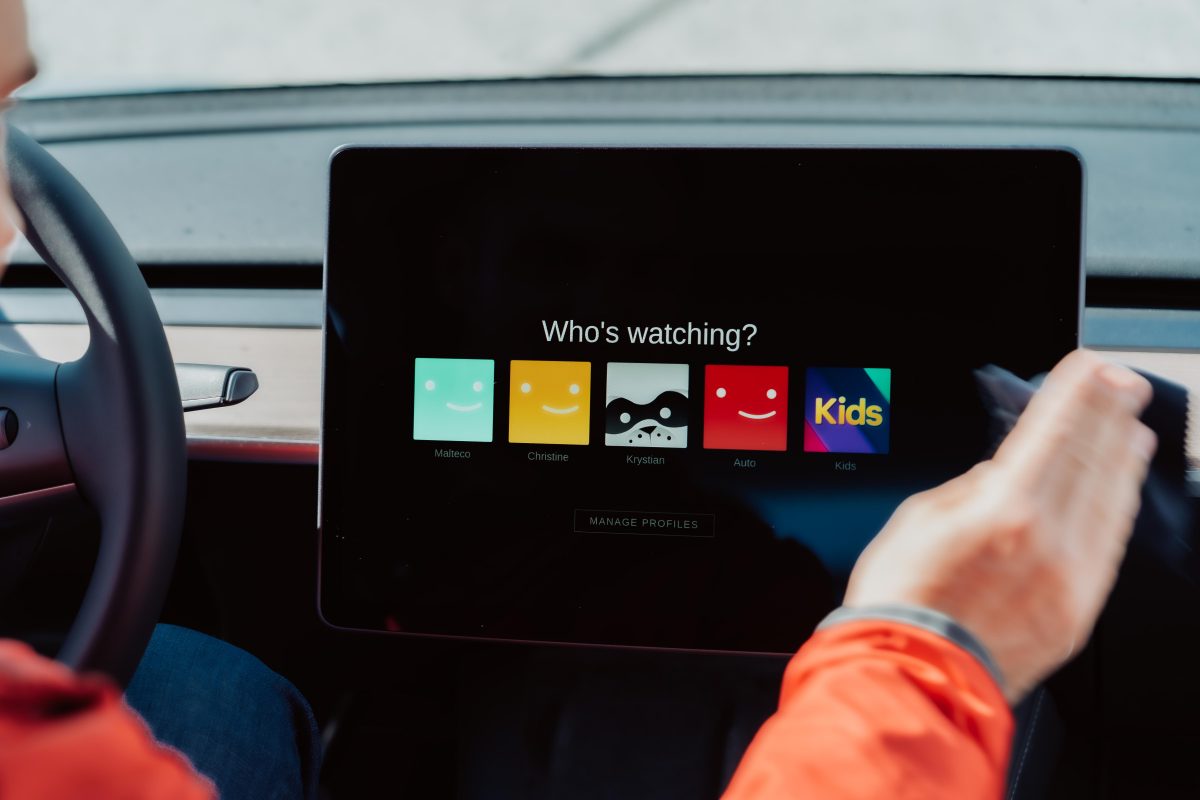
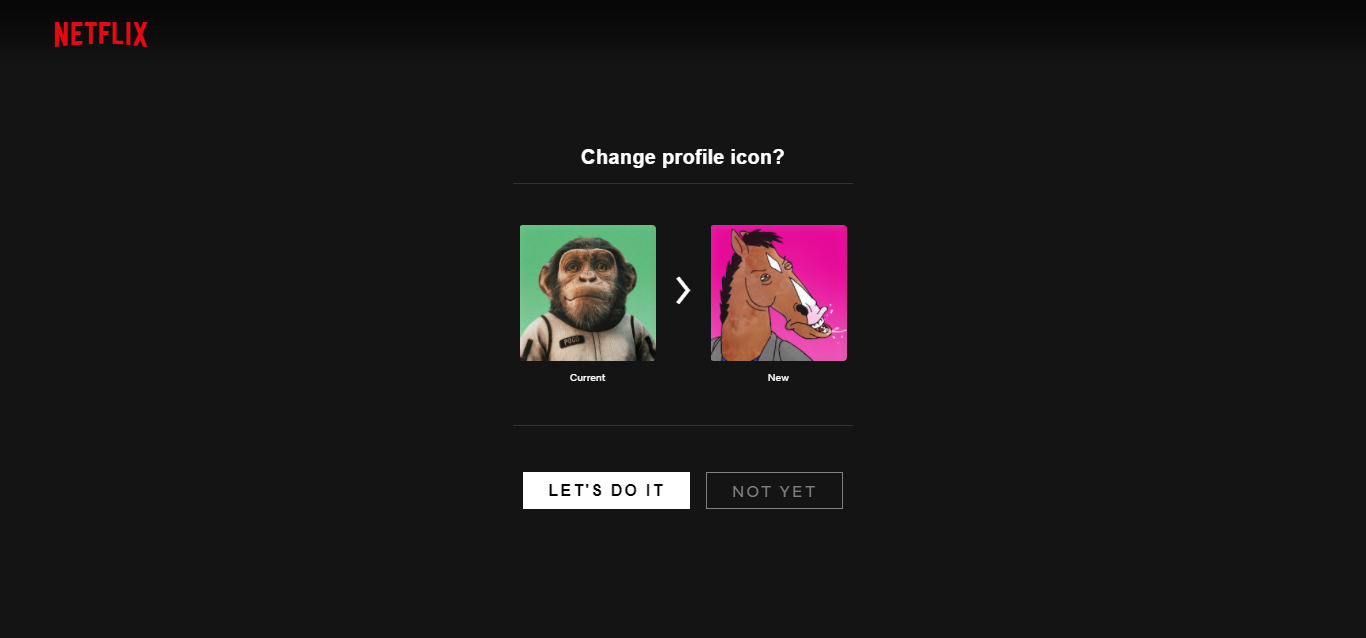
To change your Netflix icon, open the app or website and go to the profile management settings where you can select a new character from Netflix's built-in library. Your Netflix icon is the profile picture that appears on your profile selection screen and helps distinguish your account from others sharing the same subscription.
Your Netflix icon and profile settings explained
Netflix introduced profiles in 2013 to separate viewing data, preferences, and recommendations for different users on the same account. Each Netflix account can have up to five profiles, including a dedicated Kids profile. Beyond choosing a profile icon, you can customize each profile with maturity ratings, title restrictions, and a profile PIN. These settings ensure that each user, whether adult or child, has an appropriate and personalized experience.
How to manage your Netflix icon and profile
To access profile management, use these official paths on the Netflix app or website.
On the Netflix app (iPhone and Android)
- Open the Netflix app and tap My Netflix in the lower right corner.
- Tap your profile name at the top of the screen.
- Select Manage Profiles.
- Choose the profile you want to edit.
- Tap the pencil icon on your current profile icon to see available icons.
- Select a new icon from the provided packs and tap Save.
On the Netflix webpage
- Go to the Account page from your browser.
- Select Profiles, then choose the profile you want to change.
- Click the pencil icon on your current profile icon.
- Choose a new icon from the available packs and confirm the change.
Some icon packs appear only on one platform, such as the app or the web browser, and not the other.
How to set maturity and title restrictions
Maturity ratings and title blocking are profile-level controls that limit what content a profile can access.
Setting maturity ratings on the app
- Go to My Netflix > Menu > Manage Profiles.
- Select the profile you want to edit.
- Tap Viewing Restrictions.
- Choose Maturity Rating and select the appropriate age level (e.g., All, 7+, 13+, 16+, 18+).
- Save the changes.
Setting maturity ratings on the web
- Go to Account > Profiles.
- Select the profile and click Adjust Parental Controls.
- Verify your identity if prompted.
- Set the maturity rating and click Save.
Blocking specific titles
While in the same viewing restrictions menu, you can block specific shows or movies by entering their titles in the provided text bar. The auto-fill feature helps you find titles available on Netflix. If settings do not appear immediately, switch to another profile and back, or sign out and sign in again.
Game maturity ratings
For games, Netflix provides a separate path: My Netflix > Menu > Manage Profiles > choose profile > Viewing Restrictions > Maturity Rating.
Understanding the kids profile and profile pin
A Kids profile locks available content to shows and movies rated for children. You can enable this by checking the Kids Profile option in the profile editing menu. Additionally, you can protect any profile with a 4-digit PIN. A PIN-protected profile displays a lock icon on the profile selection page, requiring the PIN to access that profile's content and settings.
Final notes on customizing your Netflix profile
All profile customizations, changing your Netflix icon, adjusting maturity ratings, blocking titles, or setting a PIN, are made through the Manage Profiles area. Netflix does not support using personal photos, Facebook-linked icons, or Chrome extensions as official profile icons. The Facebook account linking option for profile icons is only available to users who linked their accounts when Netflix previously offered the feature. The 'Custom Profile Picture for Netflix' Chrome extension only works on desktop Google Chrome, and the custom icon is only visible on browsers with the extension installed and logged into that same Netflix account. The icon choices are limited to what Netflix provides in its built-in icon packs, which vary by region and are occasionally updated. You can also personalize your profile by changing names and labels on mobile, which helps keep each profile distinct for different household members.
Frequently Asked Questions
Can I use a photo I took as my Netflix profile icon?
No, Netflix does not offer an option to upload personal photos as profile icons. The only official choices are the icons provided in Netflix's built-in icon packs.
Why don't I see the same icon packs as someone else?
Icon packs can vary by region and may appear only on the app or only on the web. Netflix occasionally updates or removes packs, so availability changes over time.
Do profile icons affect my recommendations or viewing history?
No, changing your profile icon is purely cosmetic. It does not impact your recommendations, viewing history, or any other personalized settings within the profile.
Can I change the icon on a Kids profile?
Yes, you can change the icon on a Kids profile using the same Manage Profiles steps. The icon choices for Kids profiles may be limited to child-friendly characters.
What happens if I forget my profile PIN?
You can reset the PIN by going to Account > Profiles > Adjust Parental Controls for that profile and following the prompts to create a new 4-digit PIN.
Related reading: MovieBox Pro: What Is It Exactly and Is It Safe for You?.