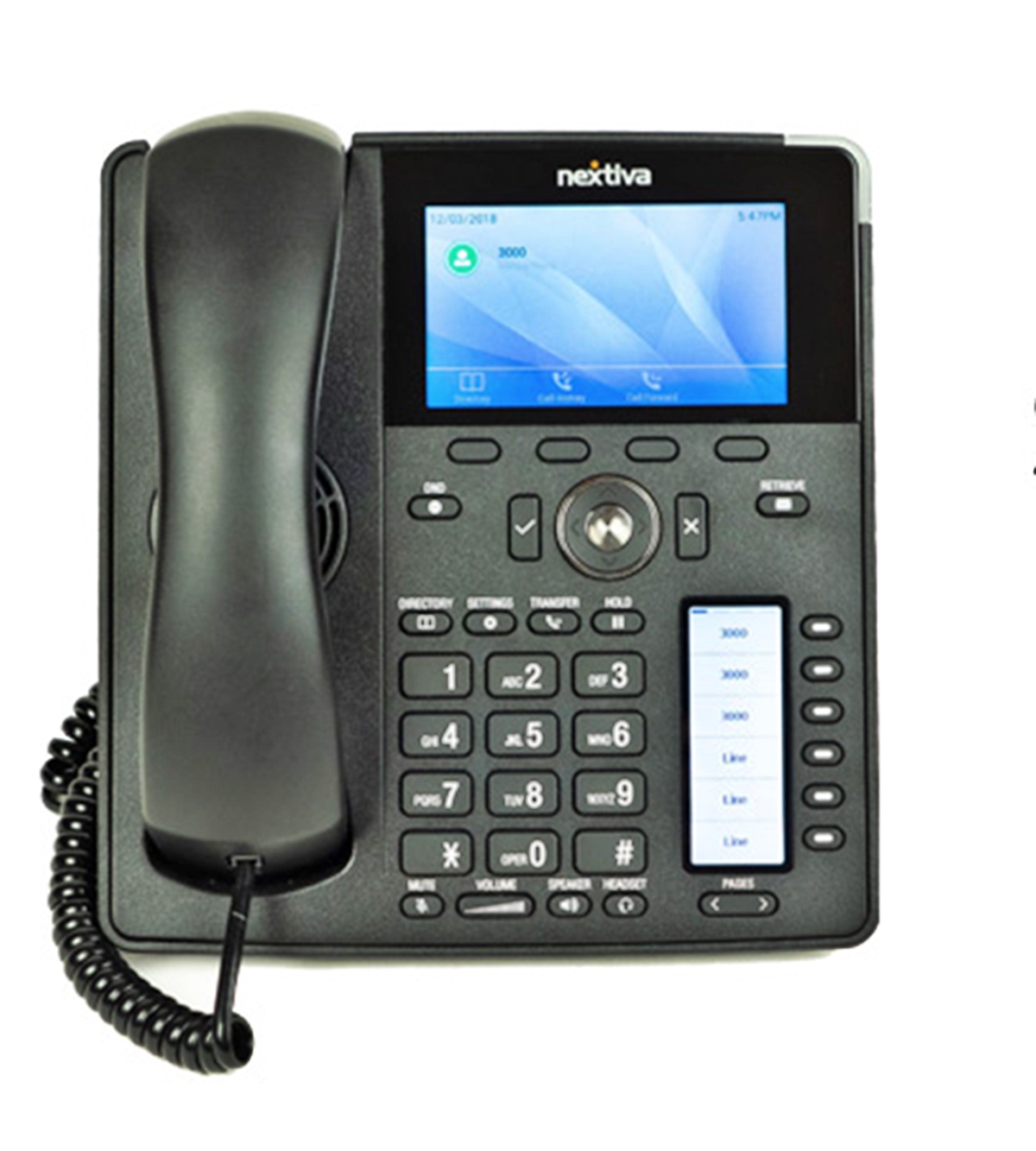
To set up a VoIP phone, you need to connect a VoIP-compatible device to your internet network and register it with a VoIP service provider, which then lets you make and receive calls over the internet instead of a traditional phone line. The core process involves gathering the right equipment, choosing a provider, configuring your network and firewall, and then provisioning the phone itself.
What you need to set up a VoIP phone
Before you choose a provider or touch any settings, gather the essential hardware. The exact device you use depends on whether you want a physical desk phone or a software-based phone on your computer or mobile device.
- VoIP phone or softphone app: A physical VoIP desk phone connects directly to your network. Alternatively, a softphone app turns your computer, iPhone, or Android device into a phone. Providers often give device-specific setup guides for apps such as Bria, Linphone, Zoiper, and 3CX.
- Power adapter or Power over Ethernet (PoE): Your VoIP phone needs power. Use the provided power adapter plugged into an outlet, or if your phone supports PoE, connect it to a PoE switch or injector so it draws power from the Ethernet cable itself.
- Ethernet cable: Connect the phone to your router, switch, or network wall port using a standard Ethernet cable. This carries both data and voice traffic.
- Headset (optional): A headset gives you hands-free communication, which is useful for long calls or if you need to type while talking.
Selecting a VoIP provider
Your provider handles call routing, voicemail, and account management, so the choice matters. Research several providers and compare their offerings, features, and pricing before committing.
- Research providers: Look for reputable companies with a track record of reliable service. Compare their features, pricing, and reviews to find one that fits your needs.
- Choose a subscription plan: Providers typically offer plans tailored to different call volumes and user counts. Consider how many users you have, your expected call volume, and whether you need international calling.
- Check for number porting: If you want to keep your existing phone number, confirm the provider supports number porting. This lets you transfer your current number to the new VoIP service, so you don't have to update your contacts.
- Evaluate additional features: Look for call forwarding, voicemail, conference calling, and mobile app compatibility. If you need to use a landline phone without a landline, a provider with a strong mobile app lets you make and receive calls from your smartphone using the same number.
Network configuration for VoIP phones
VoIP calls are sensitive to network conditions. A properly configured router and firewall are essential for clear audio and reliable registration. The following settings are documented requirements from VoIP providers and firewall guides.
- Ensure sufficient bandwidth: Your internet connection must handle the additional traffic from voice calls without delays or interruptions. Voice calls require a stable, fast connection, so check your upload and download speeds against your provider's recommendations.
- Disable SIP ALG: SIP Application Layer Gateway is a router feature that can send VoIP traffic to the wrong local IP address. Turn it off in your router settings to prevent one-way audio or registration failures.
- Disable SIP transformations: Turn off any SIP transformations or SIP helpers in your router. These features modify SIP packets and can break registration and call setup.
- Enable consistent NAT: Consistent Network Address Translation keeps the same public IP address for all VoIP traffic from your network. Enable this setting so the provider's server can reach your phone reliably.
- Increase UDP timeout to 120 seconds: Set your router's UDP timeout to 120 seconds. This prevents the NAT mapping from expiring during a call, which would drop the connection.
- Open required ports: Open SIP ports 5060 and 6060, and RTP ports 10000-49999 for media traffic. These ports carry the signaling and audio data for your calls.
- Enable QoS and configure port forwarding: Enable Quality of Service on your router to prioritize voice traffic. If your phone is behind NAT and registration fails, set up port forwarding for the required SIP and RTP ports.
Firewall and security settings you must change
Your firewall protects your network, but it can also block VoIP traffic if not configured correctly. The most important change is disabling SIP ALG, which is known to cause problems by sending traffic to the wrong IP address. This results in calls that connect but have no audio, or phones that fail to register entirely.
If you plan to use a mobile softphone app, your firewall must also allow the push notification ports that wake the app when a call comes in. For iOS devices, open outbound TCP ports 443, 2197, and 5223. For Android devices, open outbound TCP port 443. Without these ports, incoming calls may not ring on your mobile app when it is in the background.
Provisioning and registering your VoIP phone
Provisioning is the process of connecting your phone to your provider's server. The steps differ slightly between a physical desk phone and a softphone app, but the goal is the same: give the phone your account credentials so it can register and make calls.
- Create an account with your VoIP provider: Sign up and provide the necessary information, such as your name, address, and billing details. Your provider will give you a phone number and account credentials.
- Register a physical phone: Follow the manufacturer's instructions to enter your provider's server address and your account credentials into the phone's settings menu. Once entered, the phone sends a registration request to the server.
- Provision a softphone app: For mobile apps, the process is simpler. Download the provider's app from the Google Play Store (Android) or App Store (iPhone). Open the app on your phone and scan the QR code displayed on your computer screen. This automatically configures the app with your account settings. 3CX provisioning for Android uses the Google Play Store app, then a QR-code scan from the Web Client profile menu labeled “Scan QR code,” and iPhone provisioning uses the App Store app and the same QR-code flow.
Testing your new VoIP setup
Once your phone is registered, test it thoroughly before relying on it for important calls. A quick test now can save you from troubleshooting later.
- Make a test call: Call a friend, colleague, or a free test number to confirm that calls connect and both parties can hear each other clearly.
- Check audio quality: Listen for echo, static, or delays. If audio is choppy, check your network configuration, especially the QoS settings and bandwidth availability.
- Troubleshoot connectivity problems: If the phone fails to register or calls drop, revisit the firewall settings. Confirm SIP ALG is off, the correct ports are open, and the UDP timeout is set to 120 seconds.
- Update the firmware: Check your phone's settings or the manufacturer's website for firmware updates. Regular updates fix bugs and improve security and call quality.
If you want to keep my landline phone number without service, number porting is the answer: your provider transfers the number to your VoIP account, so you keep your existing number while using VoIP. And if you ever need to set up landline phone service for a second location, the same VoIP equipment and provider account can be extended with an additional device. A VoIP phone gives you the familiar handset experience without the limitations of traditional copper lines, and the flexibility to use it wherever you have internet access.
Frequently Asked Questions
Can I use my existing analog phone with a VoIP service?
Yes, but you need an Analog Telephone Adapter (ATA) that converts the analog signal from your existing phone into digital data for the internet. The ATA connects to your router, and your analog phone plugs into the ATA.
What internet speed do I need for VoIP calls?
VoIP calls typically require a stable connection with adequate bandwidth, but the exact speed depends on your provider and call quality settings. A general rule is to have enough upload and download bandwidth to handle all simultaneous calls without degrading other internet use.
Why is my VoIP phone not registering with the provider?
Registration failures are usually caused by firewall settings, specifically SIP ALG being enabled, or incorrect account credentials. Check that SIP ALG is disabled, the correct ports are open, and your username and password are entered exactly as provided.
Can I take my VoIP phone with me when I travel?
Yes, a VoIP phone works anywhere you have a stable internet connection. Just connect the phone to the local network and it will register with your provider, allowing you to make and receive calls as if you were at home or in the office.