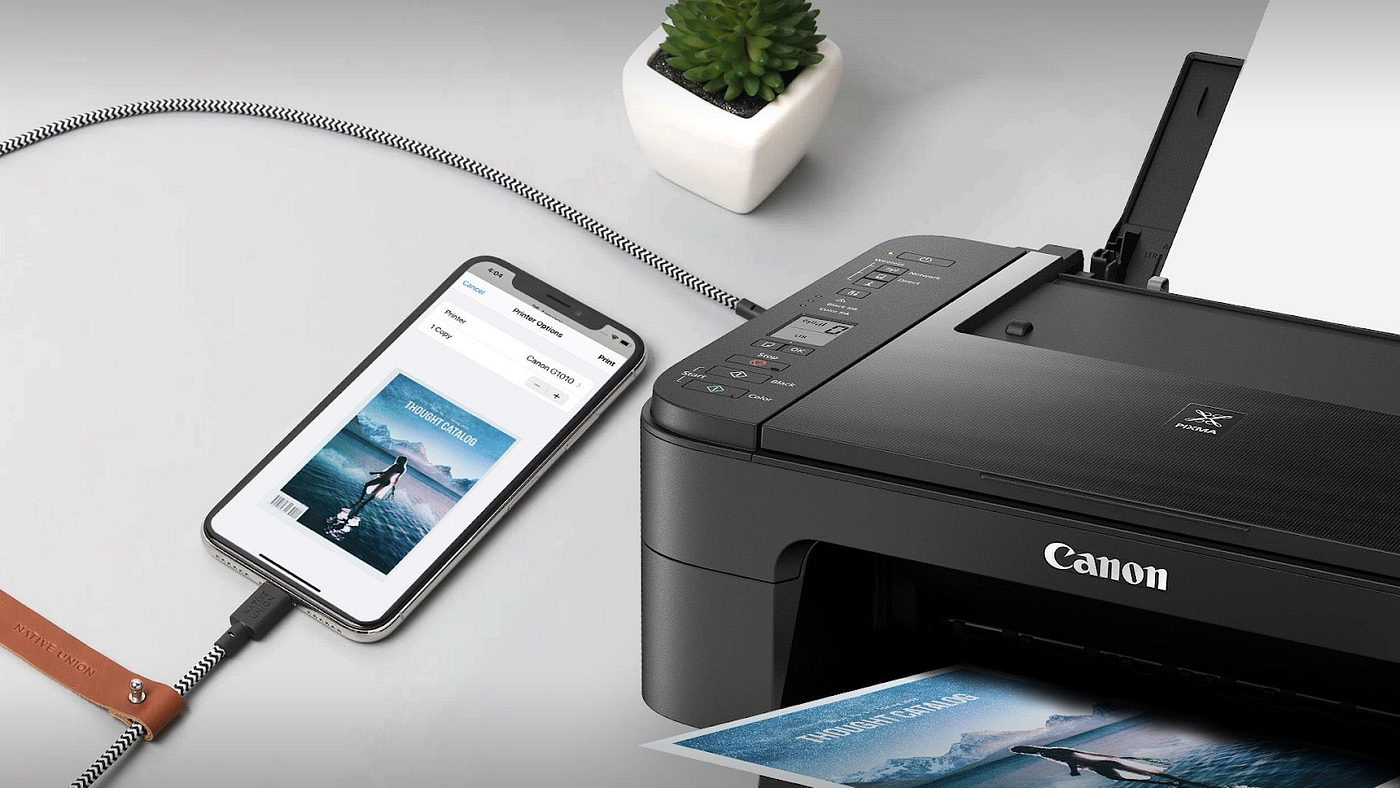
To connect printer to mobile, the two most reliable methods are using your device's built-in wireless printing feature or the printer manufacturer's dedicated app. Whether you need to print a document from an iPhone or a photo from an Android phone, these methods handle the Wireless Printer Setup and Mobile Printing process with minimal hassle.
How to connect printer to mobile with Wi-Fi and apps
Most modern printers support two primary ways to print from a smartphone or tablet. The first is a built-in operating system feature like Apple's AirPrint, which requires no extra software. The second is the printer manufacturer's official app, which offers more control over settings and works across both iOS and Android. Both methods require your mobile device and printer to be on the same Wi-Fi network for the initial connection.
The easiest way: print from iPhone with airprint
AirPrint is the simplest method for iPhone and iPad users. It does not require installing any drivers or manufacturer apps. The only requirement is that both your Apple device and the printer must be connected to the same Wi-Fi network. Most major printer brands support AirPrint.
- Open the document, photo, or email you want to print.
- Tap the Share icon (a square with an upward arrow).
- Select "Print" from the menu.
- Choose your AirPrint-enabled printer from the list.
- Adjust settings like number of copies or page range if needed.
- Tap "Print."
The universal method: use your printer manufacturer's app
For Android users, or when you need advanced features like scanning or adjusting print quality, the manufacturer's app is the best solution. If your printer is not AirPrint or Mopria compatible, download the official app from your device's app store. These apps typically require both devices to be on the same Wi-Fi network.
Common manufacturer apps include the HP app for HP printers, Canon PRINT for Canon printers, and Epson iPrint for Epson printers. The Canon PRINT app (formerly Canon PRINT Inkjet/SELPHY) handles wireless printing and scanning from Android and Apple devices. The Epson iPrint app adds cloud service integration and remote printing features, such as "Email Print" where you send documents to a printer's unique email address.
- Download the manufacturer's app from the App Store or Google Play.
- Open the app and follow the on-screen setup instructions.
- Ensure your mobile device and printer are on the same Wi-Fi network.
- Select the document or photo you want to print from within the app.
- Adjust print settings and tap the print button.
Connect without a router using Wi-Fi direct
Wi-Fi Direct creates a direct wireless link between your mobile device and a compatible printer, bypassing the need for a shared Wi-Fi network. This is useful when you are away from home or office and need to print immediately.
- Enable Wi-Fi Direct on your printer. This is usually found in the printer's network or wireless settings menu.
- On your mobile device, go to Wi-Fi settings and look for the printer's Wi-Fi Direct network name (often includes the printer brand or model).
- Connect to that network. You may not need a password, or it may be displayed on the printer's screen.
- Open the document or photo and select print. Your device should recognize the printer over the direct connection.
Other ways to connect: Bluetooth and USB
Bluetooth printing is an option for some older or specific printer models. Turn on Bluetooth on both devices, put the printer in pairing mode, and select it from your phone's Bluetooth menu. You may be prompted to enter a PIN or confirm a passkey during pairing. For printers without any wireless capability, you can use a USB On-The-Go (OTG) cable to connect your mobile device directly to the printer's USB port. This method may require installing printer drivers on your phone if prompted.
Troubleshooting and faqs
Is Google Cloud Print still available?
No. Google Cloud Print was discontinued on December 31, 2020, and is no longer a supported method for mobile printing. Use AirPrint or a manufacturer app instead.
What if my printer doesn't have wireless capabilities?
You can still connect using a USB OTG cable for a direct wired connection. Alternatively, a wireless print server or adapter can plug into your printer's USB port to add Wi-Fi functionality.
Can I print from any app on my mobile phone?
Yes, once your printer is connected, you can print from most apps that support the print option. Look for the Share icon or a Print option within the app's menu. This includes documents, photos, emails, and web pages.
Do I need the manufacturer's app if my printer supports AirPrint?
Not for basic printing. AirPrint handles standard print jobs without any extra app. However, the manufacturer app gives you access to advanced features like scanning, ink level checks, and custom paper sizes.
Why won't my phone find the printer on the network?
Make sure both devices are on the same Wi-Fi network. Check that the printer is powered on and connected to the network. Restart both the printer and your phone, then try again.