First, understand your print from phone connection options
Before you print from phone to printer, the most important decision is how your device will actually communicate with the hardware. Many people assume all wireless printing from phone setups work the same way. The path splits early. You are either joining a traditional Wi-Fi network that the printer is already on, or you are creating a direct, cable-based link. A mobile hotspot usually counts as a regular Wi-Fi network to the printer. It is not a short-range direct connection. Do not be surprised if the printer treats it like any other router.
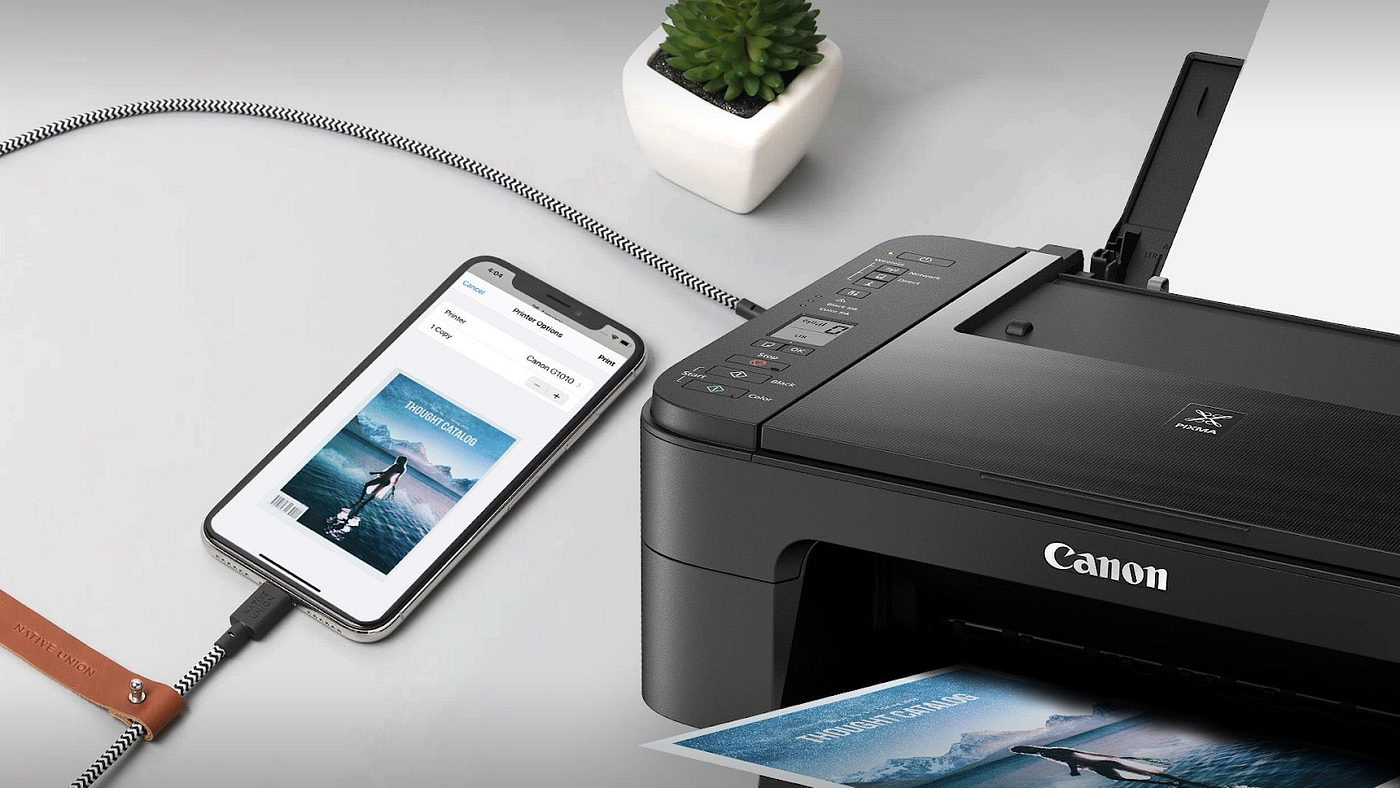
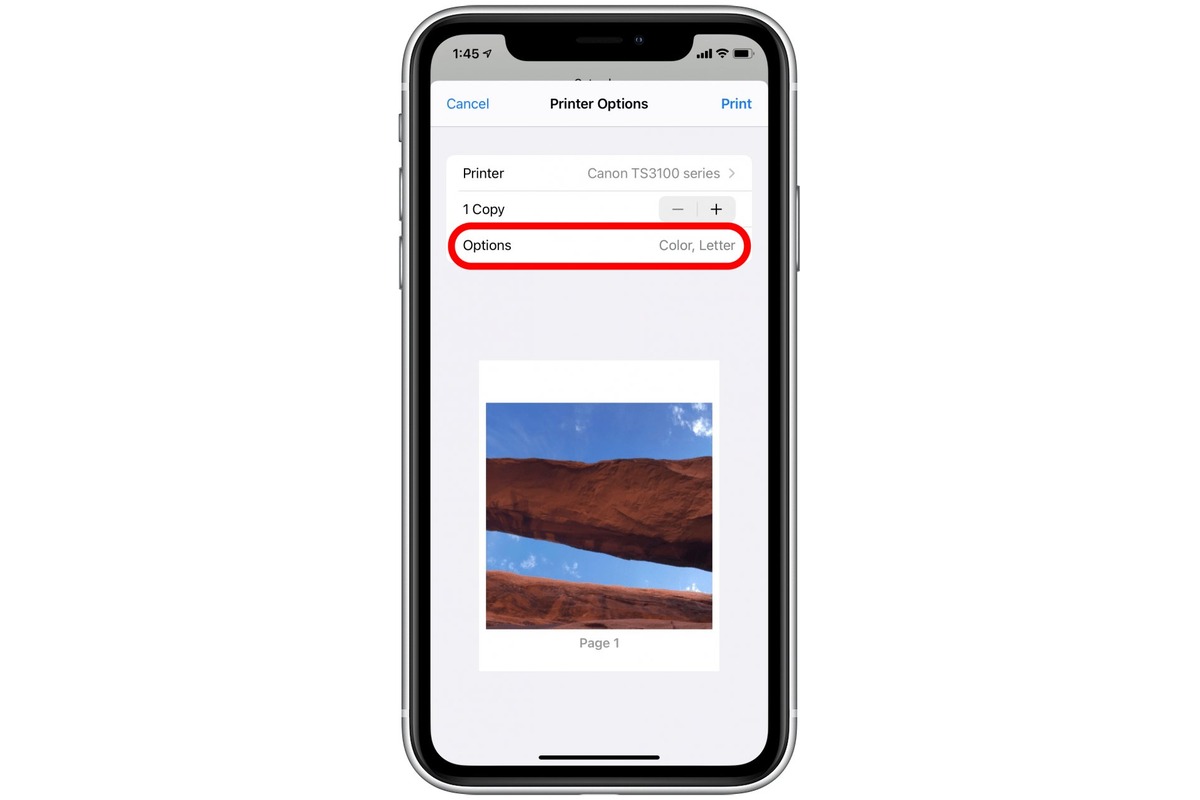
If you are setting up a standard network link, pairing printer with smartphone over Wi-Fi is the familiar route. On an iPhone, this means using AirPrint. Open your content, tap the share icon, choose Print, then select an AirPrint-enabled printer on the same network. There is no driver to install. The printer cannot be connected through a Bluetooth dongle or an old AirPort base station. For print from an iPhone on a network, the printer must support AirPrint. For Android, the printer must support the protocol your device uses.
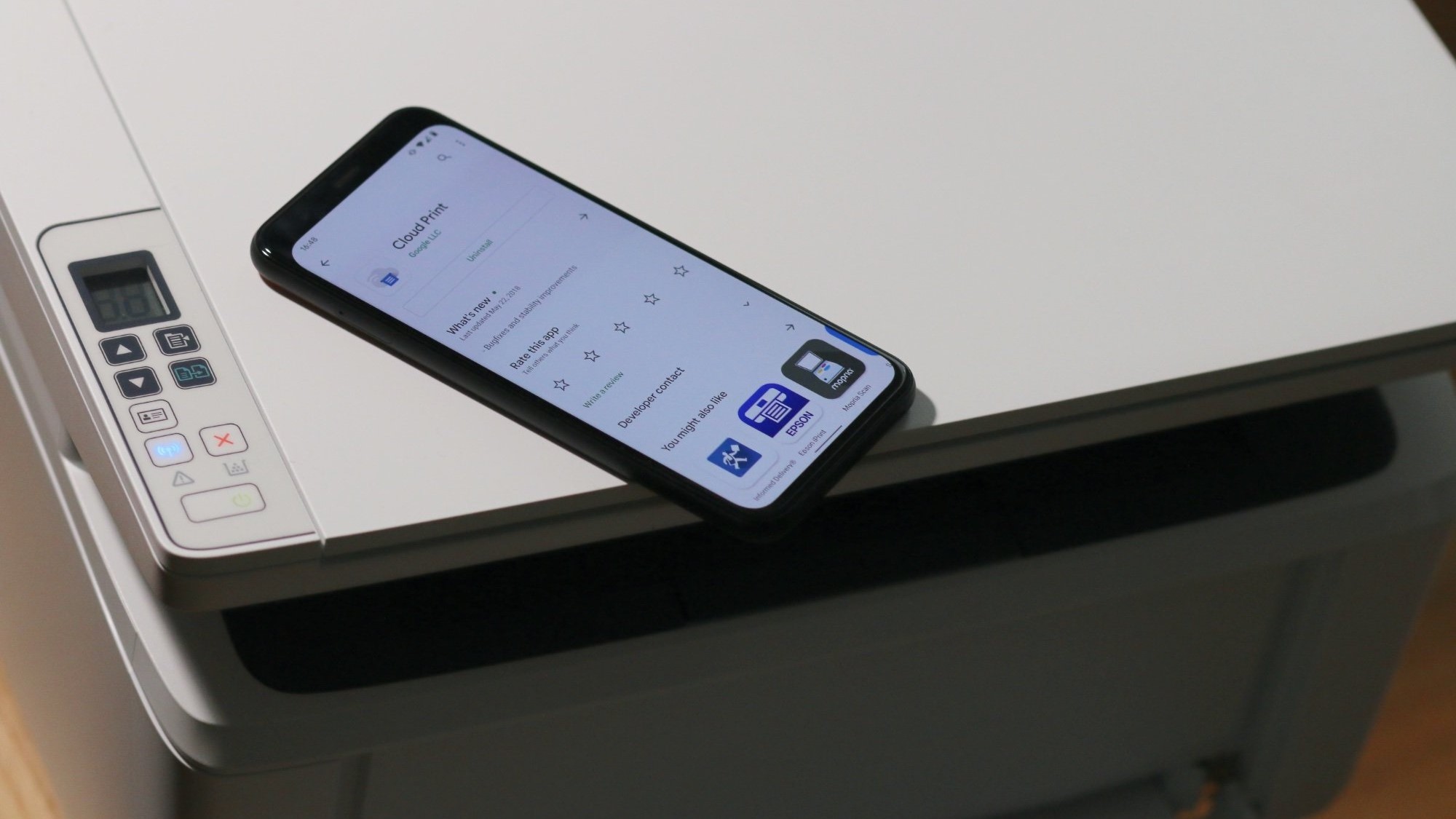
When a network is not available, the whole approach changes. Printing from mobile without Wi-Fi printer hardware requires a physical connection. The most clearly documented path is mobile printing to HP via OTG cable on a compatible Android device. After connecting the printer’s USB cable to your phone through an OTG adapter, you must install the HP Print Service Plugin from Google Play first. This lets the system see the printer when you tap Print from any app’s menu. Enable the plugin under Settings > Connected devices > Connection preferences > Printing. This works on Android devices running version 4.0 or later that support USB OTG. It is not available for iPhone or Windows 10 Mobile. If you need to handle offline printing to Epson or another brand without a network, check the printer’s own companion app for a direct Wi-Fi mode. A universal USB method for iPhone is not available.
Connect your printer to a Wi-Fi network or hotspot
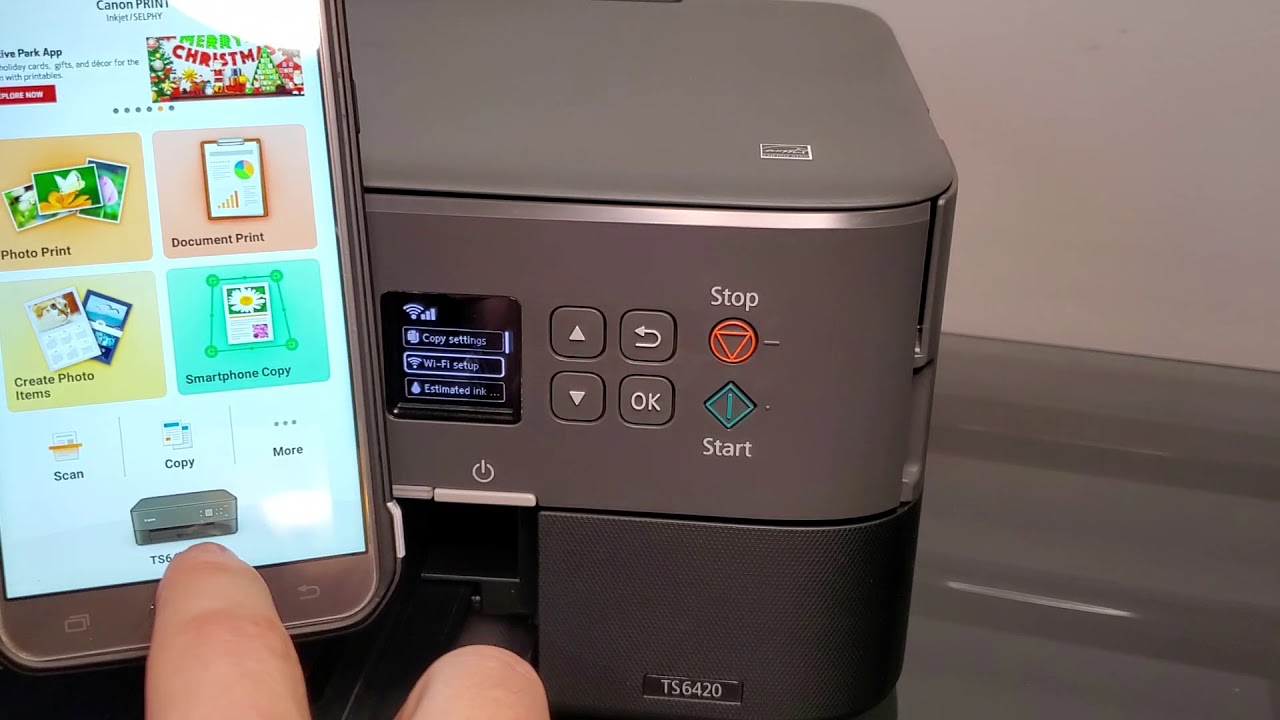
If your printer is already on your home router, your phone just needs to join the same Wi‑Fi network, but when the router is not available, you can often use a personal hotspot as a stand-in. The process to connect printer to mobile hotspot is essentially the same as joining any secured setup: open your printer’s wireless setup menu, scan for the hotspot name, and enter its password.
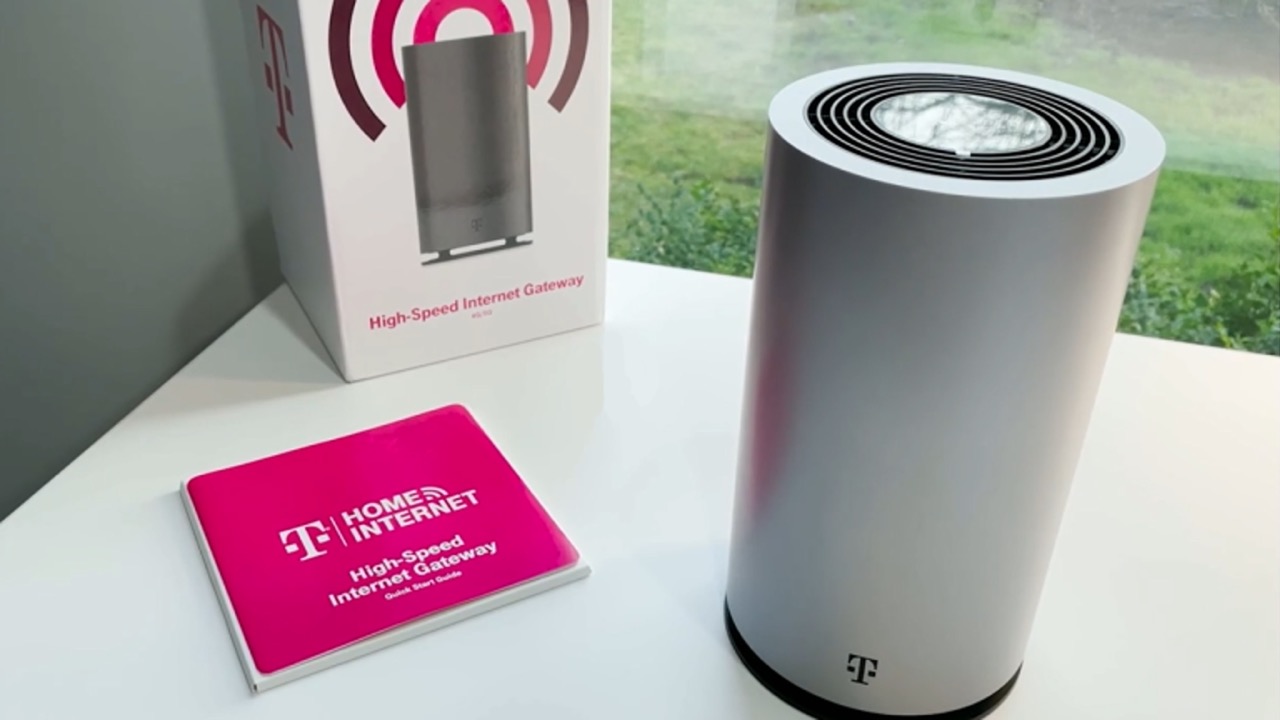
For specific models, the exact steps vary. A community fix for those trying to connect my HP printer to my hotspot on a T‑Mobile gateway suggests tapping + on the Network tab in the T‑Mobile Internet app, creating a dedicated 2.4 GHz band with WPA/WPA2 security, then connecting the printer to that second network. Some printers refuse to join the gateway’s default settings. If you need to install HP LaserJet P1102W wireless on a setup that lacks a modern app, the process uses a temporary USB setup flow and a wireless configuration utility, not HP Smart. You turn the printer off, hold the Wireless and Cancel buttons while powering it back on until the lights blink, then run the HP software on a computer and connect the USB cable only when the installer prompts for it. Once you set up HP Officejet Pro 8600 for wireless printing using the Wireless Setup Wizard under Setup > Network > Wireless > Wireless Setup Wizard, that printer can join the same personal access point or router signal your phone is using.
Print from your phone to an HP printer
When you want to print from my phone to my HP printer over a standard connection, the path depends on the phone in your hand. On an iPhone, open your content, tap the Share icon, and choose Print; if the printer is AirPrint-compatible and on the same Wi‑Fi network, it will appear automatically. For Android, install the HP Print Service Plugin from Google Play first so the system detects the printer when you tap Print from any app’s menu. If you need to print from mobile to HP printer without WiFi, you are not stuck. HP printers that support Wi‑Fi Direct broadcast their own signal, on the printer’s display, touch the WiFi Direct icon or print a Network config report to find the unique name and password. Then on your Android phone, tap the Down Arrow in the printer selection screen, choose the Wi‑Fi Direct printer, and enter that password once. The HP ePrint app also offers a direct path when no router is involved. To connect HP Envy 4520 to phone, the general guidance for AirPrint, the HP Print Service Plugin, and Wi‑Fi Direct applies, though the exact menu sequence may vary on the printer’s control panel.
Print from other devices and for special tasks
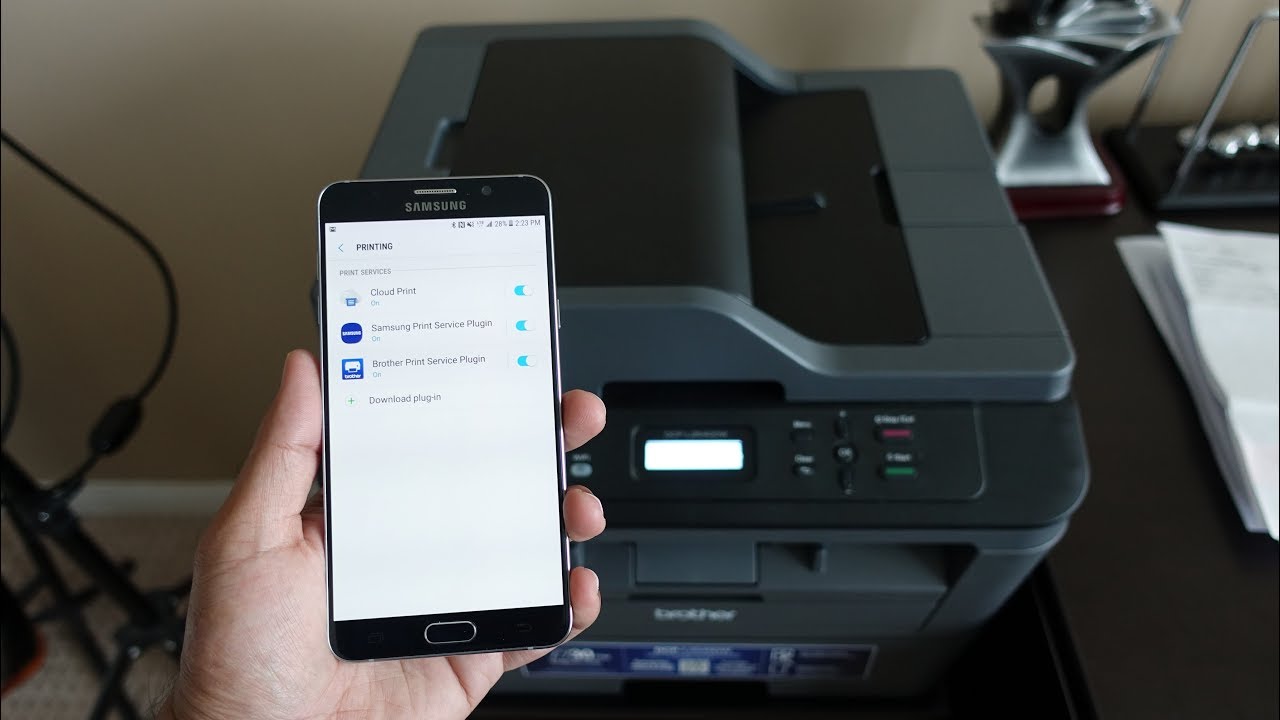
If you are printing from a Chromebook instead of a phone, you can usually skip the app store entirely. To connect Chromebook to Canon wireless printer, the machine simply needs to have its Mopria or IPP Everywhere function enabled on the device itself, after which you click the Chrome menu icon, choose Print, and select the printer from the list. The same basic connectivity rule applies when you need to connect my Canon printer to my phone: both the Canon machine and your iPhone must sit on the exact same Wi‑Fi system for AirPrint to recognize it. The flow always starts by tapping the operation icon inside your app and choosing Print. For Brother users, the path to print from cell phone to wireless Brother printer splits depending on your platform. On an iPhone you can either use AirPrint directly from Safari after tapping the share icon, or install Brother iPrint&Scan version 3.4 or later and then tap Photo or Documents inside the app to send the job. On Android 5.0 and up, you need the Brother Print Service Plugin from Google Play first, so the system can find the printer when you tap Print from any app’s menu. Finally, a task like sending a fax without cables works differently from standard printing and does not rely on the same AirPrint or cloud-print pipeline, so you will need a service or app built specifically for wireless fax methods rather than assuming your regular print dialog will handle it.
Frequently Asked Questions
How do I connect Chromebook to Canon wireless printer?
Enable Mopria or IPP Everywhere on the Canon printer itself. Then click the Chrome menu icon on your Chromebook, choose Print, and select the printer from the list that appears.
What Android version is required for HP USB OTG printing?
Android 4.0 KitKat or later is required, and the device must support USB OTG. Install the HP Print Service Plugin from Google Play, then enable it under Settings, Connected devices, Connection preferences, and Printing.
Can I use my iPhone personal hotspot as the network for AirPrint?
No, an iPhone personal hotspot is not a normal router and is not intended for local networking. AirPrint requires the iPhone and printer to be on the same standard Wi‑Fi network, not a personal hotspot.