






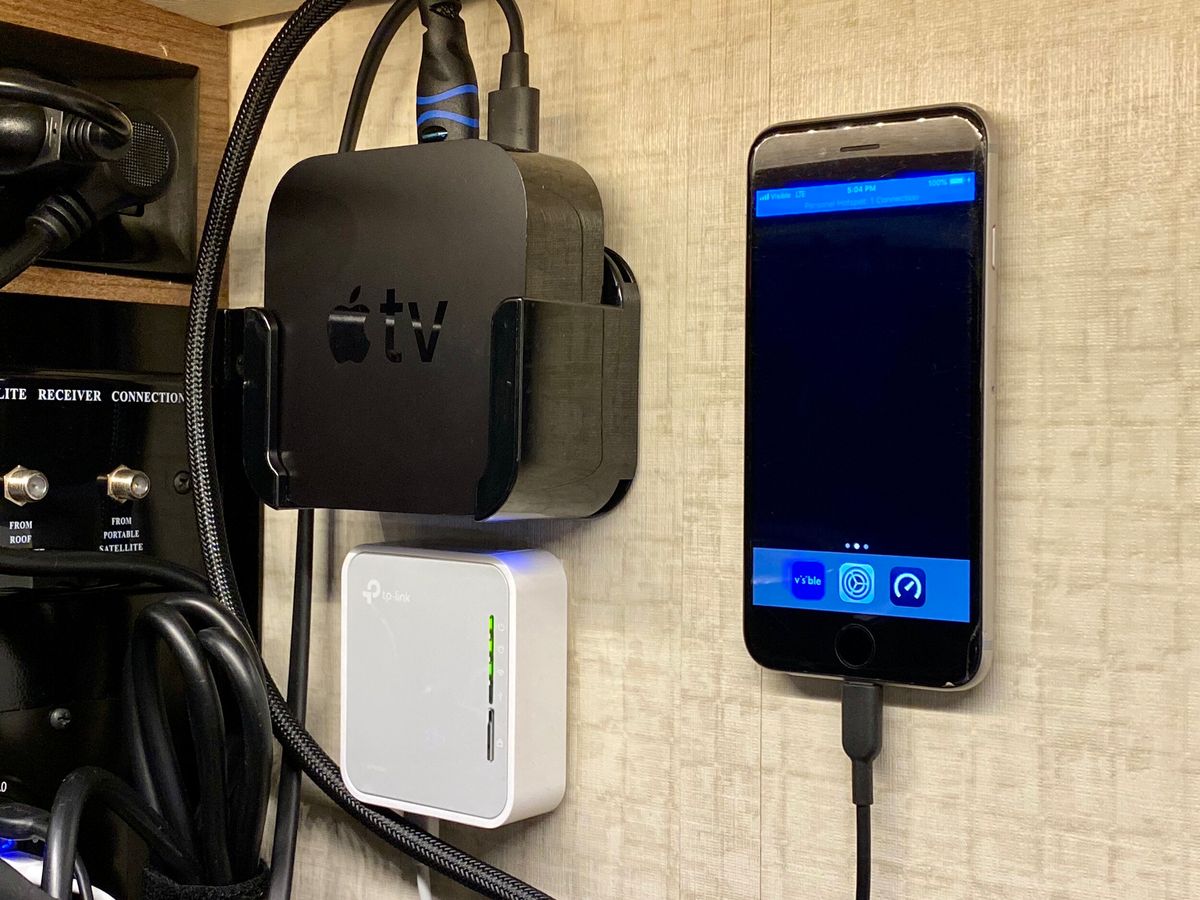
To connect a hotspot to a router, your router must support a Wi‑Fi client, bridge, or WISP mode that allows it to connect to a wireless network as an upstream internet source. This setup lets you share your phone’s cellular data with every device on your home network, turning a mobile hotspot into a full home internet connection.
What you need to connect a hotspot to a router
The essential router feature required is a mode that treats a Wi‑Fi network as its internet source, commonly called Wi‑Fi as WAN, client mode, STA mode, WISP, or bridge mode. A standard home router expects a wired connection from a modem; plugging a phone directly into its Ethernet or USB port will not work unless the router specifically supports using that connection as a WAN input. Without this mode, the router cannot receive internet from your phone’s hotspot. Before starting, confirm your router’s settings include an option to scan for and join a Wi‑Fi network as its upstream link.
Step 1: Enable the hotspot on your phone
- On an iPhone, go to Settings > Personal Hotspot (or Settings > Cellular > Personal Hotspot). If the option is dimmed, open Settings > Cellular and make sure Cellular Data is turned on. For iPhone 12 or later, iPad Pro 11‑inch (3rd generation or later), iPad Pro 12.9‑inch (5th generation or later), and iPad mini (6th generation), you can turn on Maximize Compatibility if devices have trouble connecting. On iPhone, go to Settings > Cellular > Set Up Personal Hotspot, then follow the onscreen instructions. On iPhone, if Personal Hotspot already exists, go to Settings > Personal Hotspot and follow the onscreen instructions.
- On an Android phone, swipe down from the top of the screen to open Quick Settings, then tap Hotspot. If Hotspot is not visible, tap Edit at the bottom left of Quick Settings and drag it into the visible area.
Your phone will broadcast a Wi‑Fi network name (SSID) and show a password. Keep this screen open so you can enter the password on the router. Apple says you can share an iPhone hotspot by Wi‑Fi, Bluetooth, or cable, and the devices must be within 30 feet (10 meters) for Instant Hotspot use.
Step 2: Set your router to client or WISP mode
Access your router’s administration interface by entering its IP address in a web browser. Navigate to the section that controls the router’s operating mode. The exact menu path depends on the model, but documented examples include Device Settings > Network > Wi‑Fi > Operating Mode > STA Mode on some systems, and Wi‑Fi as WAN on others. Change the mode to one that allows the router to connect to a wireless network as its internet source. Note that enabling client mode may disable normal client access to the router on the same radio or limit LAN behavior while the upstream link is active.
Step 3: Connect the router to your phone's hotspot
- In the router’s client mode interface, start a scan for available Wi‑Fi networks.
- Select your phone’s hotspot network from the list. To connect another device to an iPhone hotspot by Wi‑Fi, Apple says to turn on Wi‑Fi on the other device and choose the iPhone.
- Enter the hotspot password displayed on your phone.
- Save the settings. The router will attempt to connect to the phone’s hotspot as its upstream internet source.
On iPhone, you can also connect the router by Bluetooth or a USB cable if those methods are more reliable in your setup. To connect by Bluetooth, Apple says to open Bluetooth on the iPhone and keep Bluetooth Settings open so the device is discoverable, then select the iPhone on the other device. To connect by cable, Apple says a cable connection is also supported for sharing the iPhone hotspot. For a cable connection, plug the iPhone into the router’s USB port and follow the onscreen instructions on the iPhone.
Step 4: Connect your devices and test
- On a laptop, TV, or other device, open the list of available Wi‑Fi networks.
- Select the router’s own Wi‑Fi network (the one it broadcasts, not your phone’s hotspot).
- Enter the router’s Wi‑Fi password if one is set.
- Open a web browser and visit a website to verify internet access through the cellular connection.
Test with multiple devices at once to confirm the router is distributing the hotspot’s connection properly.
Troubleshooting common issues
- Disabled normal client access: In client mode, the router’s own Wi‑Fi for other devices may be limited or unavailable on the same radio. Check if your router supports a separate guest network or a second radio to keep devices connected.
- Connection drops: Keep your phone within 30 feet (10 meters) of the router for a stable connection. Move the phone to a spot with strong cellular signal and avoid obstructions.
- Phone tries to share Wi‑Fi instead of cellular: On iPhone, you can only share the cellular internet connection; the phone will not share a Wi‑Fi network it is connected to. Ensure your phone is using cellular data and not connected to another Wi‑Fi network when the hotspot is active.
- Hotspot option unavailable: On iPhone, verify that your carrier plan includes Personal Hotspot service. On Android, make sure the hotspot feature is enabled in Quick Settings.
Frequently Asked Questions
Will connecting a hotspot to a router use a lot of data?
Yes, every device connected to the router will use your phone’s cellular data plan. Streaming video, downloading large files, or multiple devices browsing simultaneously can quickly consume data. Monitor your usage through your phone’s settings or carrier app.
How many devices can connect to the router through the hotspot?
The limit depends on your phone’s hotspot capability and your carrier plan. Most phones allow 5-10 simultaneous connections, but the router itself may support more devices than the phone alone. The phone’s hotspot limit still applies to the total number of devices using the connection.
Can I use a phone hotspot with any router?
No. The router must support a Wi‑Fi client, bridge, or WISP mode. Many consumer routers do not include this feature. Check your router’s specifications or admin interface for terms like “Wi‑Fi as WAN,” “client mode,” “STA mode,” or “WISP” before attempting this setup.
Does connecting devices to a hotspot through a router improve speed?
Connecting devices to a hotspot through a router does not increase the cellular data speed from your phone. However, a router with better antennas and processing power can provide a more stable connection and better range for devices in your home than relying on the phone’s hotspot alone.
What should I do if my router does not have client mode?
If your router lacks a Wi‑Fi client or WISP mode, you cannot use it to share a phone hotspot. Consider upgrading to a router that supports these modes, or use a travel router specifically designed for connecting to public Wi‑Fi or mobile hotspots.
Can I leave my phone’s hotspot on all the time?
Yes, but it will drain your phone’s battery faster and may cause the phone to overheat if used continuously. Plug your phone into a charger while the hotspot is active. Some carriers also limit hotspot usage or throttle speeds after a certain amount of data.

















