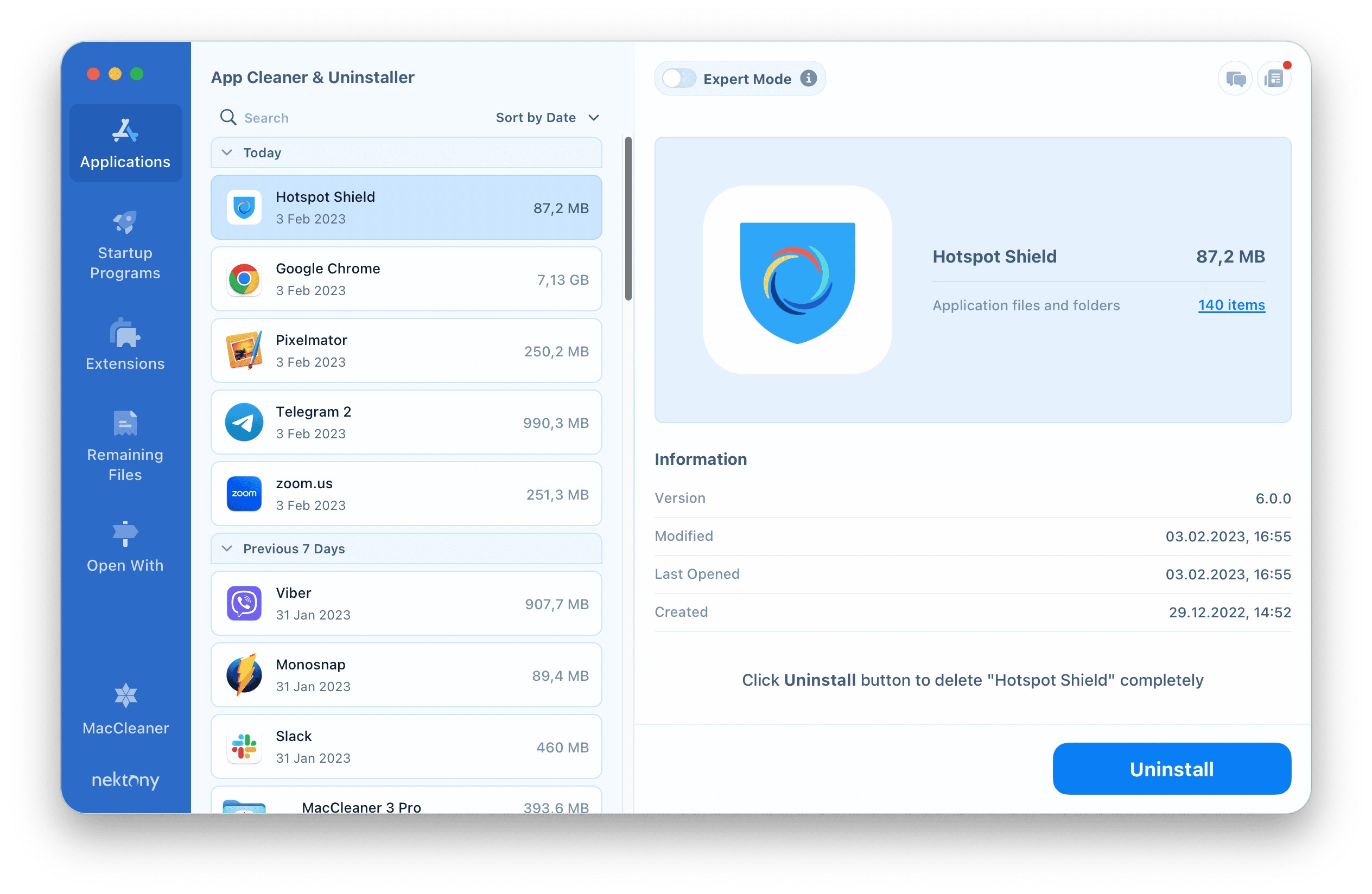
To uninstall Hotspot Shield from your Windows PC or Android device, use the official methods documented by the vendor.
Official ways to uninstall hotspot shield on Windows
Hotspot Shield documents three vendor-approved methods for removing the application from Windows. Choose the one that works best for your system.
Method 1: Control Panel
- Open Control Panel.
- Go to Programs > Uninstall Program.
- Select Hotspot Shield from the list.
- Follow the uninstall prompts and click Finish.
Method 2: Settings app
- Open Start > Settings.
- Go to Apps > Apps & features.
- Find Hotspot Shield in the list, select it, and choose Uninstall.
- Follow the on-screen prompts.
Method 3: Start menu right-click
- Open the Start menu.
- Locate the Hotspot Shield app or program.
- Press and hold (or right-click) the app icon.
- Select Uninstall from the menu.
- Complete the uninstall prompts.
Official ways to uninstall hotspot shield on Android
Hotspot Shield provides three documented methods for Android devices. If one method does not work, try another.
Method 1: Long-press the app icon
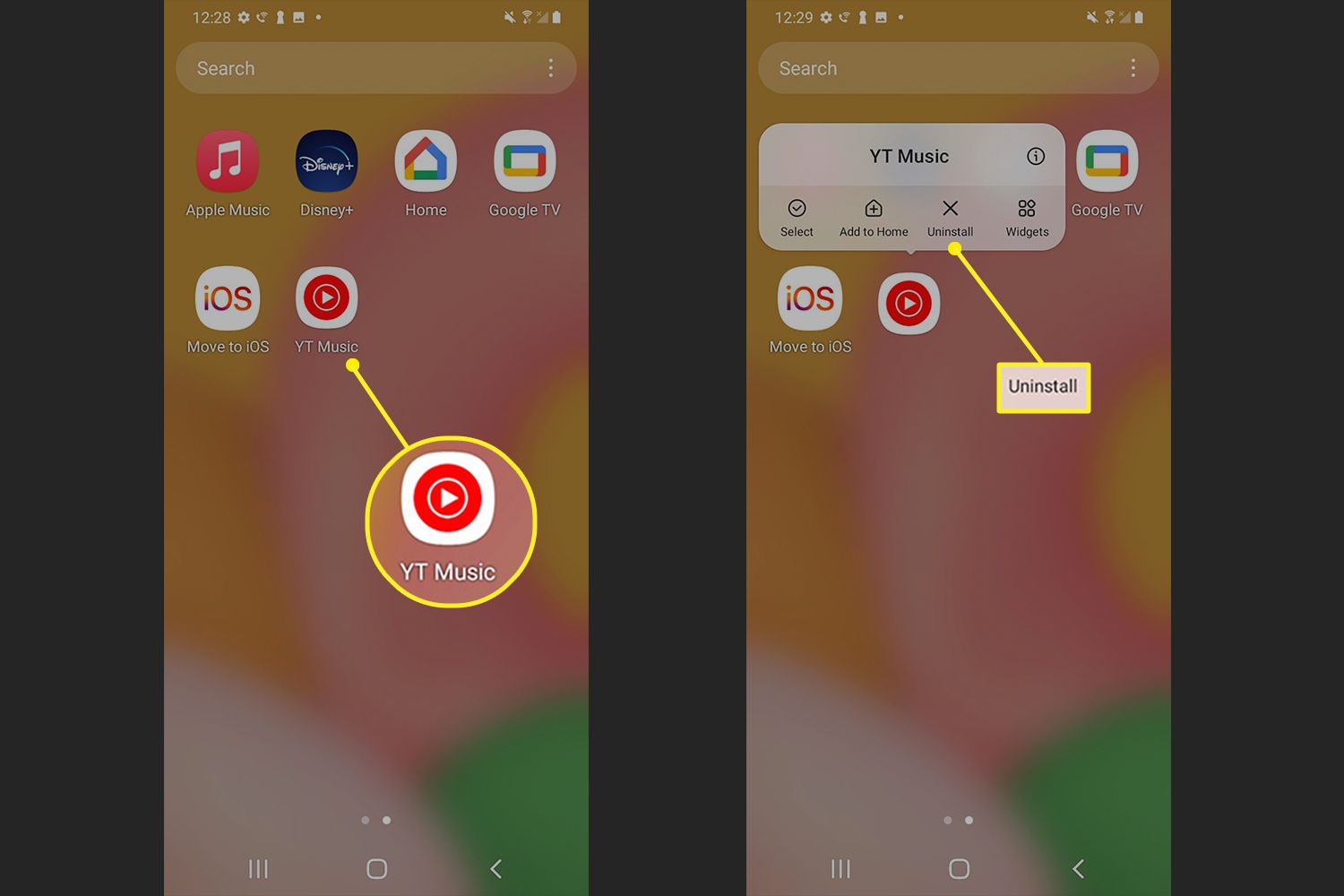
- On your home screen or app drawer, press and hold the Hotspot Shield icon until options appear.
- Tap uninstall.
- Confirm when prompted.
Method 2: Google Play Store
- Open the Google Play app.
- Tap your account picture in the top-right corner.
- Tap Manage apps & device.
- Tap Installed and scroll to find Hotspot Shield.
- Tap Uninstall and confirm.
Method 3: System settings
- Open Settings on your device.
- Tap Apps.
- Tap Manage apps.
- Tap Uninstall.
- Find Hotspot Shield in the list and select it.
- Tap Uninstall to complete the process.
What about iPhone and browser extensions?
The Android uninstall page does not list an Android version requirement, and the Windows uninstall page does not list a Windows version requirement. For iOS, the general method is to long-press the app icon on the home screen until options appear and then tap Remove App > Delete App. For browser extensions, check your browser's extension or add-on manager manually and remove any entry labeled Hotspot Shield.
Why a clean uninstall matters for your account
Hotspot Shield Premium accounts are limited to up to 10 devices across Windows, Mac, Android, iOS, and supported routers. A proper uninstall from a device frees up one of those slots, allowing you to activate the VPN on a new device without exceeding your account limit. This is especially useful if you have already reached the 10-device cap and need to swap devices.
Frequently Asked Questions
Can I uninstall and reinstall Hotspot Shield?
Yes, you can uninstall Hotspot Shield and reinstall it later. After uninstalling, download the app again from the official website or your device's app store. Reinstalling does not affect your account or subscription status.
Does uninstalling Hotspot Shield delete my account?
No, uninstalling the app does not delete your Hotspot Shield account. To delete your account, you must follow the account deletion process separately through the app's settings or contact support.
Will uninstalling Hotspot Shield remove my personal data?
Uninstalling the app removes the application and its files from your device. Any personal data stored on Hotspot Shield's servers, such as account information or usage logs, remains with your account and is not deleted by uninstalling the app.
How do I remove a device from my Premium account without uninstalling?
You can unlink a device from your Premium account through the app's settings or your account dashboard. This frees up a device slot without requiring you to uninstall the app from the device.
Where can I find hotspot basics and troubleshooting?
For hotspot basics and troubleshooting, refer to the official Hotspot Shield support pages, which cover common issues like connection problems and device setup.
Related reading: How To Bypass Verizon Hotspot Limit and How To Find My Hotspot.