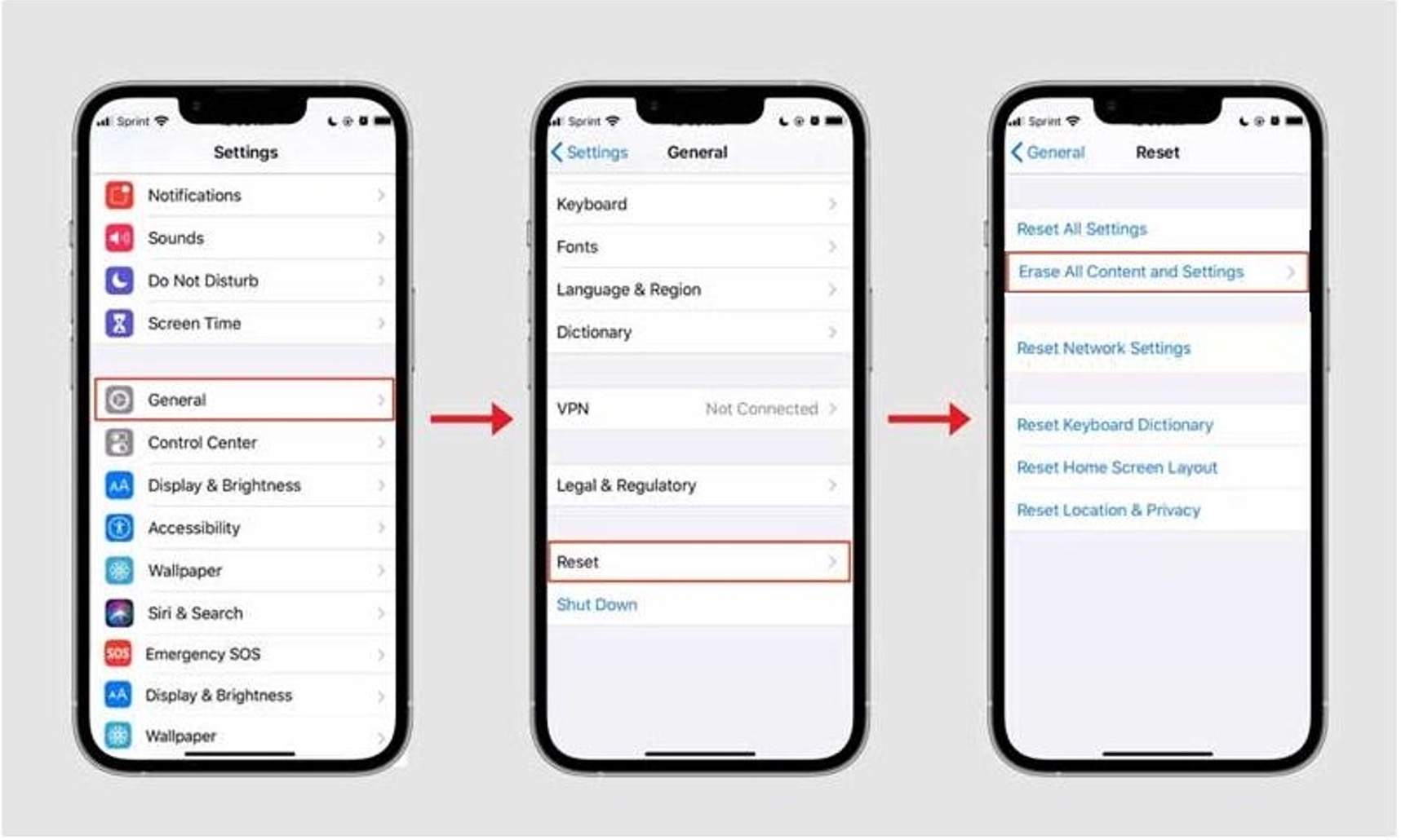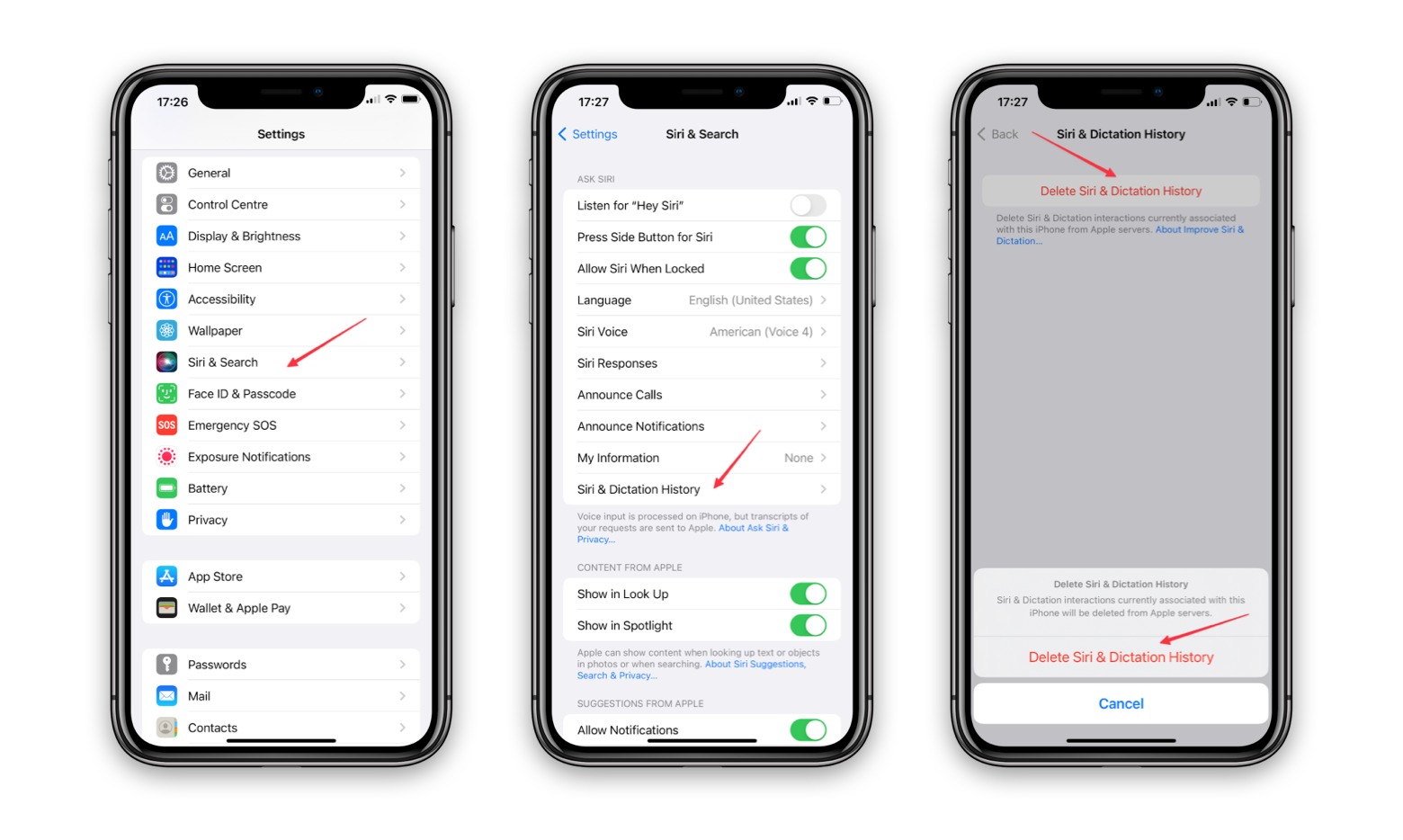
To clear history on iPhone 13, you remove your Safari browsing records, cookies, cache, and some website permissions, which helps protect your privacy and can improve device performance. Apple's documented methods for clearing Safari history are found in Settings or directly within the Safari app.
Why clear history on iPhone 13
Clearing your Safari history removes records of where you have browsed and can also remove cookies and cache. This action can help remove permissions granted to websites through Safari, such as location or notification access. Apple clarifies that clearing Safari history does not affect AutoFill information or browsing histories kept independently by websites or other apps. Regularly clearing your history can also assist with freeing up phone storage space, as accumulated cache and website data can take up room on your device. For Android, Google documents clearing Google search history in the Google app and turning off saved activity in Google Account > Data & privacy > My Activity.
How to clear Safari browsing history on iPhone 13
Apple documents two methods to clear Safari history on iPhone 13.
Method 1: Using Settings
- Open Settings.
- Tap Apps.
- Tap Safari.
- Tap Clear History and Website Data.
- Confirm the timeframe you want to clear, then tap Clear History.
Method 2: Using the Safari app
- Open Safari.
- Go to the Start Page or open a new tab from the tab controls.
- Tap the Page Options control, then tap Clear.
- Choose a Clear Timeframe.
- If Safari profiles are set up, select a specific profile or All Profiles.
- Tap Clear History.
If the Clear History and Website Data button is gray, there may be no data to clear, or Screen Time web content restrictions may be blocking the action.
Clearing call history on iPhone 13
Apple documents the following path for clearing call logs:
- Open the Phone app.
- Tap Recents.
- Tap Edit, then tap Select.
- To clear everything, tap Clear, then tap Clear All Recents.
- To clear one call, tap the delete control next to the call, or swipe a recent call all the way left.
Apple says you can recover a deleted call history only by restoring the iPhone from a backup made before the deletion.
What clearing history does not remove
Apple documents that clearing Safari history does not clear AutoFill information, such as saved names, addresses, or credit card details. Additionally, browsing histories kept independently by websites or by other apps are not affected by clearing Safari history.
Frequently Asked Questions
Can I selectively clear specific websites from my Safari history on iPhone 13?
No, when you clear your browsing history using the documented methods, it removes all recorded websites you have visited within the selected timeframe. There is no option to clear individual entries from the history list through the standard clearing process.
Does clearing Safari history on iPhone 13 affect my saved passwords?
No, clearing your browsing history does not remove saved passwords. Passwords are stored separately in your device's Keychain and remain available for autofill after you clear history.
What data remains on my iPhone 13 after I clear Safari history?
After clearing Safari history, your AutoFill information is preserved, and any browsing histories kept by other apps or websites independently are not removed. Your saved passwords and other Keychain data also remain intact.