Start here: find and empty your phone's trash to clear phone storage
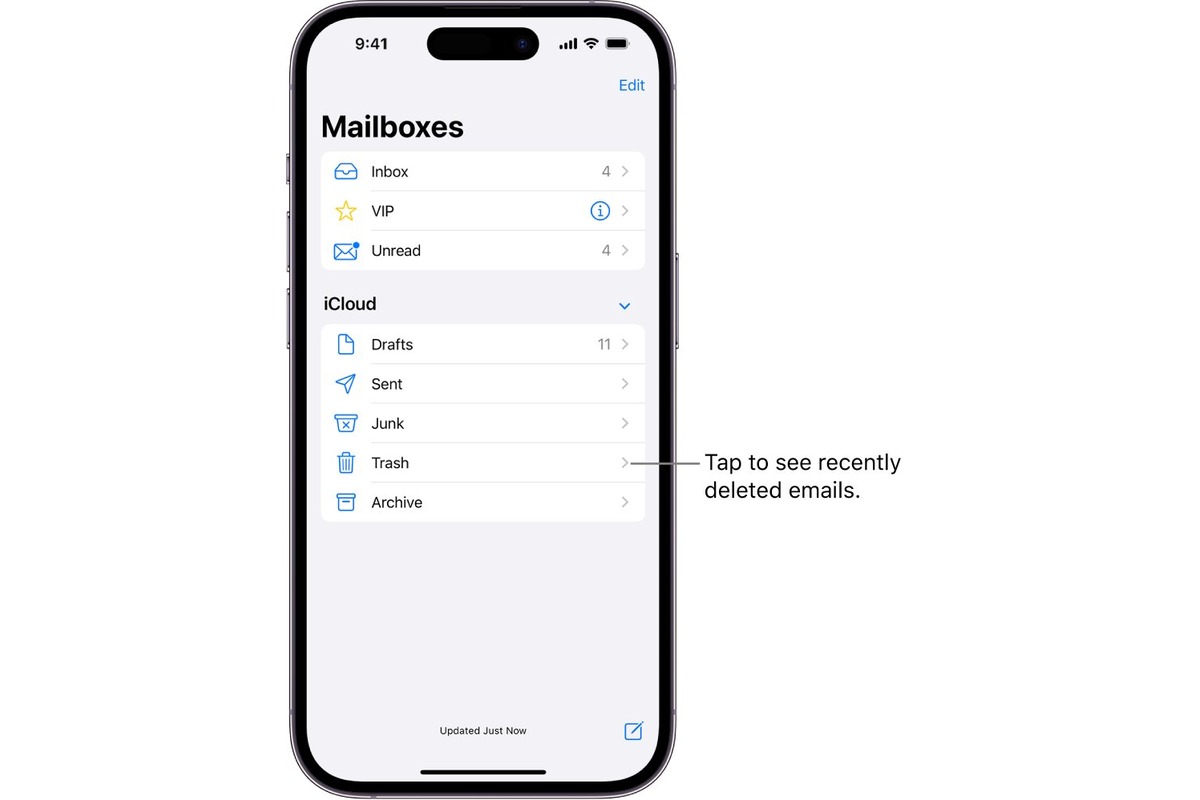
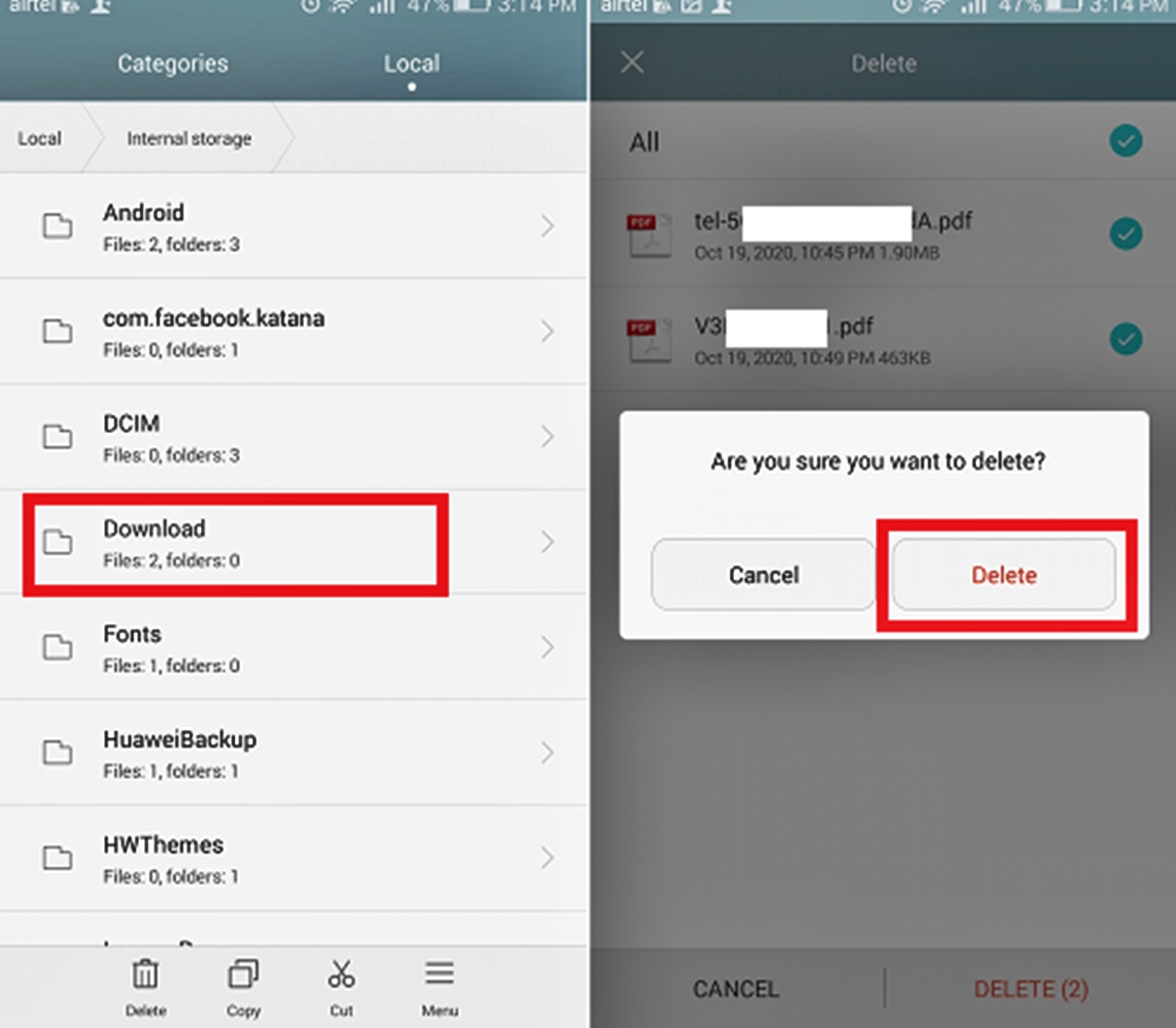
Before you delete another app or scroll through your camera roll, the single fastest way to clear phone storage is to get to the trash on my phone. This hidden holding pen keeps your “deleted” photos and files for up to 30 days. They still occupy every megabyte. On an iPhone, open the Photos app, tap Albums, and scroll down to find the Recently Deleted album under Utilities. You will need Face ID, Touch ID, or your passcode to view it. From there you can permanently erase items one by one or all at once. If you want to clear trash on iPhone without the authentication step, you may be able to adjust the requirement in your Settings. The process to delete trash on iPhone 13 follows the exact same path. Apple’s trash logic is tied to iOS rather than a specific model generation. On a Google-powered device, one space-eater lives inside the Files by Google app. Tap the Menu icon and open Trash to see files awaiting automatic removal. A simple option lets you restore or permanently delete. If you want to remove trash from phone on a Samsung device, open the Gallery or My Files app and empty the Trash folder. Beyond the trash, a handful of other cleanup tasks trip people up. For instance, you can remove favorites on Android phone to clean up your shortcuts. Similarly, you can remove apps on Samsung phone to uninstall bloatware and unused programs that eat up storage. You can also remove ads from Samsung phone to stop promotional content from downloading and filling your device with extra data. The right one for you depends entirely on what is clogging your phone right now.
Remove apps and bloatware you don't use
Unused apps don’t just sit there, they cache data, run background processes, and quietly eat storage you could use for photos or a smoother system. On an iPhone, touch and hold any app on the Home Screen or in App Library, tap Remove App, then Delete App and confirm. If you only want to declutter your screens without losing the app, choose Remove from Home Screen to tuck it into the App Library instead. To delete an app on an Android phone, open the Google Play Store, go to Manage apps & devices, then Manage, select the app, and delete it. You can delete app on Motorola phone using that same method. If you own a Realme handset and want to remove app market on Realme, you may be limited to disabling it if the system allows. Some built-in Apple apps cannot be deleted at all, though iOS 14 and later lets you remove more of them, and users in the European Union have additional flexibility for certain core apps. Before you start, check one often-missed rule: deleting an app does not cancel any in-app subscriptions you signed up for, so those charges will continue unless you cancel them separately through your account preferences. A handful of very specific cleanup tasks follow the same principle of targeting hidden clutter, such as when you delete emails on Samsung phone, delete trending searches on my phone, or delete cookies on Samsung phone.
Clear app clutter, cache, and system junk
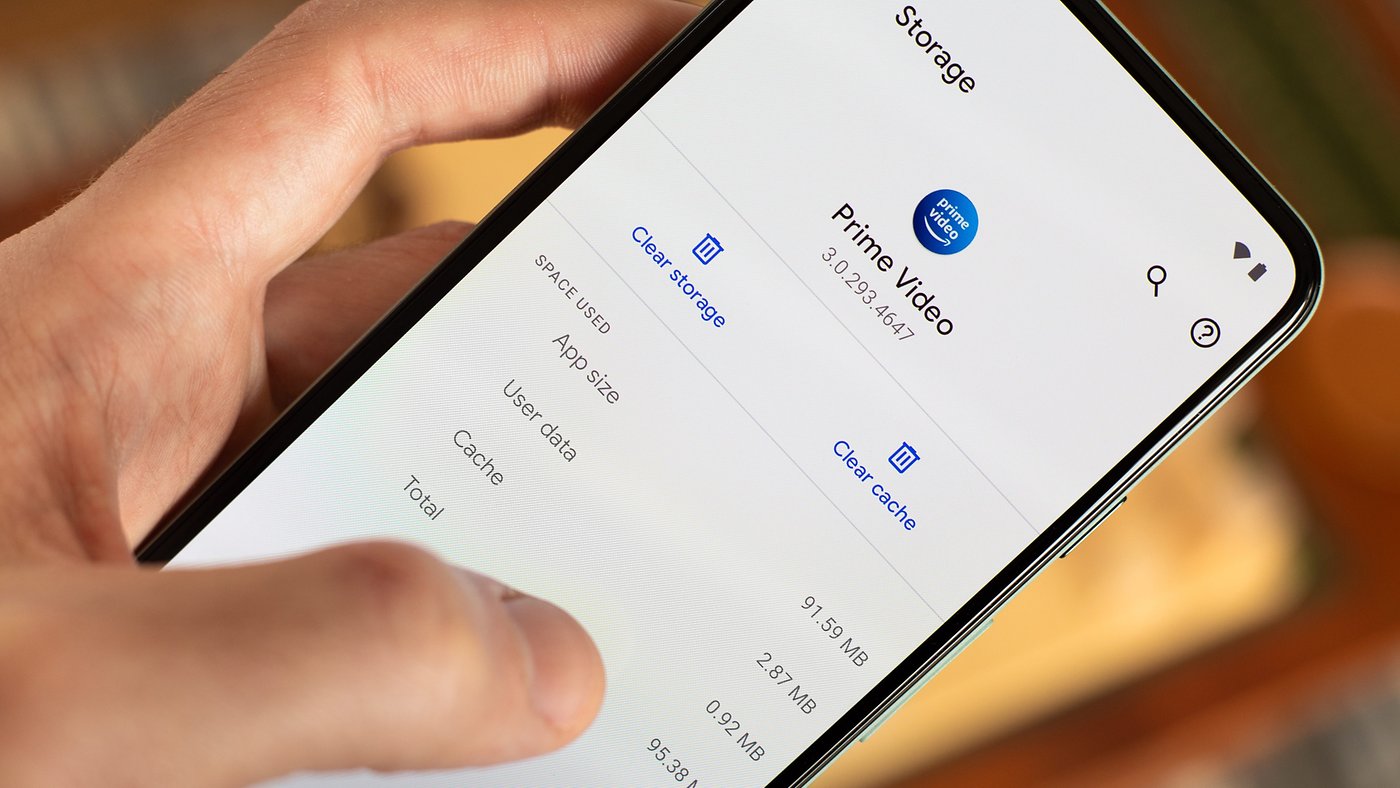
Even after you have taken out the trash, a surprising amount of space stays locked up in temporary files and forgotten debris. If you own a Samsung phone, a direct way to clear phone cache Samsung recommends is to open Settings and tap Apps, then select the offending app and hit Clear cache inside its Storage screen. This scrubs temporary files without touching your logins or saved documents, though wiping the cache for every app at once may require a factory reset on some devices. For a deeper clean of a misbehaving app, you can erase app data from that same Storage menu, but this resets the app as if it were freshly installed, so use it sparingly. On an iPhone, Apple limits system-level cleaning to Safari; head to Settings, tap Safari, and use Clear History and Website Data to remove cookies, cached pages, and browsing traces. You will not find a universal “clear up system data” scrubber on either platform. If your saved games are hogging space, you may need to delete game data from game center, but Apple's standard storage guides do not detail this path, so you will typically need to dig into the game's own preferences or your iCloud management screen to purge old progress files.
Clean up your messages, calls, and email storage
Old text threads, call logs, and locally cached email attachments are some of the sneakiest space hogs. They grow a little every day without you noticing. Before you start swiping conversations away, open your messaging app and look for a Recently Deleted or Trash folder. Apple keeps deleted iPhone messages there for up to 30 days. Until you empty that folder, you have not regained a single megabyte. If you want to clear out old conversations to reclaim space, you can delete phone messages on Android directly from the messaging app's settings. On the call-history side, deleting a single entry or clearing all recent calls on an iPhone is straightforward from the Recents tab. Call-log management on Google's platform is straightforward: official documentation maps out a removal path inside the Phone app, and you can still delete phone calls on Android to free up that log clutter. Email presents its own hidden weight. If your inbox downloads attachments to the device, you may need to clear mailbox on iPhone storage, though Apple's own guides do not detail a single bulk-cleanup button. For those who sync work accounts, you may also be able to delete Outlook data files that have been saved locally. This strips out offline mirrors of your inbox and calendar without touching what lives on the server. Beyond these core tasks, a few other pinpoint cleanups follow the same principle of targeting a single overstuffed category. The right pick comes down to whether your biggest burden is call history, SMS threads, system clutter, or home-screen shortcuts. For instance, if your phone's storage is weighed down by cached system files, you can delete system data on Android to clear out temporary logs and residual data. And if your home screen is overcrowded with shortcuts you no longer use, you can delete icons on Android to tidy up your layout and reduce visual clutter.
Manage photos, media, and large attachments
Before you chase down every last photo, go into the Photos app and open the Recently Deleted album. Use Face ID or Touch ID to authenticate and permanently remove everything inside. Skipping this means those shots will quietly sit there for up to 30 days, still eating space. In messaging apps, the real weight often comes from media-heavy chats rather than your camera roll. Inside WhatsApp, you can open the configuration panel, tap Storage and Data, then Manage Storage to see exactly which conversations are bloated with forwarded videos and voice notes. From there you can tap into a chat and use Select All to clear the clutter. You can also choose the Delete All Except Starred option if you need to keep a few key items. On an iPhone, the same logic applies to the visual fluff in your conversations. You can delete GIFs and stickers on iPhone by long-pressing them inside the message thread and choosing the remove option, pulling out the lightweight graphics that pile up over months. If you sync images to your wrist, remember that you cannot delete photos on Apple Watch directly from the watch face. You must open the iPhone Photos app and remove the image from the synced album to free up Apple Watch storage. This is a quick way to reclaim space on the device without unpairing it. For anyone whose group chats have become a black hole of forwarded clips, the tools to reduce WhatsApp storage on iPhone and Android live in that same Manage Storage screen. There you can sort large files, preview them, and clear them by size instead of scrolling endlessly.
Tidy up your browser and search history
Your browser quietly stockpiles more than you might think, and clearing that digital clutter can reclaim a surprising amount of room. Before you dig into your phone's options, remember that simply tapping to clear history isn't always enough. Just like your photo album, your phone may be holding onto data you thought was gone. If you want to delete links on iPhone, you won't find a separate switch for it. Apple bundles that cleanup into the main history wipe. This process also removes cached pages and cookies. The steps are similar when you need to clear cookies on Android through Chrome. A menu lets you pick exactly which data types to scrub after choosing a time range. For a completely fresh start, you can clear history iPhone 13 by going into Settings > Safari. Select a timeframe to erase everything. This action also revokes stored website permissions. Don't overlook the visual weight of all those forgotten pages. When you close tabs on an Android phone by clearing your browsing data, you'll need to adjust the time range to catch everything you've left open. You'll need to adjust that to catch everything you've left open. Tapping through these quick resets stops your browser from sitting on a pile of old session data that does nothing but take up space.
Remove ads, viruses, and unwanted management profiles
Before you chase down individual files, open your system preferences and look for management profiles that may have been installed without your knowledge. On an iPhone, navigate to Settings > General > VPN & Device Management and if you see a profile you did not install yourself, select it and tap Remove Profile to remove all the configurations, apps, and data tied to it. Be aware that if the device is supervised or the profile was put there by your workplace, you may be blocked from removing it and will need to ask the organization to release it. Restart the phone after a successful deletion to make sure everything clears out properly. On the Google-powered side, junk apps that sneak onto the phone are often the culprits behind sluggish performance. To clear viruses from Android, go into your app list and uninstall anything you do not recognize, do not trust, or did not get from the Google Play Store. If a suspicious app refuses to uninstall normally, check whether it gained device administrator access and revoke that permission first. For a work phone that has been locked down, you may need to close mobile device management on iPhone by having your IT department unenroll the device from their system, as Apple's documentation does not list a separate button to override a supervised profile.
Optimize overall storage and device speed
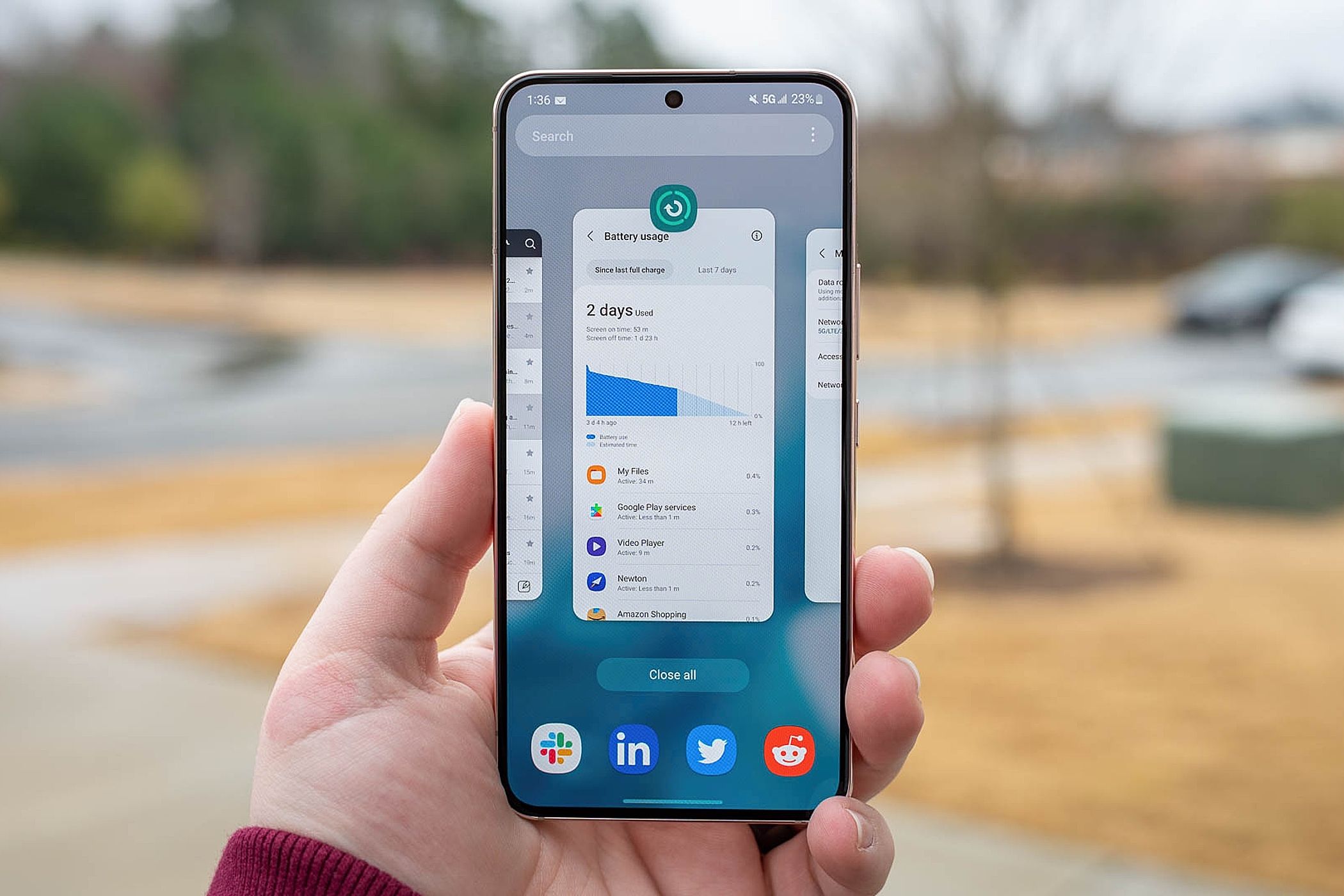
Even after you have cleared out the obvious clutter, a few quick system tweaks can make the phone feel responsive again. On a Google-powered device, open the main configuration panel and tap Storage to see the breakdown of what is eating your space. From there you can delete apps you no longer need, which is one of the most direct ways to have more phone storage without hunting through folders. If the device still drags, the routine steps that make your Android faster include checking for app updates, since a single misbehaving app can slow everything down. On an iPhone, the gesture to clear open apps on iPhone 14 follows the iPhone X and later method: swipe up from the bottom and pause in the middle of the screen, then swipe an app preview upward to quit it, though Apple notes you should only force-close an app if it has stopped responding, and doing so routinely does not improve performance. Open your cloud app’s preferences and confirm that items are not being cached on the device after they sync.
- clear memory full on Panasonic phone
- clear open apps on iPhone 14
- make your Android faster
- have more phone storage
More on optimize overall storage and device speed
After you have cleared the obvious space hogs, a few deeper options keep the phone from filling up again. On a Galaxy or Pixel device, the performance tools are grouped in one place. To get more storage on Galaxy S21 you open Settings and tap Device care, or Battery and device care depending on your region, where Samsung bundles junk-file cleaning and memory management into a single dashboard. That same screen shows apps running in the background, though modern smartphones manage apps automatically and reopening them from scratch can use more CPU and battery. The quickest way to free space on iPhone 11 is to open Settings, tap General, then iPhone Storage, where Apple lists recommendations and shows exactly how much room each app is taking. Pay attention to the cloud, too, because local copies often remain after a sync. If you rely on Microsoft’s service, you can get more free OneDrive storage by knowing that the standard 5 GB is shared across your OneDrive files, Outlook.com attachments, and Microsoft 365 apps, so clearing out old email attachments reclaims space in the same pool. Finally, remember that the phone’s Recently Deleted or Trash folder still holds files for up to 30 days, and nothing you removed actually counts as freed until you open that folder and empty it.
Frequently Asked Questions
How do I permanently delete photos from my iPhone right now?
Open Photos, tap Albums, scroll to Recently Deleted under Utilities, authenticate with Face ID or Touch ID, tap Select, choose the items, then tap Delete. Photos stay there for 30 days before automatic removal, so you must empty this album manually to reclaim space immediately.
Where is the trash folder on a Samsung phone?
Samsung Gallery and My Files apps each have their own Trash folder. Open either app, look for the Trash option in the menu, and empty it. Samsung does not provide a single phone-wide recycle bin, so you need to clear each app's trash separately.
Can I clear the cache for all apps at once on my Samsung Galaxy?
Samsung states the only way to clear cache for every app simultaneously is a factory reset. For individual apps, go to Settings, tap Apps, select the app, tap Storage, then tap Clear cache. This removes temporary files without affecting your logins or saved documents.
How do I delete cookies on my Samsung phone browser?
Open Samsung Internet, tap the Menu icon, go to Settings, then Personal browsing data, and select Delete browsing data. You can choose to remove cookies, cache, and history from there. Samsung also offers a Delete browsing data on exit option for automatic clearing.
Why can't I delete some built-in Apple apps from my iPhone?
Certain built-in Apple apps cannot be deleted, though iOS 14 and later allows you to remove more of them. Users in the European Union have additional flexibility for some core apps. If Screen Time restrictions are enabled, check that Deleting Apps is set to Allow under Content and Privacy Restrictions.