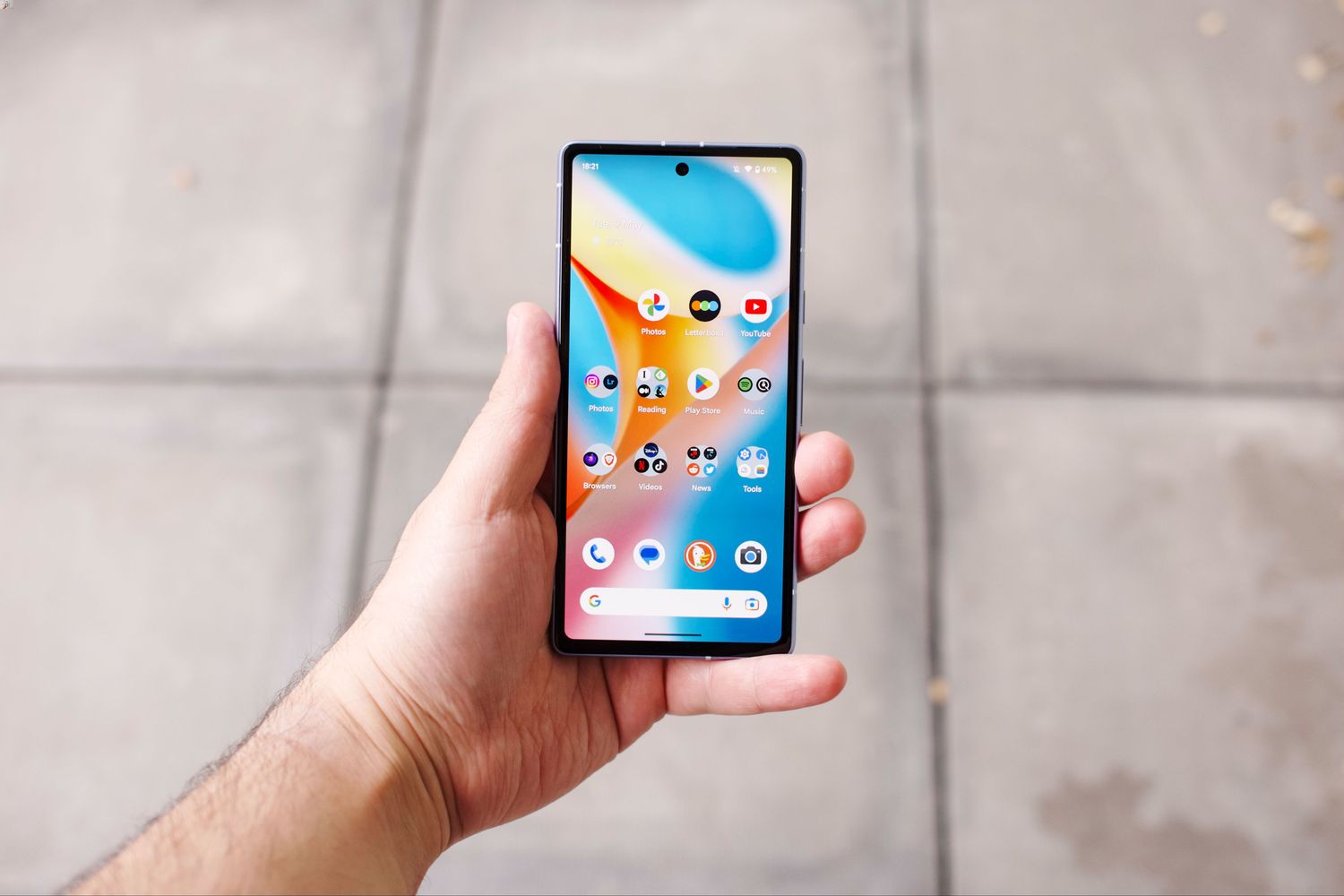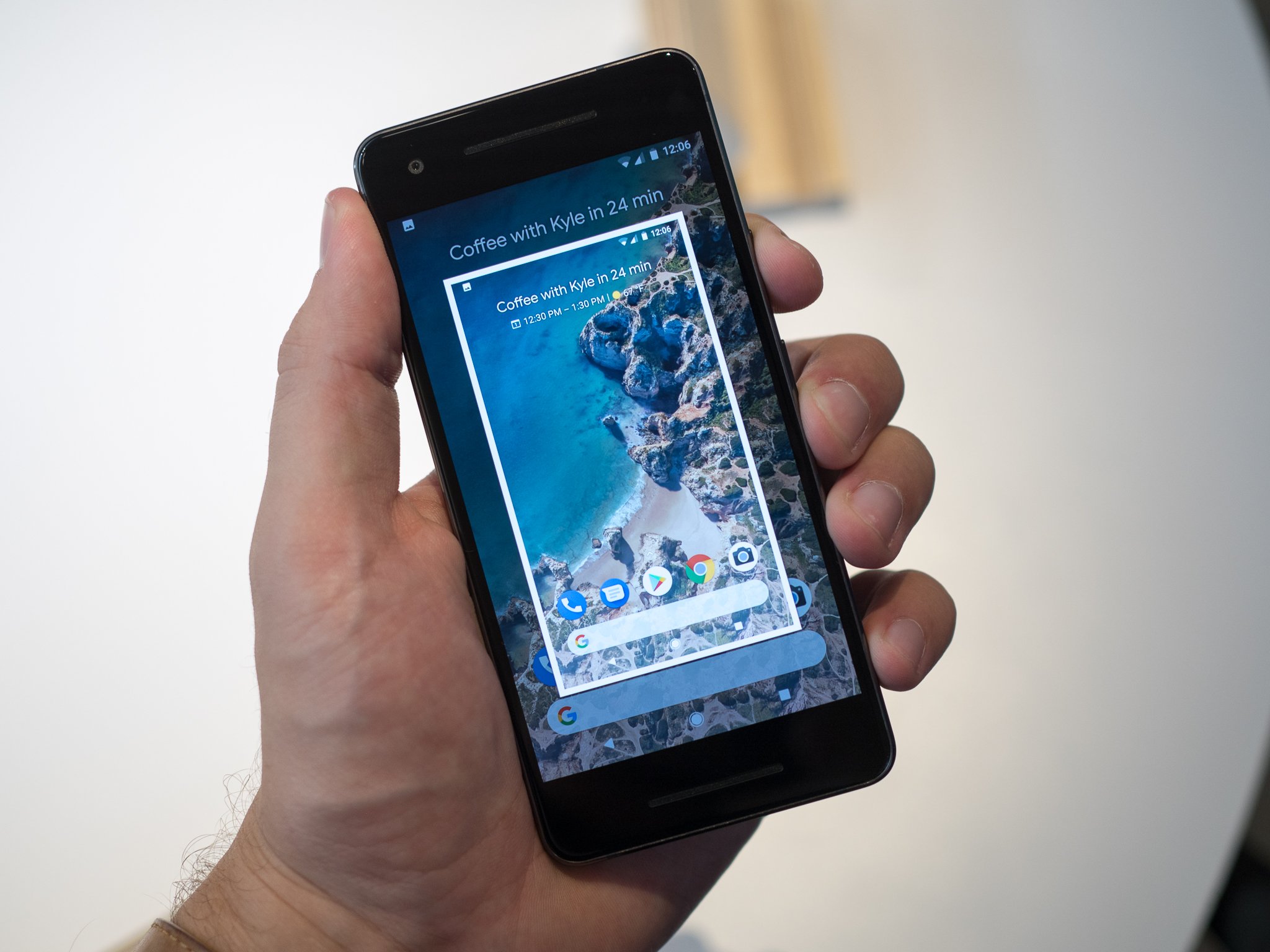
To take a screenshot on a Google Pixel, press and hold the Power button and the Volume Down button at the same time. This is the primary method to take a screenshot on a Google Pixel, and it works across all modern Pixel models.
How to take a screenshot on Google Pixel with buttons
The most reliable way to capture your screen is by using the physical buttons. Navigate to the content you want to save, then press and hold the Power button and the Volume Down button simultaneously. You will see the screen flash, and if your sound is enabled, a camera shutter sound will play to confirm the capture. A small thumbnail preview of the screenshot will appear at the bottom left of the screen. From this preview, you can tap to edit, share, or delete the screenshot. If you take no action, the screenshot is automatically saved to your Photos app.
Take a scrolling screenshot with 'Capture more'
When you need to capture content that extends beyond the visible screen, such as a long webpage or a chat thread, you can take a scrolling screenshot. This feature is available on devices running Android 12 and later on most scrollable screens. First, take a standard screenshot using the Power and Volume Down buttons. When the preview thumbnail appears, tap "Capture more." Use the crop guidelines to select the content you want to include, then save the extended image.
Take a screenshot using gesture or 3-button navigation
You can capture your screen without using the physical buttons by using your phone's navigation system. If you use gesture navigation, swipe up from the bottom of the screen and hold to open the Overview screen. Select the open app you want to capture, then tap the "Screenshot" icon. If you use 3-button navigation, tap the Overview button (the square icon), select the desired app, and tap "Screenshot." Both methods allow you to take a screenshot on my Android without pressing any side buttons.
Use the Quick Settings tile to take a screenshot
On Android 11 and later, you can take a screenshot directly from the Quick Settings menu. Swipe down twice from the top of the screen to fully expand the Quick Settings panel. Look for the "Screenshot" icon, which resembles a small phone screen with a dotted outline. Tap this icon, and your device will instantly capture the current screen. This method is ideal when you want to avoid using physical buttons or voice commands.
Ask Google Assistant to take a screenshot for you
For a hands-free experience, you can use Google Assistant to capture your screen. Activate the Assistant by saying "Hey Google" or by squeezing the edges of your phone (on supported models). Then say "Take a screenshot." The Assistant will capture the contents of your screen and present options to edit, share, or save the image. This method is especially useful when your hands are occupied, such as when cooking or exercising.
Where to find and manage your screenshots
Screenshots are saved to the 'Pictures > Screenshots' directory on your phone's internal storage. You can view them in the Google Photos app by navigating to "Collections > On this device > Screenshots." If you own a Pixel 9, 10, or 11 series phone, you also have access to the dedicated Pixel Screenshots app, which offers tools for organizing, browsing, and searching your screenshots, including AI-powered search. Note that screenshots are not backed up to Google Photos cloud by default. To enable backup, open the Photos app, go to "Library > Screenshots," and turn on the backup switch. This ensures your captures are safe even if you need to copy and paste on an Android phone or transfer files to a new device.
Frequently Asked Questions
Can I take a screenshot by pressing and holding the power button?
This method is primarily for Pixel 3a and earlier models. On newer Pixel phones, pressing and holding the Power button activates Google Assistant, not a screenshot menu.
Why is my screenshot not saving?
If your screenshot does not save, check that your phone has sufficient storage space. Also, ensure that you are pressing both buttons at the exact same time, as a slight delay may register as a volume change instead.
Can I take a screenshot on a locked screen?
No, you must unlock your phone to take a screenshot. The button combination and other methods only work when the device is active and unlocked.
How do I take a screenshot of a full webpage?
Use the scrolling screenshot feature. After taking a standard screenshot, tap "Capture more" and drag the crop handles to include the entire webpage. This works on most scrollable screens running Android 12 or later.
Where do screenshots go if I delete them from the preview?
If you tap the "Delete" option on the preview thumbnail, the screenshot is removed immediately and is not saved to your phone. You cannot recover it unless you have a backup enabled.