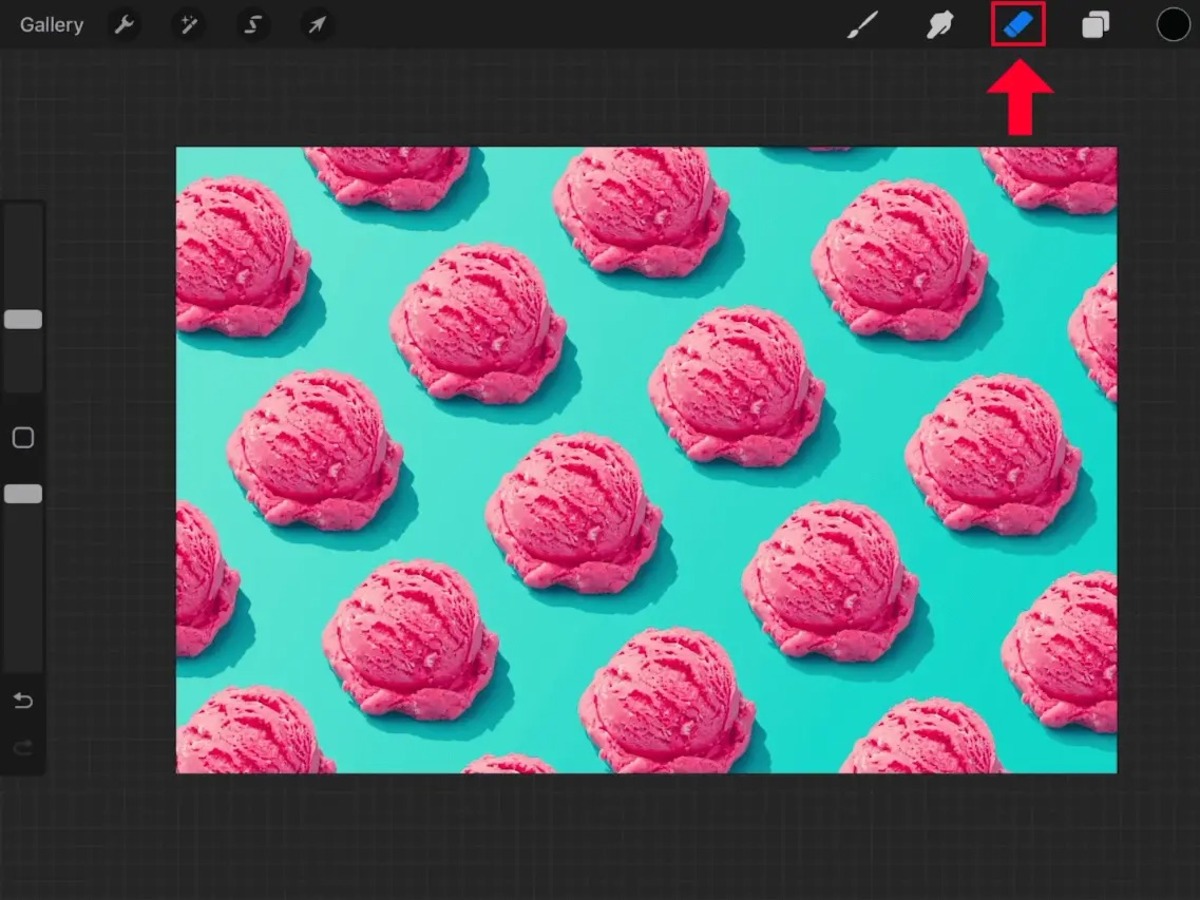
This tag collects guides for using the Procreate app on an iPad, aimed at anyone from beginners learning the basics to more experienced digital artists looking for specific fixes. The articles here focus on practical, step-by-step solutions for common drawing, design, and editing tasks within the app.

The tutorials break down into a few clear themes. One major group covers core drawing and editing techniques, you’ll find help with smoothing lines, making a perfect circle, mirroring your drawing, and using symmetry. Another set of articles deals with color and layers, including how to pick or change color, use the eyedropper, invert colors, merge layers, and make a layer transparent. A third theme is working with text and images: you can learn to curve text, edit text, cut out or crop an image, and trace an image directly in Procreate.

Specific topics include saving your work, making a sticker, adding a grid, and even renaming a stack. For those wondering about cost, there is also an article on how much Procreate costs on the iPad. Whether you need to resize an image, turn on grayscale, or get new brushes, these articles help you perform each action without extra fuss.
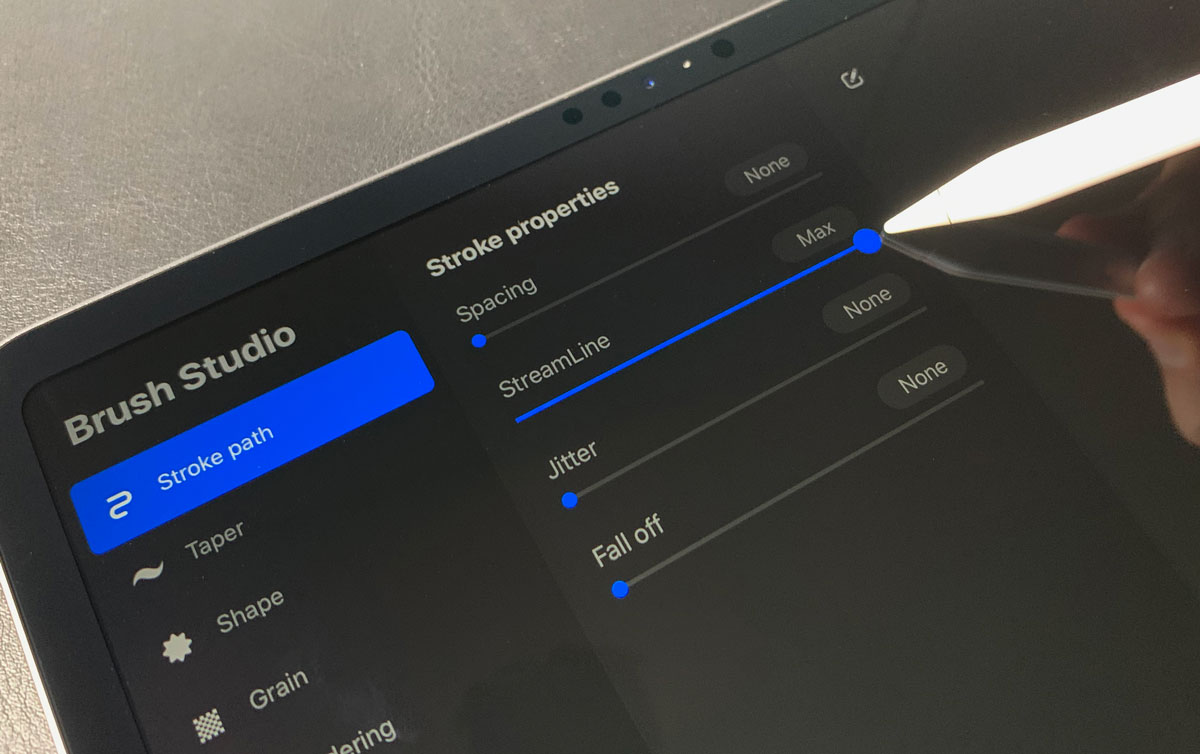
How To Smooth Lines In Procreate

To smooth lines in Procreate, you have two main controls: the per-brush StreamLine setting and the global Pressure and Smoothing stabilization. StreamLine corrects wobbles on a single brush, while Pressure...

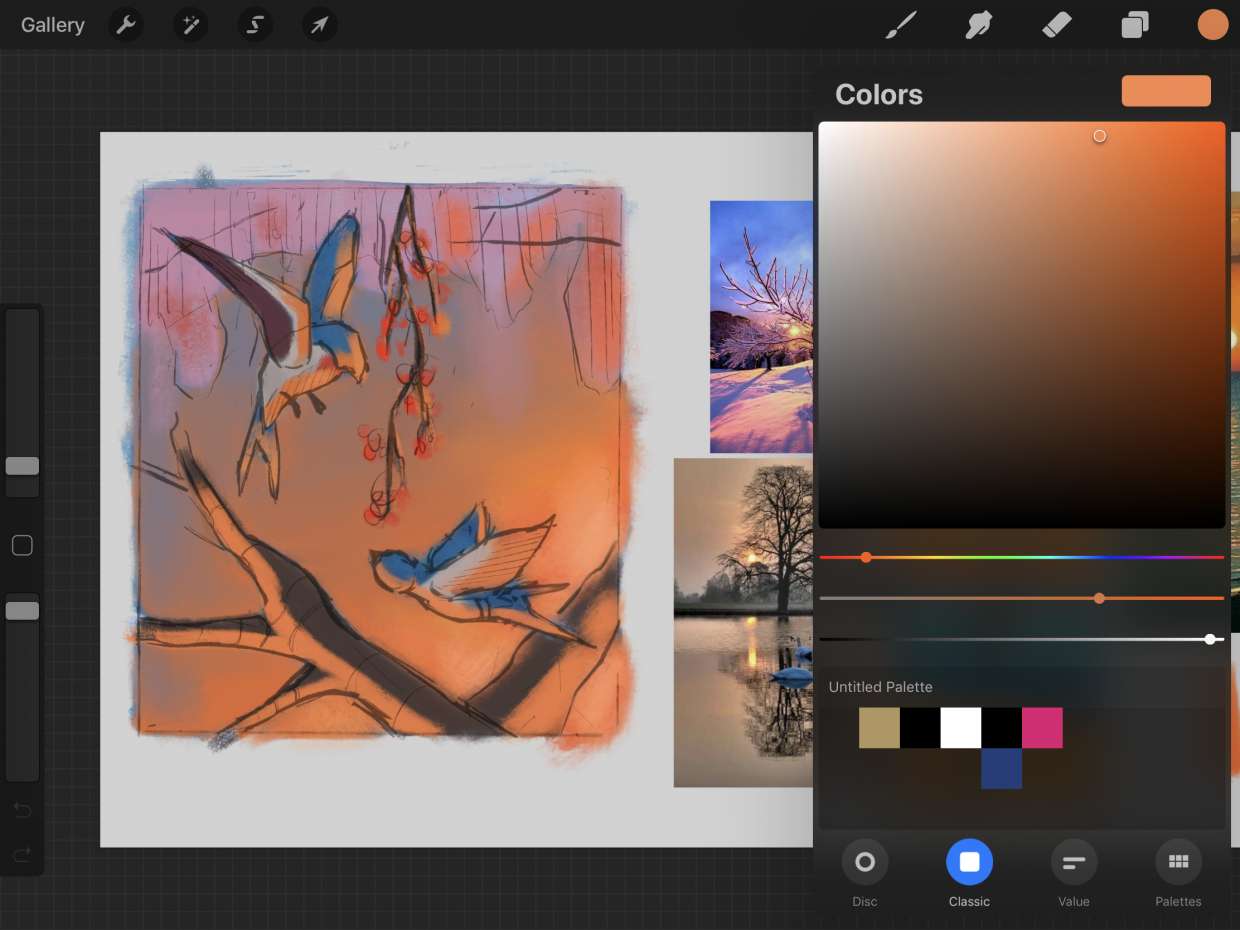
How To Change Color On Procreate

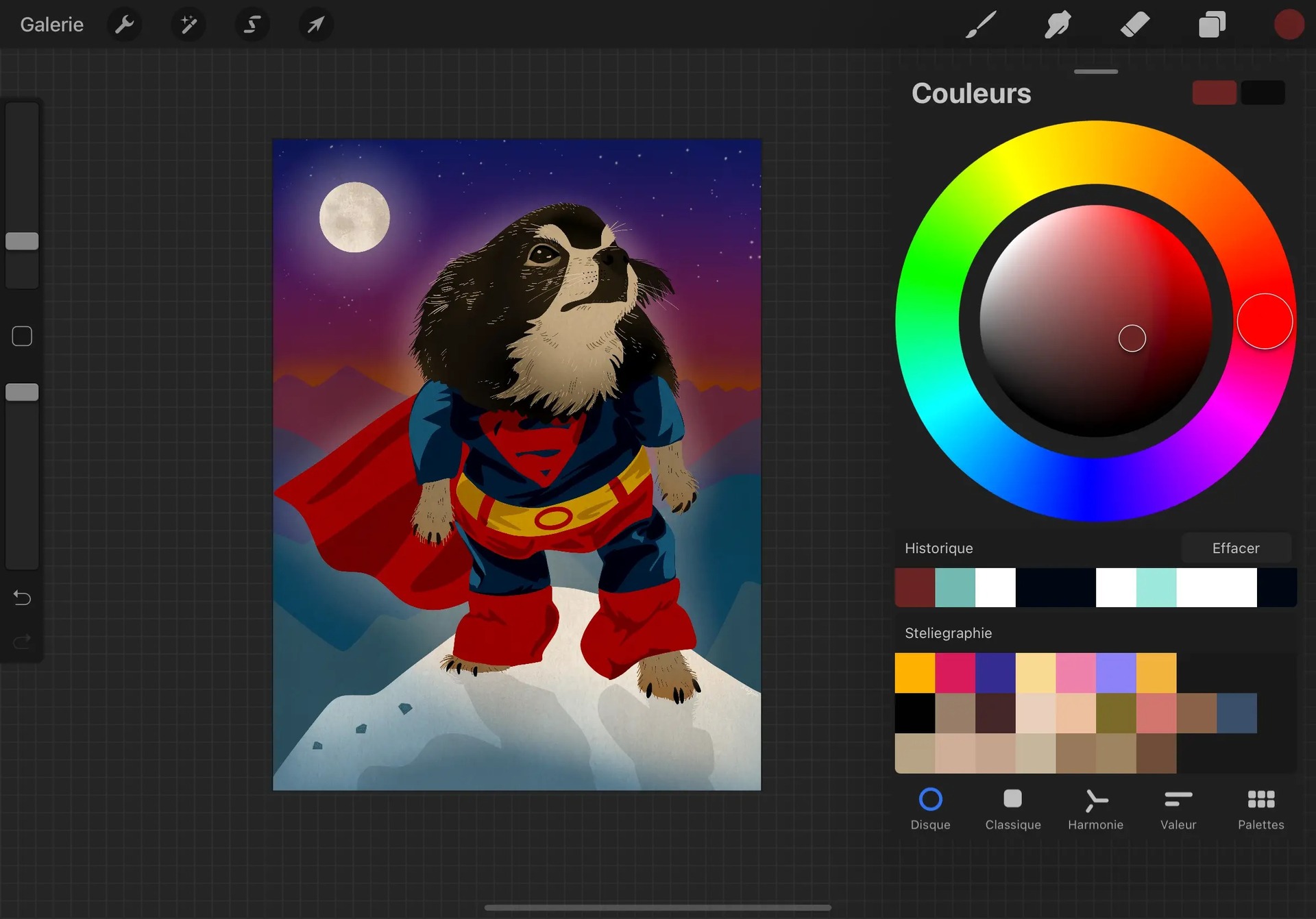
To change color on Procreate, tap the colored circle in the top-right corner to open the Color Panel, then select your active color using the Disc mode's outer hue ring...

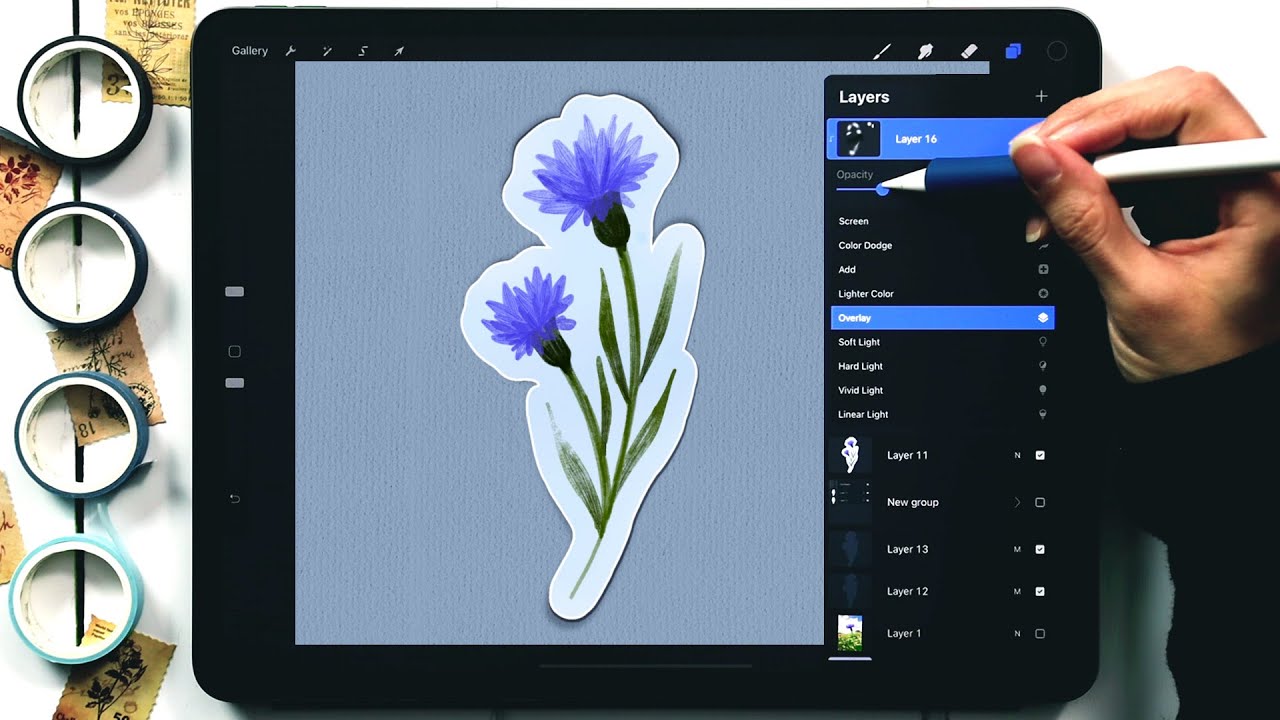
How To Make A Sticker On Procreate

To make a sticker on Procreate, you create a new canvas, draw your design, turn off the background layer for transparency, and export as a PNG file. What you need...

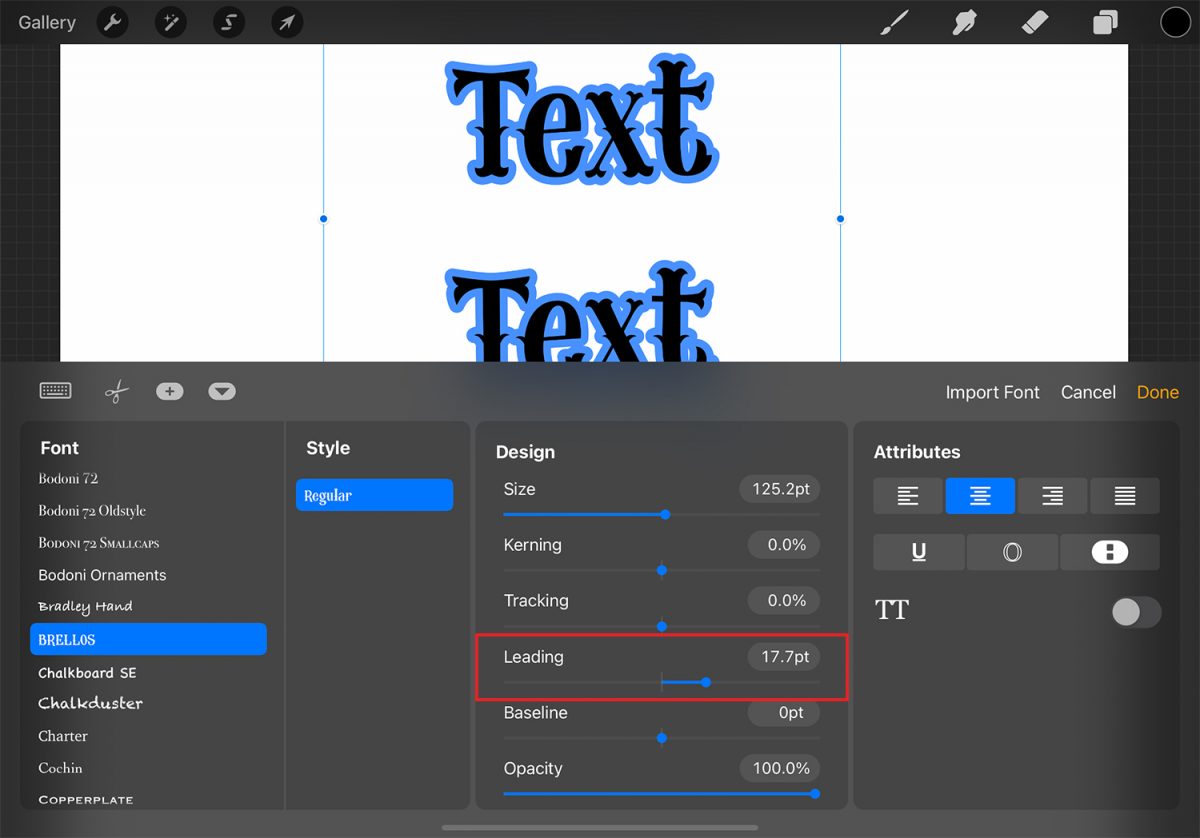
How To Edit Text On Procreate

To edit text on Procreate, double-tap the text directly on the canvas to invoke the Text Entry Companion, or open the Layers menu, select the text layer, then close the...

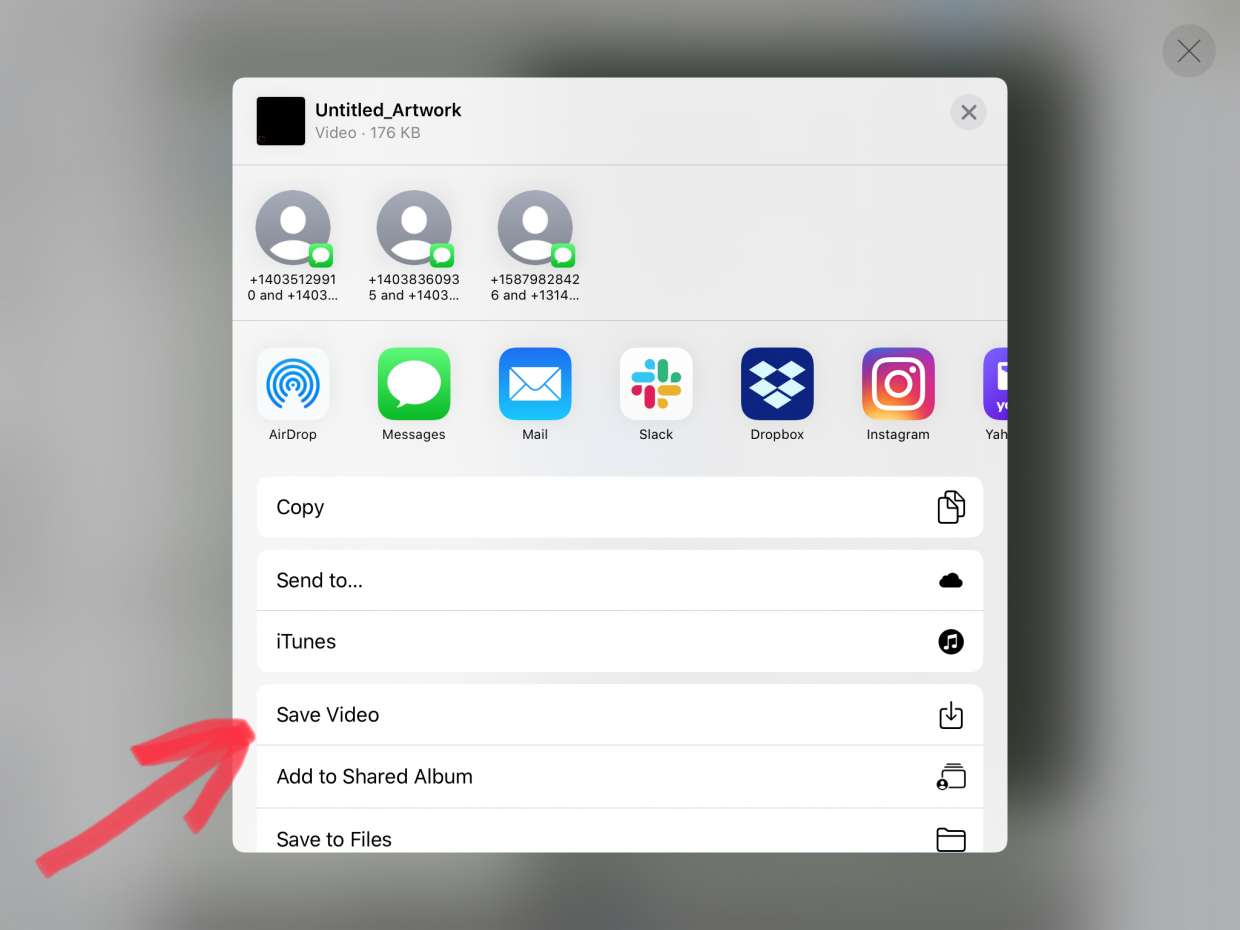
How To Save On Procreate

To save on Procreate, you need to understand that "saving" actually means exporting your finished artwork and backing up your working files. How to save on Procreate: understanding your export...

How To Move Something In Procreate

To move something in Procreate, tap the Transform tool (the arrow icon in the top menu bar). This automatically selects the contents of your current layer, and you can then...

How To Curve Text In Procreate

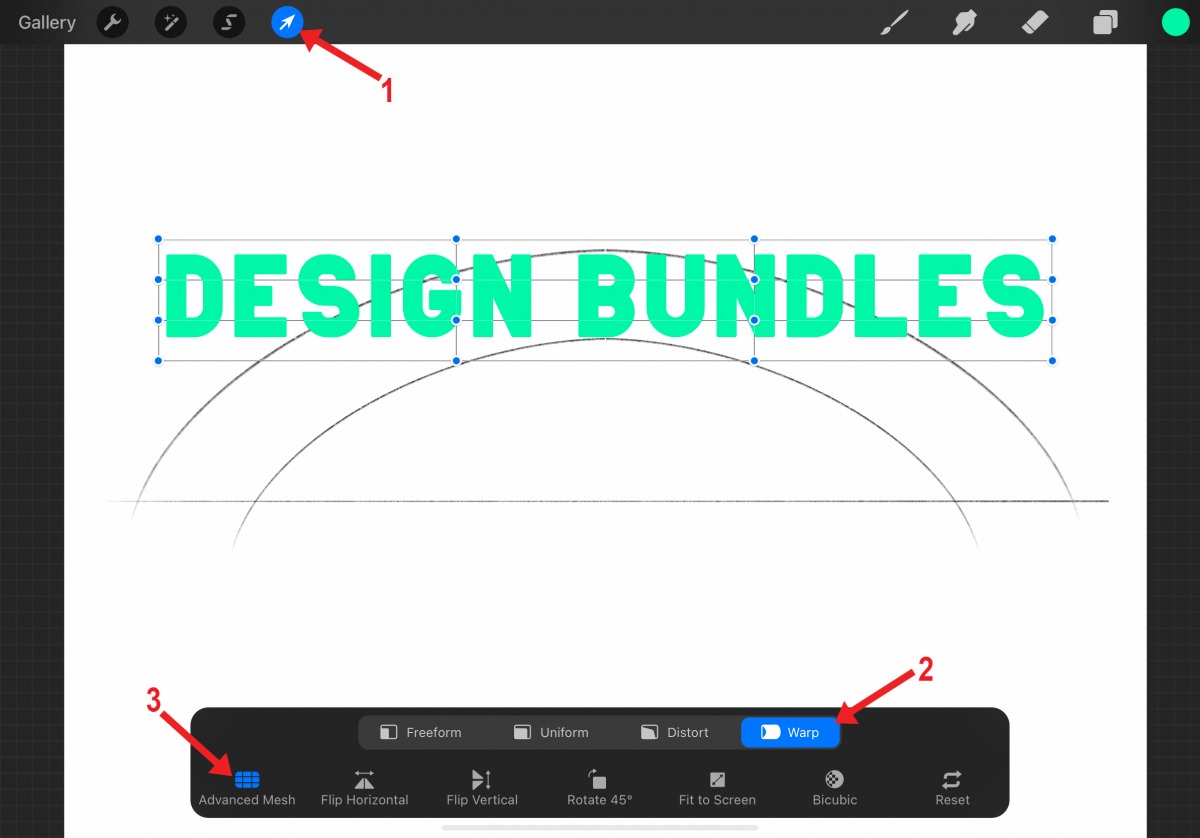
To curve text in Procreate, you need to use a workaround because the Procreate digital art app does not include a native one-click "curve text" feature. Does Procreate have a...

How To Make Perfect Circle In Procreate

The quickest and most reliable method to draw a perfect circle in Procreate is the QuickShape feature. Draw a rough oval, keep your Apple Pencil or finger held down on...

How To Mirror Drawing In Procreate

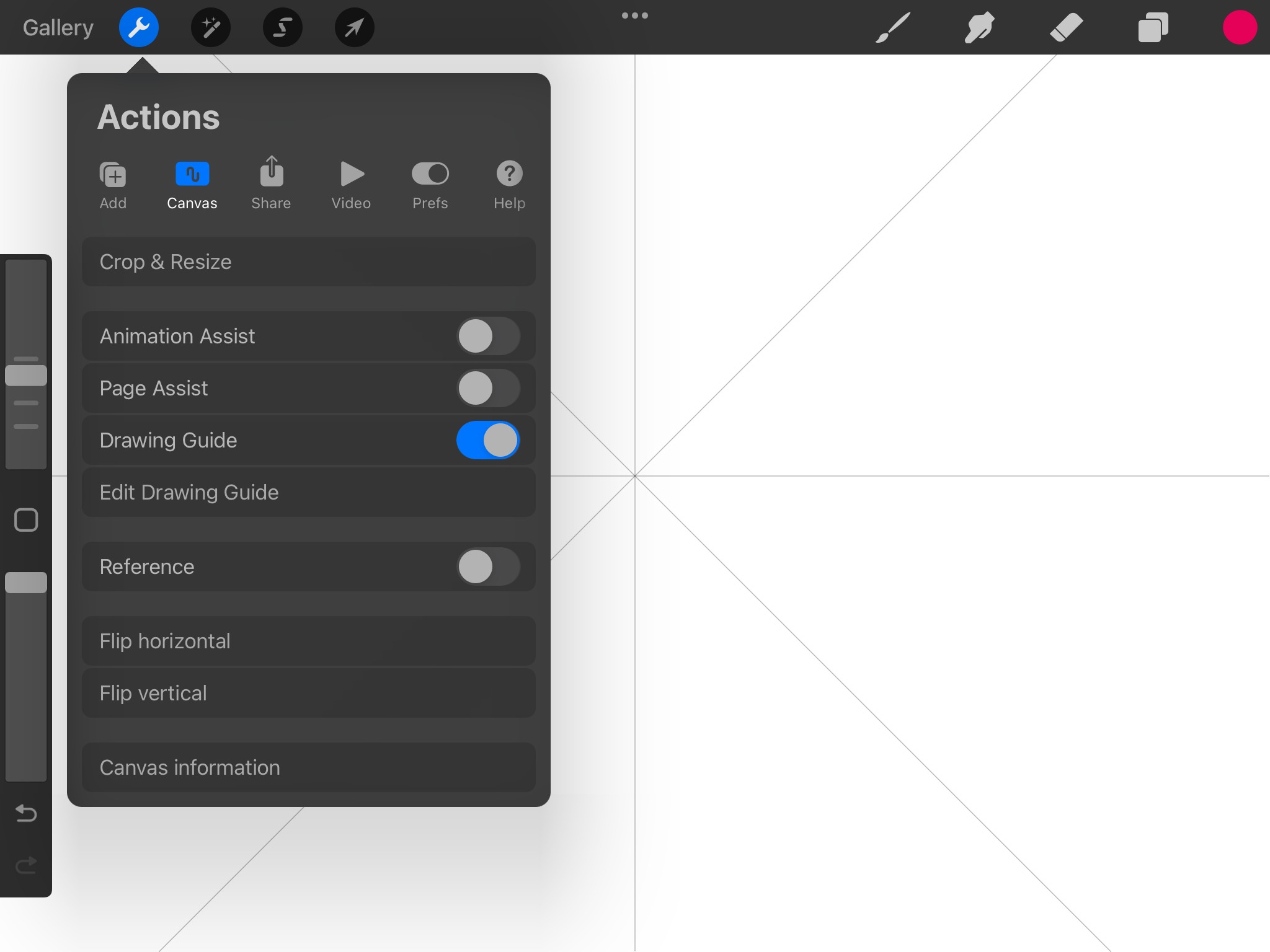
To mirror drawing in Procreate, you use the Symmetry Guide, which is part of the Drawing Guides feature. This built-in tool lets you create perfectly symmetrical designs, such as mandalas,...

How To Make Animation On Procreate

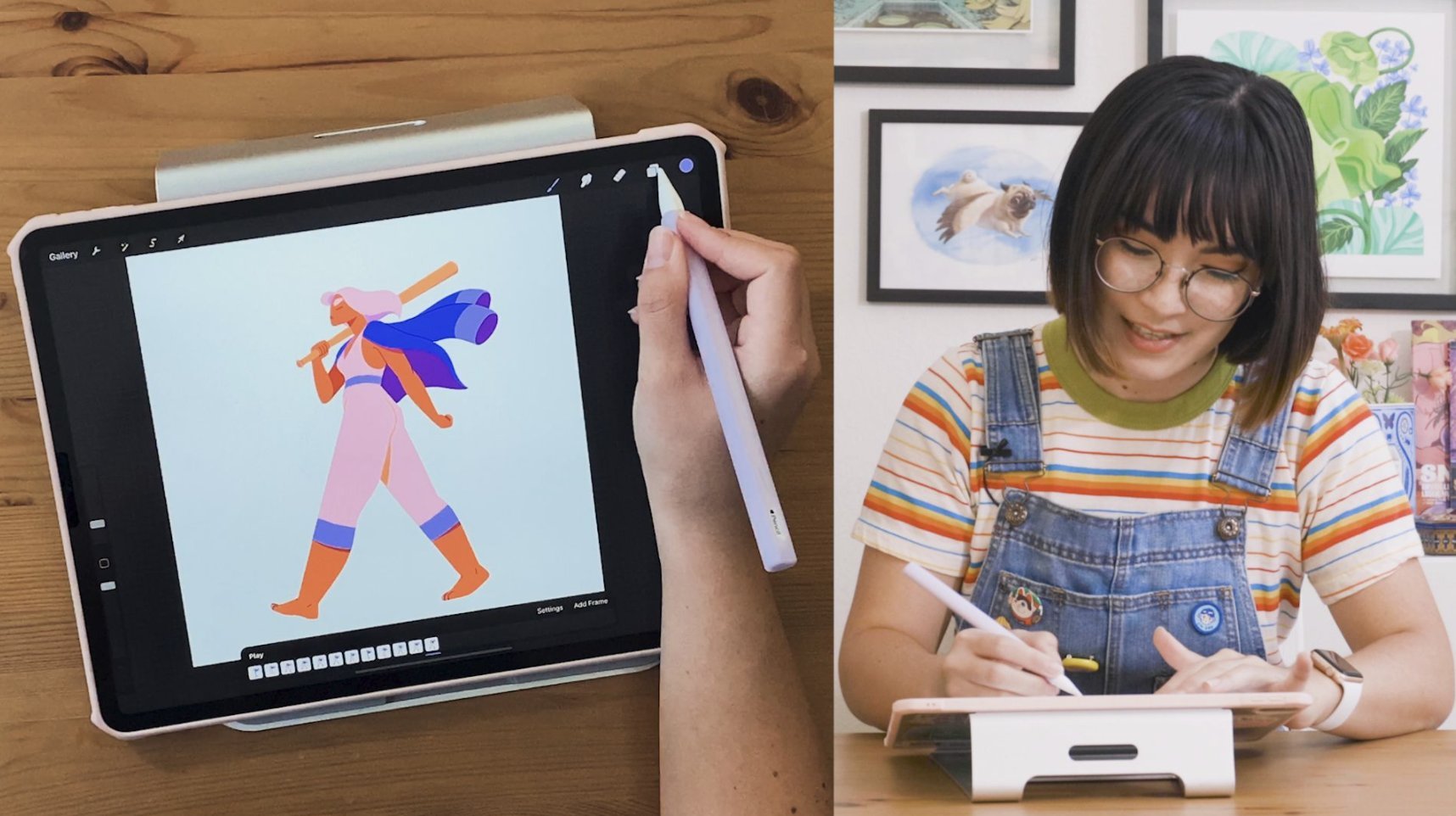
To make animation on Procreate, you use the built-in Animation Assist feature to create frame-by-frame animations directly on your canvas. How to make animation on Procreate with Animation Assist Animation...

How To Copy A Color In Procreate

To copy a color in Procreate, tap and hold anywhere on your canvas to invoke the Eyedropper tool. Drag the Eyedropper to the exact color you want and release to...

How To Erase In Procreate

To erase in Procreate, tap the Eraser tool icon in the top right toolbar, it appears as a rubber eraser between the Smudge tool and the Layers panel, then drag...