This tag collects guides for using the Procreate app on an iPad, aimed at anyone from beginners learning the basics to more experienced digital artists looking for specific fixes. The articles here focus on practical, step-by-step solutions for common drawing, design, and editing tasks within the app.

The tutorials break down into a few clear themes. One major group covers core drawing and editing techniques, you’ll find help with smoothing lines, making a perfect circle, mirroring your drawing, and using symmetry. Another set of articles deals with color and layers, including how to pick or change color, use the eyedropper, invert colors, merge layers, and make a layer transparent. A third theme is working with text and images: you can learn to curve text, edit text, cut out or crop an image, and trace an image directly in Procreate.

Specific topics include saving your work, making a sticker, adding a grid, and even renaming a stack. For those wondering about cost, there is also an article on how much Procreate costs on the iPad. Whether you need to resize an image, turn on grayscale, or get new brushes, these articles help you perform each action without extra fuss.
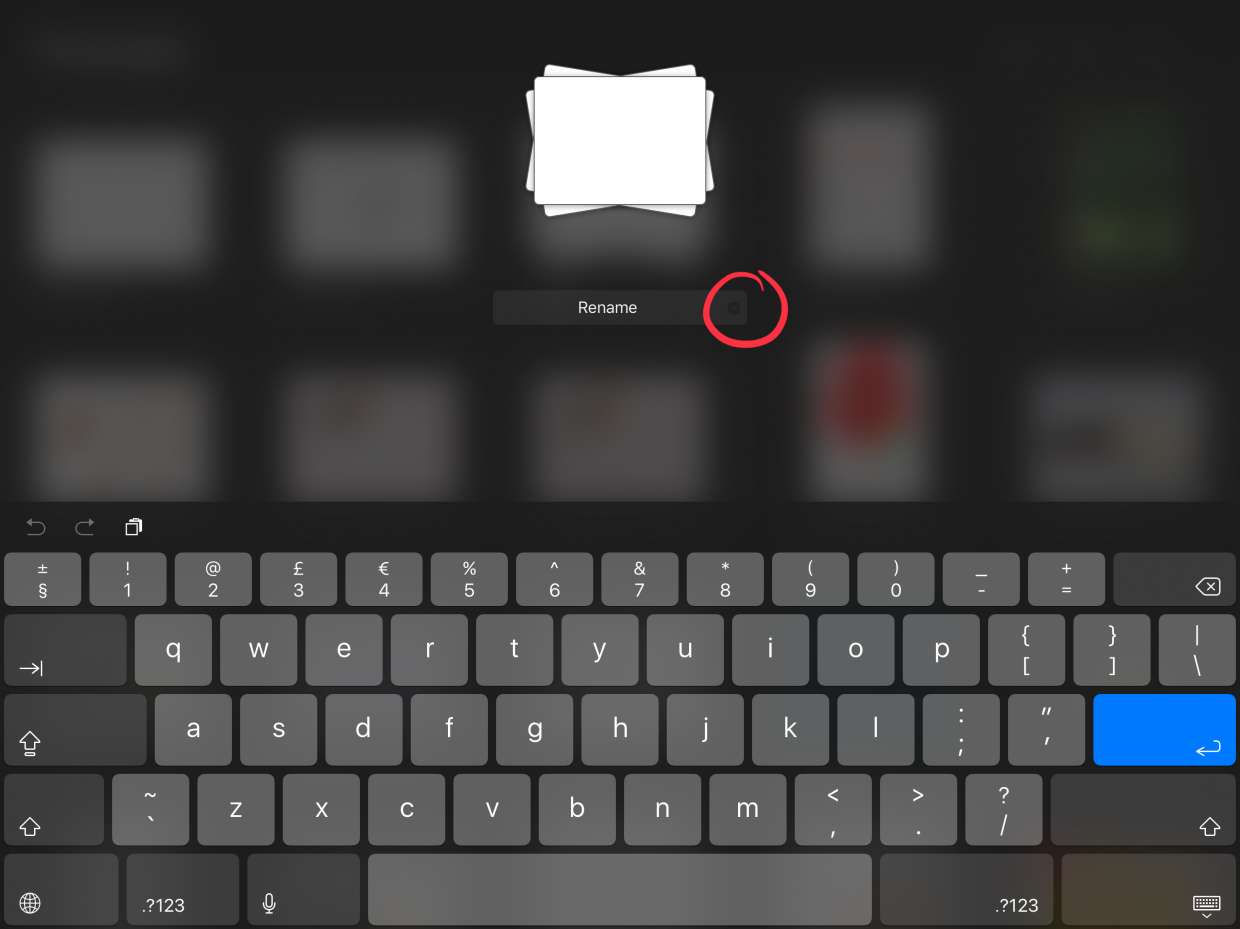
How To Rename A Stack In Procreate

To rename a stack in Procreate, open the stack from the Gallery and tap its title at the top of the screen to show the keyboard, then type the new...

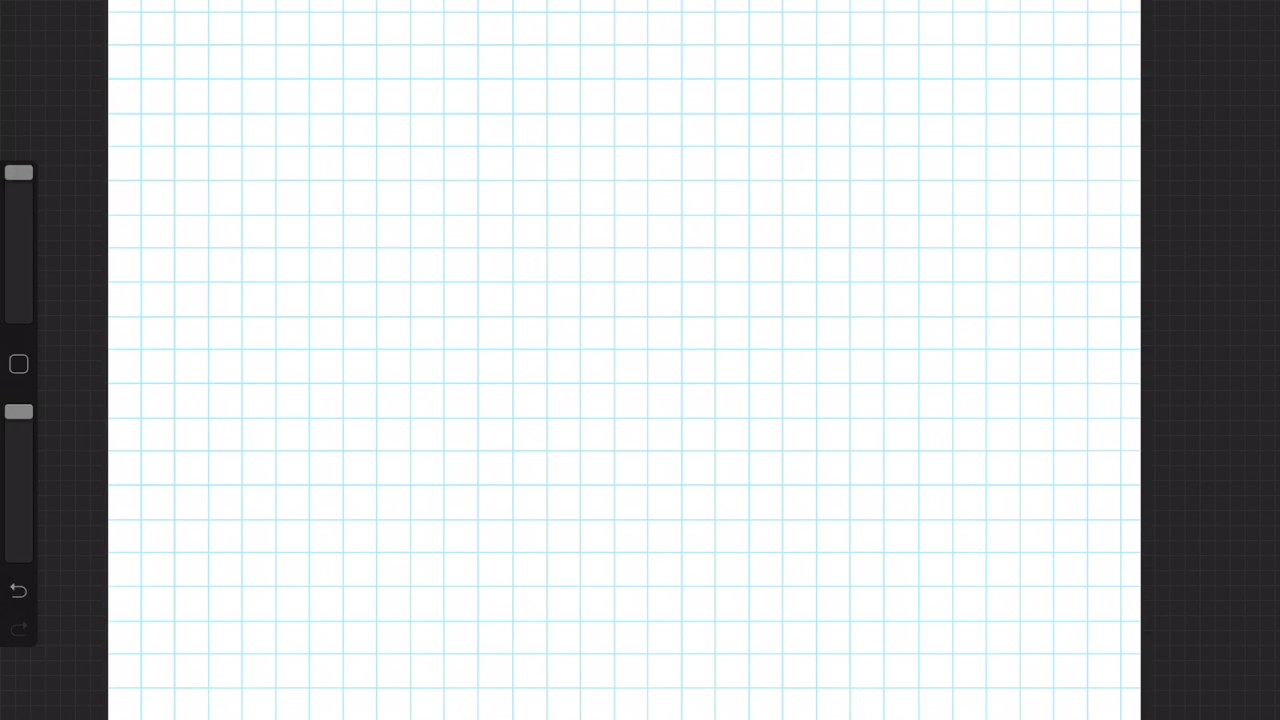
How To Add Grid On Procreate

To add a grid on Procreate, open the Actions menu (wrench icon) in the top-left corner of your canvas and toggle the Drawing Guide switch on. This activates the 2D...

How To Fill In A Shape In Procreate

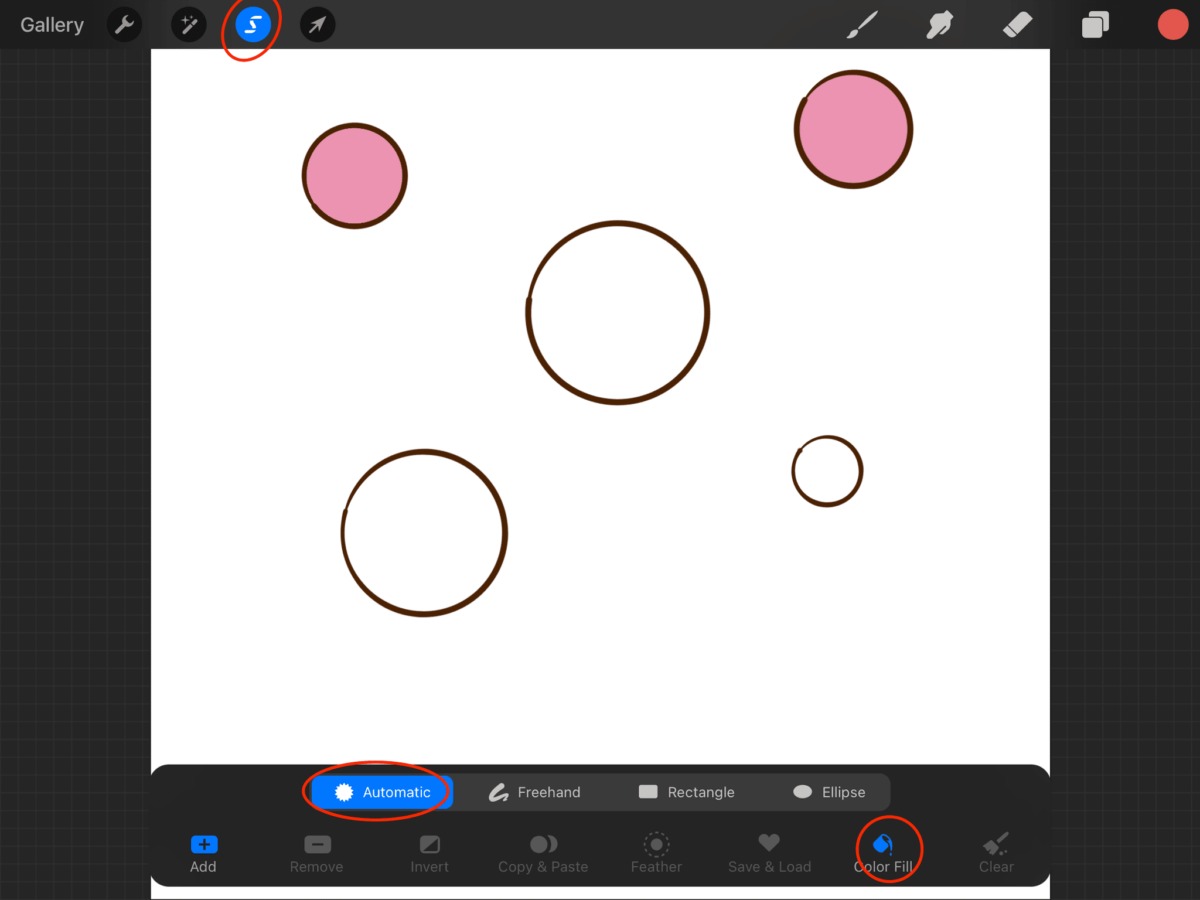
The primary method to fill in a shape in Procreate is called ColorDrop, a drag-and-hold technique that instantly adds solid color to any closed area. This is the fastest way...

How To Invert Color In Procreate

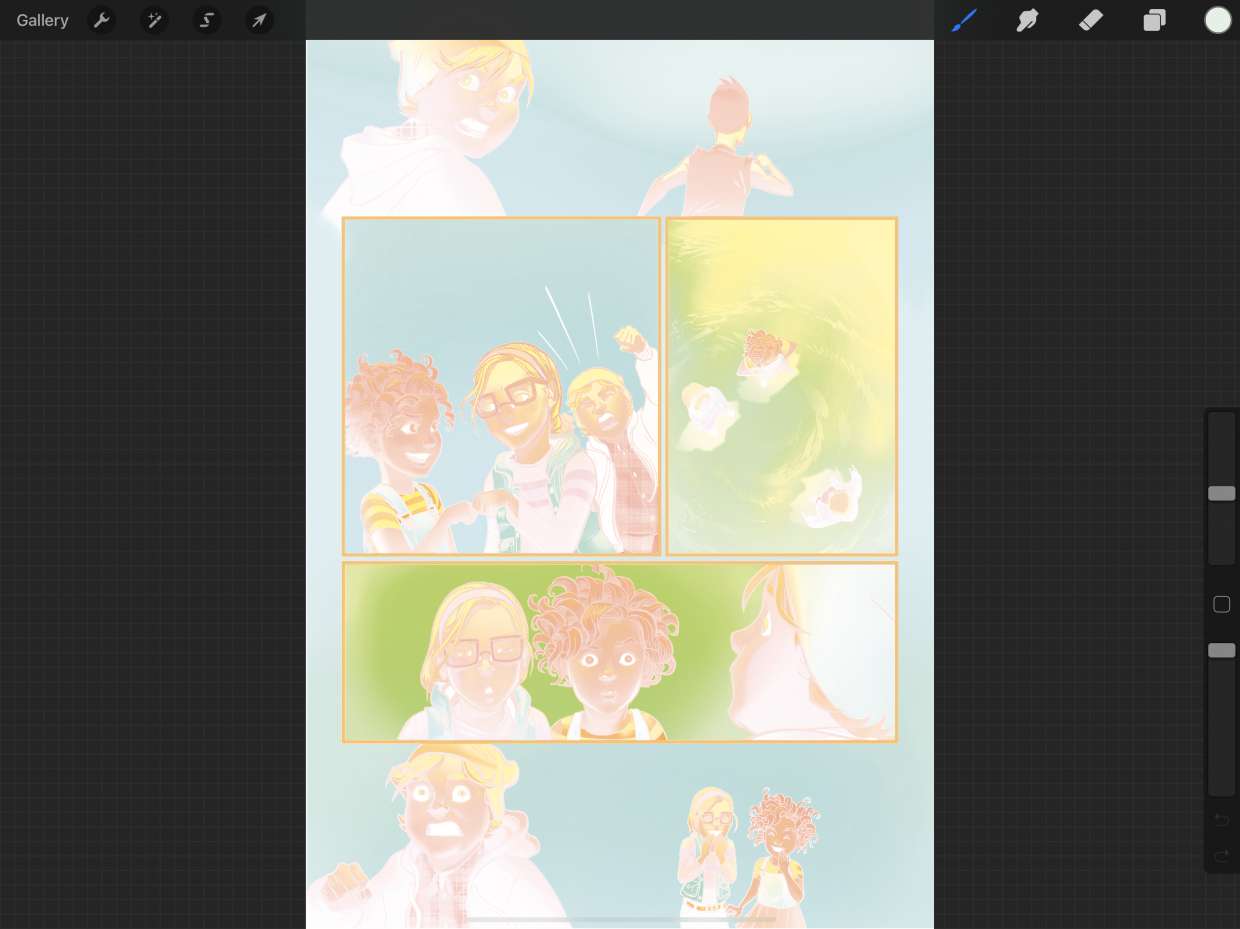
To invert color in Procreate instantly, tap the desired layer in the Layers panel to open its settings, then tap the "Invert" button from the Layer Options menu. This replaces...

How To Crop An Image On Procreate

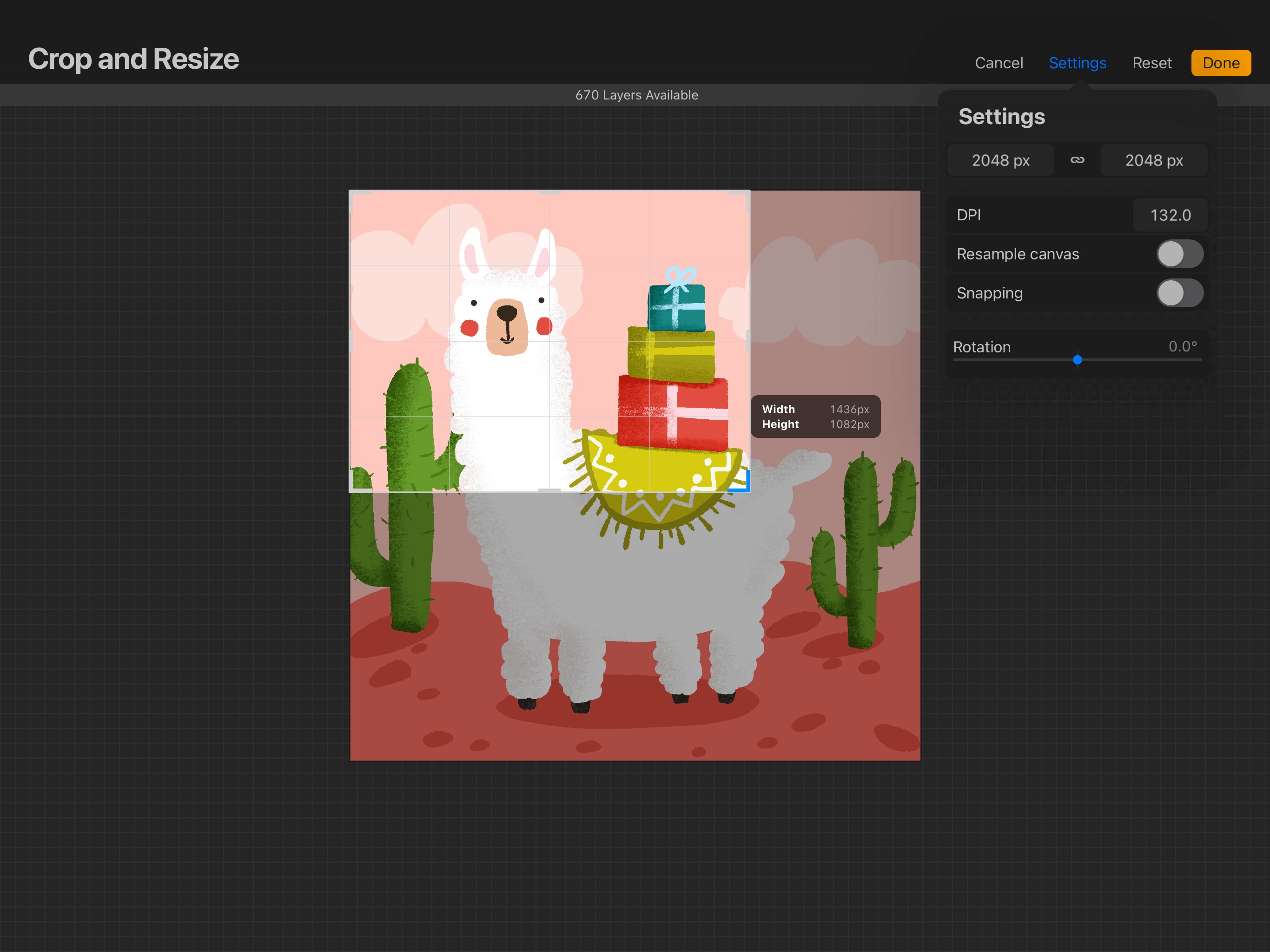
To crop an image on Procreate, open your artwork and tap Actions (wrench icon), then Canvas, then Crop & Resize. Drag the boundary handles or corner points to adjust the...

How To Make Layer Transparent In Procreate

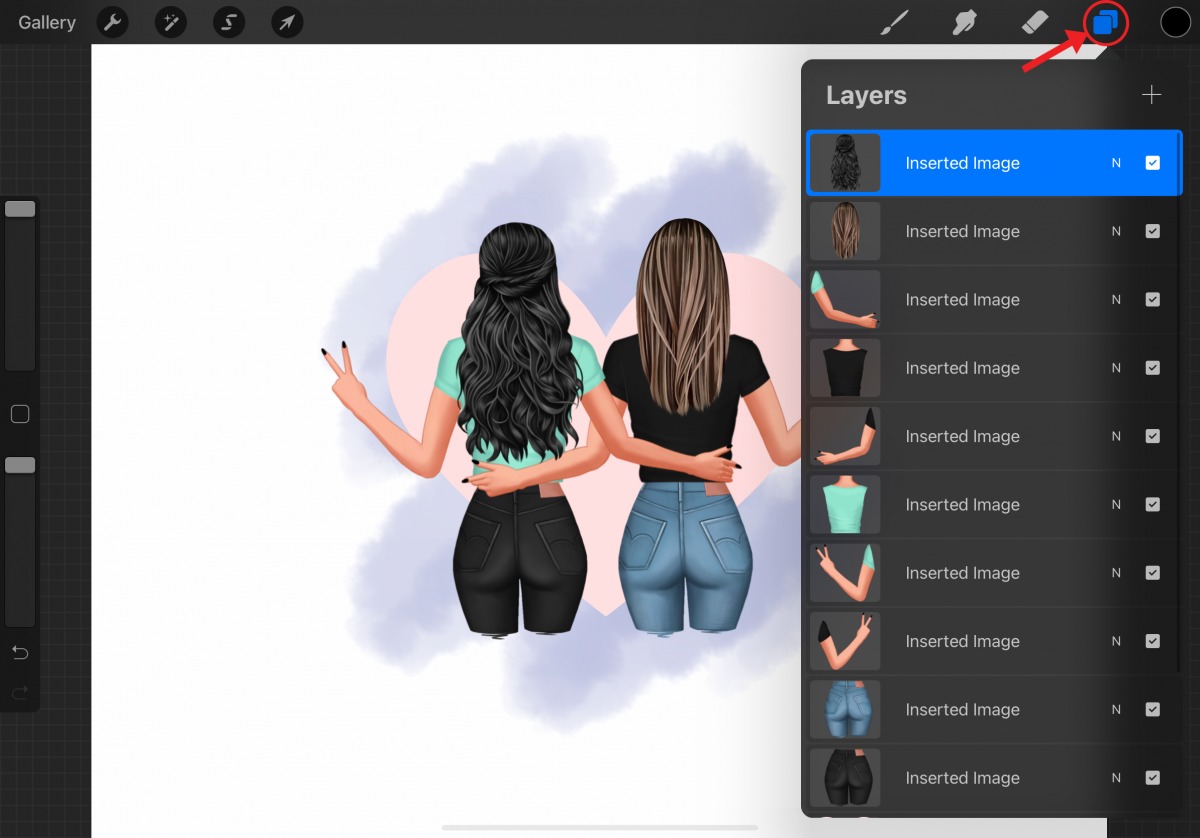
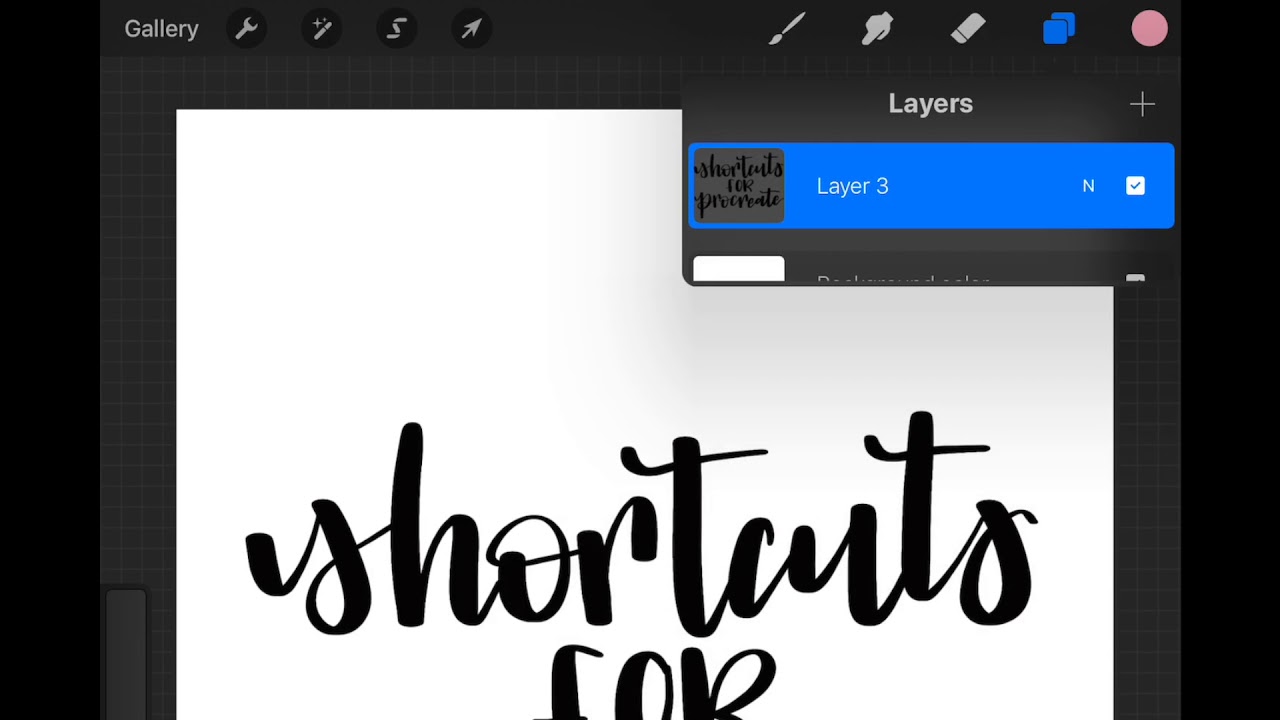
To make a layer transparent in Procreate, open the Layers panel, tap the layer's "N" blend-mode label, and use the opacity slider that appears beneath it. This is one of...

How To Get New Brushes On Procreate

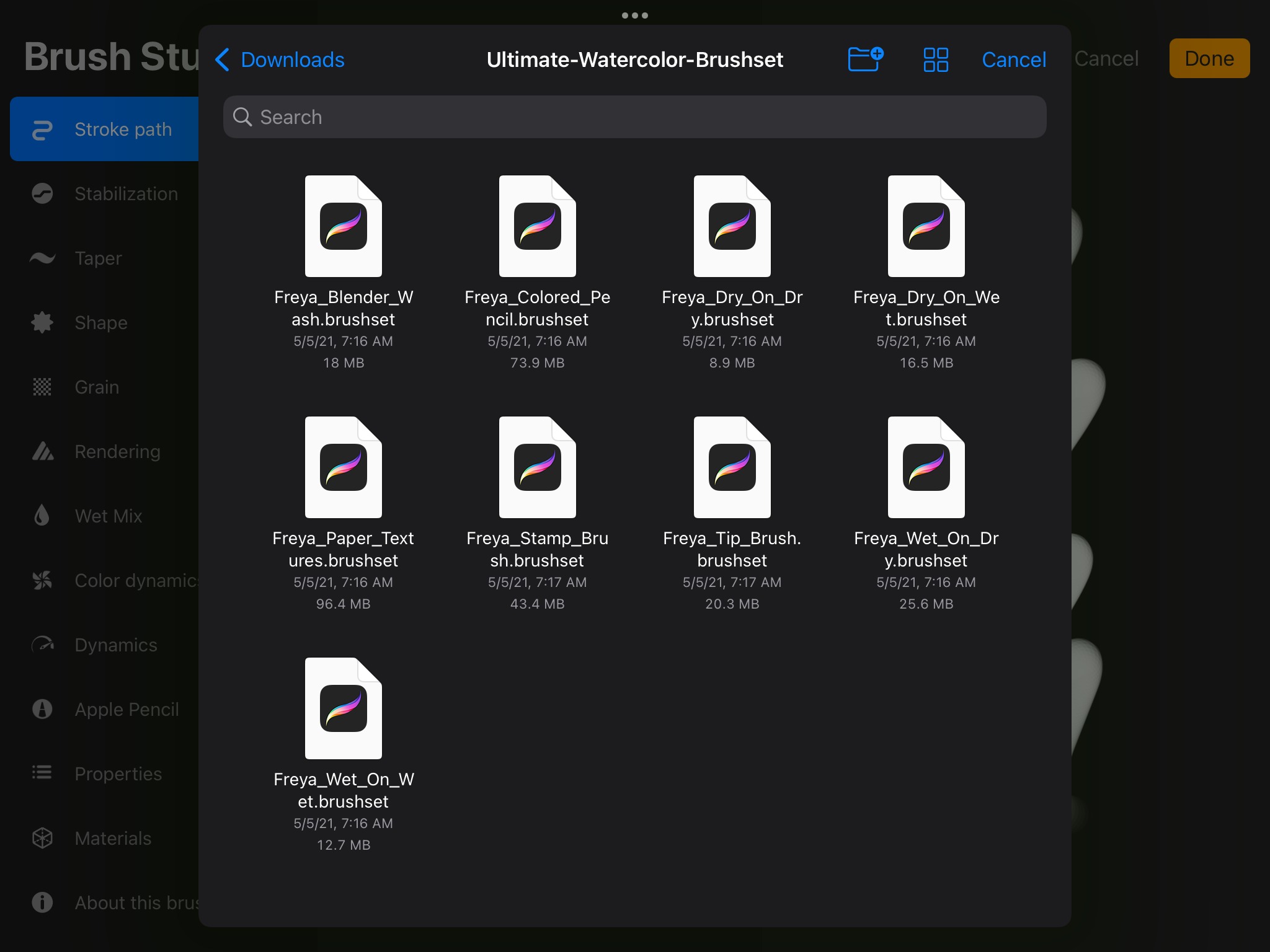
To get new brushes on Procreate, you import brush files you've downloaded or create custom brushes from scratch in the Brush Studio. The primary method is to tap the "+"...

How To Trace An Image In Procreate

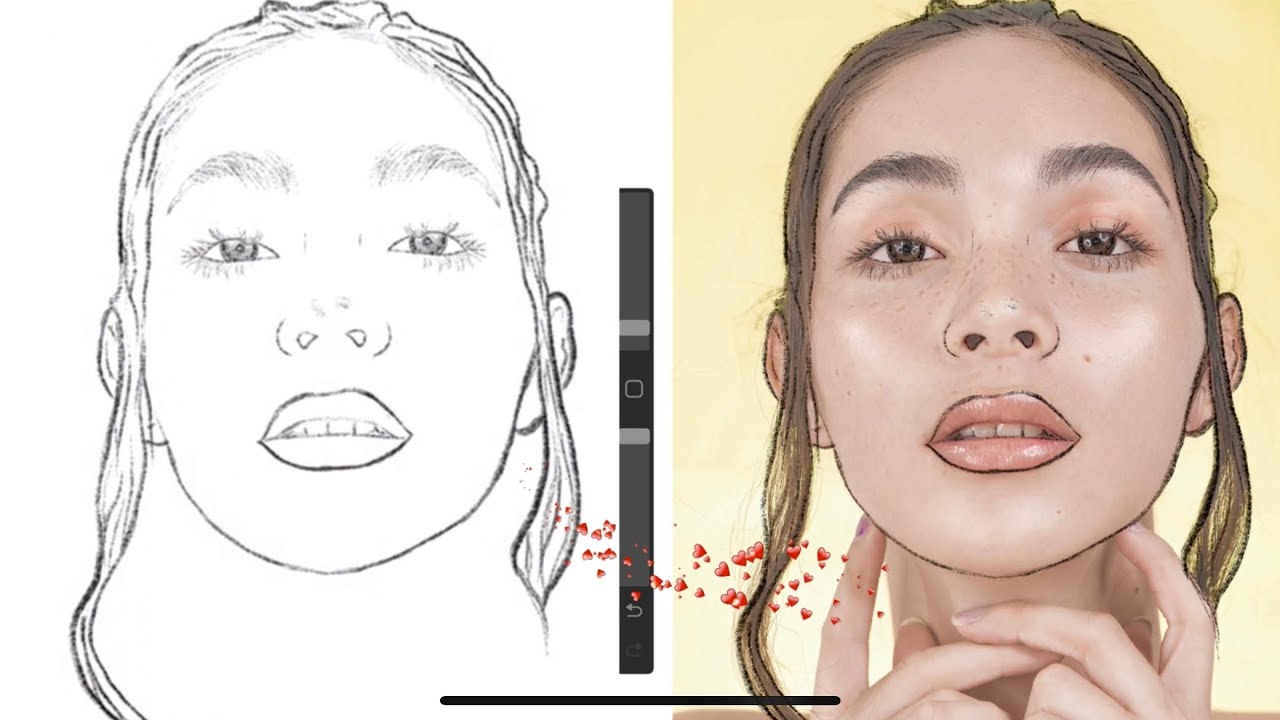
To trace an image in Procreate, you import the reference image, lower its opacity, and draw over it on a new layer. Procreate has no dedicated trace mode, so this...

How To Merge Layers In Procreate

To merge layers in Procreate on iPad, use the Merge Down command from the Layer Options menu to combine the active layer with the layer directly below it, or pinch...

How To Pick Color On Procreate

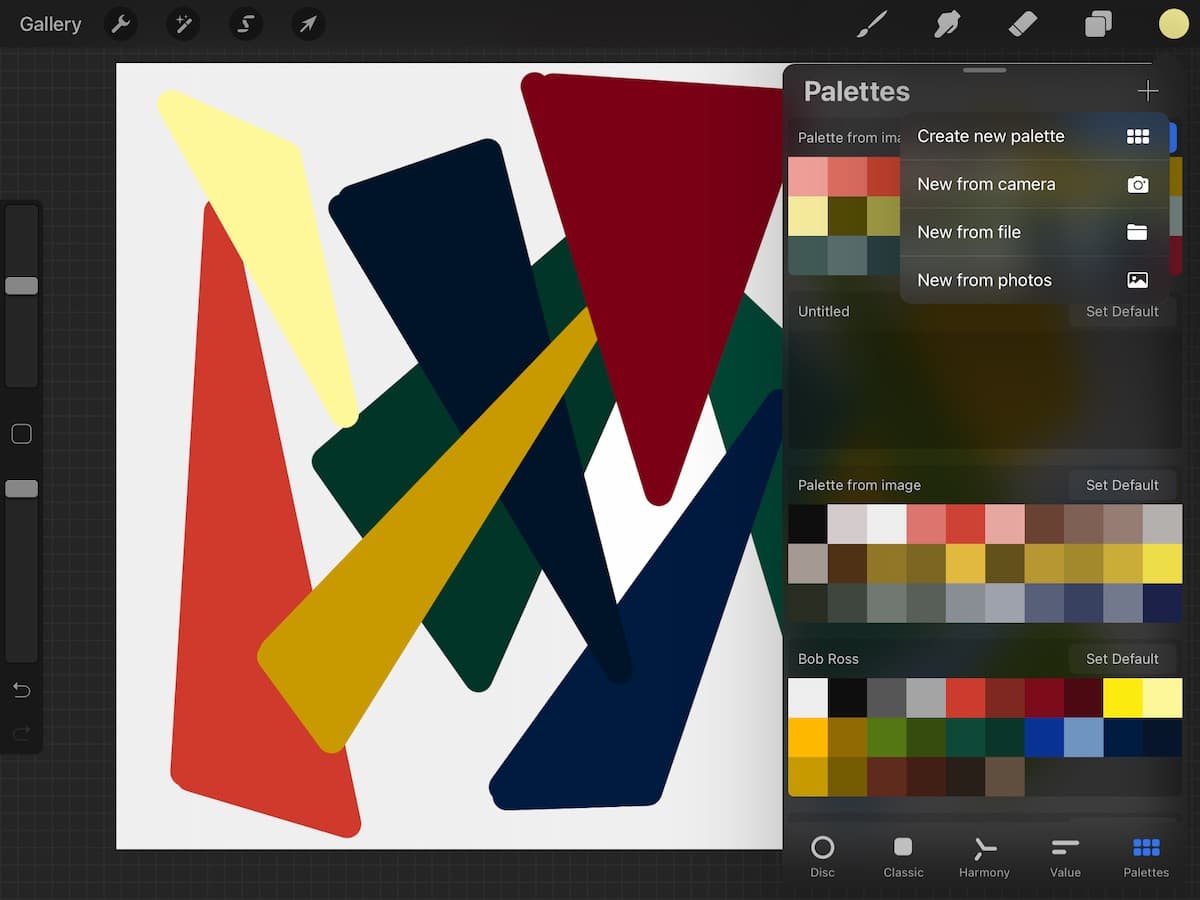
To pick a color on Procreate, you primarily use the Color Panel or the Eyedropper tool. The Color Panel, opened by tapping the Active Color button in the top right...

How To Cut Out An Image In Procreate

To cut out an image in Procreate, you make the canvas background transparent by turning off the Background Color layer in the Layers panel, then export the file as a...

How To Use Eyedropper In Procreate

To use the eyedropper in Procreate, tap and hold anywhere on the canvas until the loupe appears, then drag to the desired color and lift your finger to select it....