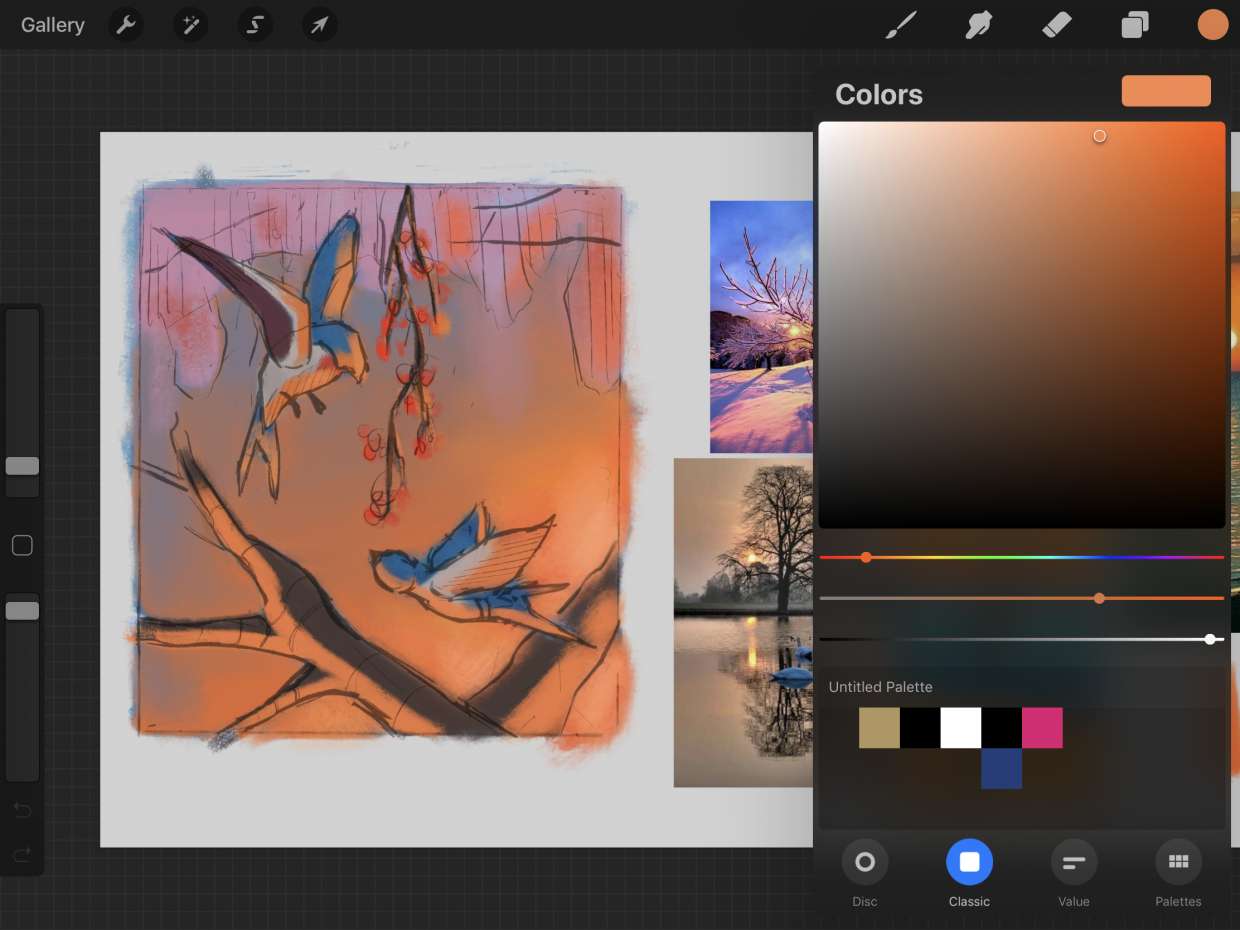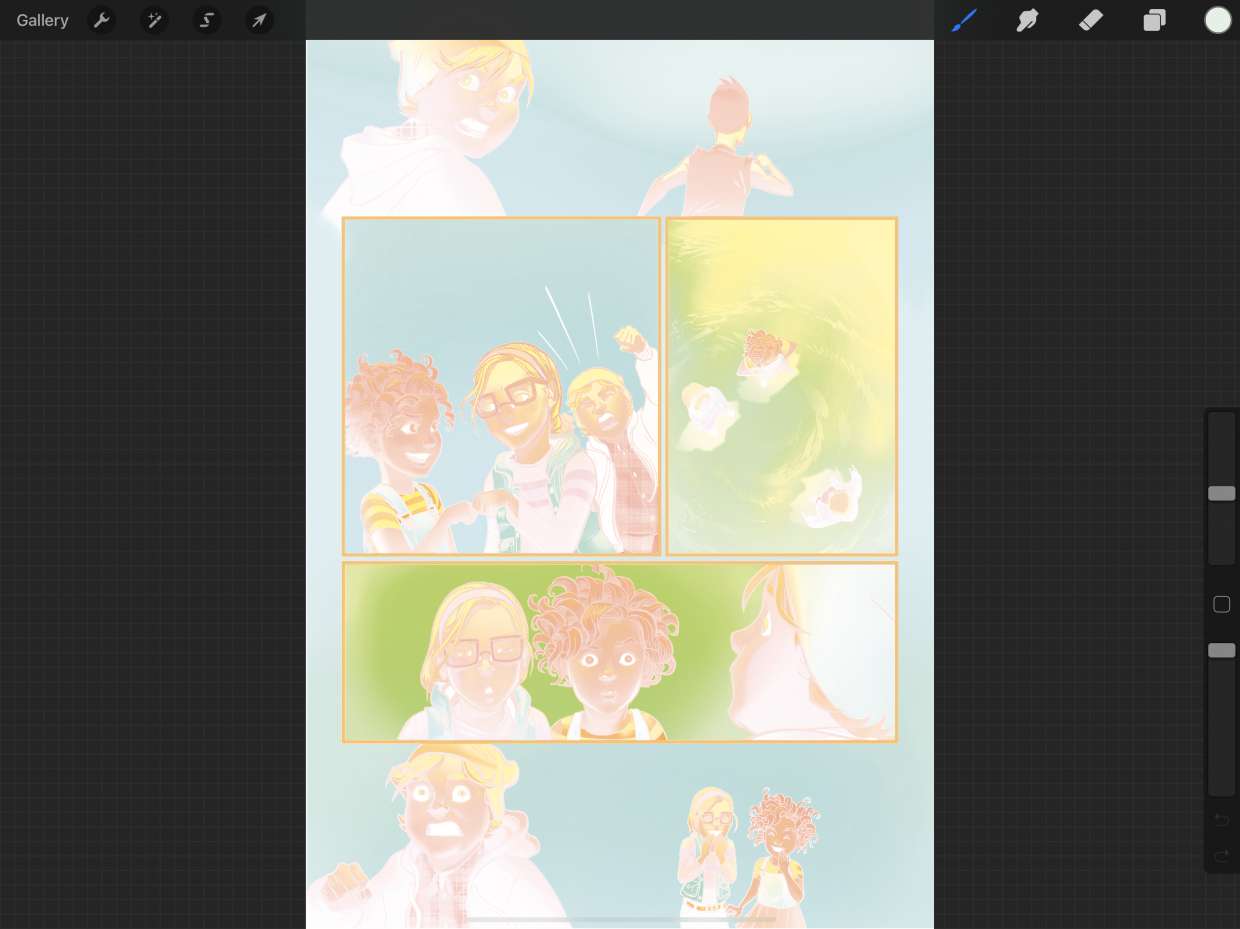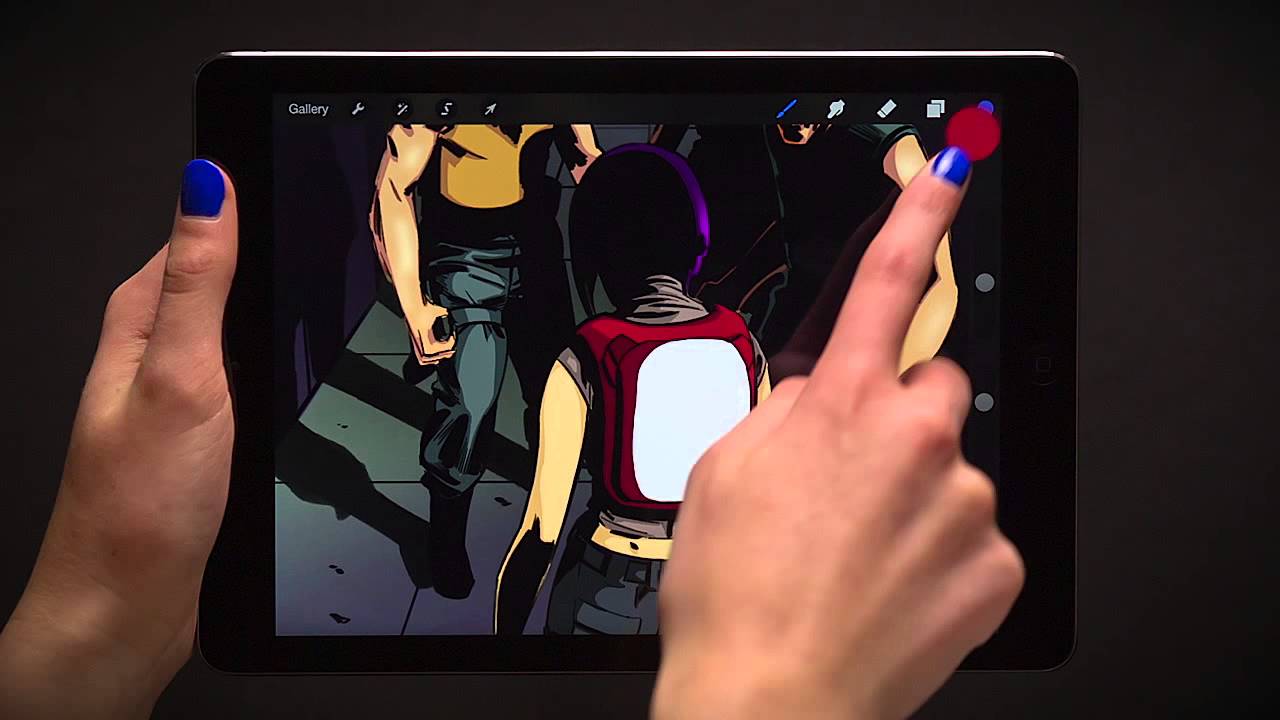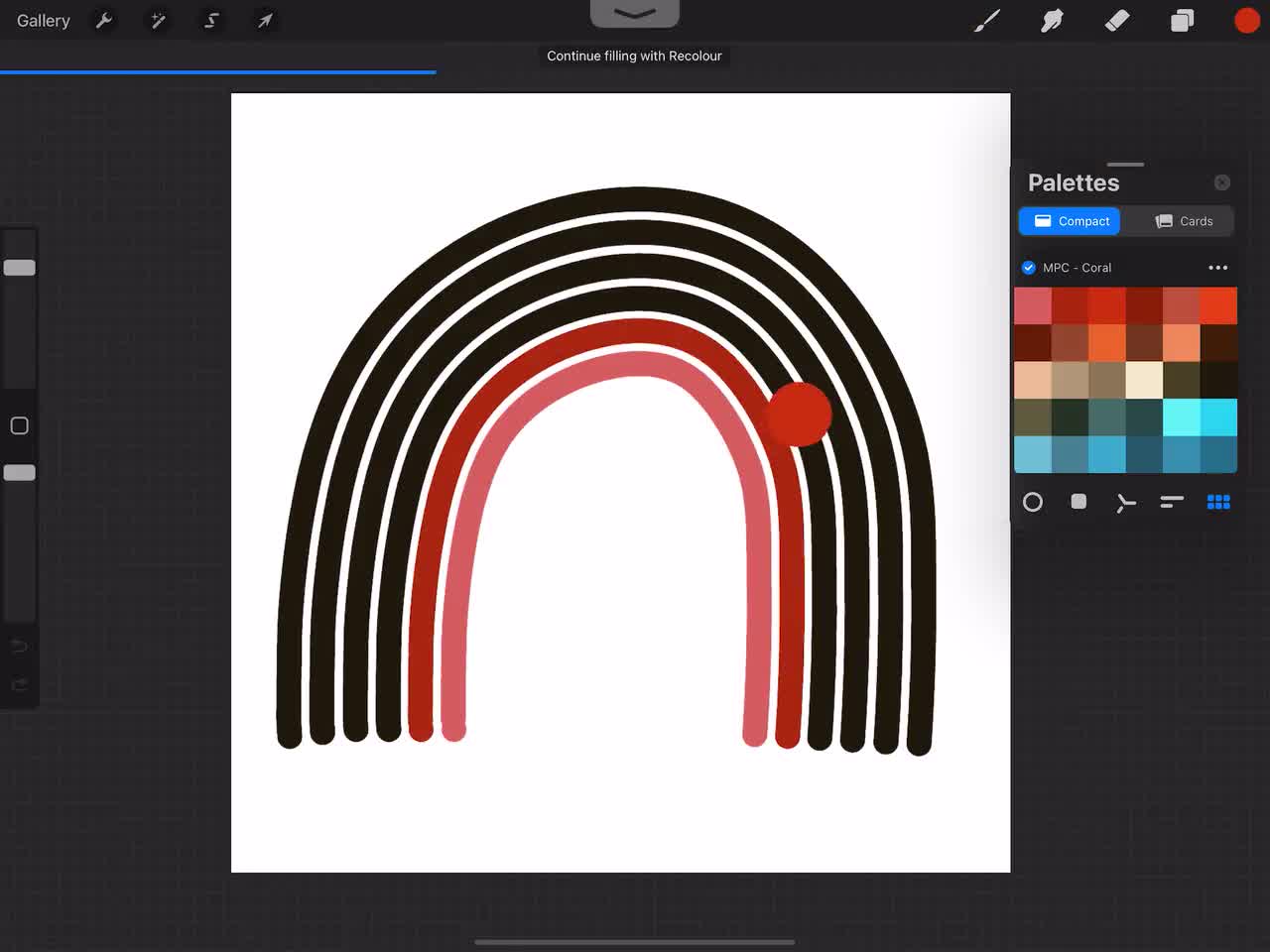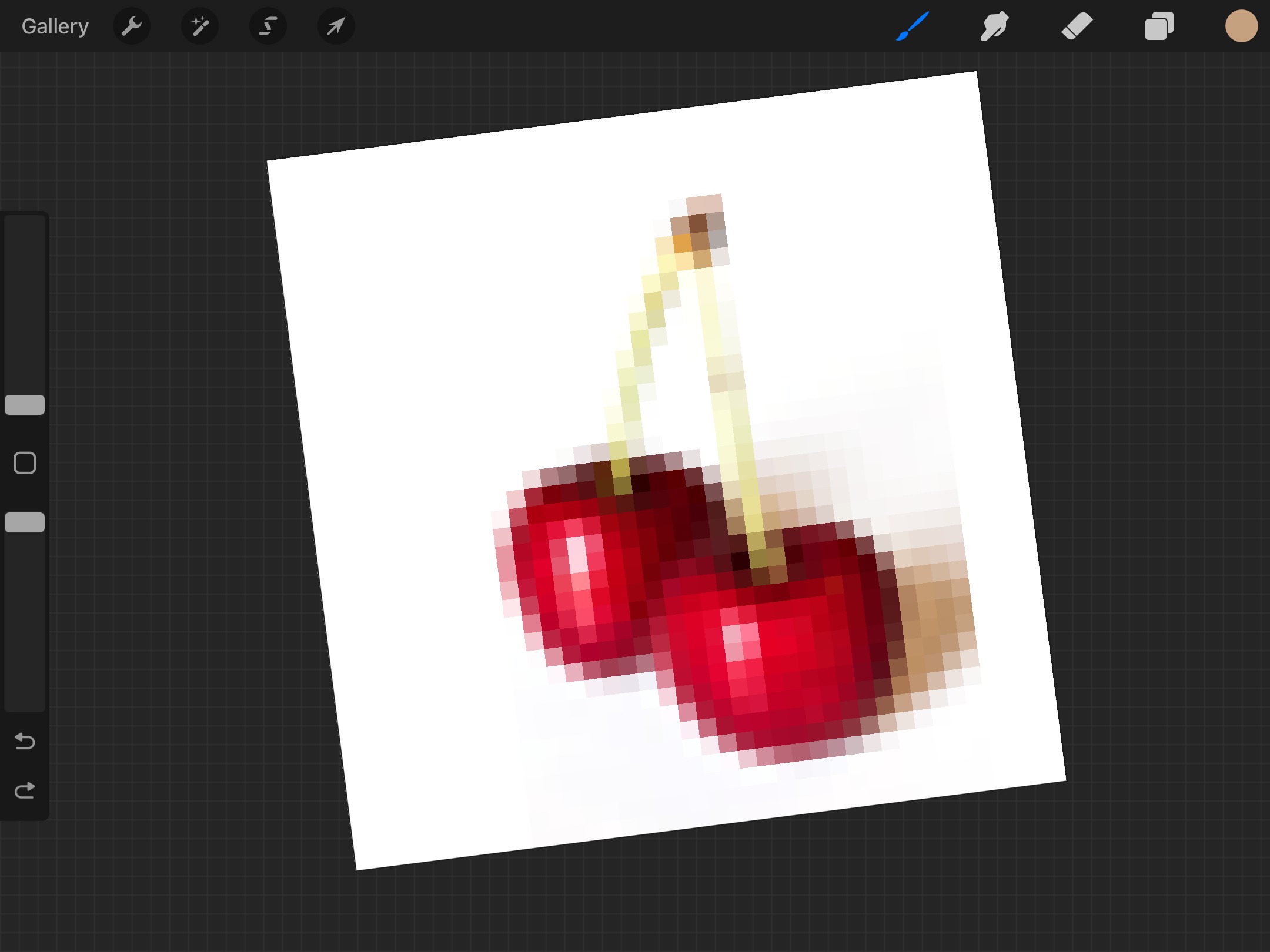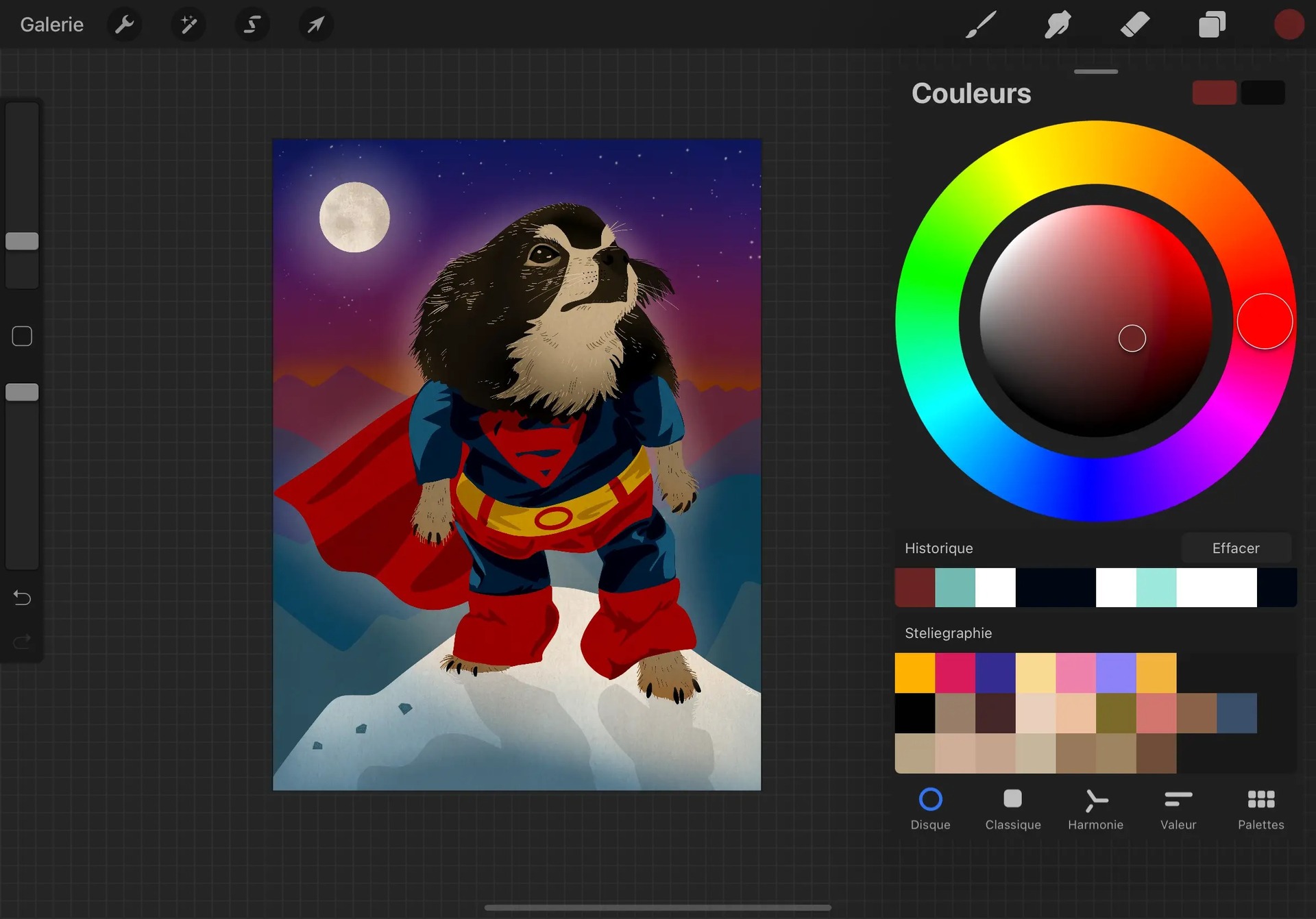
To copy a color in Procreate, tap and hold anywhere on your canvas to invoke the Eyedropper tool. Drag the Eyedropper to the exact color you want and release to select it, instantly making that color your active brush color.
How to copy a color in Procreate with the eyedropper
The Eyedropper can be invoked by tapping and holding with a stylus or finger. The Eyedropper is the primary method for copying a color from your canvas. When you tap and hold on the canvas, a color loupe appears. The color loupe shows a zoomed-in view of the area under your finger. The top half of the loupe shows the new color you are hovering over, and the bottom half shows your current active color. This split display lets you compare shades before committing. Once you release, the sampled color becomes your active color, ready for use in coloring, shading and rendering in Procreate.
Alternative eyedropper access methods
Sidebar method
Hold the Modify button on the sidebar, then tap anywhere on the canvas with your other hand to invoke the Eyedropper. This method keeps your drawing hand free and is documented in Procreate’s handbook.
Floating Eyedropper method
Tap the Modify button to invoke a floating Eyedropper, then touch and drag it to the desired color. Release to select. This gives you precise control when sampling from a crowded area of the canvas.
You can sample colors from external sources like other apps on your device by tapping and holding the color picker tool for additional options.
Copying colors in Procreate Pocket
Procreate Pocket users have two ways to copy a color. First, tap Active Color in the Color panel, then tap Eyedropper from the top left of the panel (available in Disc, Classic, Harmony, and Value modes). Second, tap and hold anywhere on the canvas to invoke the Eyedropper directly. For copying hex values, tap the alphanumeric field in the color panel to copy or paste a hex code. This hex copy/paste feature is specific to the color panel and does not apply to general canvas-color sampling.
Device and version requirements
Procreate is iPad-only with no official Android support. The ColorDrop with hover feature requires iPadOS 16.1 or newer on iPad Pro 12.9-inch 6th generation or iPad Pro 11-inch 4th generation, while using Apple Pencil 2nd generation. No other device or version requirements are documented in Procreate’s support material.
Frequently Asked Questions
How do I sample a color from an imported image?
Open the image on a separate layer, then use the Eyedropper (tap and hold on the canvas) to sample any color from that image layer. The sampled color becomes your active color.
Can I copy multiple colors at once in Procreate?
Procreate does not have a built-in feature to copy multiple colors simultaneously. You must sample each color individually using the Eyedropper.
How do I paste a copied hex value into Procreate?
In the Color panel, tap the alphanumeric hex field, then paste the copied hex value. The color will update instantly. This works in both Procreate and Procreate Pocket.
How to pick color on Procreate from a reference photo?
Insert your reference photo as a new layer. Use the tap-and-hold Eyedropper method directly on the reference photo layer to sample any color. The color loupe helps you verify the exact shade before releasing.
Is there a way to copy a color without the Eyedropper?
No. The Eyedropper is the only documented method for sampling a color from the canvas. The hex copy/paste feature in the Color panel is for entering known hex values, not for sampling canvas colors.
Can I copy colors from one artwork to another in Procreate?
Yes, by opening the source artwork, copying the desired colors, opening the destination artwork, and pasting them into the color palette.
For the wider topic, see coloring, shading and rendering in Procreate.
Related reading: How To Change Color On Procreate.