To activate your Xfinity Mobile SIM card, you’ll use the Xfinity app or the Xfinity Mobile support flow, and the exact steps differ depending on whether you have a physical SIM (pSIM) or an eSIM. Before you start, know that there are two main paths: activating a brand-new line or activating an existing line you’re upgrading or transferring, and the key difference is that a shipped pSIM starts billing on the day it’s delivered, while an eSIM is downloaded directly to your phone.
Before you activate your Xfinity Mobile SIM card
First, clarify which situation applies to you. If you’re a new customer, you’ll need to check device compatibility before getting a SIM or eSIM. Xfinity says BYOD users should first check compatibility and then get a SIM card or eSIM before activation. For compatibility checks, on Apple go to Settings > General > About > IMEI; on Android, go to Settings then the device info area for the IMEI, and update the device if needed. Xfinity documents that compatible eSIM devices and devices that require a SIM card are both supported, but the support pages do not give a complete model list on the activation page itself.
If you’re activating an existing line, the process starts in the Xfinity app and requires a one-time passcode sent to either an email address on file or the phone number linked to the device or SIM being replaced. Also, note that billing begins on the day the device is delivered for shipped devices and pSIM cards, so you’ll want to activate promptly once it arrives.
How to activate your SIM card for an existing Xfinity Mobile line
The primary app-based flow for an existing line is straightforward. For an existing Xfinity Mobile line, the app flow starts in the Xfinity app on the Services tab, then Mobile lines and data usage; from there, tap Start Activation, complete the one-time passcode step, and then follow the eSIM or pSIM instructions shown on screen.
Activate your physical SIM card (pSIM)
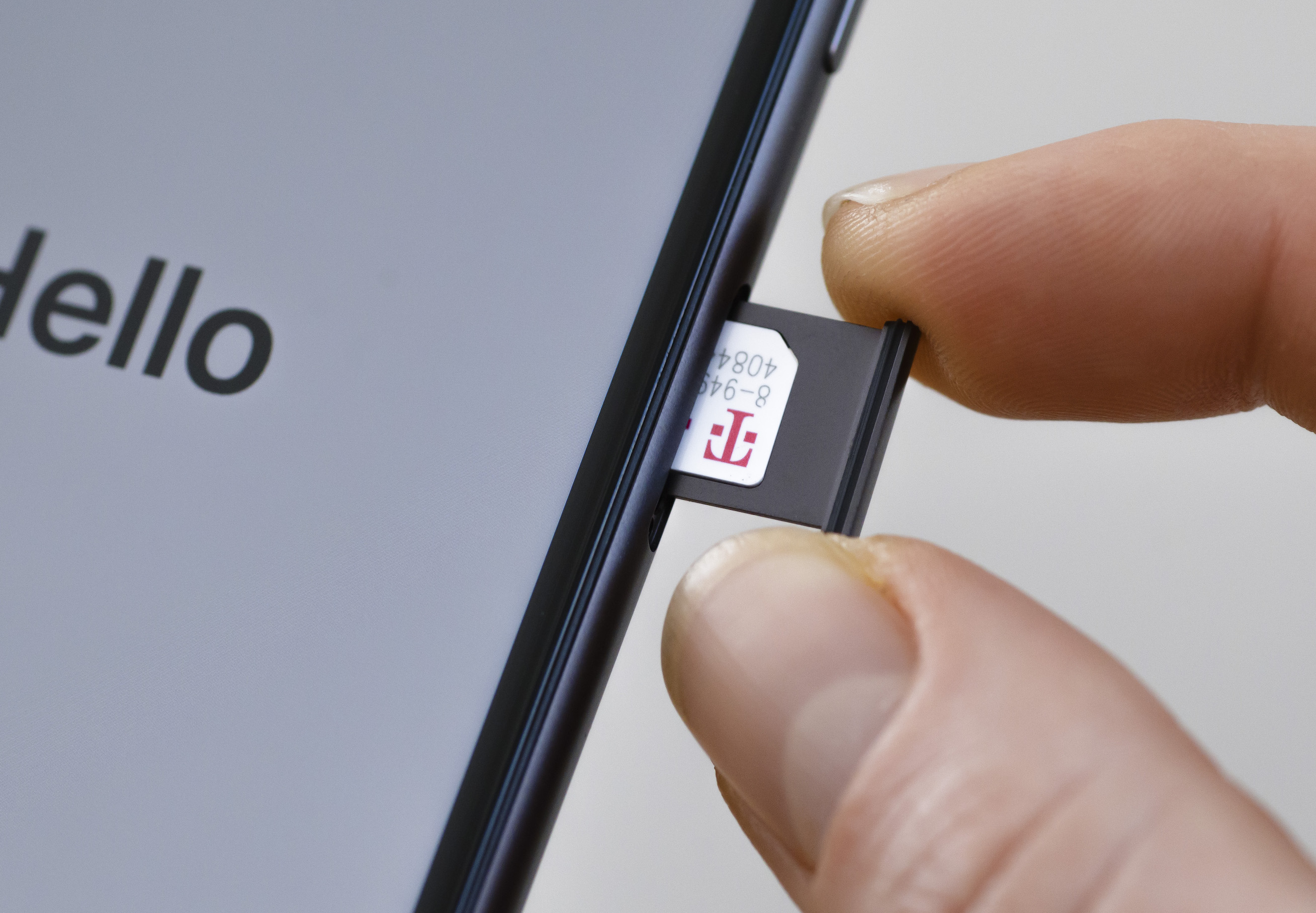
For a physical SIM card, the steps are simple. Install the physical SIM card into your device while it is powered off, then turn the device on. Once powered on, the activation completes automatically. This works for both shipped devices and pSIM cards you’ve obtained separately. If you’re replacing an existing line, make sure you’ve completed the app-based start activation step first, as that sends the one-time passcode and links the new SIM to your account.
Activate your eSIM on an iPhone
On an iPhone, install the eSIM by tapping the Settings notification or by opening Settings > Set Up Cellular. On Apple devices, the manual path is Settings > Cellular or Mobile Data > Add Cellular Plan or Add eSIM. For Apple manual eSIM setup, the SM-DP+ Address field is cct.vzw.otgeuicc.com and Activation Code and Confirmation Code should be left blank. After the eSIM downloads, your iPhone will display the on-screen result Cellular Setup Complete.
Activate your eSIM on a Google Pixel
For Google Pixel devices, the path is different. On Google Pixel devices, go to Network & Internet > SIMs > Add SIM > Download a SIM Instead > Use a different network if Xfinity Mobile is not listed. On the Scan QR code screen, tap Need help? > Enter it manually, then for Google Pixel manual eSIM setup, enter LPA:1$cct.vzw.otgeuicc.com$ and tap Continue. Once the eSIM is installed, your Pixel will show Cellular Setup Complete to confirm success.
Confirm your activation is complete
After following the eSIM or pSIM steps, verify that activation finished correctly. The on-screen result for successful eSIM setup is Cellular Setup Complete. For all devices, test connectivity by making a call or using mobile data. If you’re activating an existing line, the Xfinity app will also confirm when the number is successfully activated before you proceed with device setup. If you run into issues, return to the Xfinity app and check that you’ve completed the one-time passcode step, as that is required before any eSIM or pSIM instructions appear.
Frequently Asked Questions
What information do I need to activate my Xfinity Mobile SIM card?
For pSIM activation, you’ll also need the SIM card itself installed in your phone.
How long does it take to activate a Xfinity Mobile SIM card?
Activation typically completes within a few minutes once you’ve entered the passcode and followed the on-screen instructions. The eSIM download itself is usually immediate, but the full process depends on how quickly you complete the app steps and install the SIM.
What should I do if I encounter issues during the Xfinity Mobile SIM card activation process?
If activation fails, first confirm your device is compatible and updated. Then re-check that you entered the correct SM-DP+ address or LPA string for eSIMs, or that the pSIM is fully seated. If problems persist, contact Xfinity Mobile customer service for troubleshooting.
Can I activate a new Xfinity Mobile line without the app?
Yes, you can use the Xfinity Mobile support flow on the website instead of the app. However, the app is the primary method for existing-line activation, and the website flow will guide you through the same passcode verification and device-specific steps.
Does billing start immediately when I receive a shipped pSIM?
Yes, Xfinity states that billing begins on the day the device or pSIM card is delivered, not when you activate it. To avoid paying for unused service, activate the SIM as soon as possible after delivery.
For the wider topic, see Xfinity Mobile services and settings.
For provider-specific activation steps, see uPhone’s eSIM installation guide; exact menu names can vary by phone and software version.
More eSIM resources: Browse our eSIM guides and troubleshooting resources for compatibility, setup, travel-data and account-safety advice.
Related reading: How To Activate Xfinity Phone and How Do I Activate My SIM Card On Vodafone.