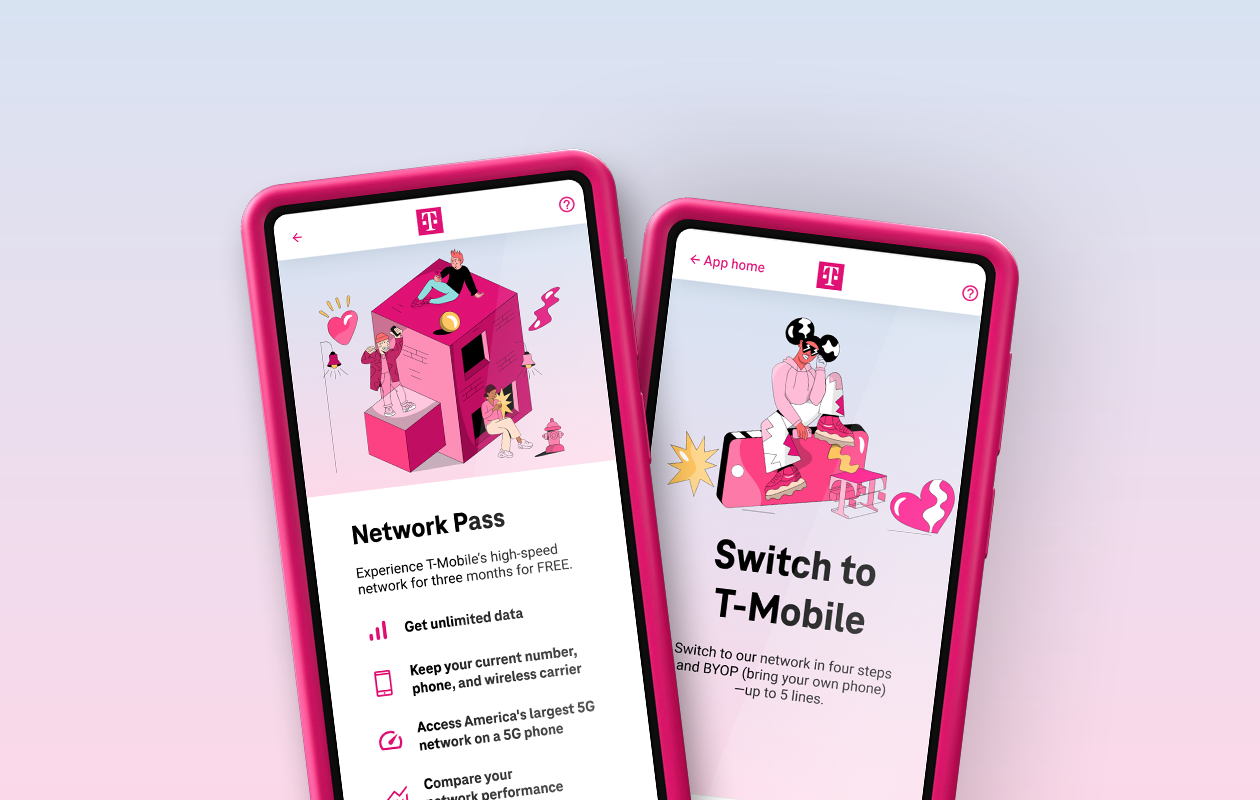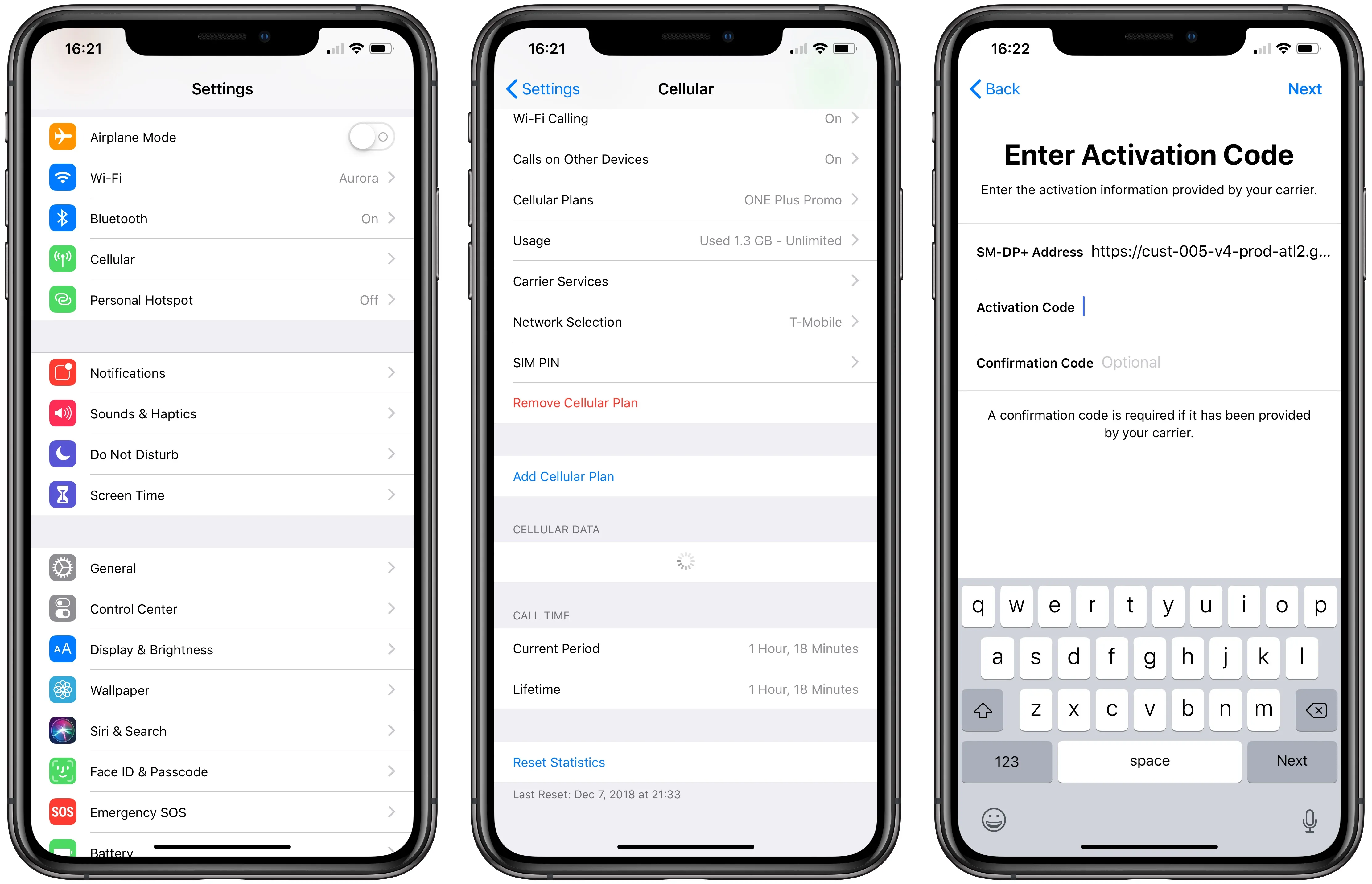
To activate eSIM on T-Mobile, you can use the T-Life app, scan a QR code, or set up automatically on a new iPhone, no store visit required. The method that works for you depends on whether you are an existing postpaid customer, a new iPhone user, or activating prepaid service.
How to activate eSIM on T-Mobile: 3 methods
T-Mobile offers three primary ways to activate an eSIM: the T-Life app for existing postpaid customers, an automatic setup for new iPhones, and the dedicated Prepaid eSIM app for prepaid users. All methods require a compatible, unlocked device and a Wi-Fi connection to download the eSIM profile.
Check your device compatibility first
Before starting, confirm your device supports eSIM. Compatible iPhone models include iPhone XR and above. Compatible Samsung models include Galaxy S Series and Note 20 and above. Compatible Google Pixel models include Pixel 7 and above. If your device was not purchased from T-Mobile, it must be unlocked. A Wi-Fi connection is required to download and activate your eSIM profile.
Method 1: Use the T-Life app (existing postpaid customers)
For existing T-Mobile postpaid customers, the T-Life app is the primary self-service method for activating phones and SIM cards. To activate or transfer an eSIM:
- Open the T-Life app and select the Account tab.
- Choose the line you want to activate.
- Tap SIM transfer or activation, then select Get Started.
- Follow the on-screen prompts to complete the activation.
For existing T-Mobile customers, you can manage eSIM transfers or activations through the T-Life app by selecting the "Account" tab, choosing the line, then "SIM transfer or activation" > "Get Started".
Method 2: Scan a QR code from T-Mobile
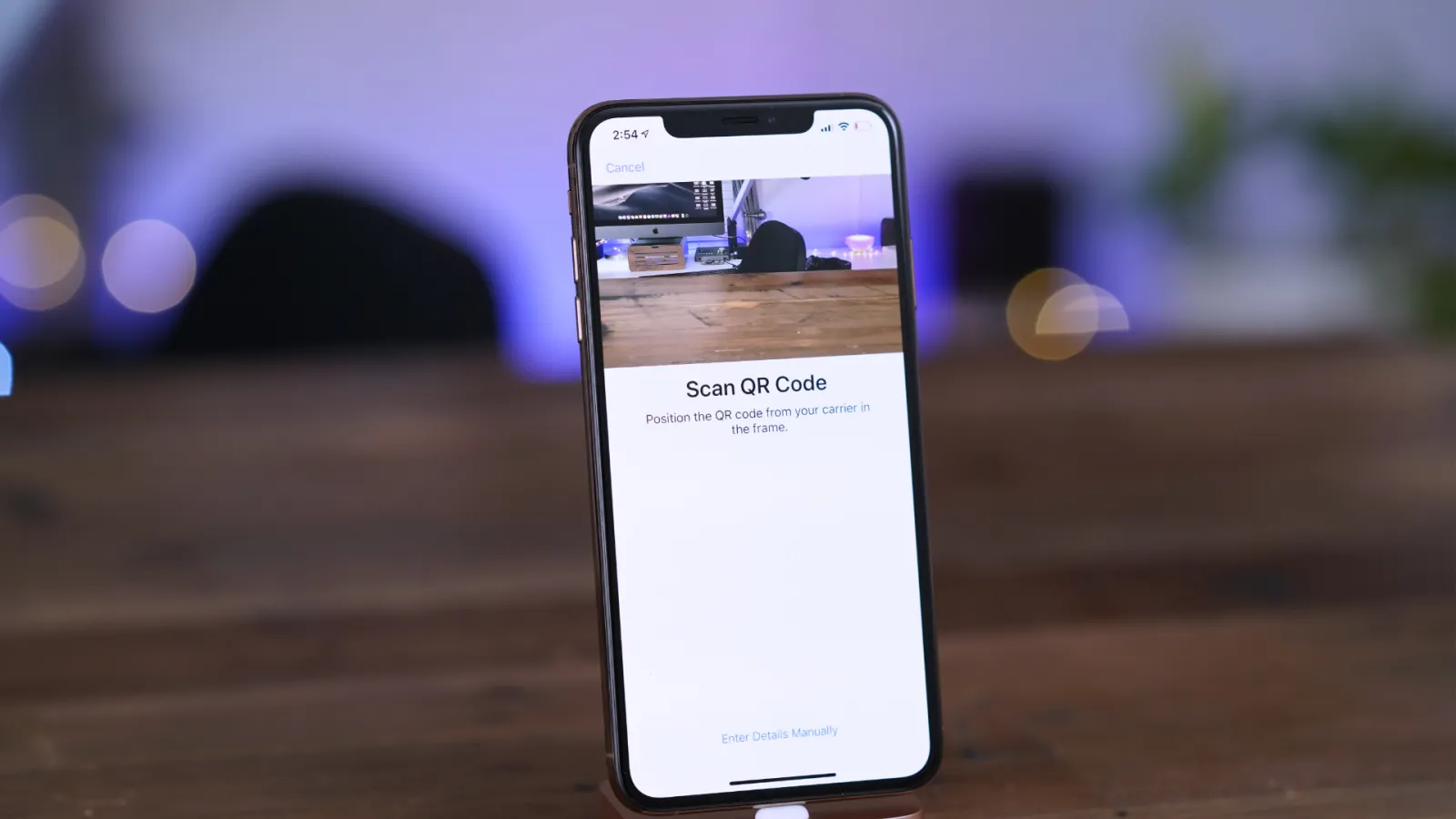
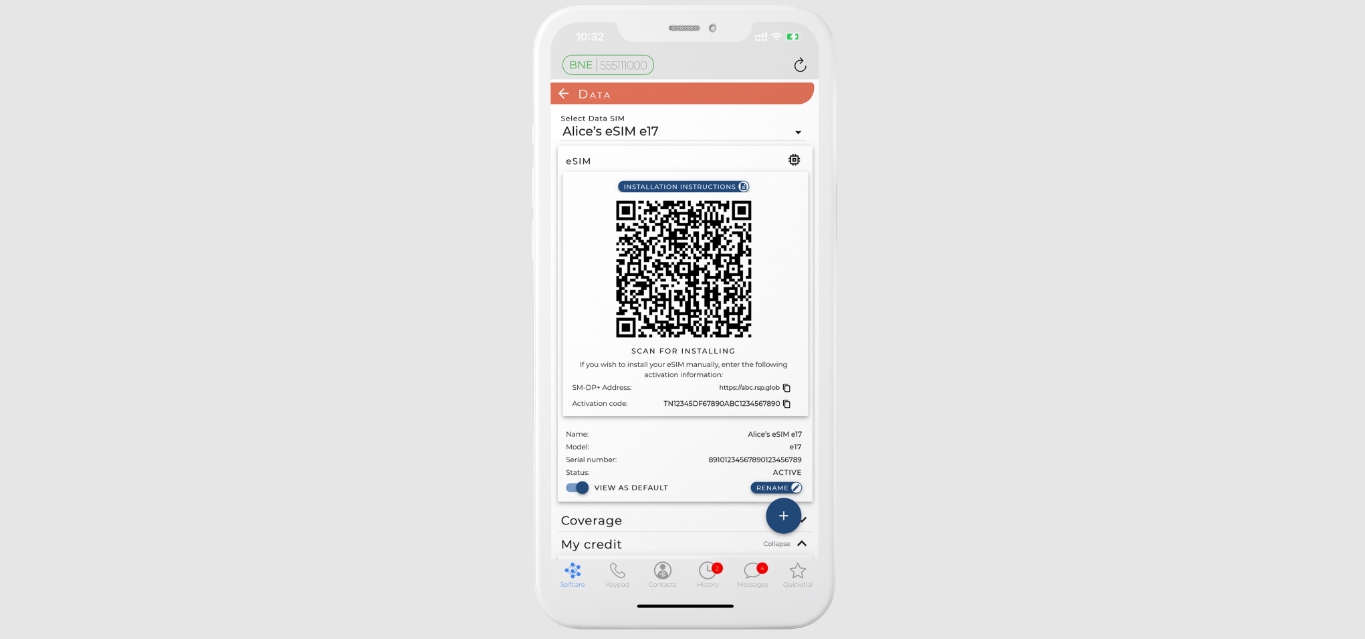
If you receive a QR code from T-Mobile, typically in a success screen after ordering or in a welcome email, you can scan it to activate your eSIM. On an iPhone, go to Settings > Cellular > Add eSIM, then scan the QR code with your camera. On most Android devices, go to Settings > Network & Internet > SIMs > Add SIM, then select Set up an eSIM and scan the code. If the QR code does not appear, contact T-Mobile to have it resent.
For new T-Mobile postpaid customers with compatible iPhones, an eSIM activation notification may appear automatically when connected to Wi-Fi; tap the notification to install.
Method 3: Activate prepaid service with the Prepaid eSIM app
For T-Mobile Prepaid service, download and use the T-Mobile Prepaid eSIM app, which does not require a QR code for activation. You must be located in the US when activating. Alternatively, visit prepaid.t-mobile.com on a computer or device and click the banner to activate service with eSIM. Follow the prompts to complete setup.
The T-Mobile Prepaid eSIM app requires you to be located in the US when activating service.
Transfer a physical SIM to eSIM
If you want to move from a physical SIM to an eSIM on the same device or a new one, specific steps apply for different phones.
iPhone Quick Start method
To transfer a physical SIM to an eSIM on a new iPhone using Quick Start, both iPhones must be iPhone XS or newer, running iOS 15.4 or higher, and Bluetooth must be enabled on the old iPhone. During Quick Start setup, choose to transfer your cellular plan from the old iPhone's physical SIM to an eSIM on the new device.
Samsung Galaxy Convert to eSIM
On Samsung Galaxy devices, go to Settings > Connections > SIM manager, select the SIM you want to convert, then tap Convert to eSIM. Follow the on-screen instructions to complete the transfer.
Troubleshooting eSIM activation problems
Restart your device and try the activation steps again. If you are using a QR code, verify you scanned the correct code provided by T-Mobile. If issues persist, contact T-Mobile support for further assistance.
Frequently Asked Questions
What is an eSIM?
An eSIM (embedded SIM) is a digital SIM built directly into your device, eliminating the need for a physical SIM card. It allows you to activate cellular service remotely and supports both prepaid and postpaid plans on T-Mobile's 4G LTE and 5G networks.
How do I check if my device supports eSIM?
Check your device's settings: on iPhone, go to Settings > Cellular and look for Add eSIM; on Android, go to Settings > Network & Internet > SIMs and see if Add SIM or eSIM options appear. You can also verify your model against T-Mobile's list of compatible devices.
Can I use dual SIM with eSIM and a physical SIM?
Yes, T-Mobile eSIM supports dual SIM functionality, allowing you to use an eSIM and a physical SIM card simultaneously on compatible devices. This lets you have two phone numbers or carriers on one phone.
Can I switch between carriers using eSIM?
Yes, you can switch between carriers by removing the eSIM profile for one carrier and adding a new one, as long as your device is unlocked. T-Mobile's eSIM supports both prepaid and postpaid plans, making it easy to change service without a physical SIM swap.
For provider-specific activation steps, see uPhone’s eSIM installation guide; exact menu names can vary by phone and software version.
More eSIM resources: Browse our eSIM guides and troubleshooting resources for compatibility, setup, travel-data and account-safety advice.
Related reading: How To Convert Physical Sim To ESIM T-Mobile and How To Get ESIM QR Code T-Mobile.