To send a text message on a Motorola Moto G, open the Messages app and tap the new message button. Then enter the recipient, type your message, and tap Send.
Steps to send a text message on a Motorola Moto G
The following steps are documented by Motorola for multiple Moto G models, including the moto g 5G - 2024, moto g play - 2026, moto g max, moto g06, and moto g - 2026.
- Open the Messages app.
- Tap the new message button.
- Enter the recipient or recipients, then type your message.
- Optional:
- Tap the attachment icon to add a file.
- Tap the emoji/smiley icon on the onscreen keyboard to add icons.
- If the phone has two SIMs, tap the SIM option and select the SIM you want to use.
- Tap Send.
SMS messages are text only, and you can send a message up to 160 characters long. If you type more than that, it will be sent as a series of SMS messages. This limit applies regardless of your carrier, so understanding it is useful when managing your text messaging and T-Mobile texts or any other provider's SMS.
Troubleshooting common sending issues
If you have trouble sending messages, Motorola recommends these documented fixes:
- Go to Settings > Apps > Reset app preferences. This can resolve app-level conflicts.
- Check for updates to the messaging app in the Google Play Store.
- Check whether a software update is available for the phone by going to Settings > System > System update.
- Ensure you have a stable cellular connection. A weak or no signal can prevent messages from sending.
- The message center number is responsible for routing your text messages; if it is incorrect or missing, you won't be able to send texts. Check and update it in device settings under Messages.
- Full message storage can prevent new messages from being sent; delete unnecessary text message threads or multimedia messages to free up space.
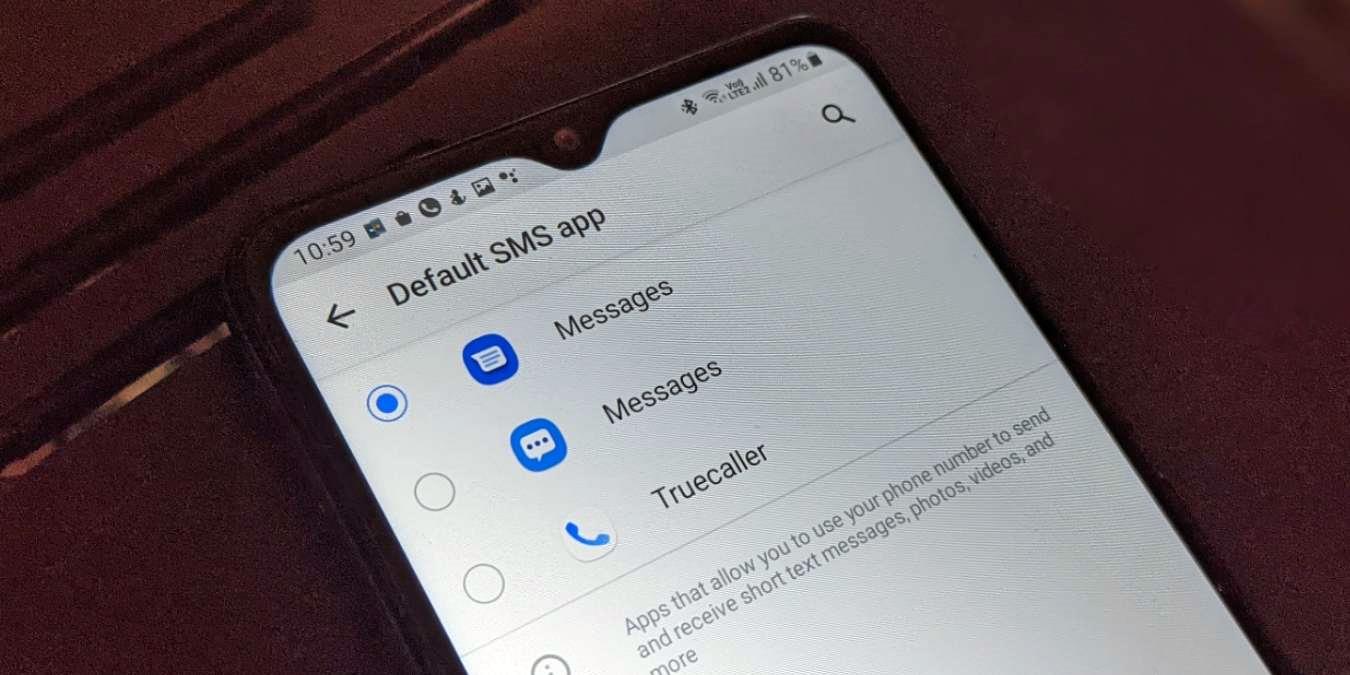
- Third-party messaging apps may conflict with the default messaging app; try uninstalling or disabling them.
- SIM card issues can cause sending failures; try removing, gently cleaning, and reinserting the SIM card.
If the phone has two SIMs and you are unsure which line is active, use the SIM selector when composing the message to choose the correct one.
Frequently Asked Questions
How do I attach a photo to a text message?
While composing a message in the Messages app, tap the attachment icon. This will open your gallery, where you can select a photo to attach before tapping Send.
What should I do if a message gets stuck on "Sending"?
First, check that you have a cellular signal. If the signal is fine, try resetting app preferences under Settings > Apps. You can also restart the phone or check for app and system updates.
Can I send a text message to multiple people at once?
Yes. When composing a new message, enter multiple recipients in the "To" field. You can type each contact name or number, and the phone will send the message to everyone in the group.
Why does my message show as two or more texts?
If your message exceeds 160 characters, the phone automatically splits it into multiple SMS messages. Each part is sent separately and may appear as individual texts to the recipient.
Do I need a data plan to send text messages?
No. Standard SMS messages use your cellular network, not mobile data. However, sending photos or other attachments uses MMS, which may require a data connection or a carrier plan that includes MMS.