To block text messages on T-Mobile, you have three main options: block a specific number directly on your iPhone or Android device, or use T-Mobile's account-level Message Blocking feature to stop all or certain types of messages. The fastest method for most people is blocking the sender right inside your phone's messaging app, while carrier-level blocking is best if you want to stop all texts or manage blocks for a family line.
How to block text messages on T-Mobile: 3 methods
T-Mobile customers can stop unwanted texts in three ways. On an iPhone, you block a contact directly in the Messages app. On an Android phone, you block a conversation and report it as spam from the messaging app. The third method is T-Mobile's Message Blocking feature, which the primary account holder turns on through the T-Mobile account or T-Life app to block messages at the carrier level.
Block a specific number on your iPhone
Blocking a sender on an iPhone is the quickest way to stop texts from one number without affecting any other messages. This is device-side blocking in iOS, not a T-Mobile carrier feature, so the blocked sender cannot reach you through iMessage or SMS.
- Open the Messages app and open the conversation from the number you want to block.
- Tap the person's icon at the top of the conversation.
- Tap Info.
- Scroll down and tap Block Contact.
Once blocked, you will no longer receive texts or calls from that number on your iPhone. This method works for any contact, whether they are in your address book or not.
Block a specific number on your Android phone
On most Android devices, you can block and report spam texts directly from the messaging app. T-Mobile's support page says to touch and hold the conversation, then tap Block and Report spam. This stops future messages from that sender and, when you report spam, helps your carrier identify abusive numbers.
- Open the Messages app on your Android phone.
- Touch and hold the conversation you want to block.
- Tap Block.
- Tap Report spam if the message is unwanted or suspicious.
This method blocks the number on your device only. It does not change your T-Mobile account settings, so the same number could still text you if you switch phones or use a different messaging app.
Use T-Mobile's Message Blocking to block all or some texts
If you want to stop messages at the network level, the primary account holder can turn on T-Mobile's Message Blocking feature. Sign in to your T-Mobile account on T-Mobile.com or use the T-Life app to manage this setting. Message Blocking is meant to block unwanted messages to and from the line, but it is not designed to prevent overage charges. T-Mobile’s app tutorial results mention T-Life and iOS, but the retrieved snippets do not show a detailed path or version requirement for blocking messages there.
In T-Mobile support, the available block types include:
- Block Text and Picture Messages: blocks all chargeable incoming and outgoing SMS and MMS messages.
- Block Instant Messages: blocks instant messages sent via SMS on supported phones. T-Mobile notes this service may not block all instant messages. Blocking instant messages may not block every IM message.
- Block All Messages: blocks SMS, MMS, IM, and email when those services are sent or received through text messaging on the phone.
Only the primary account holder can turn Message Blocking on or off. This is a carrier-level block, so it applies to the line regardless of which phone or app you use. If you find a message in the blocked list that you want to unblock, you can select it and confirm to unblock; unblocking a message does not automatically place the contact in your contacts list. T-Mobile’s Message Blocking page does not list a supported phone model set or OS version requirement.
What to do if a spammer keeps texting you
If unwanted business messages continue after you block a number, T-Mobile recommends a specific sequence. First, reply STOP, END, CANCEL, UNSUBSCRIBE, or QUIT to the message. Then forward the message to 7726 (SPAM). If the sender still gets through, contact T-Mobile support for additional help with blocking that specific number.
For persistent harassment or spam, you can also explore broader protections like T-Mobile's Scam Shield, which is designed for blocking calls and numbers. If you are dealing with a landline issue separately, you may need to look up how to unblock phone number on landline services, as that process is different from mobile blocking.
Frequently Asked Questions
Does T-Mobile charge a fee for Message Blocking?
No. T-Mobile's billing information describes Message Blocking as a free service. There is no documented fee for turning on carrier-level message blocking in the account or T-Life app.
Can I block texts from unknown senders on T-Mobile?
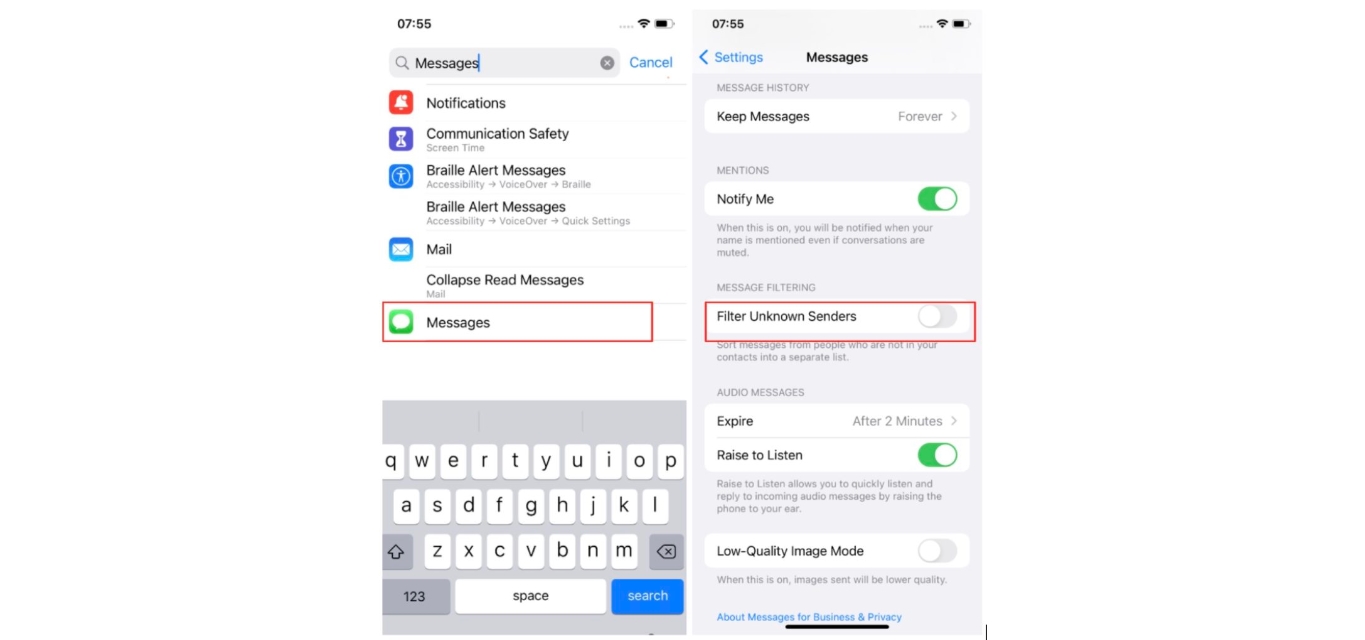
On your phone, you can block individual unknown numbers by opening the conversation and using the block option in your messaging app. At the carrier level, T-Mobile's Message Blocking does not have a documented setting specifically for unknown senders; it blocks all chargeable messages or specific message types when enabled.
What is the difference between device blocking and carrier blocking?
Device blocking, like the iPhone or Android steps above, stops messages on that specific phone only. Carrier blocking, through T-Mobile Message Blocking, stops messages at the network level for the line, so it works regardless of which device you use. Device blocking is faster for one number; carrier blocking is better for stopping all messages or managing a family line.
Will blocked messages still count toward my data or messaging usage?
T-Mobile says Message Blocking is intended to block messages, not prevent overage charges. The service blocks chargeable text and picture messages, but non-chargeable messaging behavior may vary, so you should not rely on it to reduce your bill.