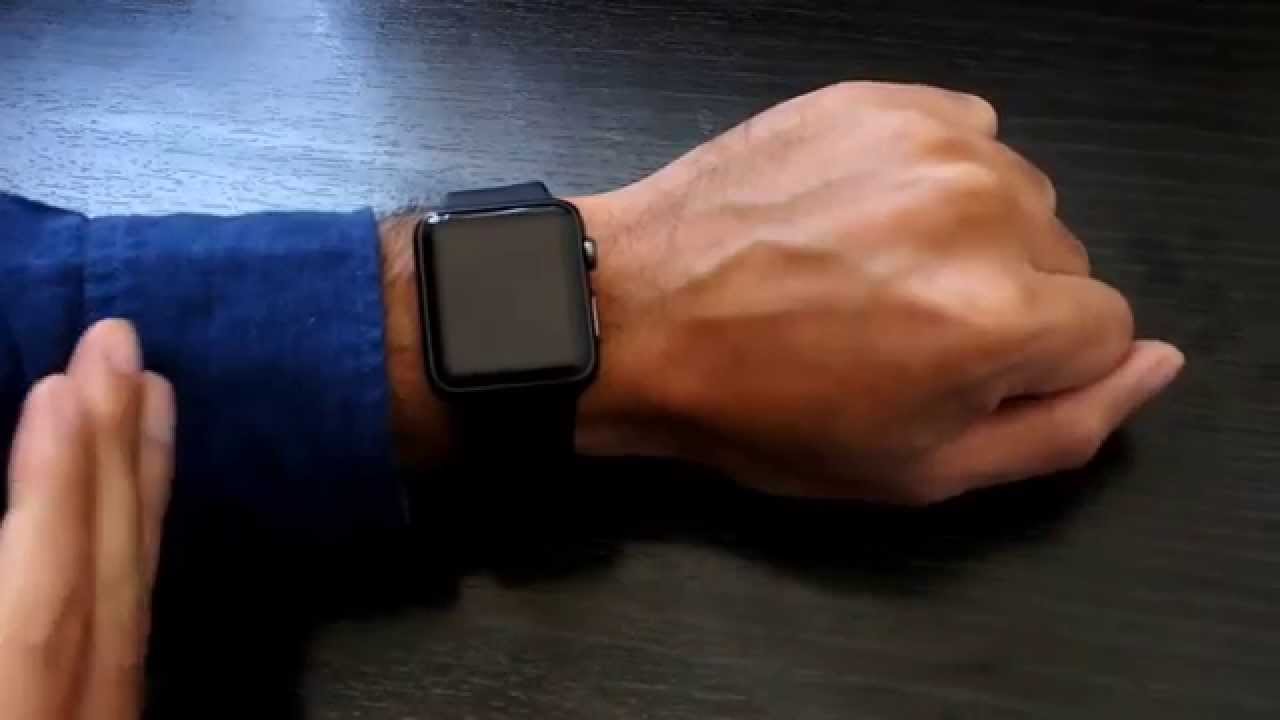
To wear a smartwatch correctly, the device must sit snugly on your wrist with the back in contact with your skin, positioned above the wrist bone rather than on it.
How to wear a smartwatch: the official rules
Apple and Google have specific, slightly different guidance for wearing their smartwatches. Apple instructs you to wear Apple Watch snug but comfortable, with the back of the watch in skin contact for Wrist Detect, the Taptic Engine, and the electrical and optical heart sensors. Google says to wear Pixel Watch on the top of the wrist, keeping the band loose enough to move back and forth. Both companies agree that a proper fit is essential for accurate sensor data collection.
The golden rule: snug vs. loose fit
Apple’s rule is that the watch must be snug but comfortable, with the back in skin contact for sensors. The band should not be so tight that it leaves no room for the skin to breathe. Google’s rule contrasts: the band should be loose enough to move back and forth on the wrist, not too tight. For the best sensor performance, follow your device’s specific guidance, snug for Apple Watch, slightly looser for Pixel Watch.
Exact wrist placement: above the bone, not on it
Apple instructs you to wear Apple Watch above the wrist bone, toward the elbow. Google instructs you to wear Pixel Watch on the top of the wrist. Both emphasize that the watch should never sit on the bone itself. Positioning the watch on the bone can interfere with sensor contact and comfort.
How to check your fit in 5 seconds
Apple documents an adjustment check: shake your wrist, then turn your palm face up. If the back of the watch loses skin contact, tighten the band. This quick test confirms whether the watch is too loose for proper sensor function.
Special band fits: Solo Loop and Braided Solo Loop
Apple says the Solo Loop and Braided Solo Loop should fit comfortably but snugly against the wrist. If the watch does not stay in place or the heart-rate sensor is not reading well, tighten the band and move the watch above the wrist bone.
Wearing your smartwatch for exercise
The critical exercise adjustments differ by brand. Apple says to tighten the band for workouts if needed, then loosen it afterward. Google says to move Pixel Watch 2-3 finger widths above the wrist bone during exercise, then lower and loosen it after exercise. Both approaches ensure secure fit and accurate sensor readings during activity.
Frequently Asked Questions
Can a smartwatch be worn loose?
Apple says no; it should be snug but comfortable. Google says it should be loose enough to move back and forth, not too tight. The correct fit depends on your device.
Should it sit on the wrist bone?
No. Apple says to move it above the wrist bone, and Google says to wear it on the top of the wrist. The watch should never rest directly on the bone itself.
Should it be worn differently for exercise?
Yes. Apple says tighten for workouts if needed, then loosen afterward. Google says to move it higher during exercise, then lower and loosen it afterward.
Can Wear OS Galaxy Watches be used with an iPhone?
No. Samsung states that Wear OS Galaxy Watch models are not compatible with iOS devices. Only LTE Galaxy Watch models can be set up as standalone devices without a phone.
How do I set up a Galaxy Watch?
Samsung says Bluetooth Galaxy Watch models, and all Galaxy Watch4 and Watch5 series devices, must be set up with a compatible Android phone using the Galaxy Wearable app. Samsung setup steps: turn on the watch, then tap Connect if the phone pop-up appears, or open Galaxy Wearable and tap Get started; if another device is already connected, tap the Menu icon, then the plus sign to scan for new devices.
How do I find smartwatch and tracker comparisons?
For detailed comparisons of features, sensors, and compatibility across devices, search for smartwatch and tracker comparisons to identify the best model for your needs.
How do I change the band on Fitbit Versa 2?
To change the band on Fitbit Versa 2, slide the release button on the back of the watch and pull the band away. Then align the new band and snap it into place until it clicks securely.