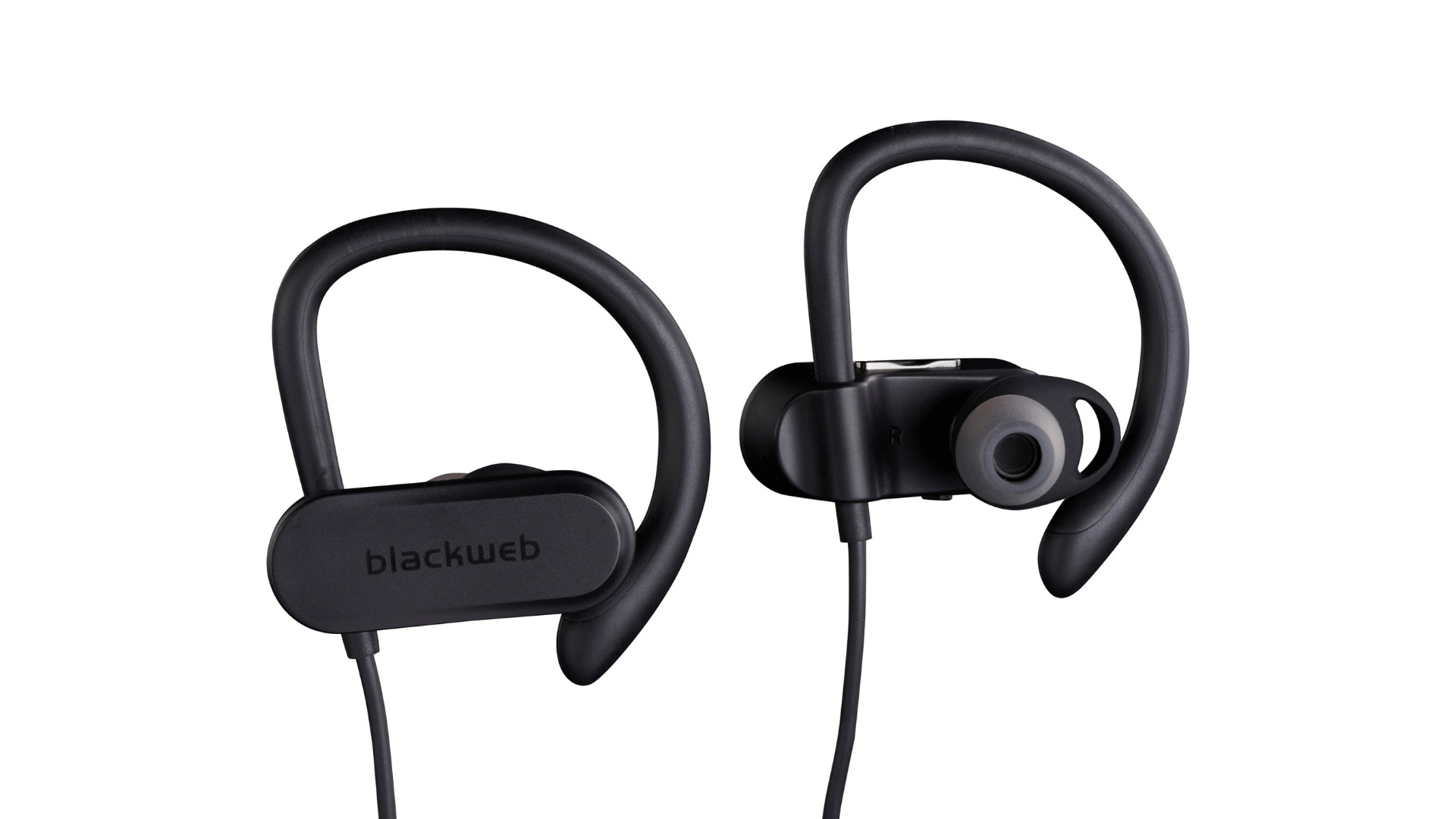
To connect Blackweb wireless headphones, put the headphones into pairing mode by holding the ANSWER button for four seconds until the LED flashes red and blue, then select “BWA15AA003” in your phone’s Bluetooth settings and enter PIN “0000” if prompted. Keep the headphones within one meter of your phone during this process for the best connection.
How to connect Blackweb wireless headphones: The complete pairing flow
- Keep the headphones within one meter of your phone.
- Press and hold the ANSWER button for four seconds until the indicator light flashes red and blue.
- Open your phone’s Bluetooth settings and scan for devices.
- Select “BWA15AA003” from the list of available devices.
- If a PIN is requested, enter “0000”. The only documented passcode is '0000' if required.
This process works for the documented Blackweb model and is the only manufacturer-confirmed method for pairing wireless earbuds and headphones. Model names vary by model; 'BWA15AA003' is the name from the clearest model-specific manual found. No supported Bluetooth version is documented for this model. No battery-saving, codec, or latency settings are documented.
What the LED colors mean during pairing
When the headphones are in pairing mode, the LED flashes red and blue. After successful pairing, the headset automatically enters standby mode, indicated by a blue flash every five seconds. If pairing is not completed within two minutes, the headset turns off and you must repeat the pairing steps from the beginning.
Pairing with an iPhone or iPad
- Open Settings and tap Bluetooth.
- Turn on Bluetooth if it is not already enabled.
- Under “Other Devices,” tap “BWA15AA003” when it appears.
- If prompted, enter “0000” as the PIN.
Note that this path comes from third-party guidance, as no official Blackweb documentation provides an iPhone-specific menu path. The documented manual only says 'Bluetooth-ready mobile phone' without naming iPhone or Android models or OS versions.
Pairing with an Android phone or tablet
- Open Settings and tap Bluetooth.
- Tap “Pair new device.”
- Select “BWA15AA003” from the list.
- If prompted, enter “0000” as the PIN.
What to do when Blackweb headphones won't connect
- Repeat pairing if the two-minute window expires: If you did not complete pairing within two minutes, the headset turns off. Hold the ANSWER button for four seconds again to re-enter pairing mode. The pairing window is two minutes before the headset turns off and steps must be repeated.
- Ensure the phone is within one meter: The manual specifies keeping the headphones within one meter of the phone during pairing.
- Remove the headset from the phone's Bluetooth list and re-pair: Go to your phone’s Bluetooth settings, forget or remove “BWA15AA003,” then repeat the full pairing process.
- Check that the LED is flashing red and blue before scanning: The headphones must be in pairing mode (red and blue flashing) for your phone to detect them.
No factory reset procedure is documented for this model. No app-based troubleshooting is documented for this model.
How Blackweb headphones reconnect automatically
After the initial pairing, the headset automatically reconnects to the last paired phone. Once reconnected, it enters standby mode, indicated by a blue flash every five seconds. If the headset does not reconnect automatically, use your phone’s Bluetooth settings to select the headphones manually.
Frequently Asked Questions
How do you put Blackweb wireless headphones in pairing mode?
This is the documented method for the model found in the manual.
What PIN do Blackweb headphones use?
If a PIN is required, enter “0000.” This is the only passcode documented in the manufacturer’s manual.
Do Blackweb headphones reconnect automatically?
Yes, after the initial pairing, the headset reconnects to the last paired phone automatically and enters standby mode with a blue flash every five seconds.
What if pairing fails?
Can I use Blackweb headphones with devices other than phones?
The documented manual specifies “Bluetooth-ready mobile phone,” and no official source covers pairing with laptops, tablets, or other device types. The same pairing process may work, but it is not manufacturer-confirmed.