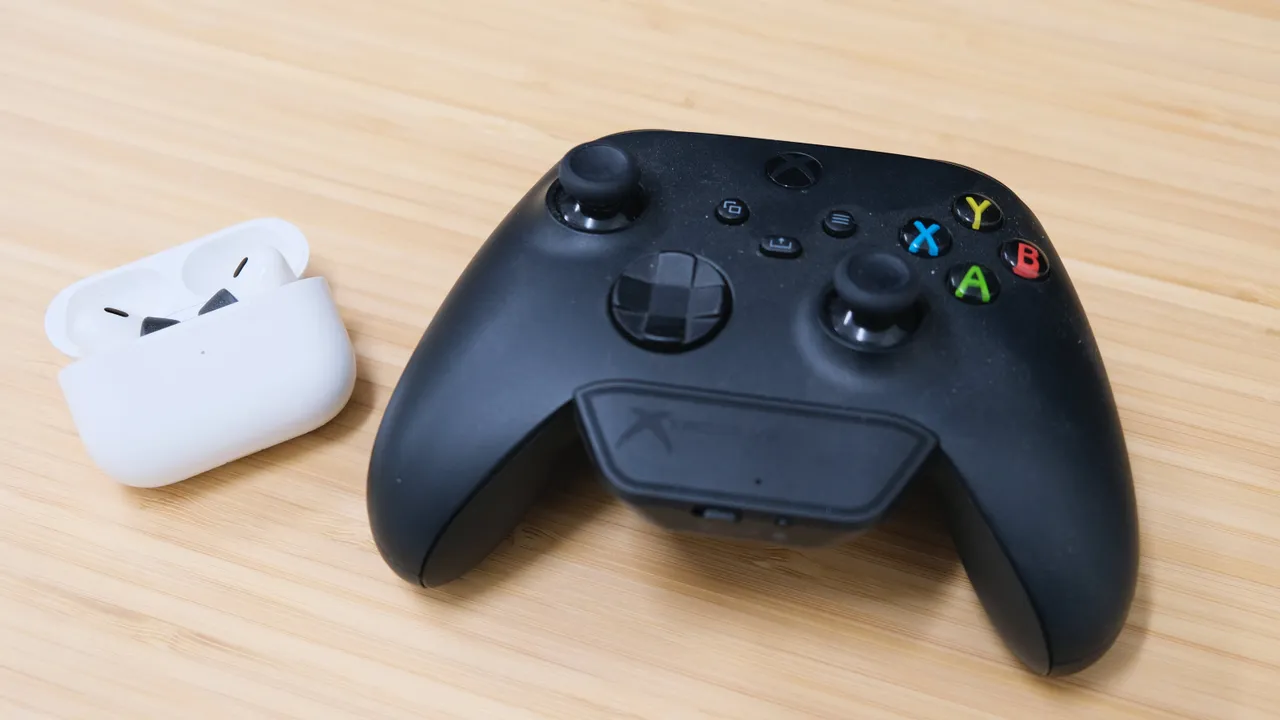
To connect Bluetooth speakers to Xbox One X, you need to know one hard truth first: the console does not support Bluetooth audio. The Xbox One X lacks the Advanced Audio Distribution Profile (A2DP) required to stream music or game audio to any Bluetooth speaker or headset directly, so no amount of standard pairing will work. The only way to connect Bluetooth speakers to Xbox One X is through a workaround using a Bluetooth transmitter that plugs into your controller or the console’s audio ports.
The truth about connecting Bluetooth speakers to Xbox one x
There is no built-in Bluetooth audio on the Xbox One X. The console’s Bluetooth radio is reserved for controllers and accessories, not for streaming sound to speakers or headphones. This means you cannot open the settings menu, enable Bluetooth, and pair a speaker the way you would with a phone or PC. To get wireless audio, you must add a Bluetooth transmitter that bridges the gap between the console’s wired audio output and your speaker’s wireless input.
Why your Xbox One X won't pair directly with a Bluetooth speaker
The core issue is the missing A2DP profile. Xbox consoles use Bluetooth for low-bandwidth controller communication, not for high-quality stereo audio streaming. Even if you plug a standard Bluetooth USB dongle into the console’s USB ports, the Xbox operating system will not recognize it as an audio device. The USB ports are designed for storage, controllers, and accessories like wired headsets, not for generic Bluetooth audio adapters. Without software-level support for the A2DP profile, the console simply cannot send game audio over Bluetooth. The Xbox One X has three USB ports and an HDMI output; a Bluetooth adapter requiring USB can use one of these ports.
Workaround 1: Use a Bluetooth transmitter with your controller
This is the most common and effective method. You plug a small Bluetooth transmitter into the 3.5mm headphone jack on your Xbox Wireless Controller. The transmitter then pairs with your Bluetooth speaker. Once connected, all game audio, chat audio, and system sounds that would normally go to a wired headset now stream wirelessly to the speaker. Keep in mind that microphone functionality for in-game chat is often not supported in this setup. Many transmitters use their own built-in microphone that picks up controller clicks and button presses, making voice chat unusable. This method works best for solo gaming where you only need to hear audio, not talk.
Workaround 2: Connect a Bluetooth transmitter to the console's audio ports
If you prefer not to use the controller, you can connect a Bluetooth transmitter directly to the Xbox One X using its optical audio port (TOSLINK). Plug the transmitter into the optical output, pair it with your speaker, and audio will stream from the console itself rather than the controller. This frees you from having to keep the controller nearby and allows the speaker to stay stationary. A critical warning: avoid using HDMI audio extractors for this purpose. HDMI extractors can introduce significant audio delays, often over 100ms, which makes gameplay feel sluggish and out of sync. Stick with an optical transmitter for the lowest possible latency from the console’s own audio output.
Choosing the right Bluetooth transmitter for lag-free gaming
For gaming, latency matters. To minimize this, choose a transmitter that supports aptX Low Latency codec, which keeps delay at or below 40ms. This is fast enough that your brain perceives the audio as perfectly synced with the visuals. When shopping, look for “aptX Low Latency” or “aptX-LL” on the product specifications. Transmitters without this codec will still work, but the audio delay may be noticeable, especially in fast-paced games.
Troubleshooting your Bluetooth audio connection
If you experience audio dropouts, interference, or pairing failures, start by moving the transmitter and speaker closer together. Physical obstructions like walls, furniture, or the console itself can weaken the signal. If the connection keeps dropping, try switching the transmitter to a different channel if it offers one, or turn off other Bluetooth devices nearby, such as phones or tablets, that might be competing for the same frequency. For pairing failures, ensure the speaker is in pairing mode before powering on the transmitter. If the transmitter has been paired to another device previously, reset it by holding its pairing button for 10 seconds or consulting its manual. Finally, check that your controller’s 3.5mm jack is clean and fully inserted; a loose connection can cause intermittent audio. The Xbox One X has a limit on the number of Bluetooth devices it can store in its device list; remove unused devices to make room for a new connection. Some Bluetooth speakers have a built-in audio delay adjustment feature that can help synchronize audio with visuals. Outdated firmware on the Bluetooth speaker or Xbox One X can cause compatibility issues; check the manufacturer's website for updates. Resetting the Bluetooth connection by deleting existing pairing information and establishing a fresh connection can resolve persistent issues.
Frequently Asked Questions
Can I use any Bluetooth speaker with this setup?
Yes, any standard Bluetooth speaker that supports A2DP will work with a Bluetooth transmitter. There are no special Xbox-specific requirements for the speaker itself. The only limitation is the transmitter’s codec support, which affects latency, not compatibility.
Will connecting gaming headsets to consoles work the same way?
Connecting gaming headsets to consoles via Bluetooth is different because most gaming headsets include a USB dongle that the Xbox recognizes as a wireless audio device. For Bluetooth speakers, you must use a transmitter because the console has no native Bluetooth audio driver. Headsets with dedicated Xbox wireless connectivity do not require a transmitter.
Why is there a delay in my game audio?
Audio delay (lip-sync lag) is almost always caused by the Bluetooth transmitter not supporting aptX Low Latency. If you are using an HDMI audio extractor instead of an optical transmitter, that can add another 100ms or more. Switch to an optical aptX Low Latency transmitter to eliminate the lag.
Can I use the controller’s 3.5mm jack while charging the controller?
Yes. The Xbox One X controller can be used wired via USB while still outputting audio through the 3.5mm jack. This allows you to keep the controller powered during long gaming sessions without losing the Bluetooth transmitter connection.
Does this work with the Xbox Series X or Series S?
The same limitations apply to Xbox Series X and Series S consoles. They also lack native Bluetooth audio support and require a Bluetooth transmitter connected to the controller’s 3.5mm jack or the console’s optical port. The workarounds described here are identical for all modern Xbox consoles.
Related reading: How To Connect Bluetooth Speakers To Ps5.