Before you connect gaming headset hardware
To connect gaming headset gear to your console, you must first check how the device transmits audio, not just the physical plug. A device that connects with a standard 3.5 mm cable through the controller is the most universal method. It works across Xbox, PlayStation, and PC without any special firmware. The confusion starts with cord-free setups. Gaming systems rely on two completely different radio systems. Xbox uses its own proprietary Xbox Wireless protocol. Most other devices and the PlayStation use standard Bluetooth. You cannot simply pair a Bluetooth audio device to an Xbox for game audio. Xbox does not support standard Bluetooth audio, so you cannot connect Bluetooth speakers to Xbox One X for game audio. The port alone is not enough if you want to use USB headset on Xbox Series S. Xbox may not support generic USB audio headsets; a wired headset through the controller or an Xbox-compatible wireless headset with a dongle is recommended. Sony takes a different but equally strict approach on the PS5. It blocks Bluetooth audio from most non-Sony gear unless you use an authorized USB adapter. To make USB headset work on Xbox, you may need an Xbox-compatible wireless headset with its own dongle. Your first move should always be to check the box for an official badge. After you confirm the underlying connection type, the setup path varies by brand and form factor. The specific walkthroughs that follow cover getting wireless earbuds and USB gear recognized by the system, including how to connect wireless Razer headset to Xbox if you own that brand, how to connect wireless earbuds to Xbox for a compact audio solution, how to connect HyperX headset to Xbox for a popular gaming option, and how to connect a USB headset to Xbox if your headset relies on a USB connection.
Connecting a headset to your Xbox
Pairing an official headset is straightforward once you know the console ignores standard Bluetooth. To connect Xbox wireless headset models like Microsoft’s own, power on the console and headset. Then put the headset into pairing mode. A pairing tone plays and the light flashes. Press the console’s Pair button. The two will lock together within moments. The same process works whether you need to connect Xbox headset to Xbox series X or an Xbox One. The proprietary radio protocol is identical across generations.
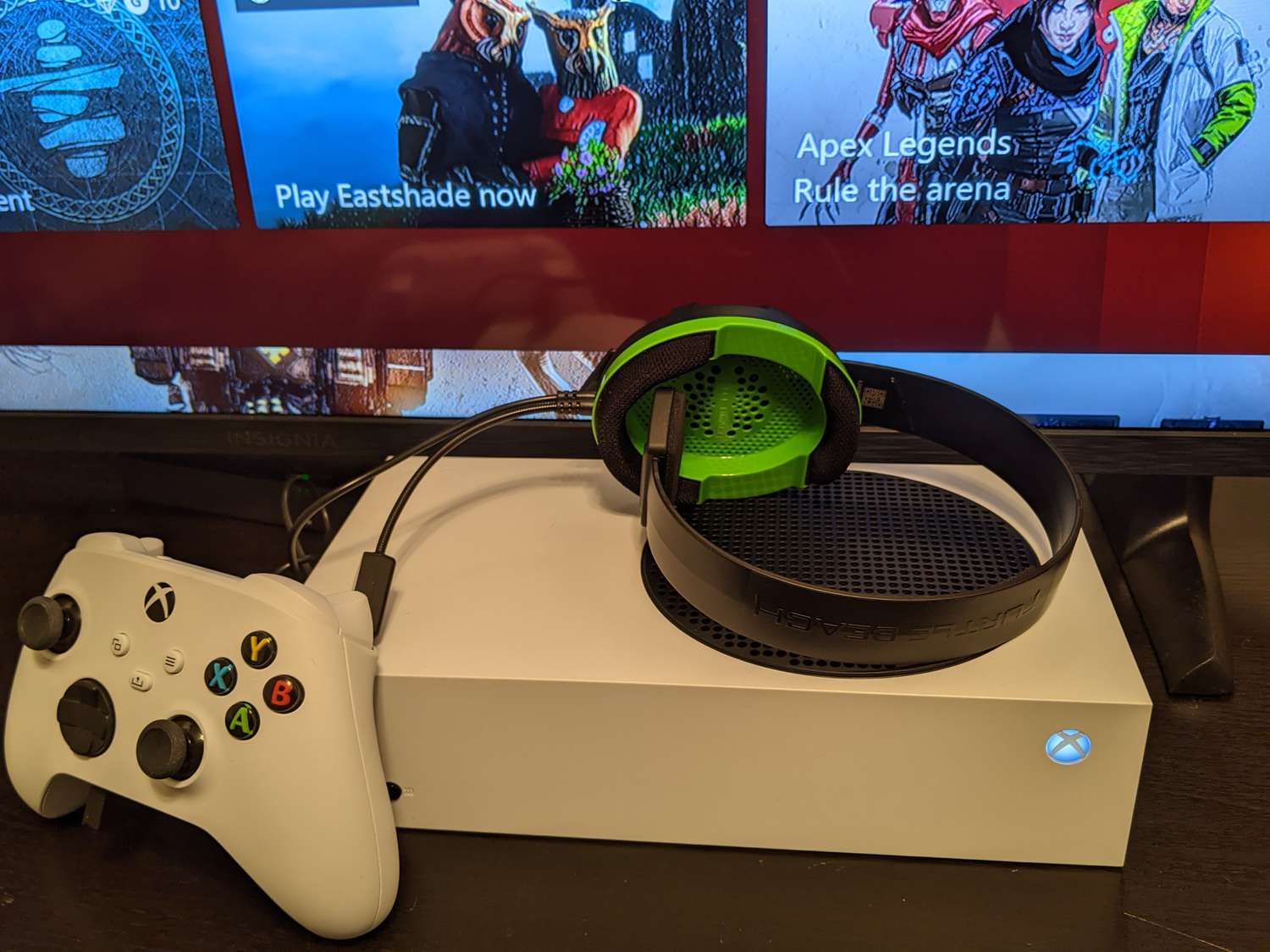
That same radio rule governs third-party gear. Because Xbox consoles reject Bluetooth audio for game sound or chat, the way to connect wireless headset to Xbox series X from brands like Logitech, Corsair, or Turtle Beach is through a dedicated USB dongle. If you own a Logitech model, you will need to connect Logitech wireless headset to Xbox one using that brand’s specific pairing procedure. Similarly, to connect Corsair wireless headset to Xbox one, you must insert the dongle and press the correct sync button. For Turtle Beach owners, the steps to connect a Turtle Beach headset to Xbox one follow the same dongle-based logic. If you have a Corsair Void specifically, you will want to connect Corsair void headset to Xbox one by holding the mute button until the light blinks. The exact button combination varies by model, but the dongle is always the bridge. If your headset lacks that USB adapter and relies on Bluetooth alone, it simply will not work for Xbox audio. For a universal fallback, you can connect headset to Xbox one using a 3.5 mm cable plugged into the controller’s headset jack, which sidesteps the entire radio question. A wired option requires no pairing at all. The specific pairing sequence and indicator lights differ from one gaming brand to another.
Connecting a headset to your PlayStation
Pairing a gaming device to a PlayStation system follows a different set of rules than the Xbox ecosystem, and the method you use dictates whether the machine will even recognize the audio gear. For a fully cord-free experience with a Sony-branded unit, you plug the included USB adapter into an open port and power on the accessory. The two lock together automatically without any need to dig into Bluetooth menus. This is the straightforward path when you need to connect PS5 headset models from the official Pulse family, which is why you would want the article to connect headset to PS5 for a step-by-step guide. The dongle handles the proprietary connection directly. If you are using that same hardware on the older generation, the process to connect wireless PS4 headset gear is identical. The USB adapter works across both platforms without extra configuration.
Wired audio is even simpler and bypasses every compatibility check. You can plug the 3.5 mm cable from the cans straight into the DualSense or DualShock 4 controller jack for instant game audio and chat. If you need to set up headset on PS4 with a wired connection, no software settings are required. The system immediately routes sound via the controller once the cable is seated. The real limitation appears when you try to use standard Bluetooth headphones or speakers. The operating system actively blocks generic Bluetooth audio and will not complete a standard pairing. Because the exact button presses and indicator lights vary by manufacturer, a handful of near-identical walkthroughs cover the setup for different brands and speaker types. Which one you choose depends entirely on whether you are holding an official Sony cordless model, a third-party gaming peripheral that relies on its own USB transmitter, or a standard Bluetooth speaker that needs a workaround.
Official Sony Audio Hardware
The Pulse 3D model skips the system’s Bluetooth stack entirely. They rely on a dedicated USB transceiver that establishes a low-latency radio link the moment both ends power on. The console treats this connection as a native audio path. That means you get full support for 3D Tempest Audio, on-screen battery indicators, and seamless integration with the control center. To connect pulse 3d headset to PS5, slide the dongle into any free USB port on the console. Then turn on the headset. The headset should connect automatically and audio routes instantly. If the headset does not connect, unplug the adapter and try again. A quick tap of the PlayStation button opens the control center, where you can access microphone settings.
Using the same official gear on the previous generation works identically. The steps to connect wireless PS4 headset models from the official Sony family follow the same dongle-first sequence. Insert the USB transmitter into the PS4 and switch the device on. The console recognizes it as a USB audio device and routes all output immediately. The companion app on the PS4 may give you access to additional settings. If you upgrade to a PS5 later, that same dongle works without any re-pairing. The cross-generation compatibility makes the official lineup the simplest path for anyone who wants a single audio solution across both machines.
Third-Party Gaming Headsets
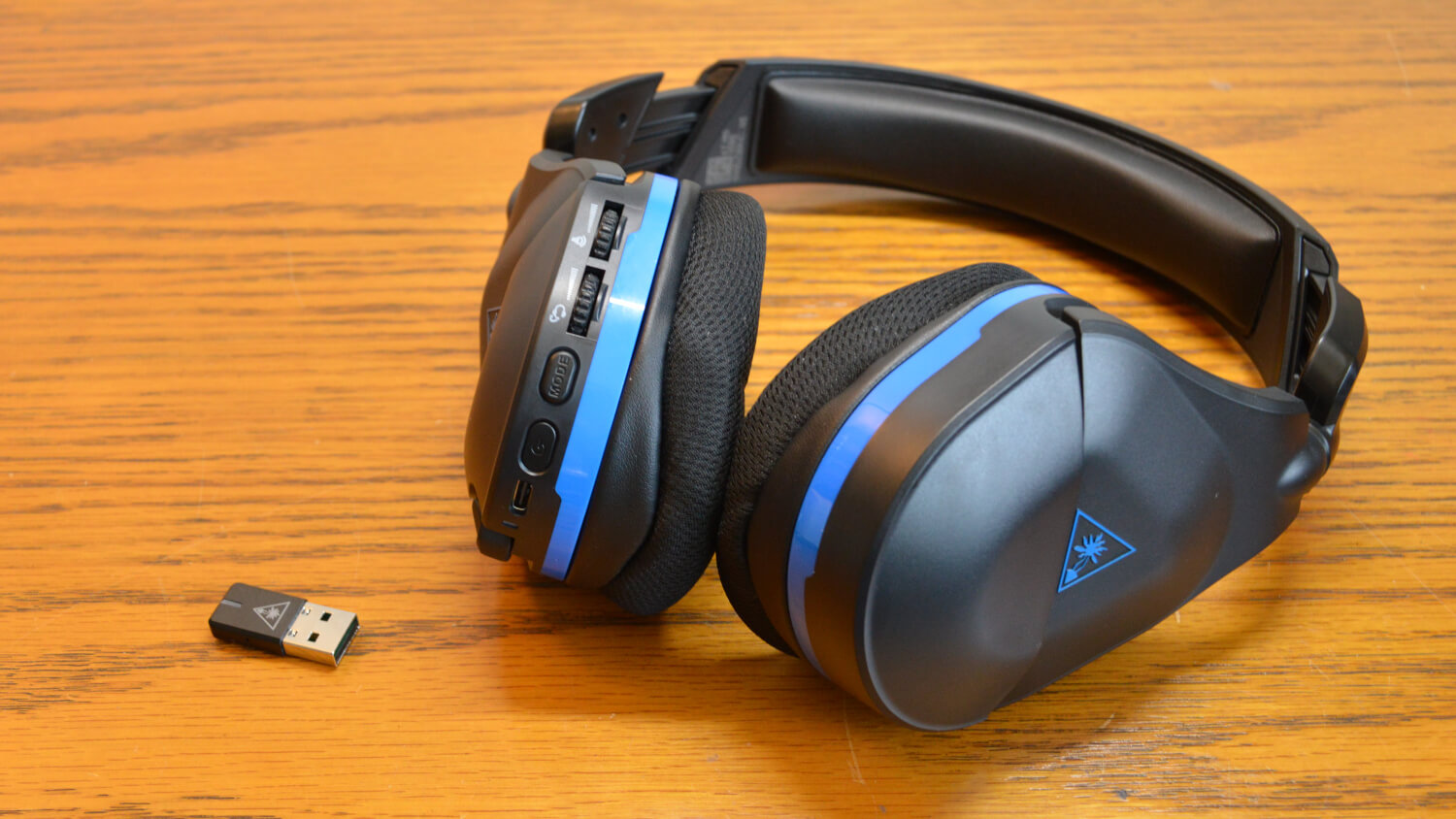
Most major gaming brands ship their own USB transmitter to bypass the platform’s Bluetooth restrictions. These dongles often include a toggle switch marked PC and PlayStation. Setting that switch correctly before plugging in avoids a silent failure where the device powers on but produces no sound. When you connect Turtle Beach headset to PS5 using a Stealth series model, the transmitter plugs into an open USB port and the headset enters a dedicated pairing mode. Follow the manufacturer's instructions to force the link. Once the transmitter light turns solid, the connection is live. The console treats the signal as a USB headset, which unlocks full chat and game audio mixing.
This dual-mode setup lets you take calls or play music from a mobile device without interrupting game audio. Those profiles then travel with the hardware to any platform.
Connecting Bluetooth Speakers to PS5
The console’s operating system does not support standard Bluetooth audio output. That means you cannot navigate to the settings menu and connect Bluetooth speakers to PS5 directly. The pairing screen will not find them. The system does not support generic Bluetooth audio devices. Any attempt to pair a standard speaker or earbuds through the system menus fails silently. The device simply never appears in the list of discoverable accessories. This limitation frustrates anyone who wants to use a portable speaker for casual gaming or share audio in a room without a headset.
This method bypasses the console’s restrictions entirely.
Using Turtle Beach headsets everywhere
Getting a Turtle Beach gaming audio device working across all your screens comes down to identifying which wireless pathway your specific model uses. If you need to pair my Turtle Beach headset with a gaming machine, the process almost always begins with the USB transmitter. For PlayStation, plug that dongle into an open port, power on the device, then select it in Settings > Sound > Audio Output; that handshake is your confirmation, and no Bluetooth menu diving is required. Xbox users rely on that same dongle method, as the system requires either Xbox Wireless support or a USB dongle for wireless connectivity.
The rules shift when you leave the living room hardware behind. To connect my Turtle Beach headset to my phone, you will hold the dedicated Bluetooth button until the voice prompt announces pairing mode, then pick the audio gear from your phone’s Bluetooth list. If you see a model variant option appear, skip it in favor of the standard model name. When it is time to connect my Turtle Beach headset to my PC, the path depends on your gear: some models require the USB transmitter set as your default sound device, while newer ones use the Turtle Beach Audio Hub desktop app with the mini transmitter and headset plugged in for full detection. The method to connect Turtle Beach headset to PS4 remains similar to current PlayStation setups, relying on the USB transmitter connecting to the system. Because firmware glitches can break these links, you should occasionally update Turtle Beach headset software by plugging both the cans and their mini transmitter into a PC or Mac running Audio Hub, where the application will automatically surface any available patches.
Getting other headset brands to work
Outside the official accessory lines, the connection method your audio gear uses determines whether it will work at all on a given system. A 3.5mm cable plugged into the controller’s headphone jack remains the universal fallback for nearly every brand, instantly routing game audio and chat without any wireless handshake or system-level setting change. When you need to setup HyperX cloud headset models that include a USB audio control mixer, consult the manufacturer's instructions for proper connection. On Windows, you then configure your sound settings to assign the Game and Chat playback devices correctly. Many third-party cord-free headsets rely on a dedicated USB dongle that handles the proprietary radio link. The process to set up Afterglow headset hardware is not covered. For users who own Microsoft’s official headset but want to connect Xbox wireless headset to PC, consult Microsoft's official support documentation for pairing instructions. Generic USB headsets often register as a standard audio device once plugged in, requiring only a quick check in your sound output settings to make sure the system has switched away from HDMI or TV audio.
Fixing audio routing and volume
When you plug a gaming set into the controller but still hear everything through the TV, the fix usually lives in a single menu. On PS5, open Settings > Sound > Volume and adjust the Headphones volume slider, because the system routes party chat separately by default and skipping this step leaves game sound on the HDMI path. If you want to have audio on TV and headset PS5 at the same time, configure your audio output settings to mirror the signal rather than splitting it. The PS4 equivalent is nearly identical: go to Settings > Sound > Devices, and ensure Output to Headphones is set to All Audio to make PS4 audio go through headset instead of only piping chat through the earcup.
- play sound through headset and speakers PC
- hear game audio through Xbox one headset
- make PS4 audio go through headset
- have audio on TV and headset PS5
- make Turtle Beach headset louder
- increase bass on headset
Adjusting mic, sidetone, and chat settings
When you want to hear your own voice through the earcups so you are not shouting, the setting you need is often called mic monitoring. Hearing yourself in Xbox headset sidetone works the same way. Open the Xbox guide and go to the speaker icon for Audio & music. There you can raise or lower how much of your own speech feeds back into the drivers. That same panel holds the headset chat mixer on Xbox. This slider balances game audio against party chat so explosions do not drown out your teammates.
You can mute a Turtle Beach headset using the controls available on your specific model. Check your headset's controls for a mute option. Many of their gaming cans also include a button labeled Mode. What does Mode do on Turtle Beach headset may vary by model. It may cycle through different audio presets. These change how the game sounds without touching the system mixer.
On PlayStation, the equivalent feature to sidetone can be found under Settings > Sound > Microphone > Sidetone. What does monitor do on PS5 headset is related to hearing your own voice. You can gauge your own volume so you never have to shout. If you do not have a gaming audio device handy, you can still talk on Xbox One without headset by using the controller’s built-in microphone. Everyone in the room will be picked up, though. When you do that, remember to check the guide’s audio panel. Adjust the audio settings so the system uses the controller microphone.
Plugging into a PC and other devices
Moving a gaming audio device between a living room machine and a computer often exposes the gap between the physical plug and the operating system’s expectations. Current official documentation only confirms broad compatibility, such as Apple’s note that USB-C EarPods work with an iPhone, iPad, or other device that has a USB-C connector, but it stops short of mapping out PC audio routing.
When you need to plug in a headset on computer hardware that splits the headphone and microphone signals across two separate jacks, a single 3.5mm plug will leave your mic silent until a low-cost Y-splitter adapter separates the channels. The reverse problem appears when you try to connect headset with mic to PC with one jack on a laptop, where that combined port typically auto-detects the input, though you may need to manually set the device as the default communication input if an app ignores it.
To use a headset with a mic on PC reliably across different software, visit the specific app’s audio settings after plugging in, since games and chat clients often grab the wrong device until you override their defaults. In a vehicle, the logic shifts from wired pins to pairing modes. To connect wireless headphones to suburban or any car with a built-in infotainment screen, put the headphones into discovery mode and use the dashboard’s phone or Bluetooth settings to add a new device, though some factory systems may reject a headphone profile in favor of a hands-free calling profile. A different kind of input juggling occurs when you use mic on PS4 controller without headset, as the controller may activate its built-in microphone for party chat once the system detects no physical audio gear is plugged into the bottom jack.
Picking the right headset and advanced tips
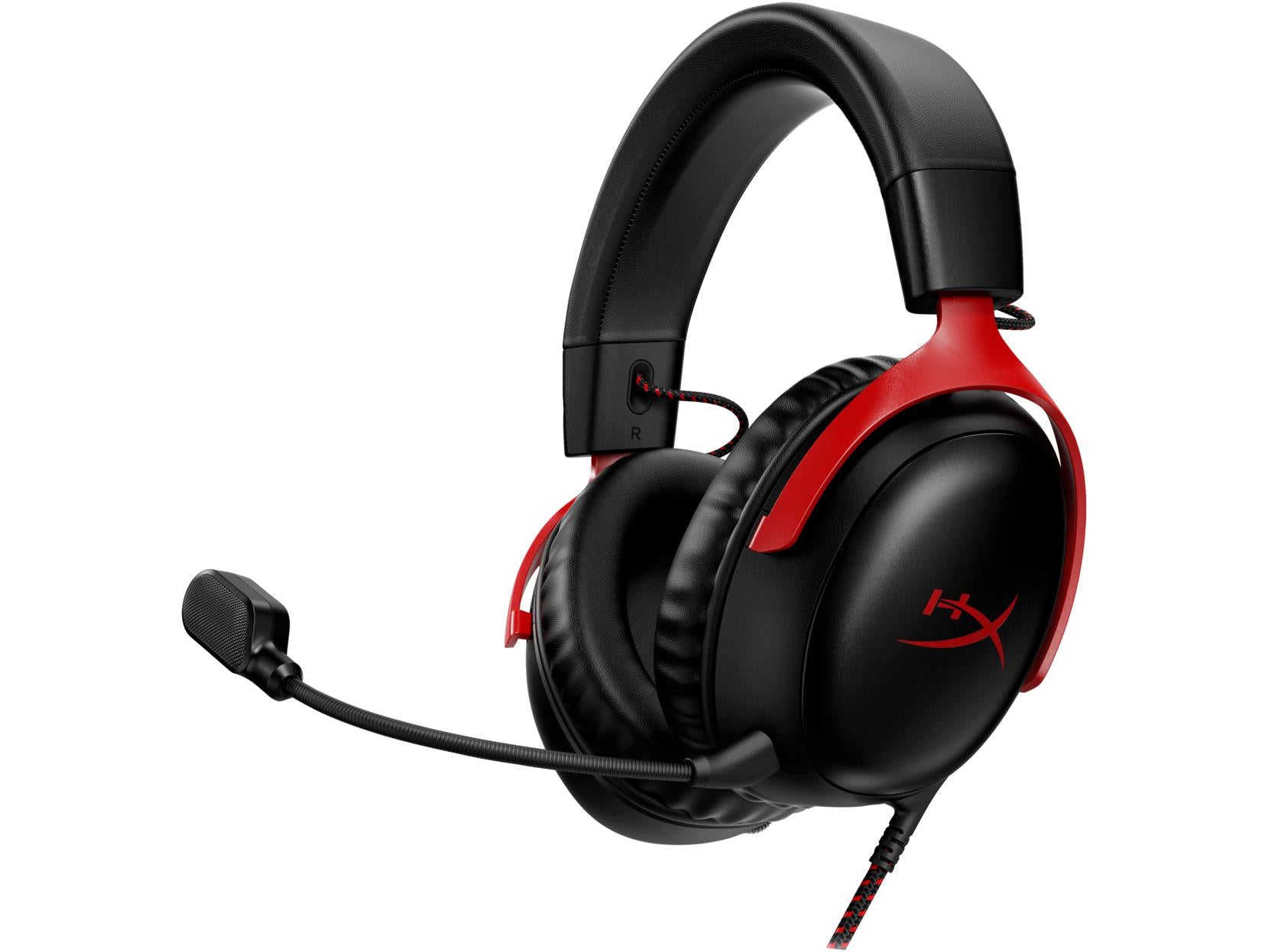
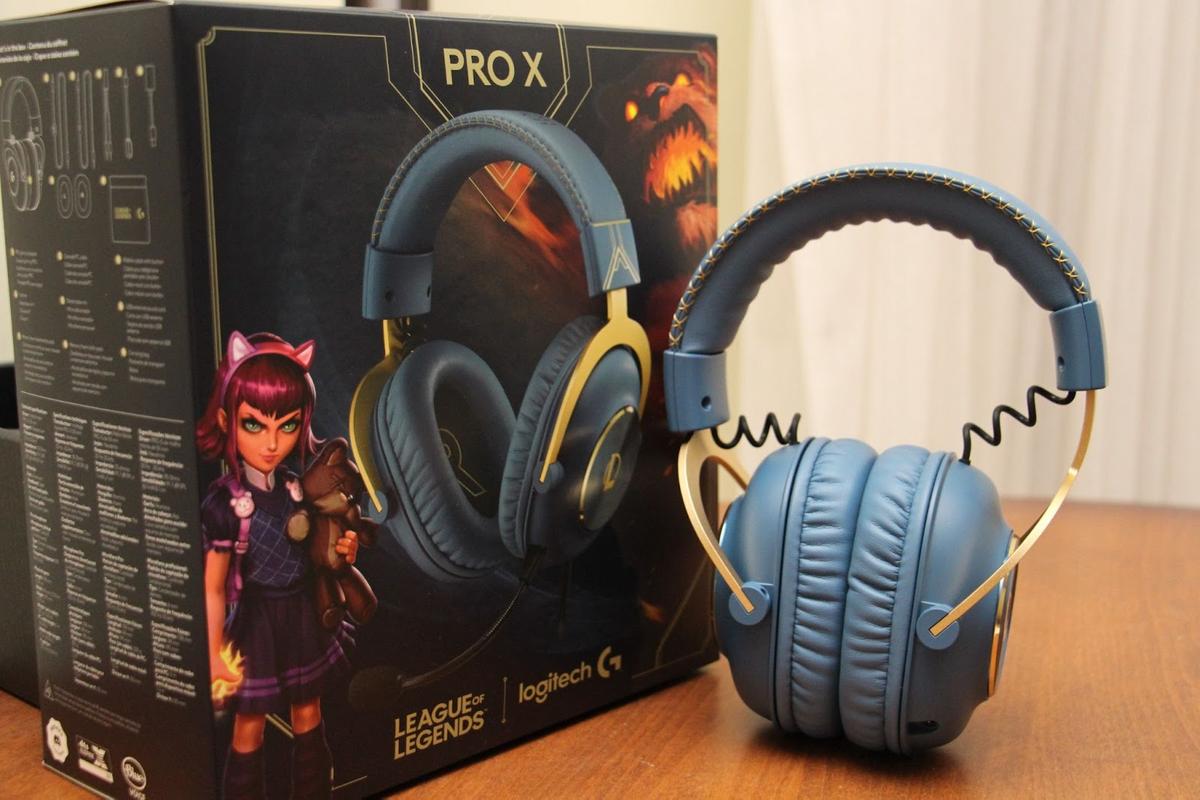
When you look at what competitive players actually wear, the patterns are instructive. Jynxzi'S headset model is reported as a Beyerdynamic MMX 300, a wired studio-grade pair that prioritizes raw audio fidelity over wireless convenience, though he has also been linked to the HyperX Cloud III as a practical alternate. Similarly, Call of Duty pro player headset choices lean toward premium tournament-ready kits like the SteelSeries Arctis Nova Pro and Logitech G PRO X Wireless, where the ability to isolate footstep frequencies matters more than any single brand name. If you are narrowing your own search, the best hyper X headset for your setup depends on your gaming machine’s input limits, and the Cloud III remains the most frequently referenced model in the current lineup, connecting via USB or 3.5mm for compatibility with both the Xbox controller jack and the PlayStation controller’s 3.5mm port without extra adapters.
Managing the connection is not always obvious once you are paired, as the system interface buries certain controls. To adjust volume on Xbox headset, press the Xbox button to open the guide, navigate to the Audio section and drag the headset volume slider, or use the Settings path via Profile & system > Settings > General > Volume & audio output, where the chat mixer sitting right below it lets you shift the balance so party chat cuts through game explosions. If a cordless unit refuses to reconnect, you will want to disconnect a headset from Xbox by powering it down and then clearing its pairing from the device list inside the system’s settings, though the exact menu path varies by firmware version. On the Sony side, your audio can feel capped too low because some games output quieter than the system limit allows, and the quickest fix is to increase PS4 headset volume by holding the PlayStation button, selecting Sound/Devices, and pushing the volume slider all the way up.
Frequently Asked Questions
Does the PS5 support Bluetooth audio for any headphones at all?
The PS5 does not support standard Bluetooth audio for game sound or chat. It blocks generic Bluetooth headphones and speakers from pairing directly. Only authorized USB adapters or officially licensed wireless headsets with their own dongle will work wirelessly.
Can I use a USB headset on Xbox Series S without a controller?
Xbox consoles do not support generic USB audio headsets. Only headsets explicitly marketed as Xbox-compatible and using their own dedicated USB dongle may work. A wired headset through the controller's 3.5 mm jack is the universal fallback.
How do I update the firmware on my Turtle Beach Stealth headset?
Plug both the headset and its mini transmitter into a PC or Mac running the Turtle Beach Audio Hub application. The software will automatically detect the connected devices and surface any available firmware patches for installation.
Can I connect wireless earbuds like AirPods to my Xbox Series X?
No, Xbox consoles do not support Bluetooth audio output for any standard earbuds, including AirPods. The system uses a proprietary Xbox Wireless protocol and only works with officially licensed wireless headsets or those using a compatible USB dongle.