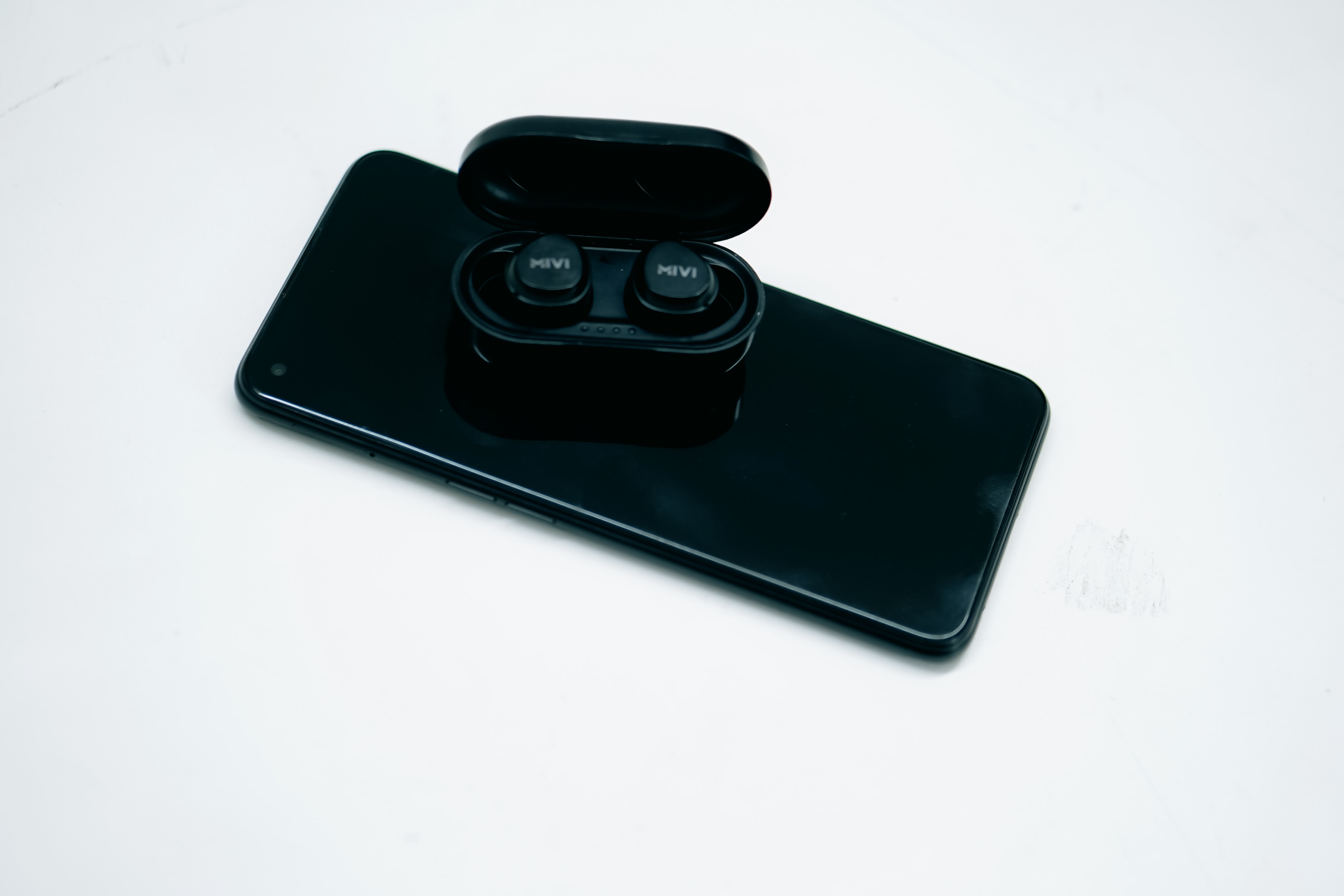
To connect wireless earbuds to Android, you pair them through the system's Bluetooth settings, a manufacturer's app, or NFC when both devices support it. This guide covers all three methods so you can get your earbuds working quickly, whether you are pairing true wireless earbuds for the first time or need to pair 2 wireless earbuds to the same phone.
How to connect wireless earbuds to Android via Bluetooth settings
This is the standard method that works with any Bluetooth earbuds, including AirPods. Google documents that Bluetooth pairing steps may vary by device manufacturer, so Bluetooth and Pair new device may appear in different places on different Android phones.
- Swipe down from the top of the screen on your Android device.
- Touch and hold Bluetooth.
- If Bluetooth is not visible there, open the device’s Settings app, then go to Bluetooth or Connected devices depending on the phone manufacturer.
- Turn on Bluetooth if needed.
- Tap Pair new device.
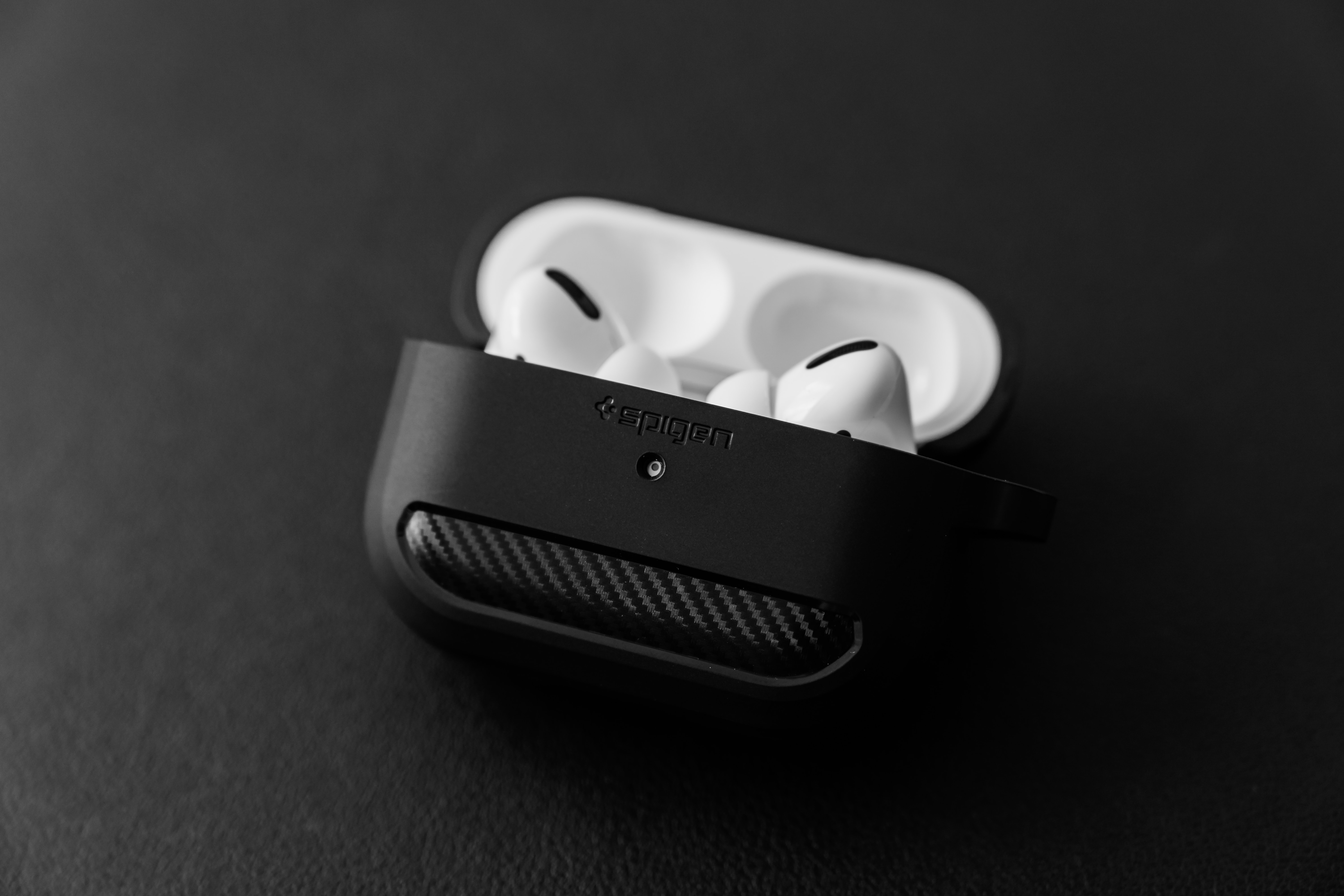
- Put the earbuds into pairing mode using the earbuds’ own steps. For AirPods, Google’s Android help says to open the case lid and press and hold the button on the back until a white light flashes.
- Select the earbuds from Available devices and follow the on-screen instructions.
If Pair new device is not shown, check under Available devices or tap More > Refresh.
How to connect wireless earbuds to Android using the manufacturer's app
Many brands offer a dedicated app that can simplify pairing and provide extra controls. Samsung says the Galaxy Wearable app is compatible with phones and tablets running Android 6.0 and higher.
- Put the Galaxy earbuds in the charging case and close the lid.
- Wait 5-6 seconds.
- Open the case.
- The earbuds will automatically enter Bluetooth pairing mode.
The app should then detect the earbuds and guide you through the final connection steps. Other brands offer similar apps, so check the Google Play Store for your earbuds’ manufacturer app.
How to connect wireless earbuds to Android using NFC
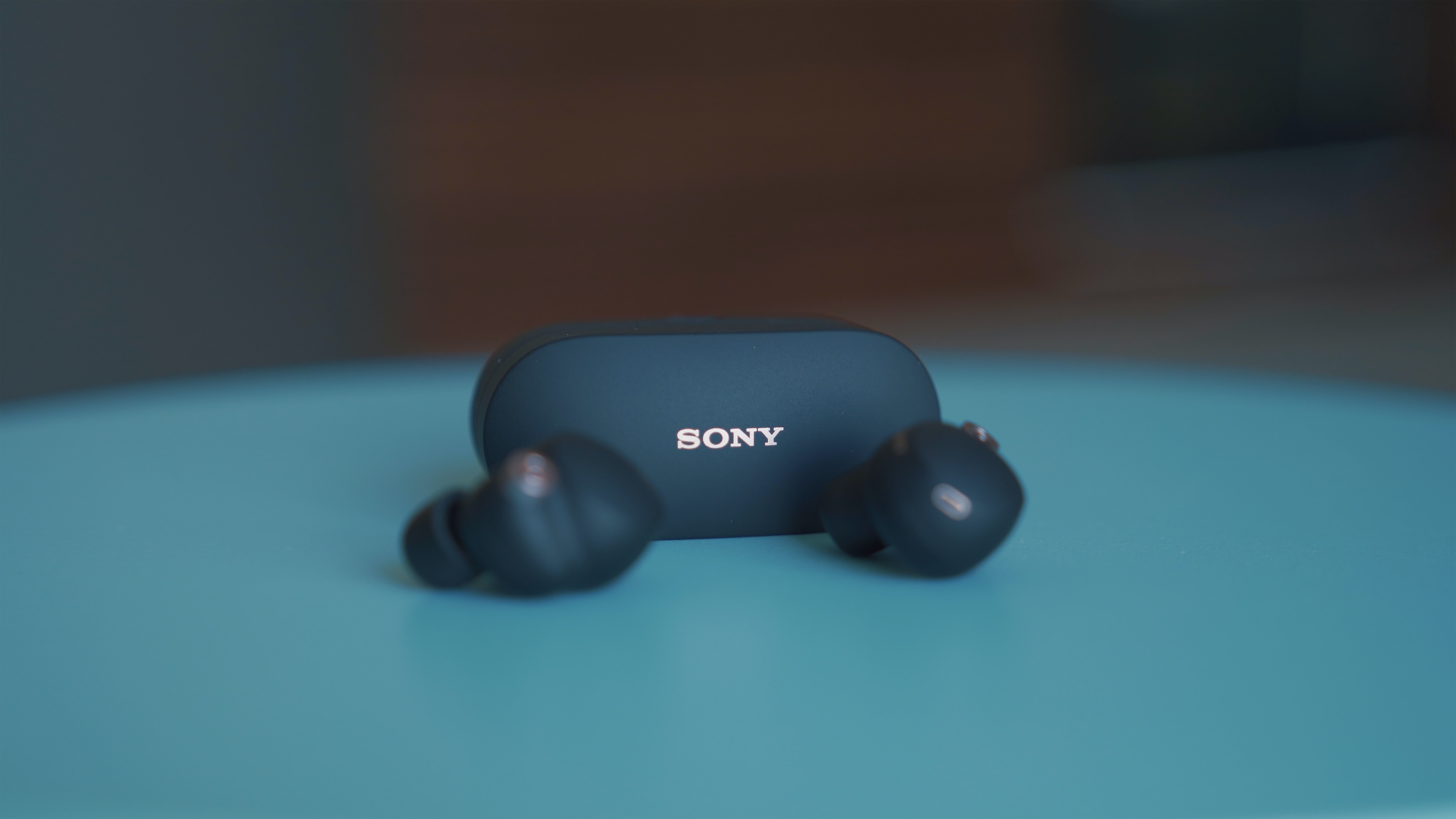
Sony documents NFC pairing only when the earbuds or case have an NFC logo and the phone has NFC turned on. Sony says NFC pairing requires NFC enabled on the Android phone.
- Open Settings > Device connection > Connection preferences > Enable NFC.
- Confirm the headphones or earbud case has an NFC logo.
- Unlock the phone and touch the back of the phone to the NFC mark on the earbuds or case. Sony’s page says the back of the phone may also be marked with NFC and that the phone may touch the headphones or case.
- The phone vibrates and connects automatically through Bluetooth without opening the settings menu.
Troubleshooting common issues when connecting wireless earbuds to Android
If Bluetooth is missing from the quick settings area, go to the Settings app and open Bluetooth there. If Pair new device is missing, look under Available devices or tap More > Refresh. These are the most common roadblocks, and these steps resolve them without needing to reset your earbuds.
Frequently Asked Questions
Are wireless earbuds compatible with all Android devices?
Wireless earbuds are generally compatible with any Android device that supports Bluetooth. Google’s Fast Pair page says compatible devices are Android 6.0 or higher, and the Samsung Galaxy Wearable app also requires Android 6.0 or higher. Older devices may still pair via standard Bluetooth.
Why won't my wireless earbuds connect to my Android device?
Ensure Bluetooth is turned on and the earbuds are in pairing mode. Restart both the phone and the earbuds, and check that the earbuds are charged. If the earbuds have been paired to another device recently, they may need to be disconnected from that device first.
Can I connect multiple pairs of wireless earbuds to my Android device?
Most Android devices support connecting multiple Bluetooth devices simultaneously, but the number of simultaneous audio connections may be limited. Some phones allow you to share audio with two pairs of earbuds at once, though this feature is not universal. Check your device’s settings for audio sharing options.
How can I improve audio quality when using wireless earbuds with my Android device?
Ensure the earbuds are fully charged and properly seated in your ears. Keep the phone within Bluetooth range and avoid physical obstructions. Adjust the equalizer or sound profiles in your phone’s audio settings if available.
Related reading: How To Connect Jbl Wireless Earbuds To Phone.