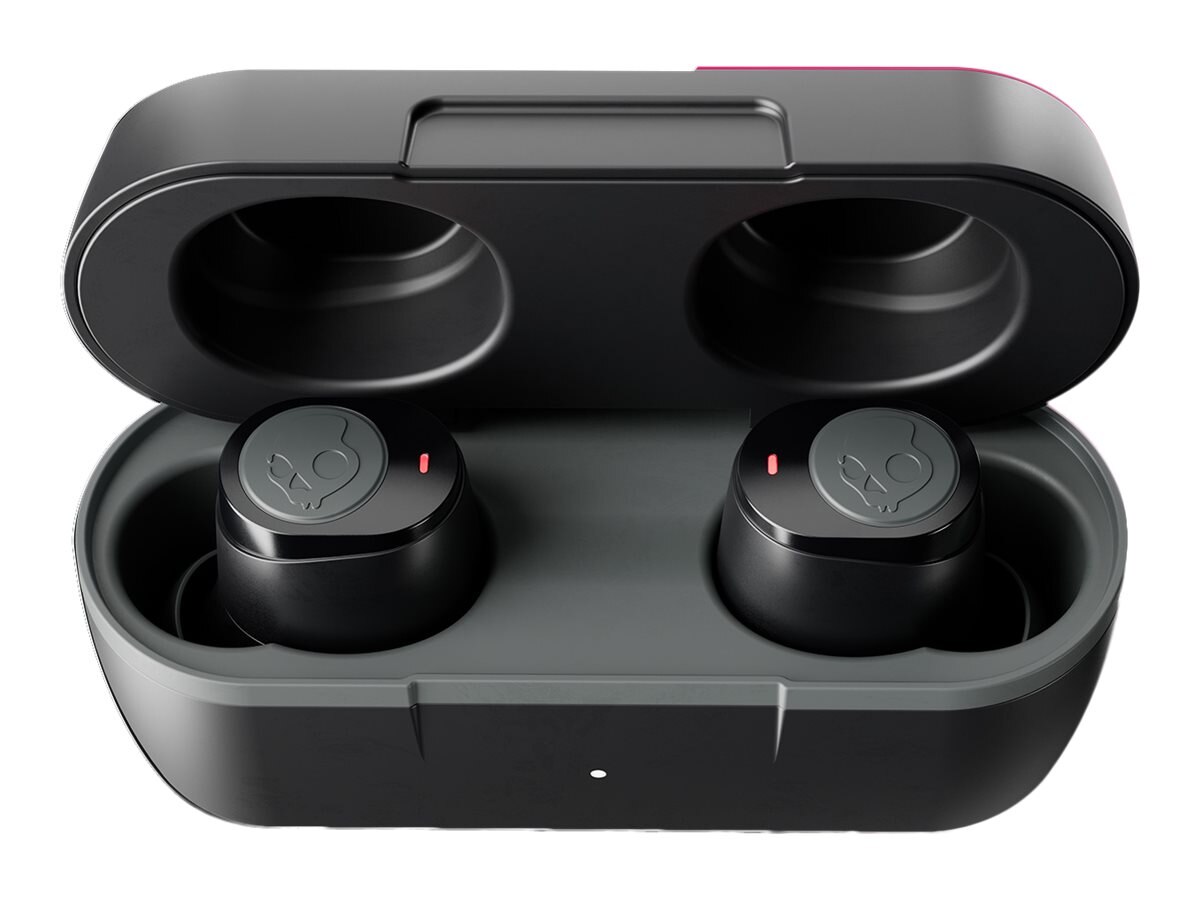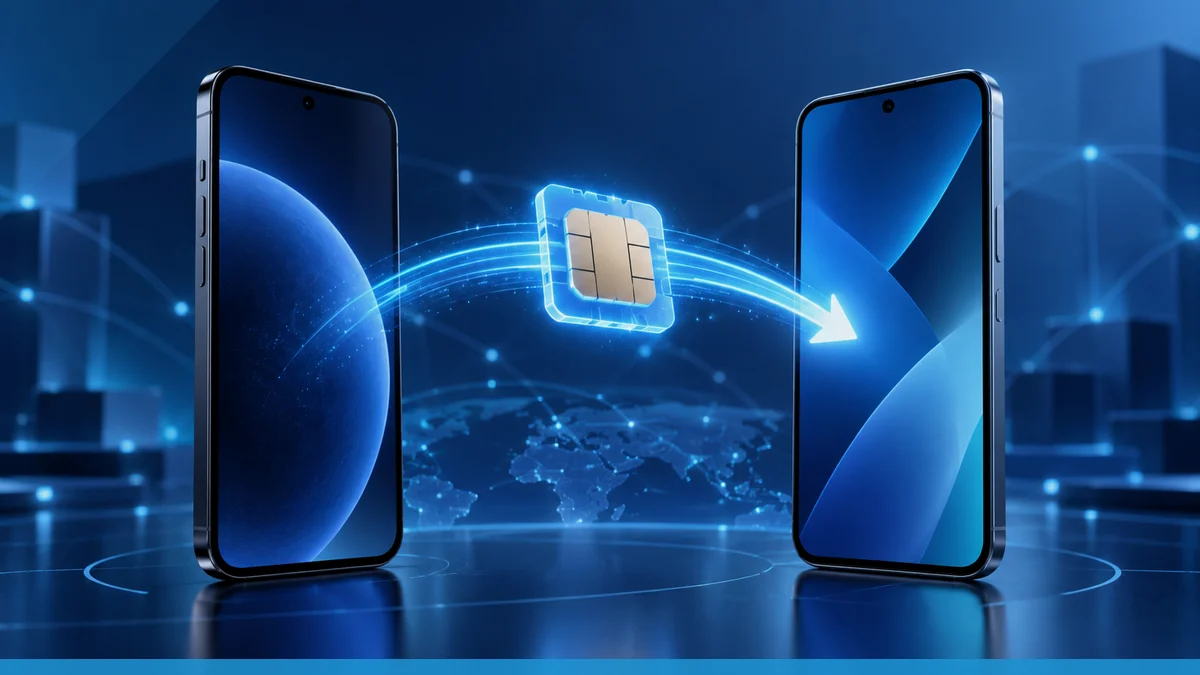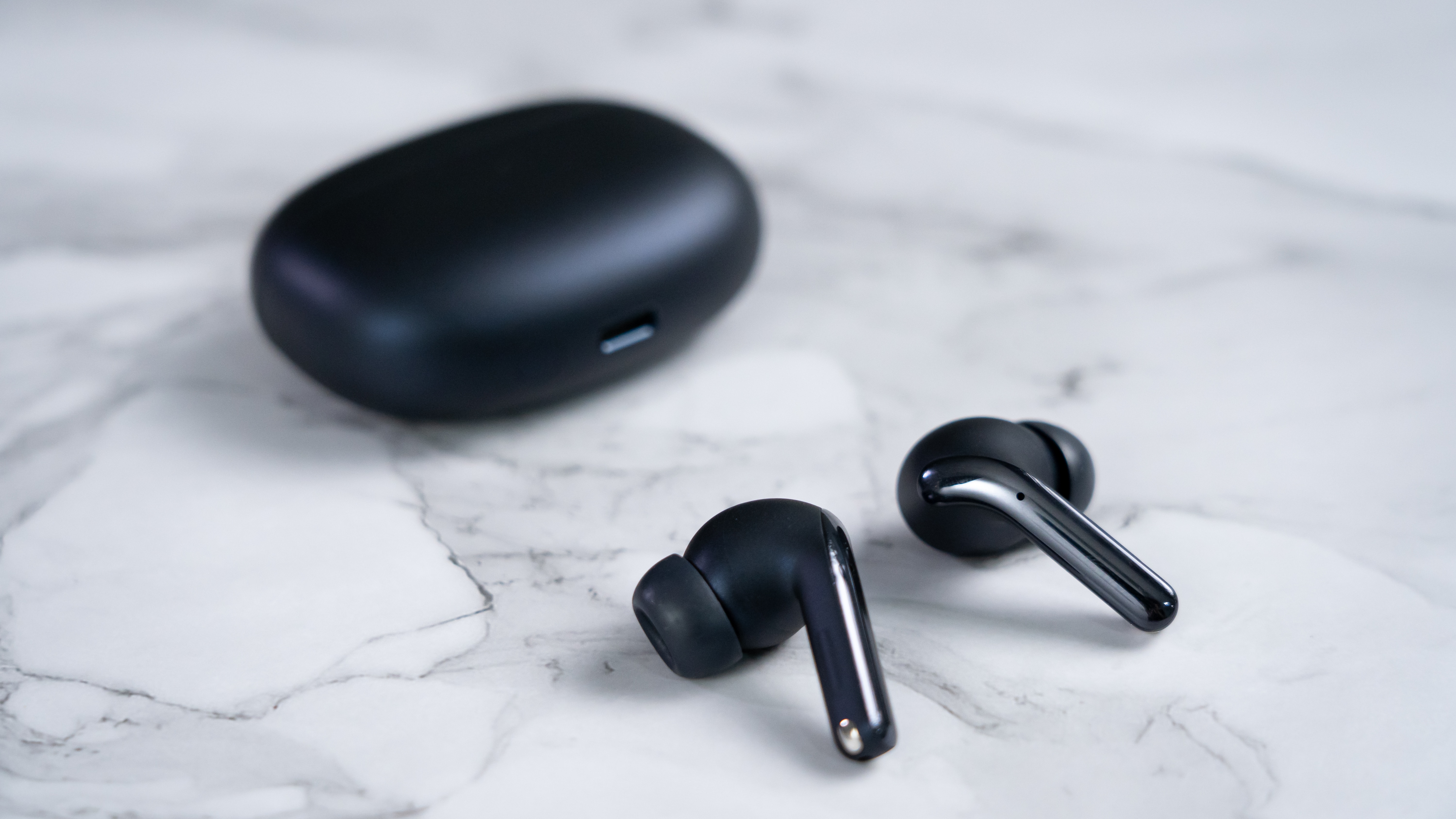
To connect Biconic wireless earbuds, open the charging case, remove the earbuds, turn on Bluetooth on your phone or tablet, and select the earbud name from the list of available devices. This is the complete documented process for pairing true wireless earbuds from Biconic, and the exact name you look for depends on your specific model.
How to connect Biconic wireless earbuds to your device
- Open the charging case and take out both earbuds. The LEDs on each earbud will flash red and blue until the earbuds sync to each other. After they sync, one earbud flashes red and blue while the other flashes blue. One manual says both LEDs flash red and blue until the earbuds sync to each other, then one earbud flashes red and blue while the other flashes blue.
- On your phone or tablet, go to Bluetooth settings and turn Bluetooth on.
- Look at the list of available devices and select your earbuds. The name will be one of the following, depending on the model: "BICONIC," "BYTECH BICONIC," "BICONIC Focus," or "BC-BE-119."
- After pairing, the earbud indicator lights will flash blue intermittently. One manual says the earbud indicator lights will flash blue intermittently after pairing. You can now use the earbuds for audio.
To turn on true wireless earbuds, simply remove them from the charging case; they power on automatically and enter pairing mode. No separate power button press is documented in the manuals.
Choosing the correct Bluetooth name for your model
The Bluetooth name you select during pairing changes by model. The documented names are "BICONIC," "BYTECH BICONIC," "BICONIC Focus," and "BC-BE-119." For example, the manual for model BC-AU-BE-119 instructs you to select "BC-BE-119" from available devices. The manual for the BC-AU-BE-119 model says to use “Bluetooth® Settings” on the mobile device and select “BC-BE-119” from available devices. Other manuals direct you to search for "BICONIC" or a similar name. Check the label or manual that came with your earbuds to know which name to expect.
What to do if your earbuds won't connect
If the earbuds do not appear in the Bluetooth list, the manuals only document three basic steps: ensure Bluetooth is enabled on your device, keep the earbuds and your phone or tablet close together during pairing, and retry the pairing process. No PIN, app, or reset procedure is documented for Biconic models.
Frequently Asked Questions
Do these earbuds have an app?
No app is documented in any retrieved official manual or source for Biconic wireless earbuds.
Do they work on iPhone and Android?
The manuals describe pairing with a "mobile device" and one source mentions smartphone, tablet, or computer. No specific iPhone or Android version requirements are documented.
What if I see a different name in Bluetooth?
The manuals say to choose the Biconic name or a similar name that matches your model.
Is there a documented pairing code?
Related reading: How To Connect Wireless Earbuds To Android.