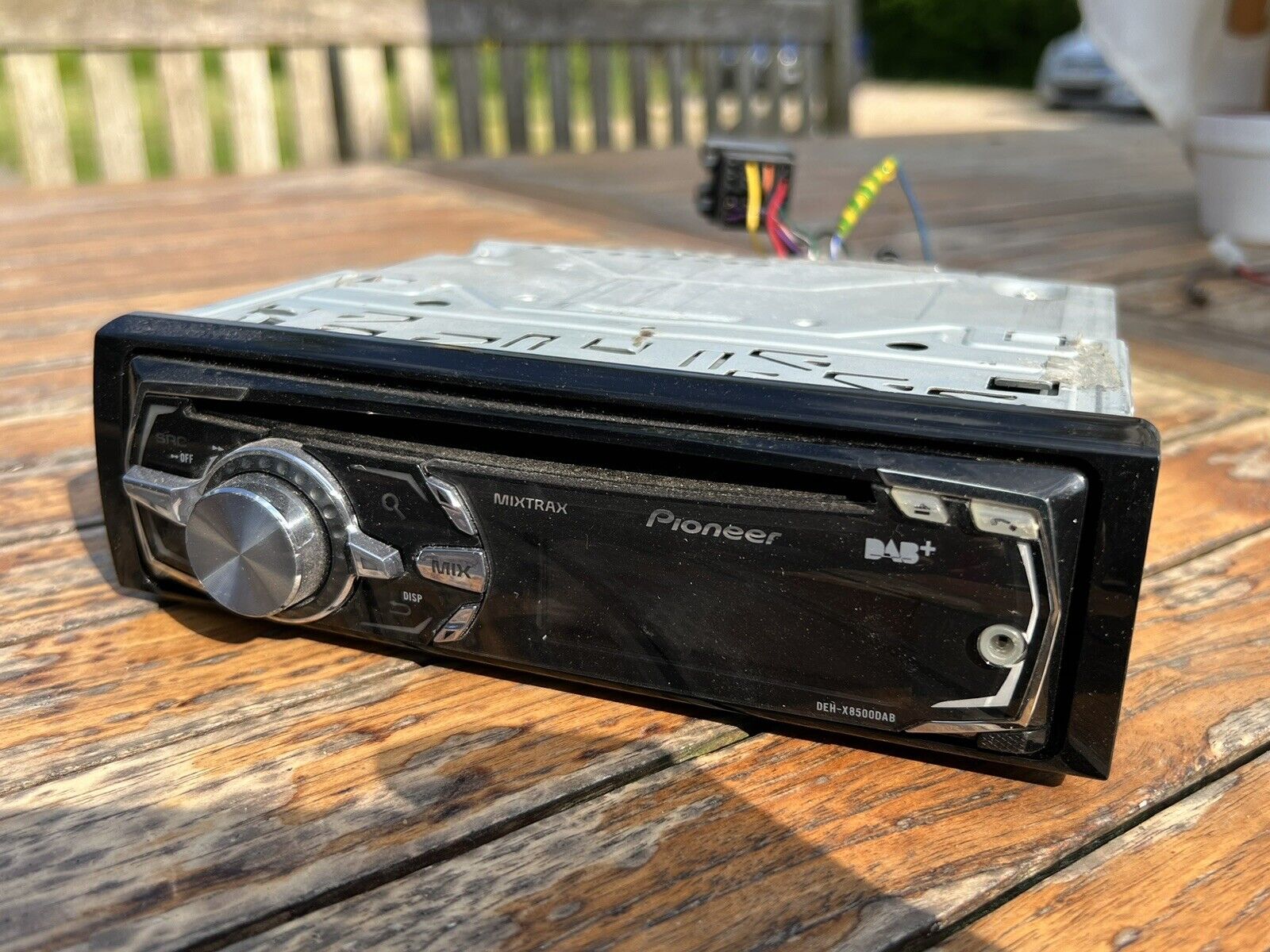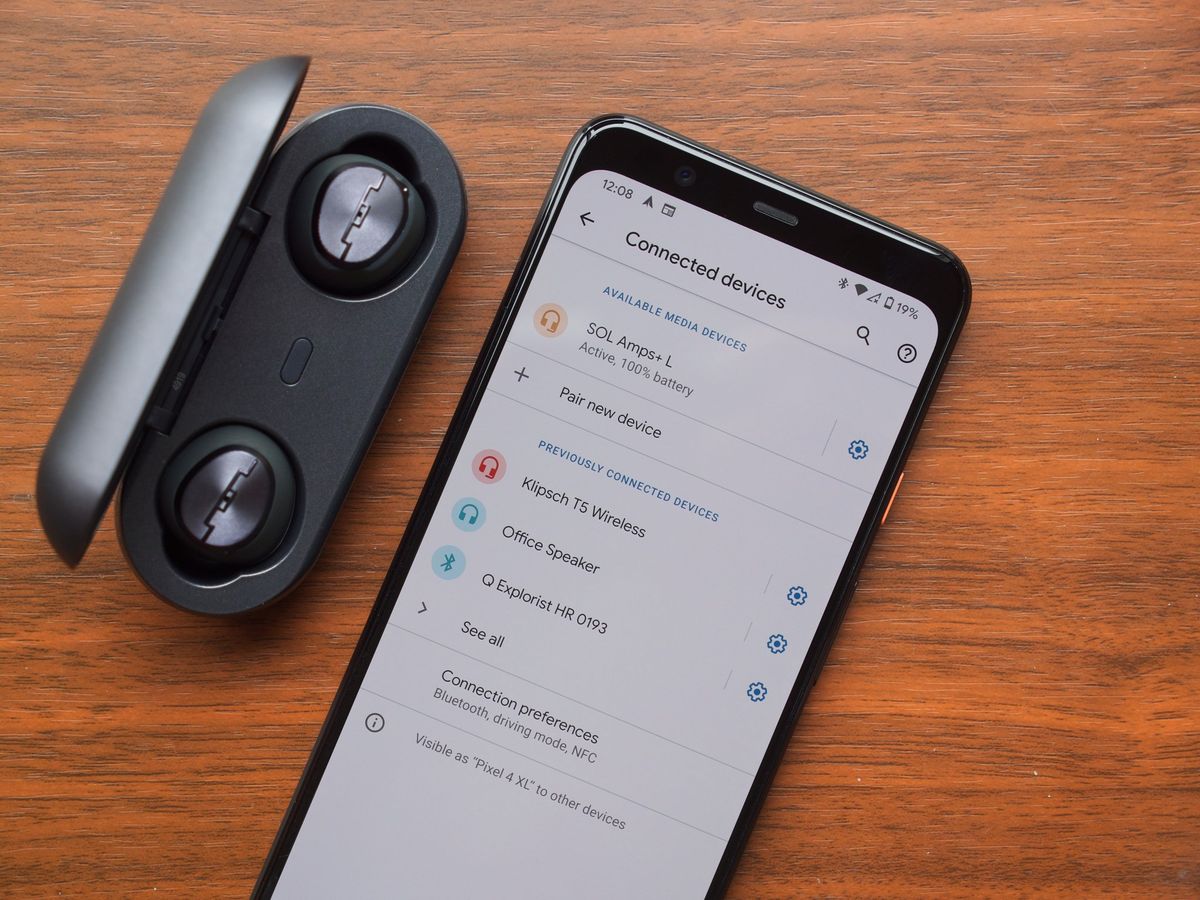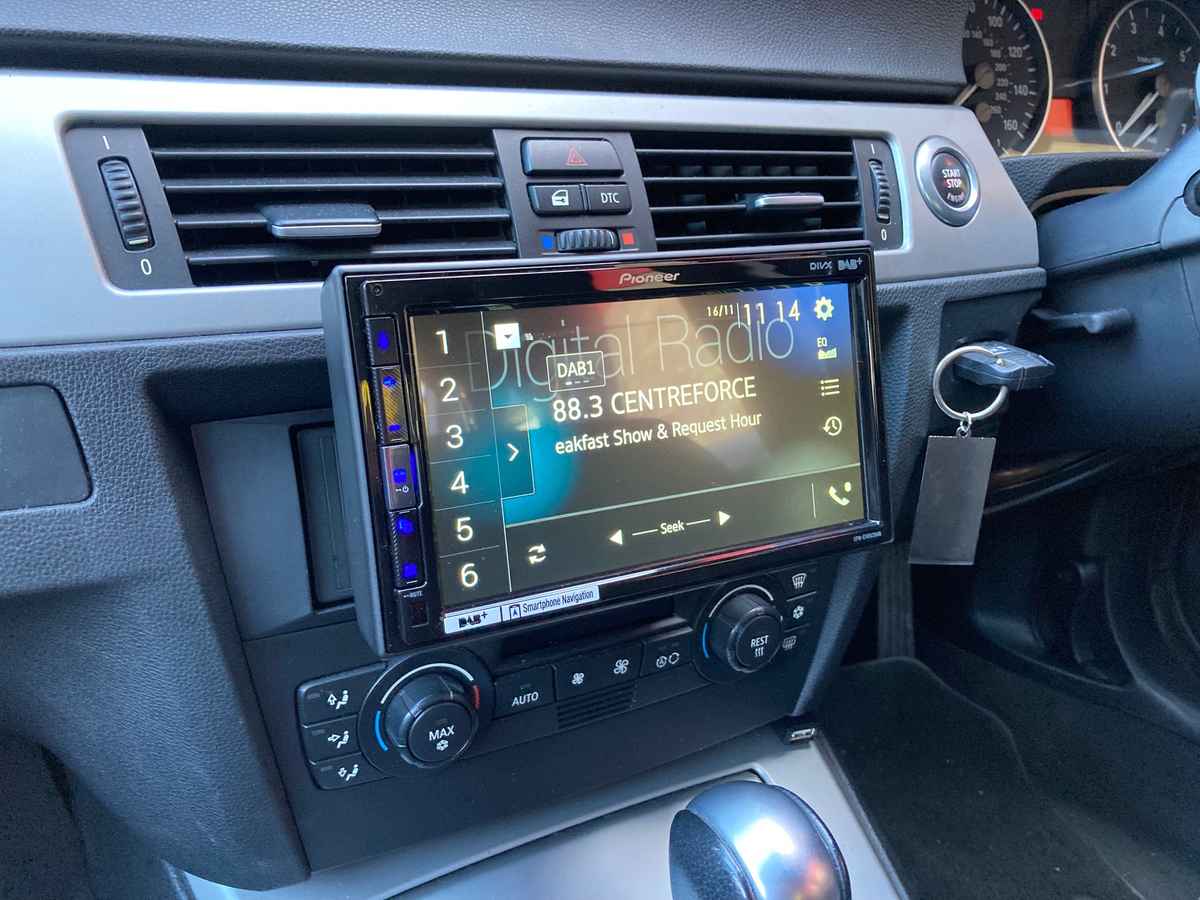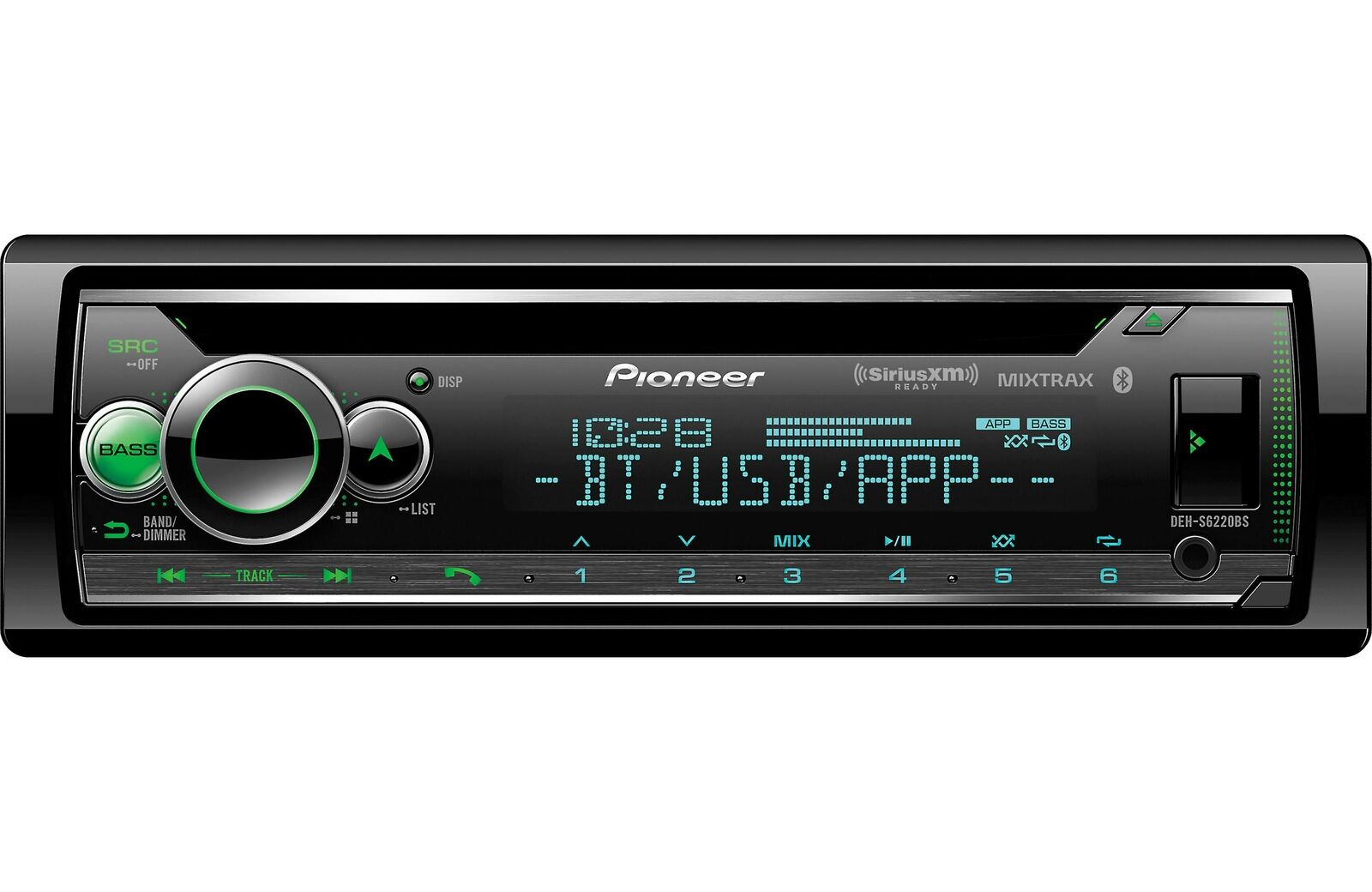
To delete phones from Pioneer Bluetooth radio, access the phone pairing menu on your head unit, select the device you want to remove, and choose the delete or remove option. This clears the radio's memory of that specific phone, allowing you to manage your paired devices list and resolve connection issues.
How to delete phones from Pioneer Bluetooth radio
Begin by turning on your Pioneer Bluetooth radio and accessing the phone pairing menu. The exact location varies by model but is typically found in the settings or connectivity options. Once in the menu, you will see a list of all paired devices. Select the phone you want to delete, then choose the delete or remove option. Confirm the deletion when prompted. The phone is now removed from the radio's memory. Repeat these steps for any additional phones you wish to delete.
What deleting a phone actually does
Deleting a phone from your Pioneer Bluetooth radio only removes it from the radio's paired device list. It does not erase any contacts, call history, media files, or other data stored on the phone itself. The phone's Bluetooth connection to the radio is simply terminated, and the phone will no longer automatically connect to the head unit.
Troubleshooting: phone won't delete
If you encounter difficulty deleting a phone, first ensure the phone is not actively connected to the radio. Turn off Bluetooth on the phone or move it out of range before attempting deletion. If the problem persists, try these Pioneer-specific fixes:
- Restart both the phone and the Pioneer radio to establish a fresh connection.
- Check that the phone's screen is unlocked and active during the deletion process, as a locked screen may prevent the command from being received.
- Update the radio's firmware if an update is available, as outdated software can cause compatibility issues.
- Perform a factory reset on the radio by consulting your user manual or the manufacturer's website for instructions specific to your model.
- The Pioneer Smart Sync application, when used with compatible radios, can also play a role in managing smartphone connections, though direct deletion is usually done via the head unit.
If none of these steps resolve the issue, contact Pioneer customer support for guidance tailored to your specific model.
How to re-pair a phone after deletion
To reconnect a phone after deleting it, put the radio back into pairing mode by accessing the Bluetooth settings menu and selecting the pair new device or add device option. On your phone, enable Bluetooth, search for available devices, and select your Pioneer radio from the list. Follow any on-screen prompts to complete the pairing process. The phone will now be reconnected as a new paired device.
Frequently Asked Questions
Can I delete multiple phones at once from my Pioneer Bluetooth radio?
Yes, you can delete multiple phones at once. In the paired devices menu, select multiple phones by highlighting each one using the arrow keys or touchscreen, then choose the delete or remove option and confirm the deletion.
Will deleting a phone from my Pioneer Bluetooth radio affect the phone's Bluetooth connections to other devices?
No, deleting a phone from the radio only removes it from that specific radio's paired list. The phone retains its Bluetooth connections to other devices, such as headphones or other car stereos, including how to remove phone from car Bluetooth for a different brand, how to delete phone from rav4 Bluetooth, or how to delete phone from Toyota corolla Bluetooth.
What should I do if my phone is still connecting to the radio after I delete it?
If the phone continues to connect, ensure you have confirmed the deletion properly.
Does deleting a phone from the radio free up memory for new devices?
Yes, deleting old or unused phones frees up space in the radio's paired device memory, allowing you to pair new phones without reaching the device limit.
Can I delete a phone that is currently connected to the radio?
It is best to disconnect or turn off Bluetooth on the phone before attempting deletion. Some radios may not allow deletion of an actively connected device, so ensure the phone is not actively paired before proceeding.