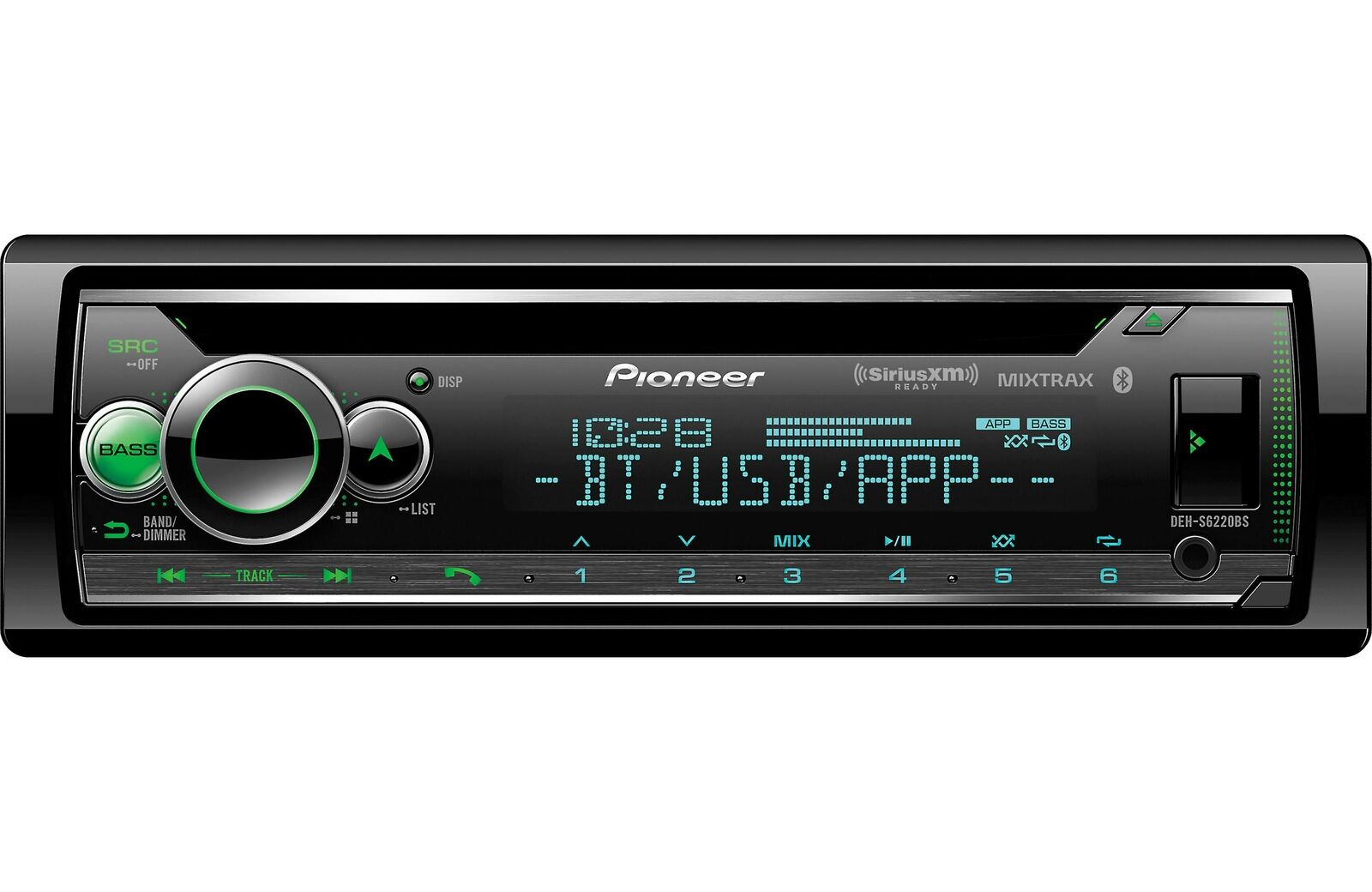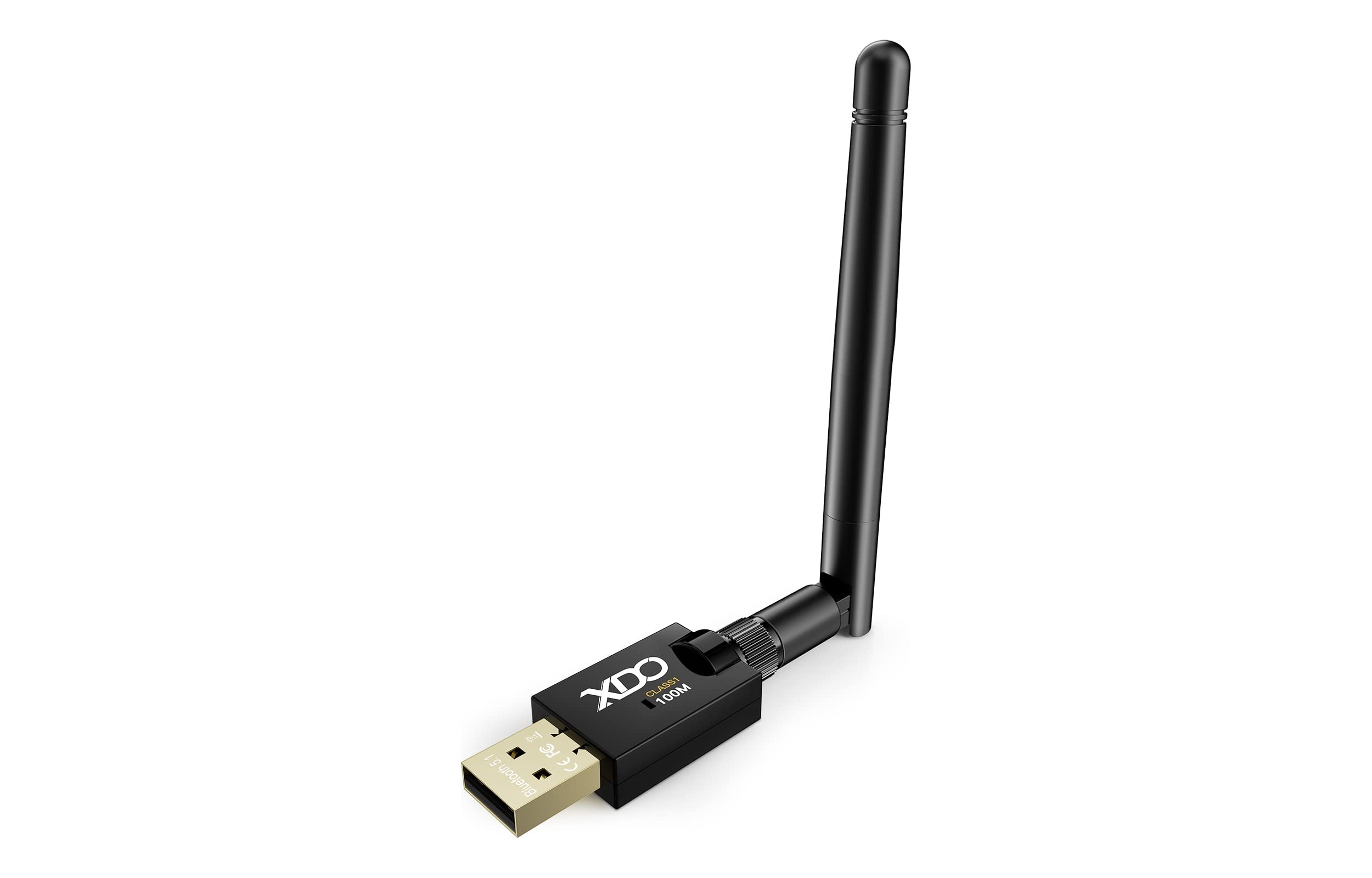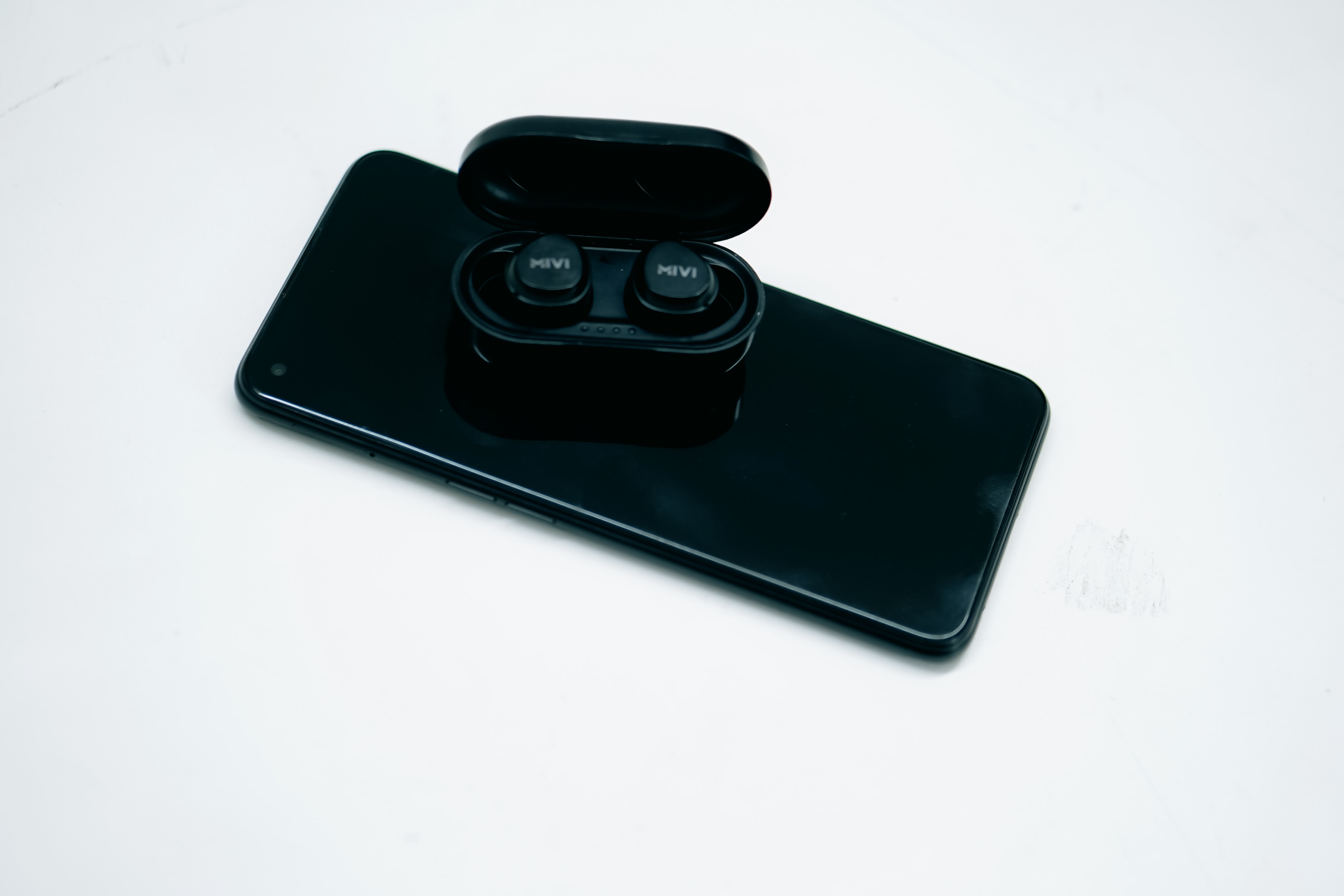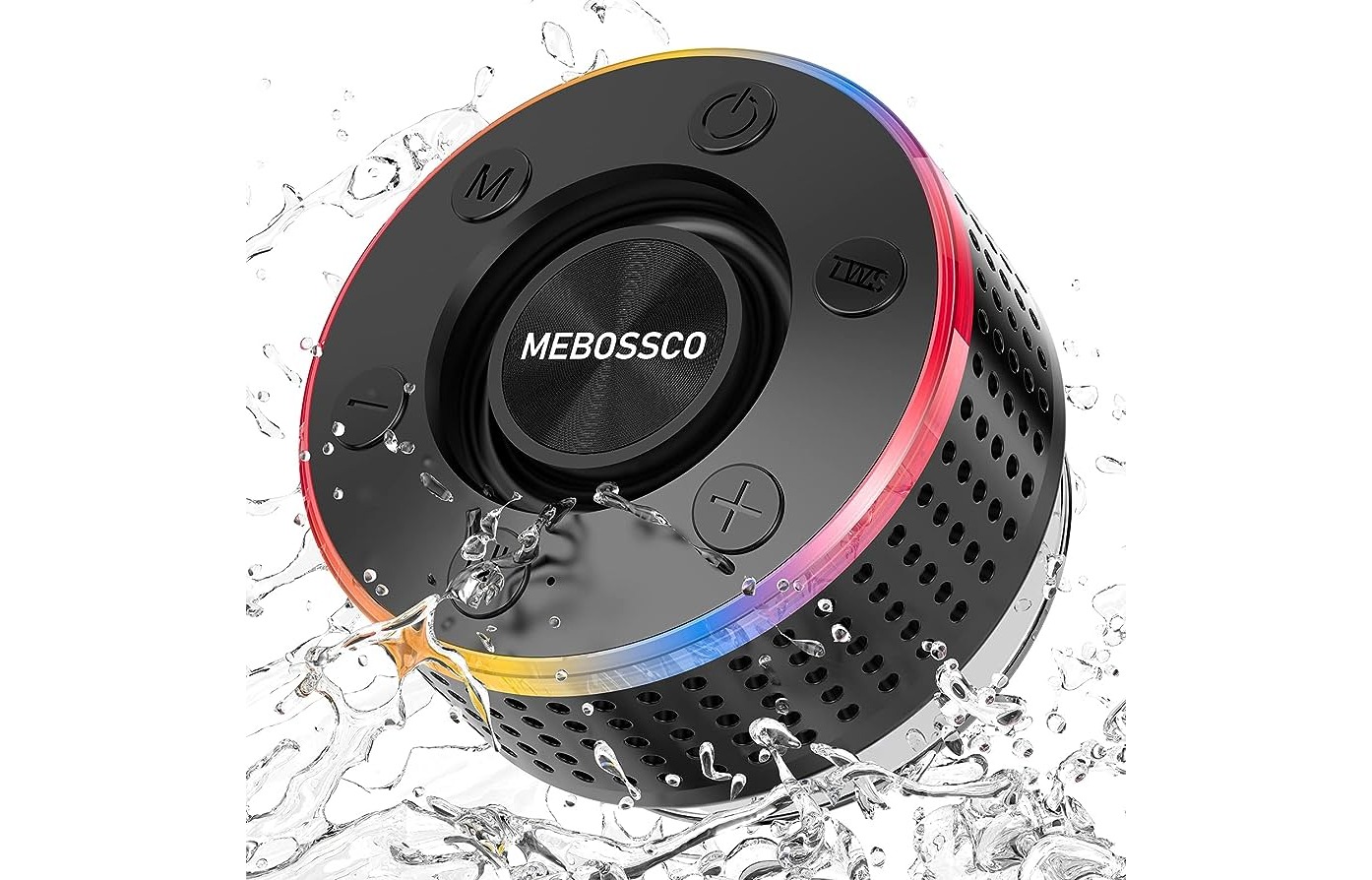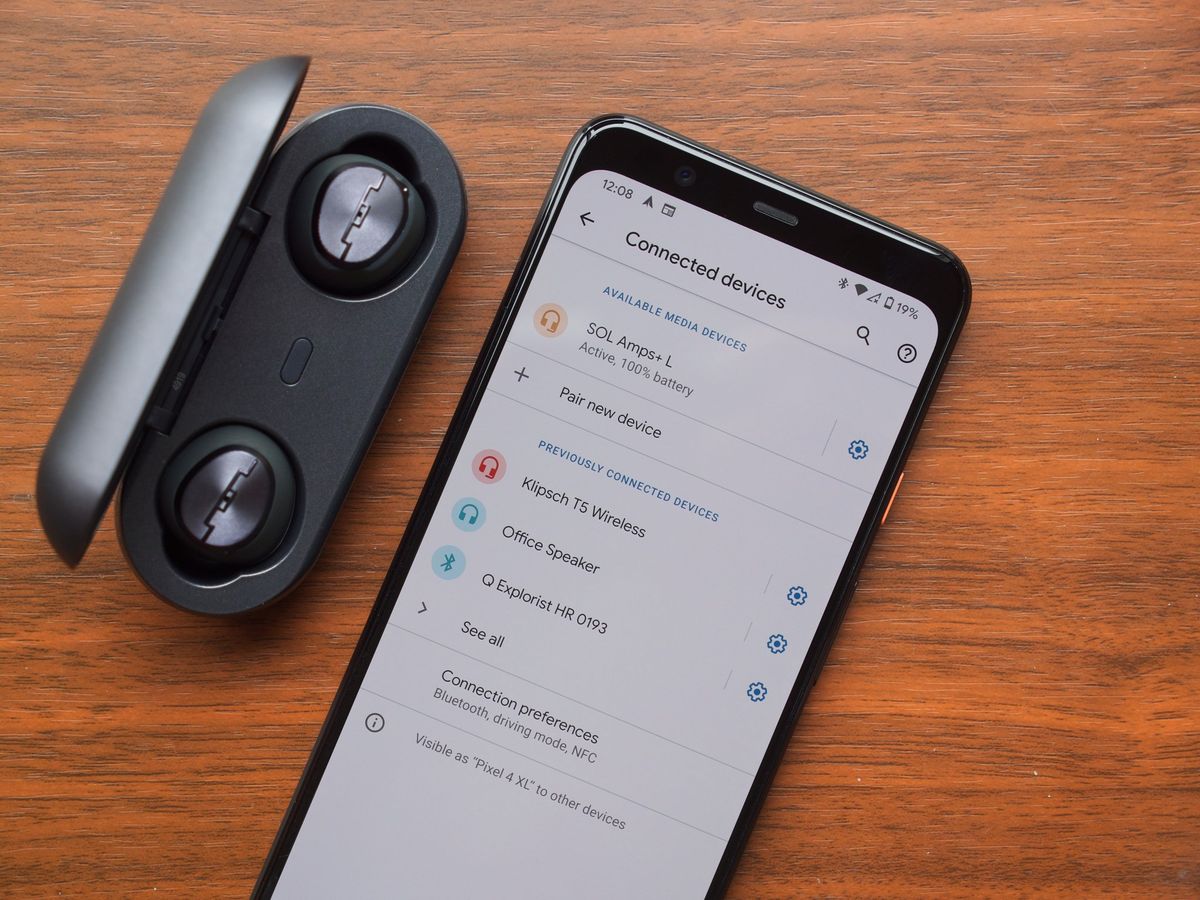
To unforget a Bluetooth device on Android, you must re-pair it from scratch, as Android has no built-in "unforget" feature. Once a device is forgotten, it is completely removed from your saved list, and the only way to reconnect is to put the accessory into discovery mode and pair it as a new device.
How to unforget a Bluetooth device on Android
Android does not offer a one-tap "unforget" option. When you forget a device, the operating system permanently deletes its pairing credentials. The only path forward is to treat the accessory like a brand-new device: put it in pairing mode, open your phone's Bluetooth settings, and pair it again. Below is a preview of the steps you will follow.
Why you can't simply unforget a device
Forgetting a Bluetooth device removes it from Android's saved pairing list. Google's official help documentation confirms that the sole action available after forgetting a device is to re-pair it from scratch. There is no hidden history or undo button that restores the old connection. Once removed, the device must be placed back into discovery mode before it can reconnect, just as if it had never been paired before. Unforgetting a Bluetooth device is particularly beneficial for individuals with disabilities. It allows them to quickly establish a connection with their assistive devices, such as hearing aids or braille displays, making technology more accessible and inclusive. Unforgetting a Bluetooth device remembers your personalized settings. For example, if you have customized the audio levels or activated specific features, unforgetting ensures that your preferred settings are applied whenever you connect to the device.
Step-by-step: Re-pair your forgotten Bluetooth device
- Open the Settings app on your Android device.
- Tap Connected devices > Saved devices.
- If Saved devices does not appear, tap Bluetooth instead.
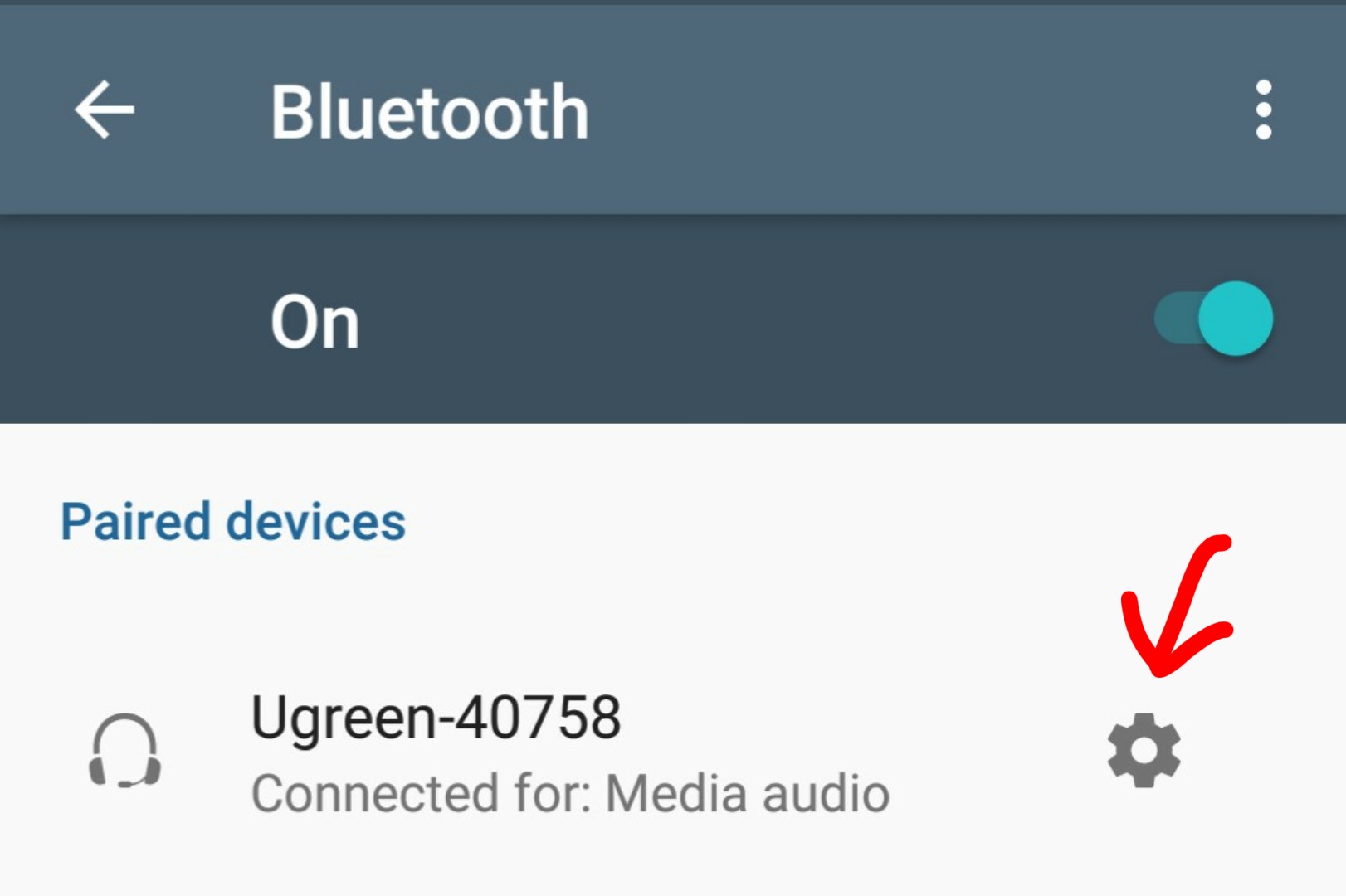
- Next to the device name, tap Settings > Forget or Forget device. (If the device is a car you previously paired, tap the car's name and use the same Forget device action.)
- Put the Bluetooth accessory into pairing/discovery mode (the method varies by device; consult the accessory's manual).
- Your Android phone will scan for available devices. Tap the accessory's name when it appears to pair and connect it as a new device.
This is the complete, documented path. No special "unforget" button or shortcut exists.
What to do if the device won't reconnect
If the accessory does not appear after following the steps above, verify that it is actually in discovery mode, many devices require you to hold a button or power cycle them to enter pairing mode. If you use a companion app with the accessory, check that the app has Bluetooth permission by going to Settings > Privacy > Bluetooth and making sure it is enabled. If there is an app used with the accessory on iPhone or iPad, Apple says to check Settings > Privacy & Security > Bluetooth and make sure Bluetooth is enabled for that app. If the accessory still refuses to pair, unpair it from any other phones or tablets it may be connected to, then try again. Apple says if the accessory still will not pair, unpair it from other devices and try again. For persistent problems where Bluetooth cannot be turned on or no accessories connect at all, contact the device manufacturer or Apple Support if you are using an iPhone. If Bluetooth cannot be turned on, is grayed out, or no Bluetooth accessories connect, Apple says to contact Apple Support.
Frequently asked questions
Does unforgetting a Bluetooth device delete its pairing information?
Yes. The act of forgetting a device permanently removes its pairing credentials from your Android device. You must go through the full pairing process again to restore the connection.
Why would I need to unforget a Bluetooth device?
You might need to reconnect a previously paired headset, speaker, or car system after accidentally forgetting it, or to resolve connectivity issues by starting fresh. Another reason is to remove an old device from your list (for instance, when you need to remove phone from car Bluetooth because you are selling the car or switching phones).
Can I unforget multiple Bluetooth devices at once?
No. Android does not support batch unforgetting. You must forgot and re-pair each device individually by following the standard settings path for each accessory.
Will unforgetting a device affect other saved settings?
No. Forgetting a Bluetooth device only removes its pairing data. Other Bluetooth settings, saved Wi-Fi networks, and general device settings remain unchanged.
What if I cannot find the device in the saved list after re-pairing?
If the device does not appear in the saved list after pairing, check that it successfully completed the pairing process. If it still does not show, put the accessory back into discovery mode and try again, and ensure it is not actively connected to another phone or tablet.
Related reading: How To Find A Forgotten Bluetooth Device On IPhone and How To Connect Bluetooth To Android Phone.