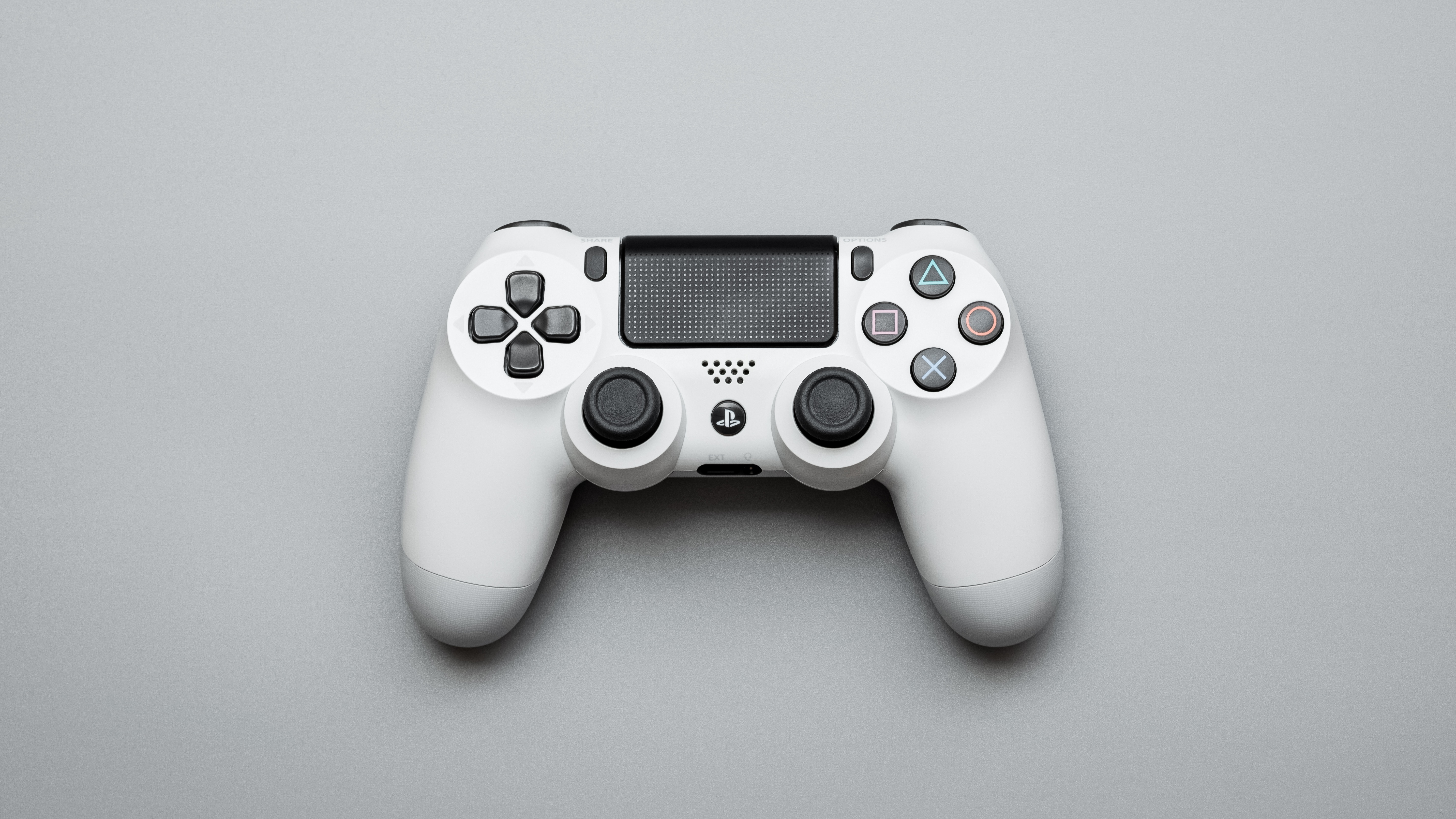
To fix PS5 controller joystick drift or unresponsiveness, start with the three documented fixes: update the controller firmware, reset the controller, and clean the joystick area. If the problem persists after these steps, the issue is likely hardware wear that requires professional repair or module replacement.
Fix your PS5 controller joystick when it drifts or moves on its own
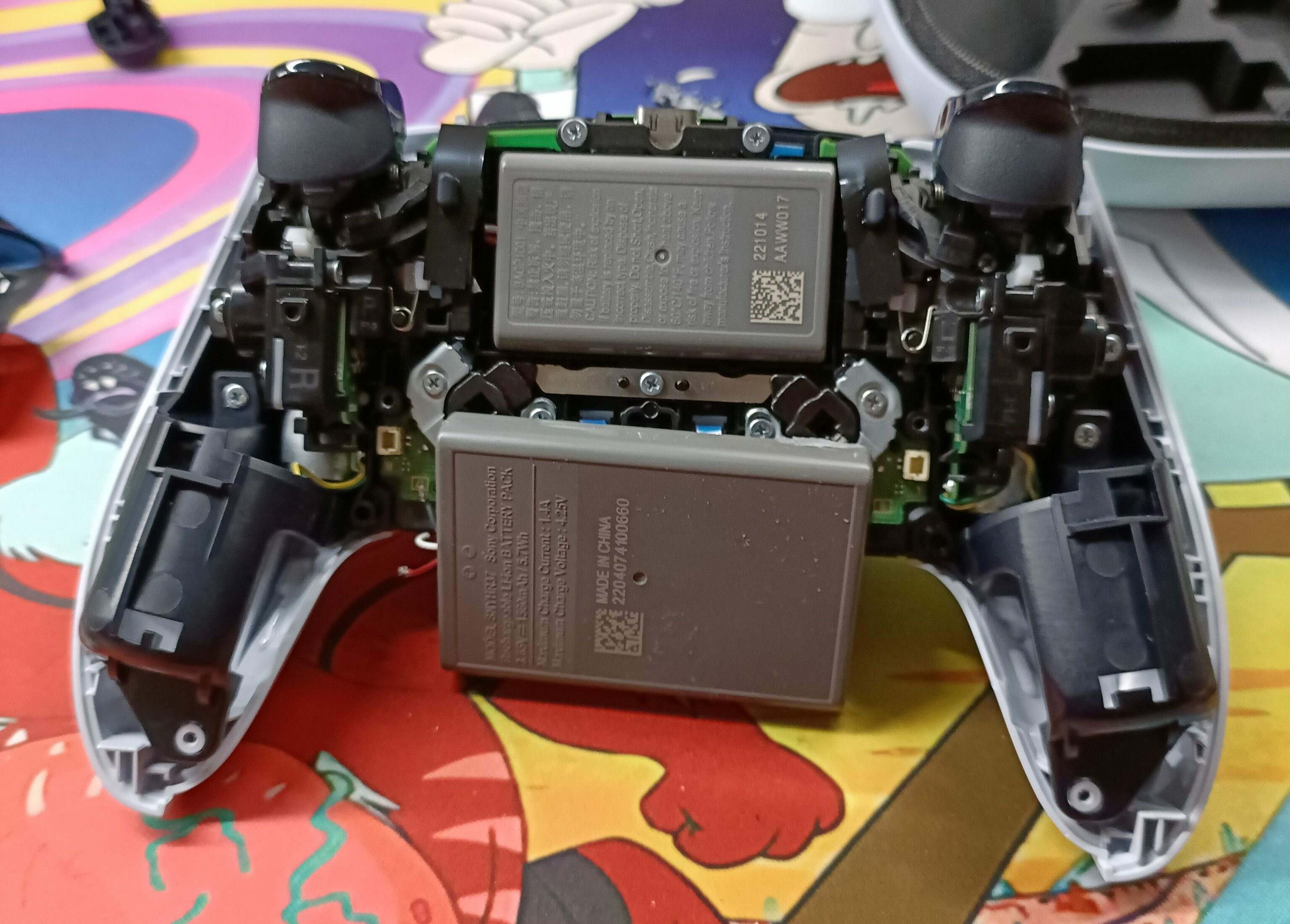
Stick drift occurs when the controller reports movement while the joystick is at rest, causing unwanted camera or character movement. Joystick sticking is a distinct issue where the stick feels stiff and difficult to move smoothly. Joystick jitter is another distinct issue, appearing as erratic, unstable movement. Joystick lag is a delay between input and on-screen action. An unresponsive or non-functioning joystick registers no input at all. Accidental drops or impacts can damage internal components, and liquid spills can cause joystick malfunction. The three documented fixes are updating the controller firmware, resetting the DualSense, and cleaning the joystick area. Persistent drift after these steps is documented as hardware wear, typically a worn potentiometer track inside the analog stick module.
Update the controller firmware
Outdated controller software can cause input issues. To update, go to Settings > Accessories > Controllers > Update System Software on your PS5. This step helps if the controller firmware is out of date, but it is not a guaranteed fix for hardware wear.
Reset the DualSense controller
Locate the small pinhole reset button on the back of the controller. Use a paperclip or SIM eject tool to press and hold the button for at least 5 seconds. After releasing, retest the joystick input to see if the drift or unresponsiveness has resolved.
Clean the joystick and surrounding area
Use a damp cloth to remove grime from the outside of the controller and around the joystick base. Debris can cause false inputs, so this step addresses that possibility without requiring disassembly.
What to do when drift continues
If drift remains after updating, resetting, and cleaning, the issue is documented as hardware wear. Sony’s repair path is the next step; use their official repair process or seek a hardware replacement. Note that the DualSense Edge has a custom deadzone profile available through Settings > Accessories > DualSense Edge Wireless Controller > Custom Profiles > Create Custom Profile > Stick Sensitivity/Deadzone, but the standard DualSense does not offer this feature. For a different controller issue, you can also fix your Xbox controller joystick using similar troubleshooting steps, or adjust deadzone joystick settings if your controller supports it.
Frequently Asked Questions
Why is my PS5 controller joystick not working properly?
A joystick may not work properly due to a hardware fault, a software glitch, or dust and debris interfering with the sensors.
Can a PS5 controller joystick be recalibrated in the PS5 menus?
The DualSense Edge offers custom deadzone profiles, but the standard model does not.
Will updating the controller fix drift?
Persistent drift after an update indicates a hardware issue.
When should the joystick be replaced?
If drift remains after you have updated the firmware, reset the controller, and cleaned the joystick area, the issue is documented as likely hardware wear. This typically requires analog stick module replacement or professional repair.
Can I repair the PS5 controller joystick myself?
Self-repair requires technical skill and soldering experience, and it will void any remaining warranty.
Where can I purchase replacement parts for my PS5 controller?
Replacement parts are available on Amazon, eBay, and specialized repair sites; always check compatibility with your specific controller model before purchasing.
Should I consider buying a new PS5 controller if the joystick is not working?
If all troubleshooting steps fail and professional repair is not an option, purchasing a new controller is advised.
For the wider topic, see fix your Xbox controller joystick.
Related reading: How To Fix A Controller Joystick That Moves By Itself.