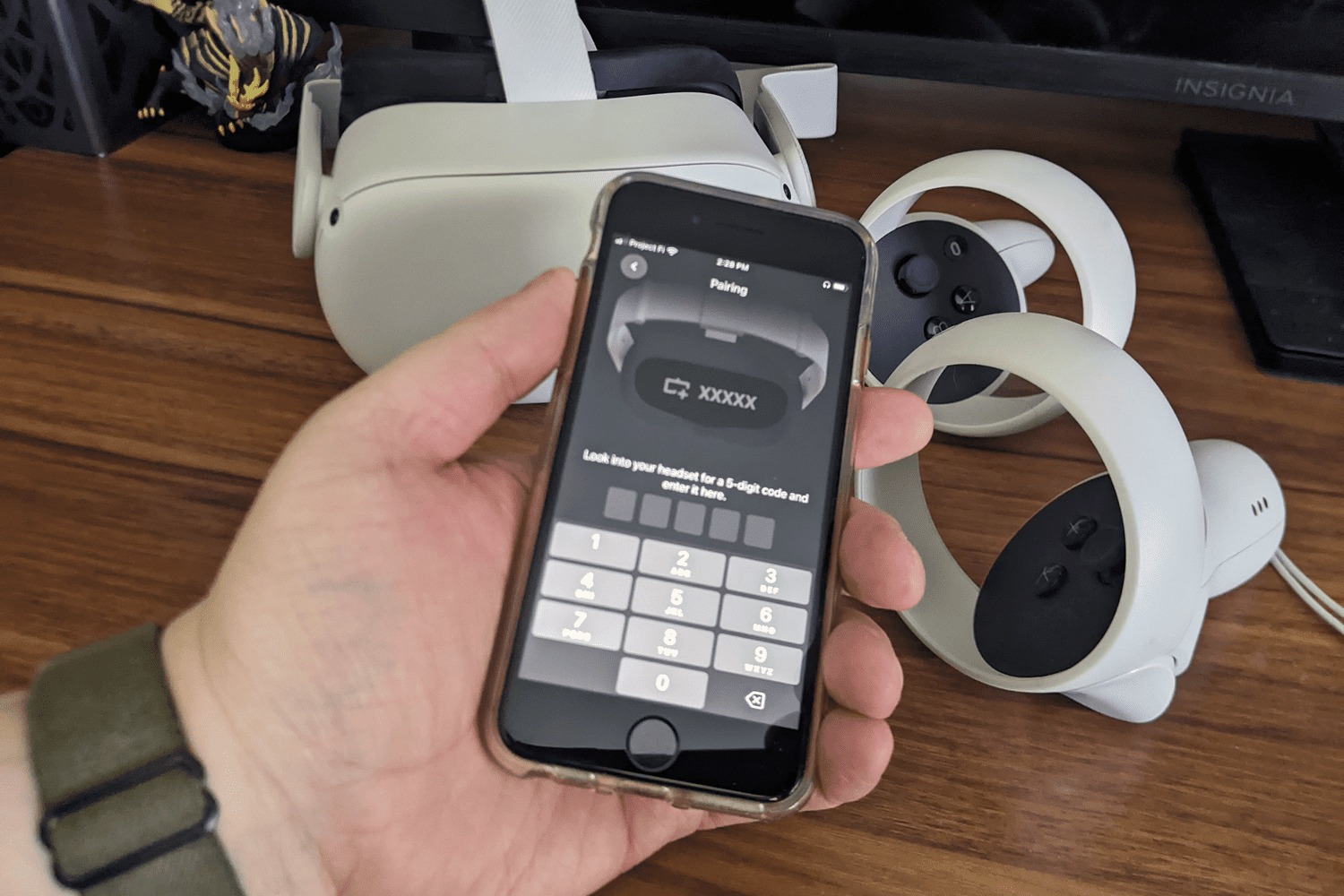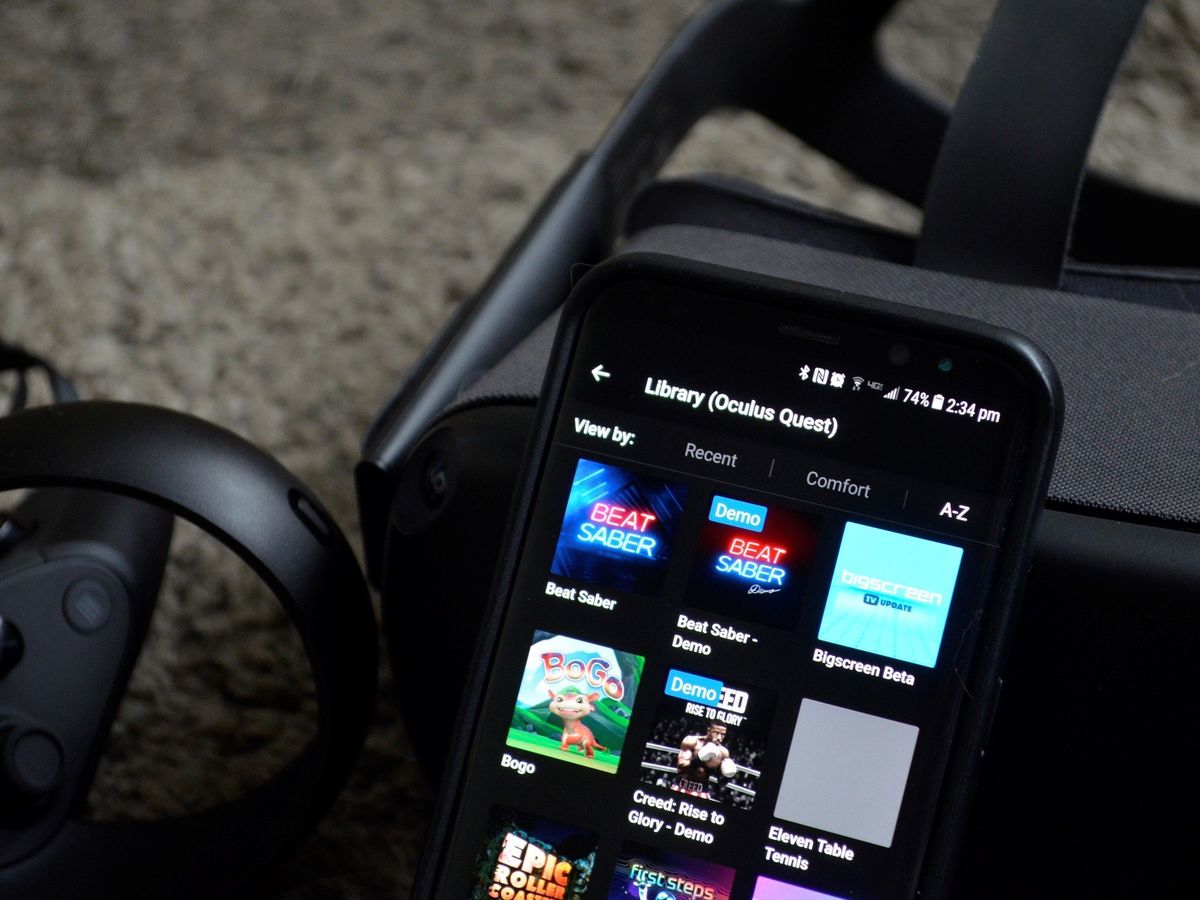
To remove a headset from the Oculus app, you must factory reset the headset through the Meta Horizon mobile app. There is no “remove” or “unpair” button; the only documented method to remove headset from Oculus app is a full factory reset.
Inside this article
It also answers common follow-up questions.
Why you can’t just ‘remove’ a headset from the Oculus app
Users searching for a delete or unpair button will not find one. The app is designed to manage connected devices, but removing a headset from the app requires erasing the headset itself, not just disconnecting it from the app.
The only way to remove a headset from the Oculus app: factory reset
The documented method to disconnect the headset from the app is to factory reset the headset from the Headset settings menu. The app path Meta documents for headset management is Meta Horizon app > Menu > Devices > Headset settings. This process wipes all data on the headset, including downloaded games, saved settings, and personal information. To proceed:
- Open the Meta Horizon mobile app on your phone or tablet.
- Tap the Menu icon (top left).
- Select Devices.
- Choose your headset from the list.
- Tap Headset settings.
- Select Factory reset and confirm the action.
After the reset completes, the headset will no longer appear in your app’s device list. If you later want to use the headset again, you will need to go through the full setup process, which includes how to pair headset to Oculus app. For controller pairing, Meta documents the path: Menu > Devices > [select headset] > Headset settings > Controllers.
What happens after the factory reset
Meta confirms that after the factory reset, the device will be removed from the app. However, the headset cannot be completely removed from your Meta account. The device remains linked to your account at the account level, even though it no longer appears in the mobile app. This means the headset cannot be transferred to another Meta account through the app alone.
Troubleshooting: headset still showing after a reset
If the headset still appears in the app after a factory reset, Meta support states the device should have been removed. If it remains visible, try reinstalling the mobile app to clear any cached data. If the headset still shows on the Meta account website (not the app), Meta community guidance directs you to the account device page and suggests using the Delete Device Data option when available. If neither step resolves the issue, Meta community replies recommend submitting a bug report, as no better removal path is documented.
Frequently Asked Questions
Can I remove a headset from the Oculus app without a factory reset?
No.
Can the headset be removed from my Meta account entirely?
No. Meta support states the device cannot be removed from your account completely, only from the app.
Are the steps different on iPhone versus Android?
No.
Does the factory reset delete all my games and data?
Yes. The factory reset wipes all data on the headset, including downloaded content, saved progress, and settings. Back up anything you want to keep before starting.
What if the headset still shows on the Meta account website after the reset?
Check the Meta account device page and use the Delete Device Data option if available. If that does not work, submit a bug report to Meta support.
Can I reconnect the same headset to the app after removing it?
Yes. After a factory reset, the headset is treated as a new device. You can pair it again by following the normal setup process in the Meta Horizon app.
Which devices are supported?
Meta’s help pages are for the Meta Horizon mobile app and Meta Quest headsets, but the removal note does not list model-specific exceptions.
Are versions or carrier requirements documented?
Related reading: How Much Does Pavlov VR Cost.