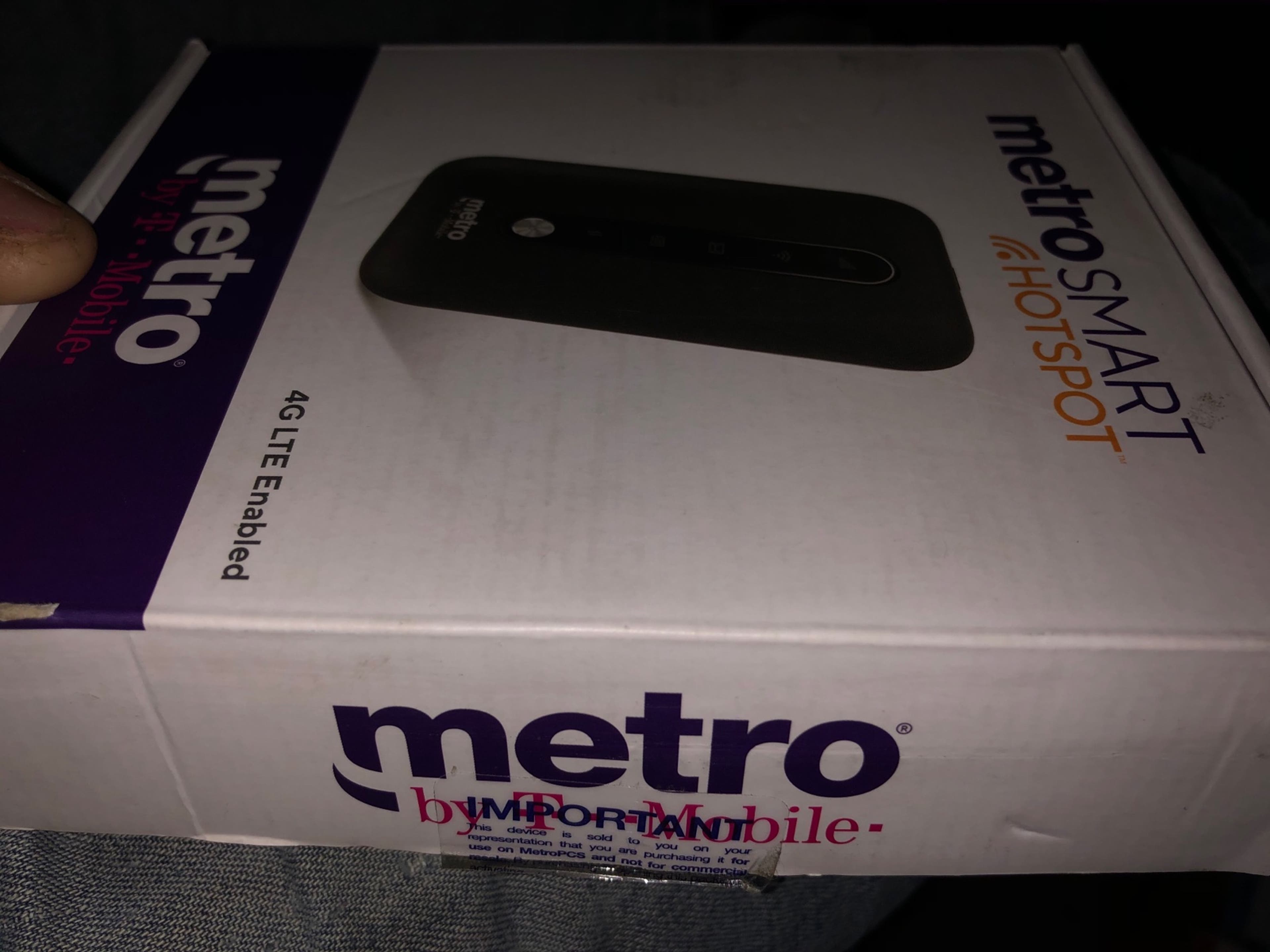
To complete a metro mobile hotspot setup, confirm your Metro by T-Mobile phone and plan support the feature, then turn on the hotspot in your device settings and connect your laptop or tablet to the Wi‑Fi network it creates. If your plan does not include hotspot data or you need more high-speed data, add it through your Metro account or contact customer care before you start sharing your connection.
What you need for a metro mobile hotspot setup
Before you begin, gather what you need so the process goes smoothly. You need a compatible Metro by T-Mobile phone on an eligible plan, the myMetro app for data top‑ups, and the customer‑care number if you need help activating the feature. Metro by T-Mobile documents hotspot use as part of its service, and customer care can help set up connected devices at 888-863-8768, or you can dial 888-8METRO8 and *611 from a Metro phone.
Check your Metro plan and device
Your phone must support hotspot functionality and your plan must include it. Start by verifying if your Metro PCs device supports Mobile Hotspot functionality. Metro by T-Mobile does not publish a device-by-device support matrix for hotspot capability, so the most direct way to confirm is to check your device settings for a hotspot option or contact Metro customer care. If your plan does not include hotspot, you can call 888-863-8768 or dial *611 from your Metro phone to ask about adding the feature. Metro also says connected device plans must be added to an existing Metro by T-Mobile phone plan and are not sold separately, so your phone plan must be active first.
Add or activate the hotspot feature on your account
If hotspot is not already active on your line, contact Metro PCs customer service or access your online account to add the Mobile Hotspot feature to your plan. If you need more high-speed hotspot data, Metro says you can purchase a data top up in the myMetro app or through MyAccount. Do this before you rely on the hotspot for a laptop or tablet so you do not run out mid-task.
Find the hotspot settings on your phone
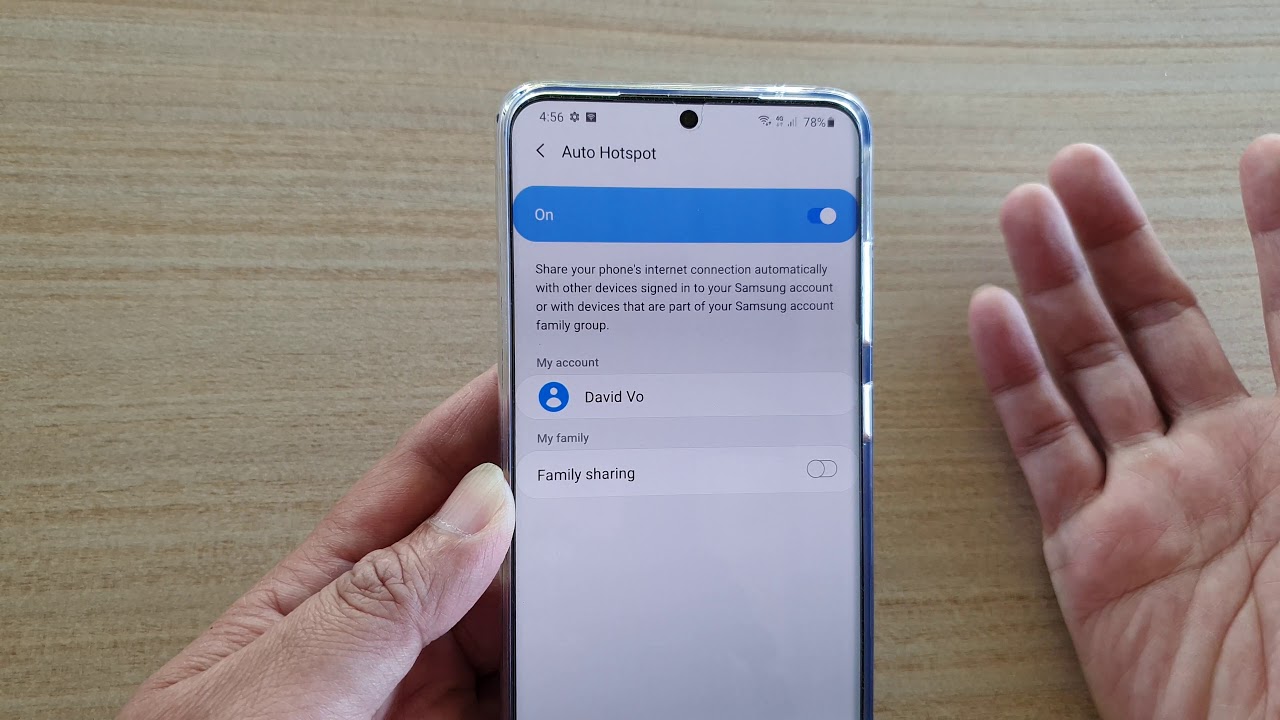
Navigate to the settings menu on your Metro PCs device to locate the Hotspot section. A general method that works across iPhones and Android phones is to open your phone’s Settings app and search for “hotspot.” If search is not available, look under network connections, usually labeled Network & Internet, Connections, or Personal Hotspot depending on your device. The exact wording varies, but the hotspot setting is almost always grouped with tethering options.
Configure your hotspot name and password
Once you find the hotspot settings, adjust the hotspot name, password, and other settings according to your preferences. Set a custom network name, also called an SSID, so you can identify your hotspot among nearby networks. Choose a strong password that mixes letters, numbers, and symbols to keep others off your connection. Keep security set to WPA2 if your phone offers that option, since it provides strong encryption. After you save these settings, your hotspot is ready for other devices to connect.
Connect your laptop, tablet, or other devices
Enable the hotspot and connect laptops, smartphones, or other devices to your Metro PCs hotspot's Wi-Fi network. Turn on the hotspot from your phone’s settings, then go to the Wi‑Fi settings on the device you want to connect. Find the network name you set, enter the password, and confirm the connection works by opening a webpage or app that needs data. The connected device should show an active internet connection, and your phone will typically display how many devices are connected.
Manage your hotspot data and avoid slowdowns
Monitor and control the amount of data consumed by devices connected to your hotspot. Check your hotspot usage in the myMetro app or in your phone’s hotspot settings so you do not exceed your plan’s high-speed data allowance. Metro prioritizes Metro device data for most plans, and some larger hotspot plans are prioritized like tethering; during congestion, Smartphone Mobile HotSpot speeds may be temporarily reduced. Metro’s open internet terms say hotspot and tethering are intended for personal mobile connectivity and not as a complete broadband replacement for multiple users over an extended period, so treat it as a portable connection for yourself, not a permanent home internet substitute.
When to use a dedicated Metro hotspot device
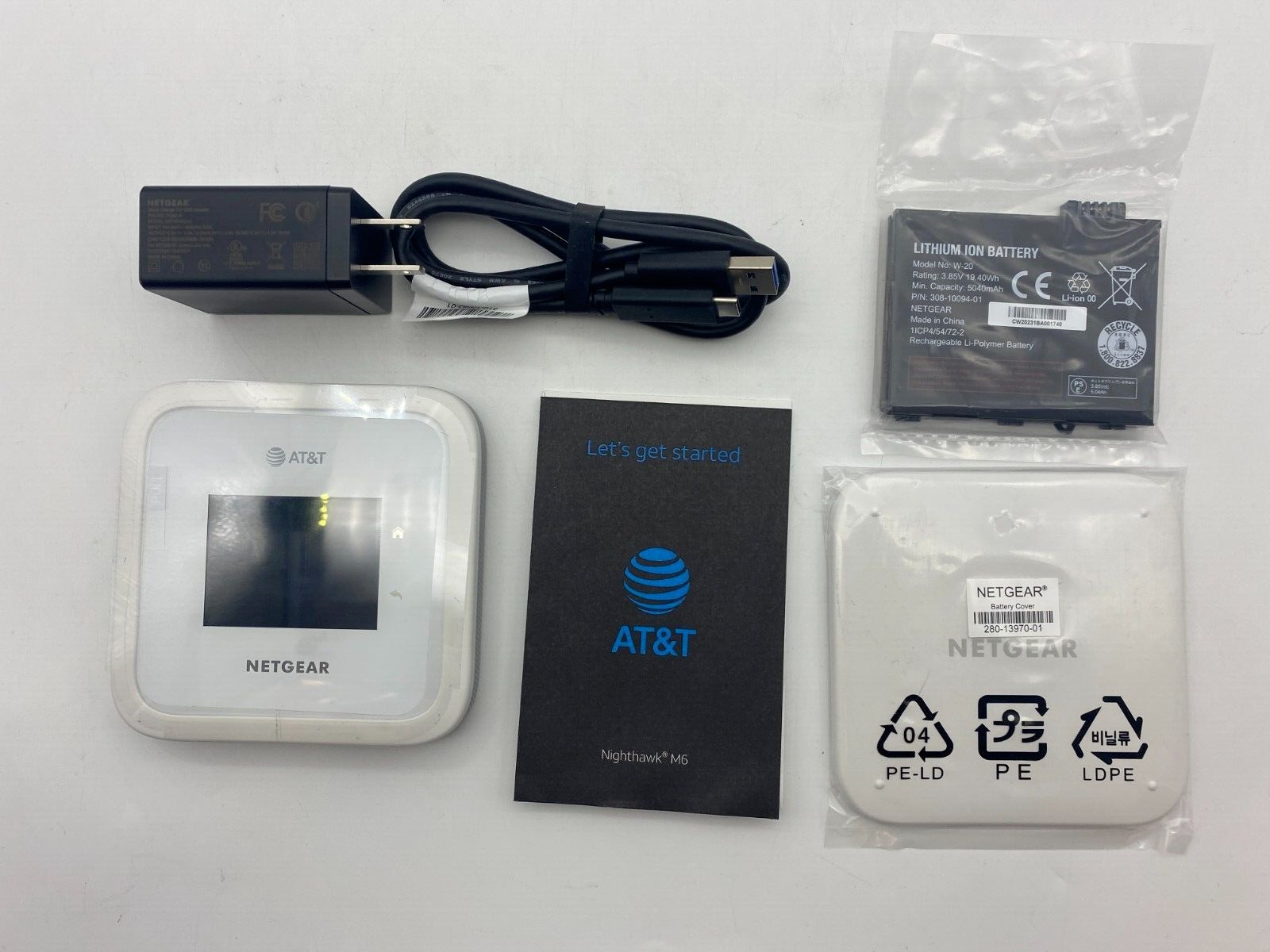
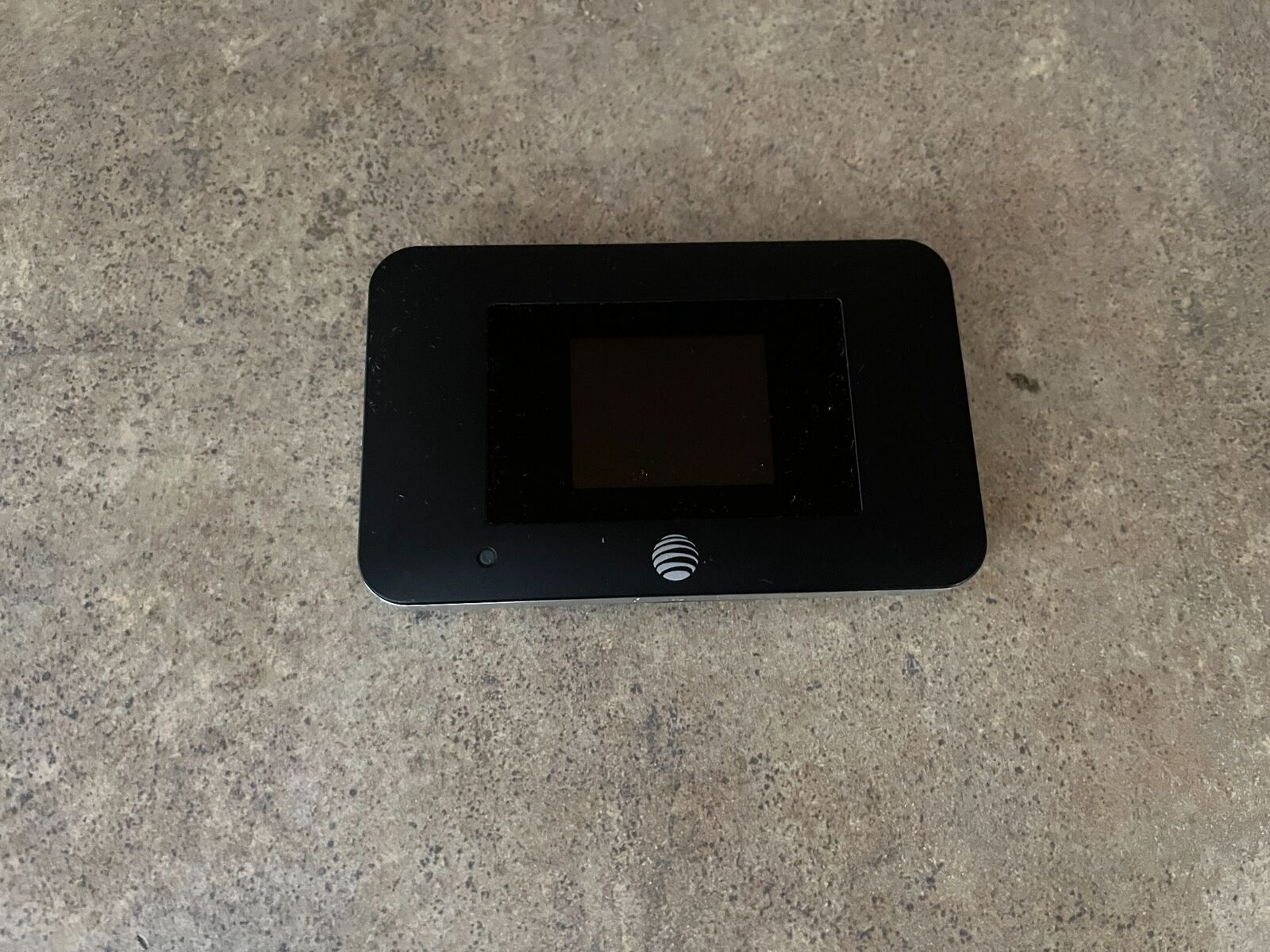
If you tether often or need to connect many gadgets, consider a Metro standalone hotspot device. Metro’s product page for a T-Mobile Hotspot device says it can create a Wi‑Fi hotspot and connect up to 10 devices with dual-band Wi‑Fi access. That makes it a better fit than a phone for situations where you regularly share a connection with several people or devices at once.
Quick fixes for common hotspot problems
Address common issues such as connection problems or slow hotspot performance. If your hotspot will not connect or runs slowly, start by turning the hotspot off and on again from your phone’s settings. Move closer to the device you are trying to connect, since walls and distance weaken the signal. Check for software updates on your phone, as updates often fix connection bugs. If the problem continues, contact Metro support through 888-863-8768, 888-8METRO8, or *611 from a Metro phone, since Metro’s documented support channels are the reliable way to get account-specific help.
Frequently Asked Questions
What is a mobile hotspot?
A mobile hotspot turns your phone’s cellular data connection into a Wi‑Fi network that other devices, like laptops and tablets, can join. It lets you share your Metro plan’s data with devices that do not have their own cellular connection.
Can I use my Metro hotspot on a laptop?
Yes. Once you turn on the hotspot from your phone’s settings, open the Wi‑Fi menu on your laptop, select your hotspot’s network name, and enter the password you set. Your laptop will connect just like it would to any other Wi‑Fi network.
Does using the hotspot drain my battery or use extra data?
Yes, running a hotspot uses more battery because your phone is broadcasting a Wi‑Fi signal, and it draws from your plan’s data allowance. Keep your phone plugged in during long sessions and check your data usage in the myMetro app if you are concerned about limits.
Can I use my Metro hotspot while traveling?
You can use your hotspot within Metro by T-Mobile’s coverage area. If you travel outside the network, check with Metro about international hotspot usage, since additional charges may apply.
For the wider topic, see get personal hotspot.
Related reading: Why Is My Metro Hotspot Not Working.