






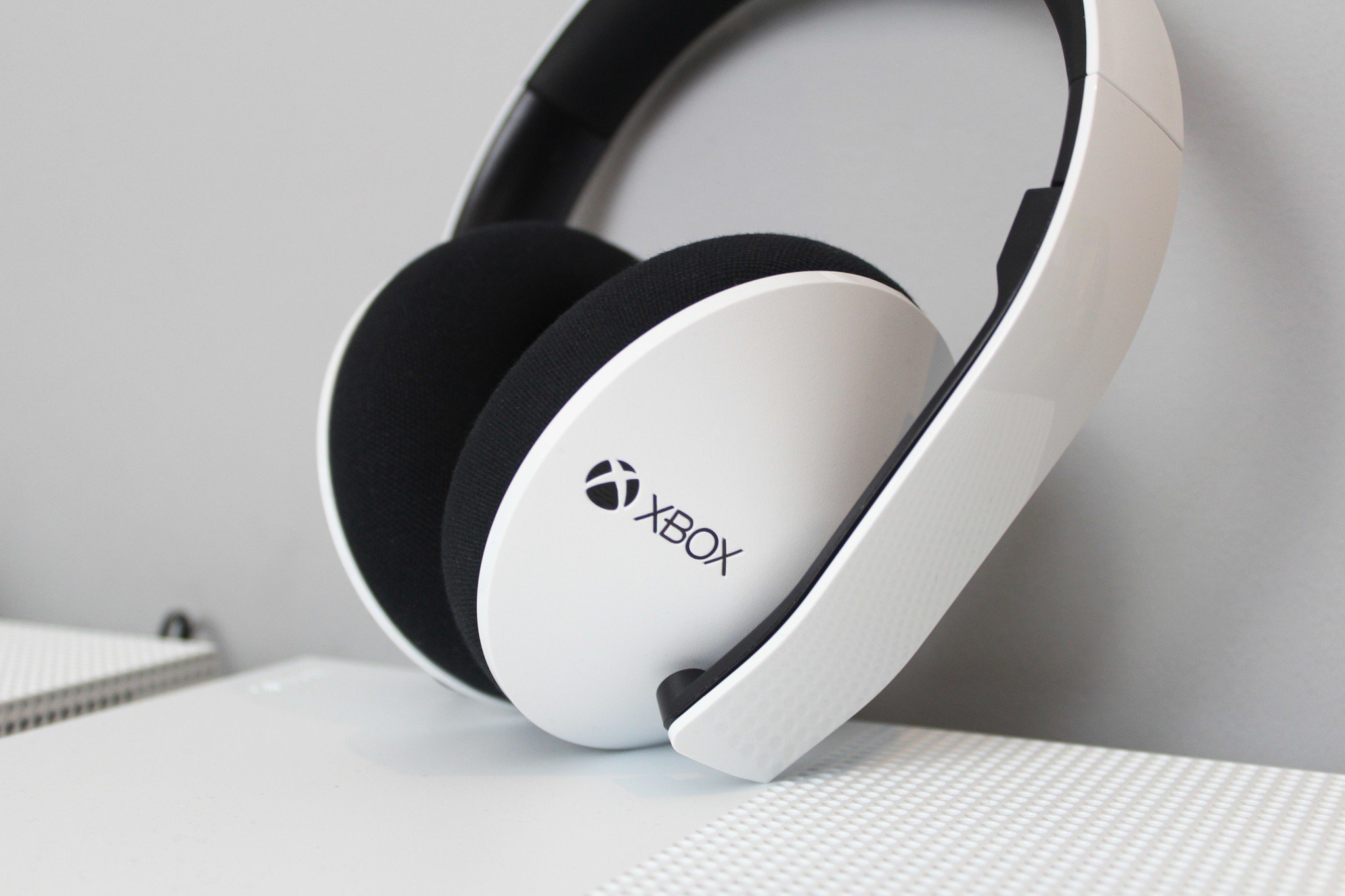
To connect a headset to Xbox One, plug a wired headset into the 3.5mm jack on your controller or pair a compatible wireless headset directly with the console using the Xbox Wireless protocol.
Before you connect a headset to Xbox One: compatibility
Before connecting, know that the Xbox One uses different methods depending on your headset type. A wired headset with a 3.5mm jack plugs directly into the controller. Wireless headsets use Microsoft's proprietary Xbox Wireless protocol to connect directly to the console, just like a controller. The Xbox One does not support generic Bluetooth audio directly, so standard Bluetooth headphones cannot pair without a workaround. Understanding this saves you from buying an incompatible headset and ensures you choose the right method for connecting gaming headsets to consoles.
How to connect a wired headset to your Xbox One
- Plug the headset's 3.5mm audio jack into the port on the bottom of your Xbox One controller. Ensure the connection is secure.
- Press the Xbox button on your controller to open the guide.
- Navigate to the "Audio & music" icon (the speaker icon) at the bottom of the guide.
- Adjust settings like headset volume, chat mixer, and mic monitoring to your preference.
That is all that is needed for a wired connection. The controller automatically routes game audio and voice chat through the headset once plugged in.
How to pair a wireless headset with Xbox One
- Put your wireless headset into pairing mode. Refer to the headset's instructions for the specific button or switch to press.
- On your Xbox One console, press the Pair button (the same button used for controllers) until its power light starts flashing.
- Wait a few moments for the lights on both the console and the headset to stop flashing. This indicates a successful connection.
Once paired, the headset will automatically reconnect when powered on near the console. If you ever need to connect Bluetooth speakers to Xbox One X or another device, note that this wireless method is exclusive to Xbox Wireless headsets.
How to use Bluetooth headphones with Xbox One
Because the Xbox One lacks generic Bluetooth audio support, using standard Bluetooth headphones requires a workaround. Connect a Bluetooth transmitter to your controller's 3.5mm jack or to the console's optical audio port. For the best experience, ensure the transmitter supports low-latency codecs like aptX-LL to minimize audio delay between what you see on screen and what you hear. This method works for game audio but may not support voice chat unless the transmitter and headset both support a microphone channel.
Troubleshooting: headset not working on Xbox One
- No sound: Check that the headset is fully charged (if wireless) and powered on. Verify the mute switch on the headset or inline cable is not engaged. In the guide's "Audio & music" settings, confirm headset volume is turned up and chat mixer is not set to mute all other sounds.
- Microphone not working: Ensure the mic is not muted. Re-assign the headset in device settings by going to Settings > Devices & accessories, selecting your controller, and choosing the correct audio device. If using a wireless headset, try re-pairing it by pressing the console's Pair button again.
- Wireless headset won't pair: Move the headset closer to the console and ensure no other wireless devices are interfering. Restart both the headset and the console, then repeat the pairing steps.
- Controller firmware: If a wired headset works intermittently, update your controller firmware via Settings > Devices & accessories > select the controller > "..." > "Update".
- Last resort: To reset the console to factory settings, go to Settings > System > Console info > Reset Console.
Frequently Asked Questions
Can I use any headset with a 3.5mm jack on Xbox One?
Most headsets with a standard 3.5mm audio jack will work when plugged into the controller. However, some older controllers without a 3.5mm port require the Xbox One Stereo Headset Adapter. Check the bottom of your controller for the jack before purchasing.
Do I need an adapter for a wireless headset on Xbox One?
No adapter is needed for headsets that use the Xbox Wireless protocol, they pair directly with the console. If your wireless headset uses a proprietary dongle, that dongle typically plugs into the console's USB port. Bluetooth-only headsets always require an external Bluetooth transmitter.
How do I adjust chat and game audio balance?
After connecting your headset, press the Xbox button, go to the "Audio & music" speaker icon, and use the chat mixer slider to balance game sound and voice chat. You can also adjust overall headset volume and mic monitoring level from the same menu.
Why does my headset have sound but no microphone?
This usually means the headset is not set as the chat device. Go to Settings > General > Volume & audio output > Headset audio > and ensure "Headset microphone" is selected. Also check that the mic is not physically muted and that the controller's firmware is up to date.
Can I connect Bluetooth speakers to Xbox One X?
No, the Xbox One X does not support Bluetooth audio natively. To connect Bluetooth speakers, you must use a Bluetooth transmitter plugged into the controller's 3.5mm jack or the console's optical port. Audio delay may occur unless the transmitter supports low-latency codecs like aptX-LL.

















