If your Fitbit app is not working, the problem is almost always a Bluetooth conflict, missing phone permissions, or an outdated software version. The two most common causes are another phone or tablet still paired to your Fitbit and the app lacking the permissions it needs on your phone, which stops syncing or opening correctly.
Why your Fitbit app is not working
Fitbit’s official help pages confirm that sync failures, which make the app appear “not working”, are usually caused by Bluetooth or pairing conflicts, no internet connection, missing permissions, outdated app or device software, or a device that needs a restart or recharge. A low battery on the Fitbit itself can also prevent it from connecting to the app. App incompatibility with certain devices or operating systems is a potential cause of the app not working. Excessive battery drain on the phone while using the Fitbit app is a documented common issue. To resolve certain issues, log out of the Fitbit app and log back in with your account credentials. Enable All-Day Sync in the Fitbit app settings to ensure constant syncing throughout the day. Clear the app cache on your device (via device settings > Fitbit app) to remove accumulated unnecessary data causing issues. Force stop the app from device settings if it is frozen or unresponsive, then reopen it.
First, unpair your Fitbit from other devices
If your Fitbit was ever paired to another phone or tablet, that device may still claim the Bluetooth connection, blocking your main phone. Removing it from every other nearby device is the fastest fix.
- On an iPhone or iPad that is not your main phone, open Settings, find the Fitbit device in the Bluetooth list, tap the information icon, and choose Forget This Device.
- On an Android phone or tablet that is not your main phone, open Settings, then check Connected devices or Bluetooth and remove the Fitbit device if it appears.
- On the phone that has the Fitbit app installed, open the app and try to sync again.
Check app permissions on Android
When the Fitbit app opens but will not sync, missing permissions are a common culprit. On Android, go to Settings > Apps > Fitbit > Permissions and make sure every permission the app requests is turned on. Without these, the app cannot access Bluetooth or location services needed for syncing.
Make sure your phone has internet
The Fitbit app requires an active internet connection to sync and display your data. Confirm your phone is connected to cellular data or Wi‑Fi. If you are on Wi‑Fi, try toggling it off and on, or switch to cellular data to rule out a network issue.
Restart your Fitbit and your phone
A simple restart resolves temporary software glitches that can stop the app from working. Restart your Fitbit device by following its on-device power-off procedure, then turn it back on. Restart your smartphone as well. After both devices reboot, open the Fitbit app and check if syncing resumes.
Update the app, phone, and device software
Outdated software is a known cause of sync problems. Check for and install any available updates for the Fitbit app through your phone’s app store, update your phone’s operating system, and ensure your Fitbit device’s firmware is current. Keeping everything updated is a core part of Fitbit troubleshooting, as it prevents compatibility issues that make the app appear broken.
Charge your Fitbit and try again
A low battery can prevent your Fitbit from syncing with the app. Place the device on its charger and let it charge for a while before attempting another sync. Once the battery is sufficient, open the Fitbit app and try syncing again, this often resolves the issue without further steps.
Re-pair your Fitbit as a last resort
If none of the above steps work, remove the Fitbit from your account and from your phone’s Bluetooth list, then set it up again as a new device. This is the recommended final step in official help pages. Open the Fitbit app, go to your account settings, remove the device, then go to your phone’s Bluetooth settings and forget the Fitbit. Follow the app’s setup process to pair it fresh. Uninstall and reinstall the Fitbit app as a troubleshooting step, backing up data first.
What to do if your steps aren't tracking
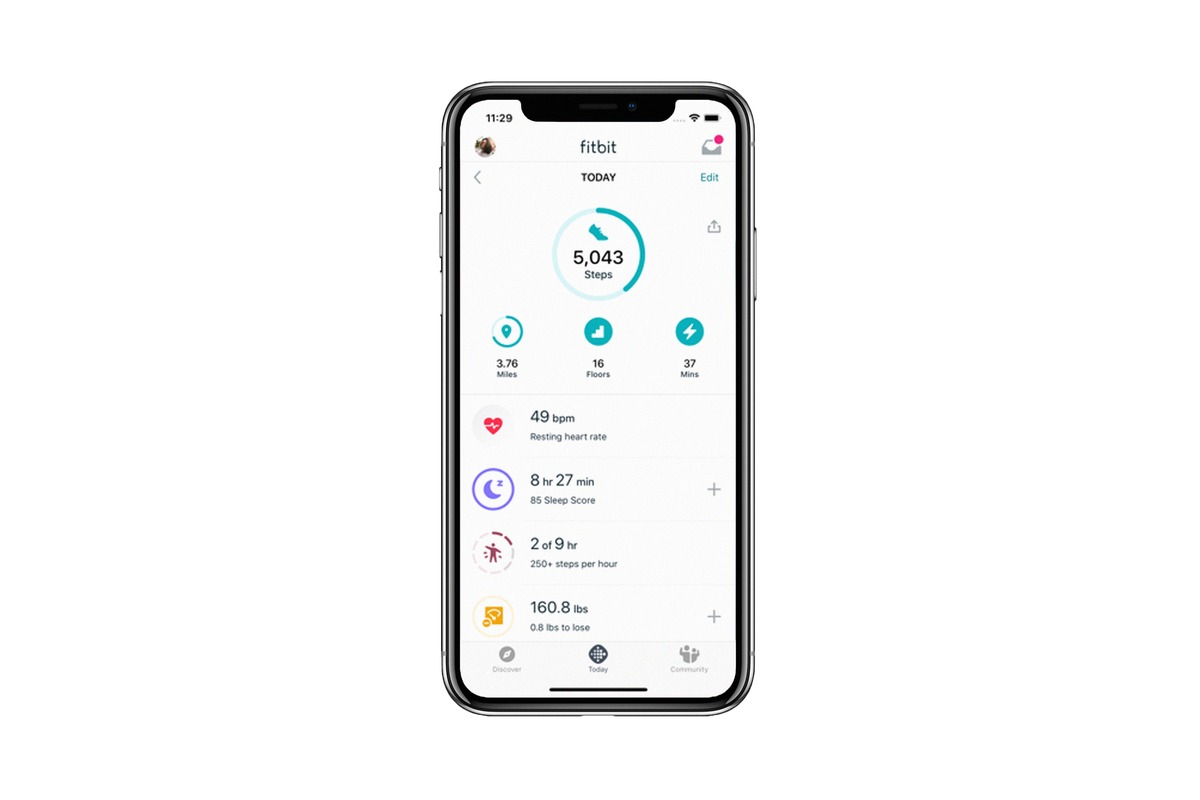
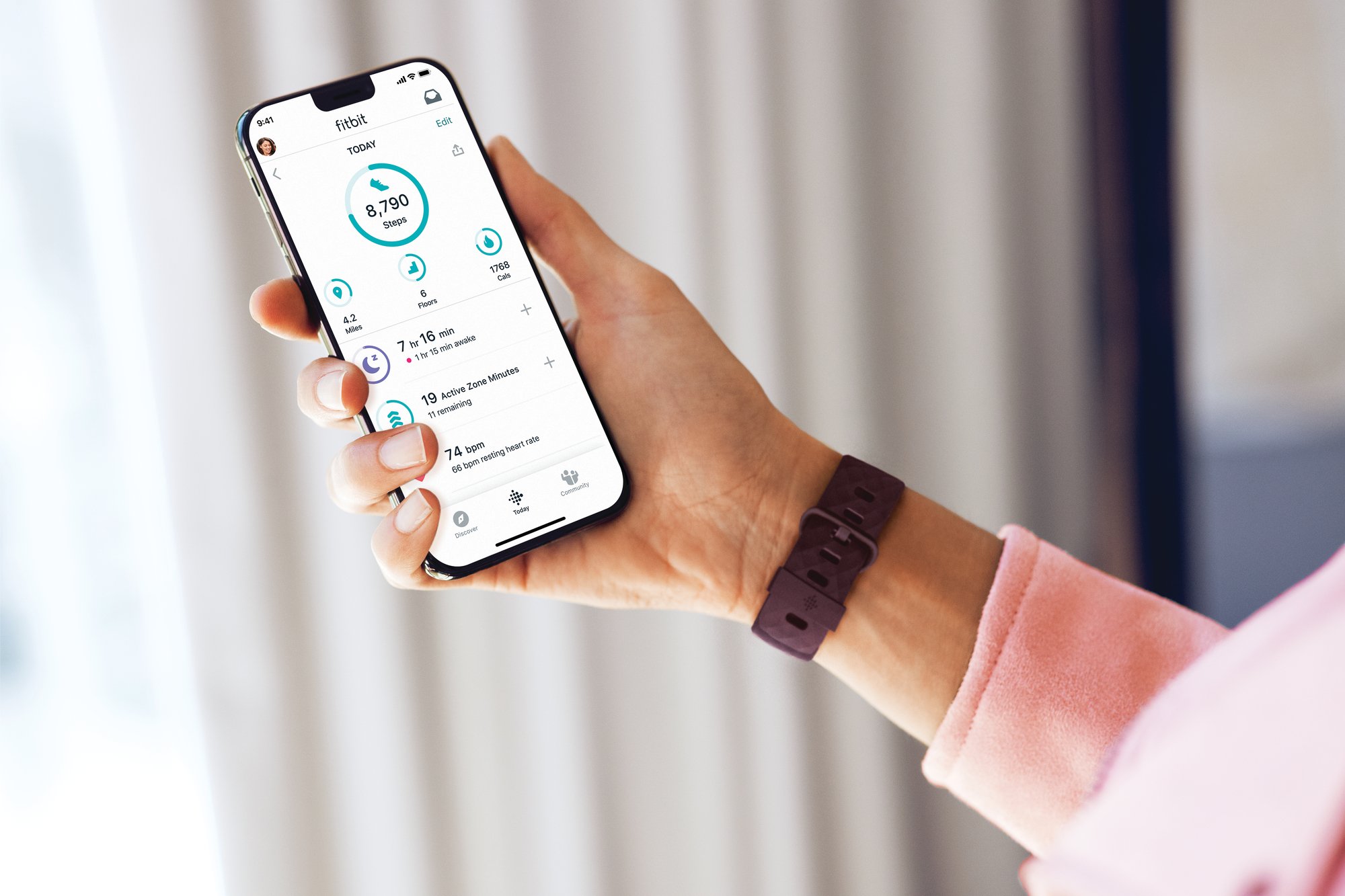
Missing step counts are almost always a sync problem, not a tracking failure. Your Fitbit device is still counting steps on its own, but the data is not reaching the app. Inaccurate data display (step counts, heart rate, sleep tracking, calories) is a common issue distinct from syncing failures. Ensure the Fitbit device is securely fastened and positioned correctly on your wrist for accurate step tracking. Check that the step tracking feature is enabled in the settings menu of your Fitbit device or the app. Return to the connection fixes above, check Bluetooth, permissions, internet, and battery, and sync again. The steps should appear once the connection is restored.
Frequently Asked Questions
How do I sync my Fitbit to the app?
To sync, tap the account icon or profile picture in the top-left corner of the app, select your device, and follow prompts. Make sure Bluetooth is on, the phone has Wi‑Fi or cellular data, and the device is not paired to another nearby phone or tablet.
How do I reset my Fitbit?
To reset most Fitbit devices, go to the settings menu on the device and look for a reset or restart option, which typically involves holding a specific button. Official help pages do not provide device-specific reset steps, only a general restart instruction. To restart, follow your Fitbit model’s power-off procedure, then turn it back on. If needed, pair it again afterward.
How do I update my Fitbit app?
Open your phone’s app store, search for the Fitbit app, and install any available update. The exact button or menu path varies by phone and app store version, but checking for updates there is the standard method.
Why is my Fitbit app crashing?
Crashing is often caused by an outdated app or phone operating system. Ensure both are updated to the latest versions. If crashes continue, restart your phone and the Fitbit device, then try reopening the app.
Does the Fitbit app work on all phones?
Fitbit’s official help pages do not list a complete current compatibility matrix. A third-party summary states the app requires iOS 15 or later and Android 9 or later, but this detail is not confirmed in the official pages retrieved.
Related reading: Why Is My Fitbit App Not Showing My Steps and Where To Get A Fitbit Fixed.