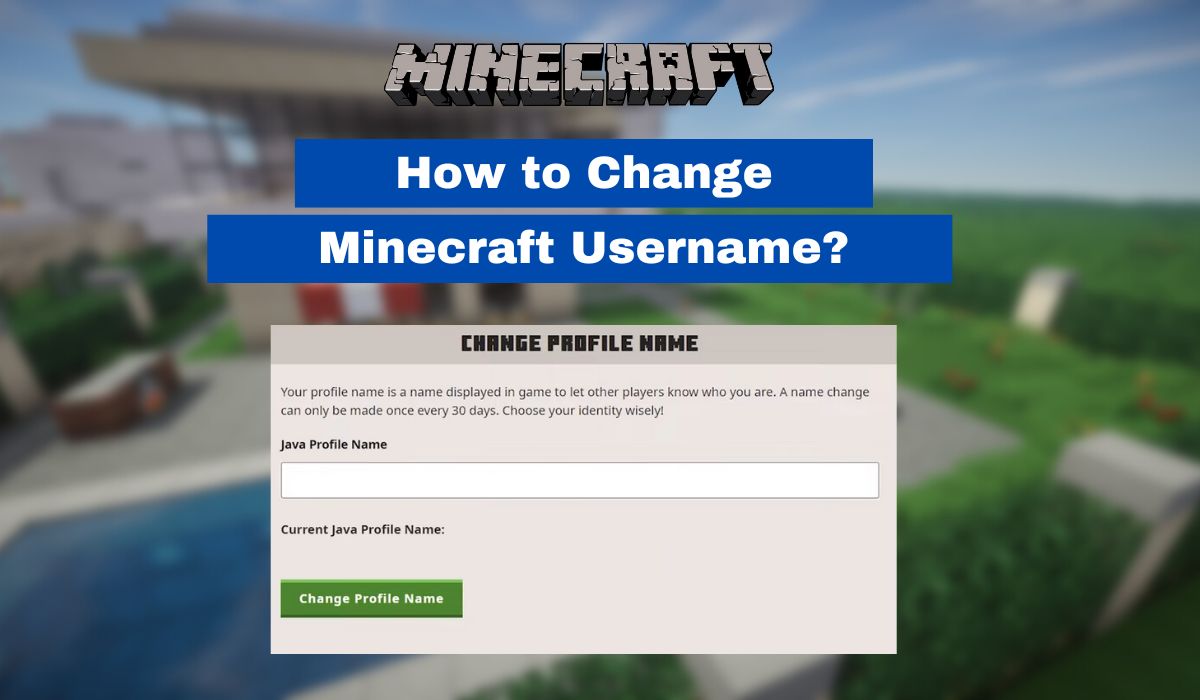
To change your Minecraft username, you must use different methods depending on whether you play the Java Edition or the Bedrock Edition. For Java Edition, you change your profile name on the official Minecraft website; for Bedrock Edition, your in-game name is tied to your platform's gamertag or profile name, so you must change that through your console or account settings.
How to change your Minecraft username: Java vs. Bedrock
Minecraft's two main versions handle usernames completely differently. Java Edition uses a profile name managed through your Mojang or Microsoft account, while Bedrock Edition pulls your display name directly from the gamertag or profile name of the platform you are playing on, such as Xbox, PlayStation, Nintendo Switch, or mobile. Understanding which version you own is the first step to successfully changing your name.
How to change your Minecraft username on Java Edition
To change your Java Edition username, you must first ensure your Mojang account has been migrated to a Microsoft account. Once migrated, follow these steps:
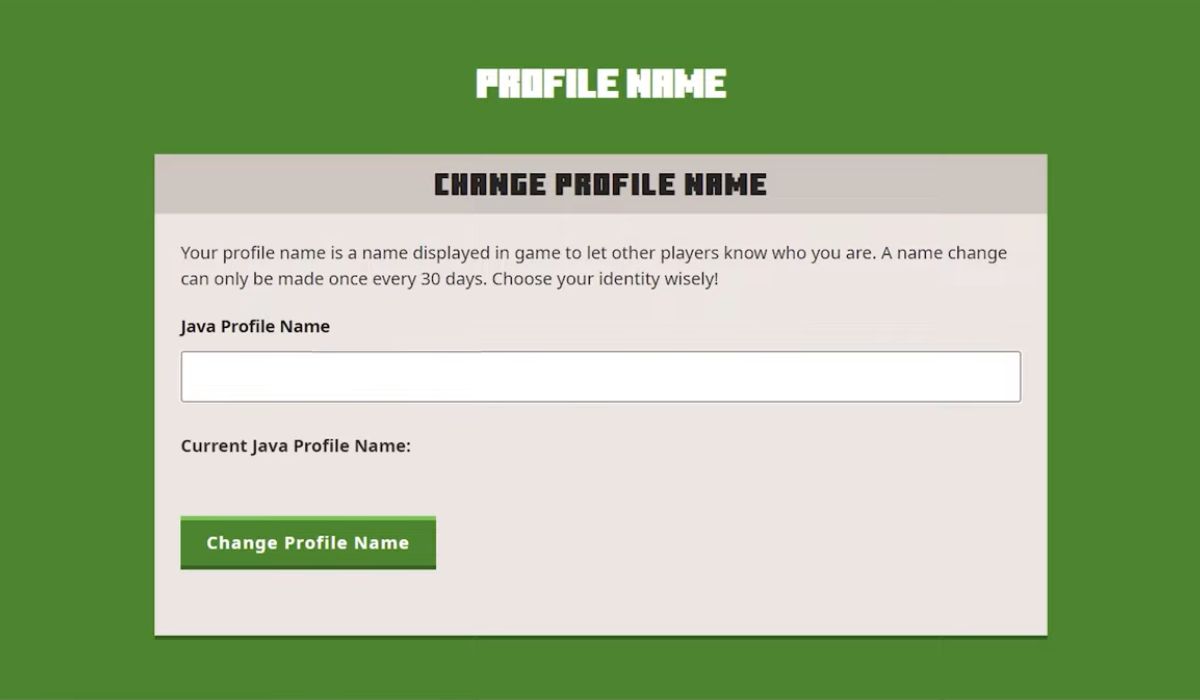
- Log in to the official Minecraft website using your Microsoft account.
- Navigate to your Profile page or the "My Games" tab.
- Under the "Minecraft: Java Edition" section, locate your current username and click "Change" or "Change Profile Name" next to it.
- Enter your desired new username in the provided field.
- Confirm the change by clicking "Change Profile Name" or a similar button.
After completing these steps, you may need to completely close and relaunch the Minecraft launcher and game for the update to appear. Note that Java Edition usernames can only be changed once every 30 days, and there is no way to bypass this cooldown period, even for accidental changes.
How to change your Minecraft username on Bedrock Edition
Bedrock Edition usernames are not changed within the game itself.
Changing your Bedrock username on Xbox and Windows
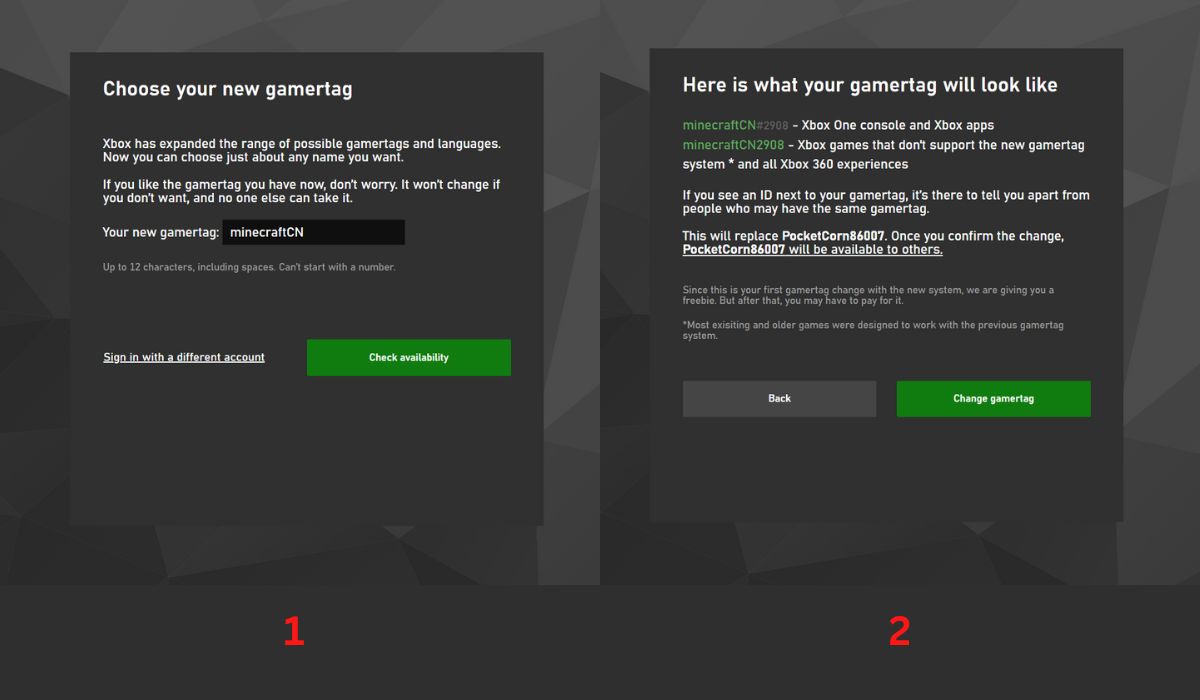
Since Microsoft owns both Windows and Xbox, your Minecraft username is your Xbox Gamertag. An Xbox Gamertag can be up to 12 characters, including spaces, and cannot start with a number. To change it, go to the official Xbox Gamertag change portal and log in with your Microsoft account credentials. Choose your new Gamertag, check its availability, and confirm the change. The first Xbox Gamertag change is free; subsequent changes cost $10. Your Minecraft name will update automatically after the Gamertag change.
Changing your Bedrock username on PlayStation
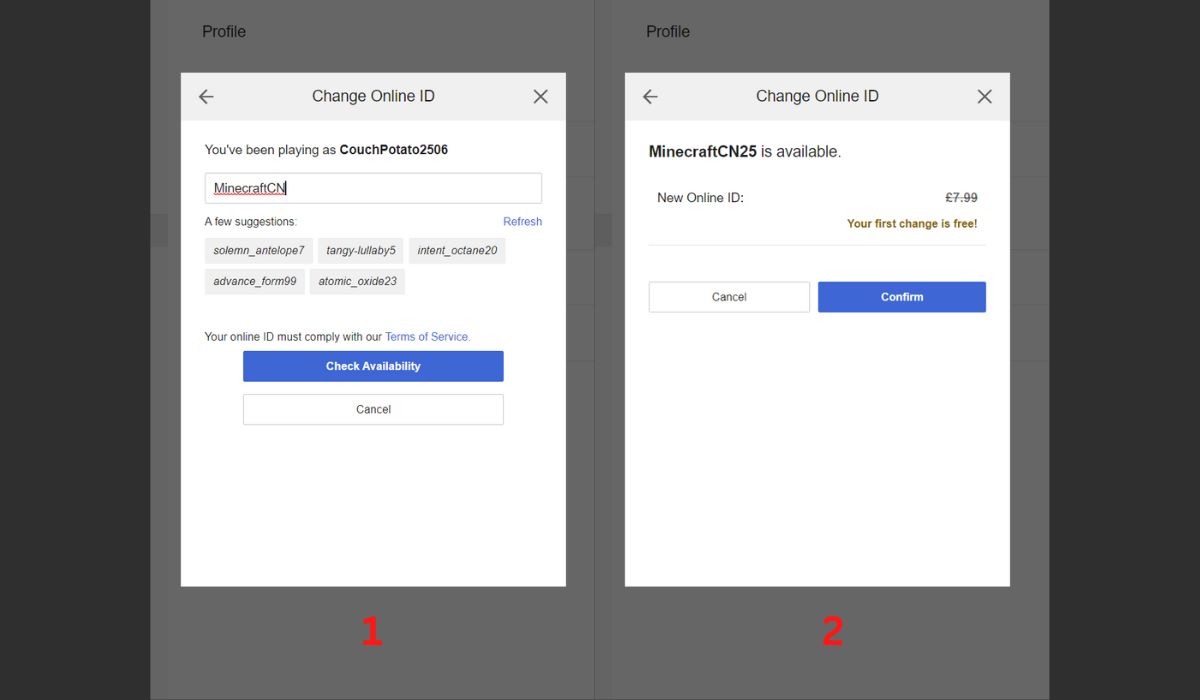
Your PlayStation Network Online ID serves as your Minecraft Bedrock username. You can change it via a web browser or directly from your console settings. To change it online, sign in to the official PlayStation Network page, go to your PSN profile, edit your Online ID, check availability, and confirm. On a PS4 or PS5, navigate to Settings, then Account Management (PS4) or Users and Accounts (PS5), select Profile, choose Online ID, and enter your new name. The first PlayStation Online ID change is free; subsequent changes require payment. Be cautious: not all games support Online ID changes, and you may lose content or progress in games that do not support this feature, though Minecraft does support it.
Changing your Bedrock username on Nintendo Switch
On Nintendo Switch, your Minecraft username corresponds to your console profile nickname. To change it, go to the Switch's homepage, press your profile photo in the top-left corner, select Profile, tap the username on the right side, enter your new name, and save. Unlike other platforms, you can change your Switch profile nickname as many times as you want for free.
Changing your Bedrock username on mobile
Mobile players must change their Xbox Gamertag, as the underlying account is linked to Microsoft. On mobile (Pocket Edition), you can change your username directly in the in-game settings under General > Profile. For more general guidance on changing names and labels on mobile, refer to the hub page for changing names and labels on mobile. After updating your Gamertag through the Xbox website or app, relaunch Minecraft on your mobile device to see the change.
Minecraft username rules and restrictions
All Minecraft usernames must follow these rules: they must be between 3 and 16 characters long, can only include uppercase and lowercase letters (A-Z), numbers (0-9), and underscores (_), and cannot contain spaces or other special characters. For Java Edition, you can only change your name once every 30 days. After a change, your old name becomes available for others to claim after 37 days, which includes a 30-day cooldown plus a 7-day grace period.
Why can't I change my Minecraft username?
Several common issues can prevent a username change. The most frequent reason is hitting the 30-day cooldown limit on Java Edition; you must wait the full 30 days before changing again. Another reason is not having a migrated Microsoft account for Java Edition, as old Mojang accounts must be migrated first. For Bedrock on Xbox or PlayStation, you may have already used your one free name change, and subsequent changes require payment. Finally, you might be confusing a website profile name with your in-game username; changing your profile name on the website does not change your in-game name unless you follow the correct steps for your edition.
Frequently Asked Questions
Can I have a username removed if it contains my real name?
Yes, if your username contains your real name or other personal information, you can contact Minecraft support to request its removal. You can request Mojang to remove it by submitting a ticket on Minecraft's support page. This also applies to usernames containing phone numbers, bank account details, or addresses.
Can other players see my past usernames?
Yes, Minecraft saves your previous usernames, and they may be visible to other players. This is part of the game's history tracking for each account.
What does the error "Not authenticated with Minecraft.net" mean?
This error usually occurs after a username change and indicates an authentication issue. Logging out of your account and signing back in should refresh your connection and resolve the error.
Do username changes bypass server bans?
No, changing your username does not bypass server bans. Servers track players by their unique profile ID, not just their display name, so bans, operator permissions, and whitelists remain in effect after a name change.
Can I change my username back to an old one?
Yes, for Java Edition, you have a 37-day window after a name change to revert to your previous username. After that period, the old name becomes available for anyone to claim.
Related reading: How to Breed Villagers in Minecraft: A Villager Farm Guide and How To Play Minecraft On VR.