To accept a friend request on Minecraft mobile, open the app and sign in with your Microsoft account. Then, go to the Friends tab, find the pending request, and tap the Accept button to add that player to your friend list.
Before you accept a friend request on Minecraft mobile: Prerequisites
Before you can accept any friend requests, you must sign in with a Microsoft account. If you do not have one, create it on the official Minecraft website. All players involved should update to the most recent version of Minecraft for compatibility. Child accounts may have restrictions on multiplayer game access, which might need to be managed through Microsoft family settings. Without these prerequisites, the accept button will not appear, and you will not be able to play together.
How to accept a friend request on Minecraft mobile
Follow these steps to accept an incoming friend request:
- Launch Minecraft on your mobile device.
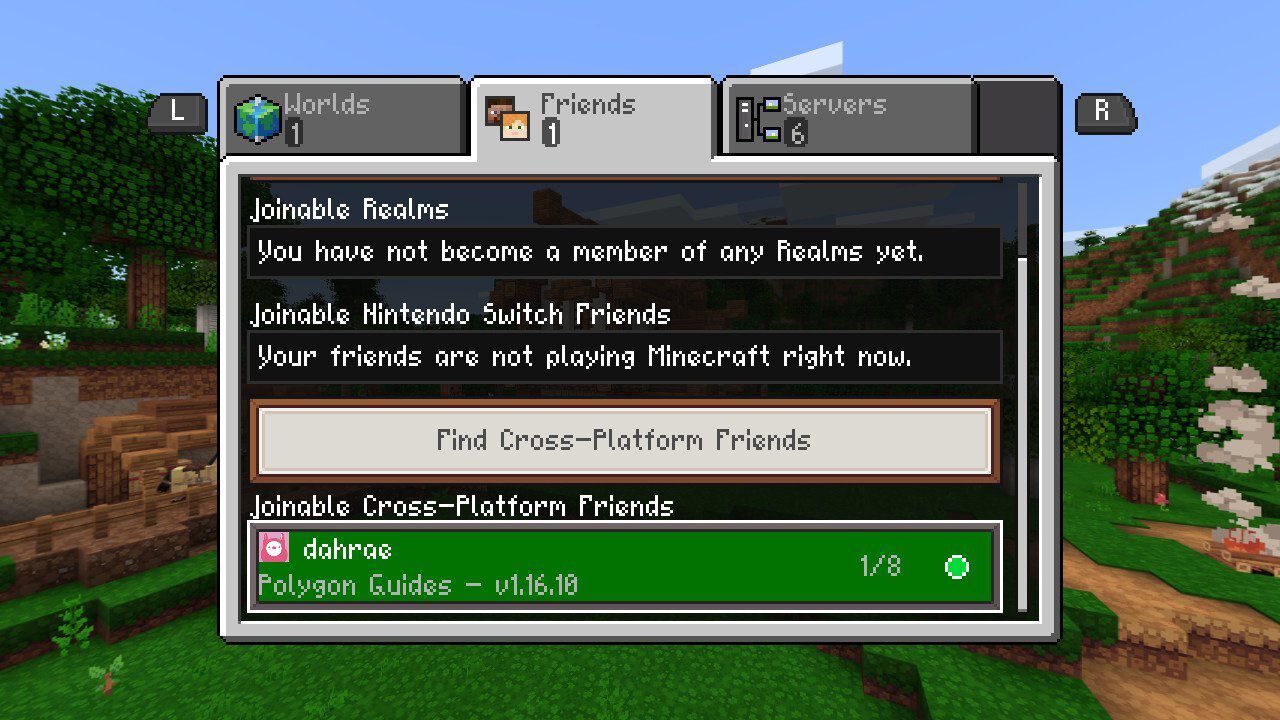
- From the main menu, tap the Friends tab.
- Review the list of pending friend requests. Each request shows the player's gamertag.
- Tap the Accept button next to the request you want to accept.
After you accept, the player is added to your friend list and you can invite them to your world or join theirs.
How to add a friend using their gamertag
If you want to add someone who has not sent you a request, you must first join your Minecraft: Bedrock Edition single-player or Realm world, then pause the game to access the Social button. From the main menu, go to the Social menu. Select "Search for players" and enter your friend's Microsoft account gamertag into the "Find Players by gamertag" field. Tap the Add button next to their gamertag. You can also add recommended friends from the Social list by selecting their gamertag and then selecting "Add friend". To share your own gamertag, use the Social list to scan a QR code or copy your gamertag to the clipboard.
Set up your world for multiplayer
After you have accepted a friend request, you need to ensure your world allows them to join. Ensure your friend has permissions to join multiplayer games, especially if they are playing with a child account. Launch Minecraft and select Play. Select the Worlds tab and then the pencil icon next to the world you want to play. Select Multiplayer from the menu on the left and enable the "Multiplayer game" toggle. Under Settings > Multiplayer, set permissions to "friends" or "friends of friends". Select Play or Play on Realms. Once in the world, pause the game and select the Social button in the top-right. Select "Invite to Play" and check the boxes next to the friends you want to invite. Select "Send # Invites". Your friend will receive an invite through their platform's game notification system. You will see an in-game notification at the top of your screen after they accept and join.
Managing your friend list
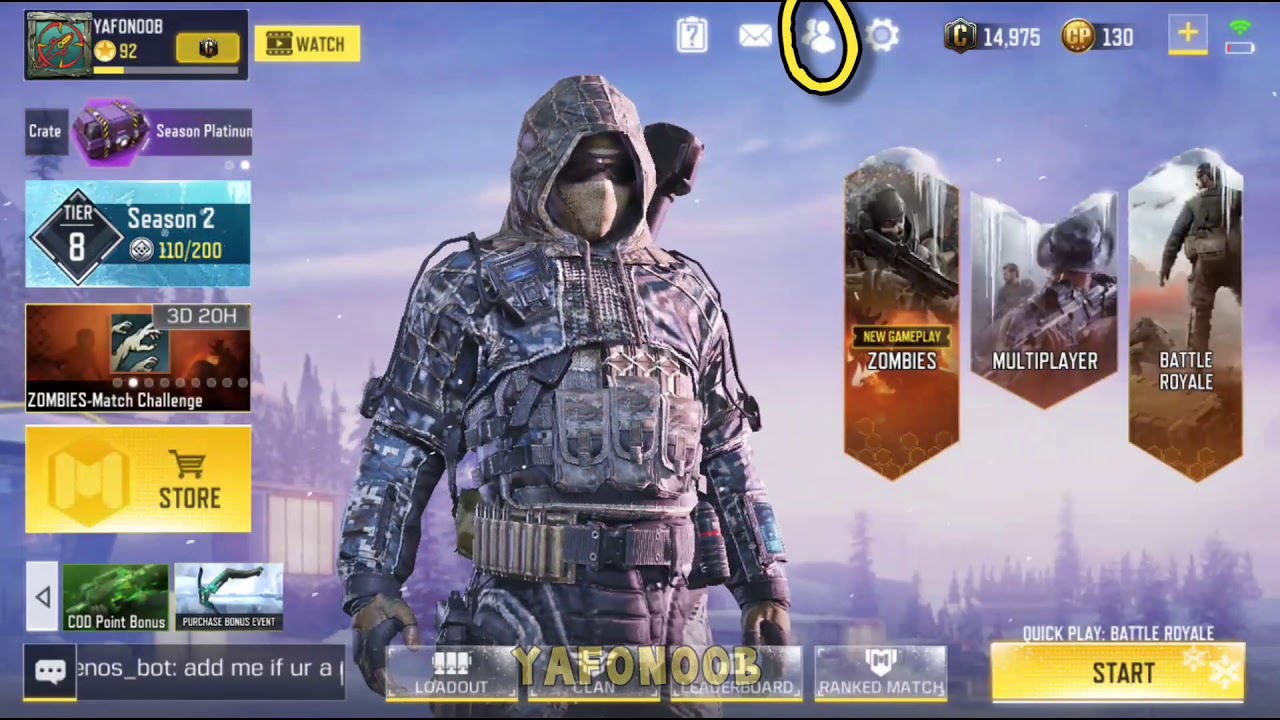
To remove a friend, go to the Friends menu, find the player, and tap their name to view their profile. Look for the option to remove them and confirm your decision. To block or report a player, access their profile from the Friends menu and select the appropriate option. This helps you maintain a safer and more organized experience. If you want to add friends on other games, you can follow similar steps to add friends on Call of Duty mobile, play with friends on Madden mobile, or check epic games friends on mobile.
Frequently Asked Questions
Can I accept friend requests from players using different platforms?
Yes, Minecraft mobile supports cross-platform play. You can accept friend requests from players on Xbox, Windows 10, Nintendo Switch, and other Bedrock platforms as long as everyone is signed in with a Microsoft account.
How many friends can I have in Minecraft mobile?
There is no strict limit on the number of friends you can have. However, an excessively large friend list may cause performance issues. Keep your list manageable for smooth gameplay.
Are there privacy settings for accepting friend requests?
Yes, Minecraft mobile provides privacy settings to control who can send you friend requests. Go to the Settings menu and look for the Privacy tab. You can choose to accept requests from anyone, only from friends of friends, or only from people you have played with.
Why can't I see the Accept button for a friend request?
This usually happens if you are not signed in with a Microsoft account, if the game is not updated to the latest version, or if your account has child restrictions that block multiplayer. Check these prerequisites first.
How do I invite a friend to my world after accepting their request?
Select "Invite to Play", check the box next to your friend's name, and select "Send # Invites". Your friend will receive the invite through their platform's notification system.
Can I remove a friend without blocking them?
Yes. Go to the Friends menu, tap the friend's name to view their profile, and select the option to remove them. This removes them from your friend list without blocking them, so they can still send you a new request later.