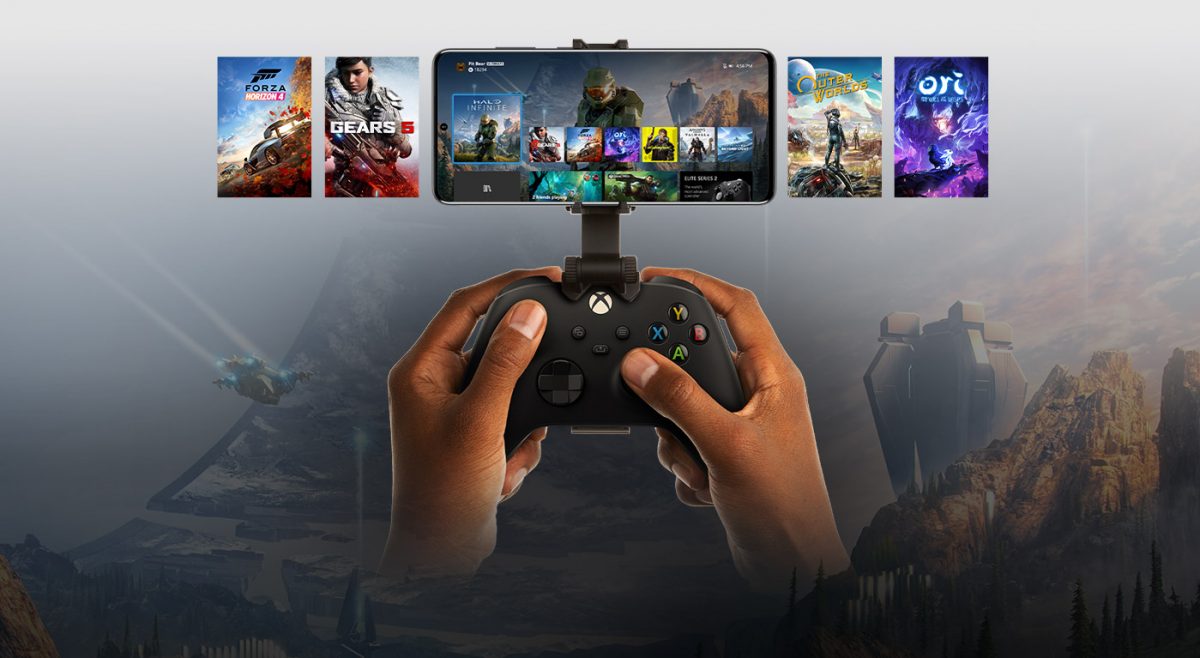
Xbox Remote Play lets you stream games directly from your personal Xbox console to a mobile device, free of charge. Unlike Xbox Cloud Gaming, which streams from Microsoft's servers and requires a Game Pass Ultimate subscription, Remote Play uses your own console’s processing power to deliver your installed games to your phone or tablet.
What is Xbox Remote Play and how does it work?
Xbox Remote Play is a feature that streams your console’s video output to a compatible mobile device over your home or mobile internet connection. Your Xbox One, Xbox Series X, or Xbox Series S handles all the game processing, while your phone or tablet acts as the display and input device. This is distinct from Xbox Cloud Gaming, where games run on Microsoft’s remote servers. Remote Play is free and works with any game you own or have installed, including Xbox Game Pass titles and backward compatible games from the original Xbox and Xbox 360.
What you need for Xbox Remote Play
To use Xbox Remote Play, you need the following:
- An Xbox One, Xbox Series X, or Xbox Series S console connected to the internet
- A Microsoft account with an Xbox profile
- An Android device running Android 6.0 or later, or an iPhone or iPad running iOS 15.1 or later
- A stable internet connection (Wi-Fi or mobile data)
- An Xbox Wireless Controller or other compatible controller connected via Bluetooth or USB (optional but recommended; some games support on-screen touch controls)
How to enable remote features on your Xbox console
- Press the Xbox button on your controller to open the guide.
- Go to Profile & system and select Settings.
- Navigate to Devices & connections and select Remote features.
- Select the option to enable remote features.
- Set your console’s power mode to Instant-on so it remains accessible when you are away from home.
The Xbox app will even guide you through configuring your Xbox console for playing remotely.
How to pair your mobile device with an Xbox controller
- Turn on your Xbox Wireless Controller by pressing the Xbox button.
- Press and hold the sync button on the top of the controller (near the Xbox button) until the Xbox button starts flashing rapidly.
- On your Android or iOS device, open the Bluetooth settings and turn on Bluetooth.
- Select “Pair a New Device” and tap on the Xbox controller when it appears in the list.
- Confirm the pairing on the pop-up screen.
How to start playing with Xbox Remote Play
- Open a supported web browser on your mobile device and go to Xbox.com/remoteplay.
- Sign in with the same Microsoft account linked to your Xbox console.
- Once connected, you will see your console’s home screen. Select any game installed on your console to start streaming.
You can also use your phone as a controller if the game supports on-screen touch controls, though a physical controller provides the best experience. This method lets you play your Xbox games on your phone from anywhere with a stable internet connection.
Tips for the best Xbox Remote Play experience
- Wi-Fi vs. mobile data: A strong Wi-Fi connection (ideally 5 GHz) provides the most stable stream. Microsoft recommends a Wi-Fi connection that’s 5 GHz or a mobile data connection that has at least 10 Mbps down-speed. Mobile data can work but may introduce lag or use significant data.
- Save progress frequently: If your connection drops, you may lose unsaved progress. Save your game manually whenever possible. You’ll want to save frequently while you play. That way, you won’t lose progress in your game if you get disconnected from your console.
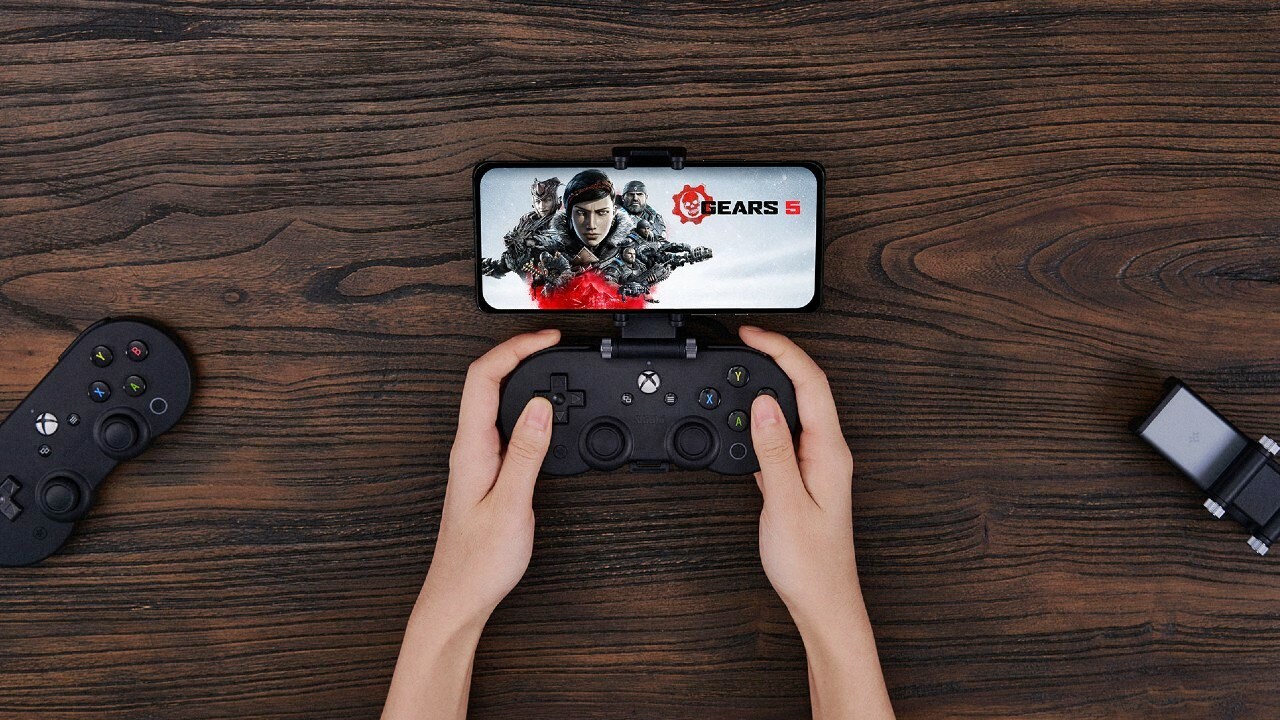
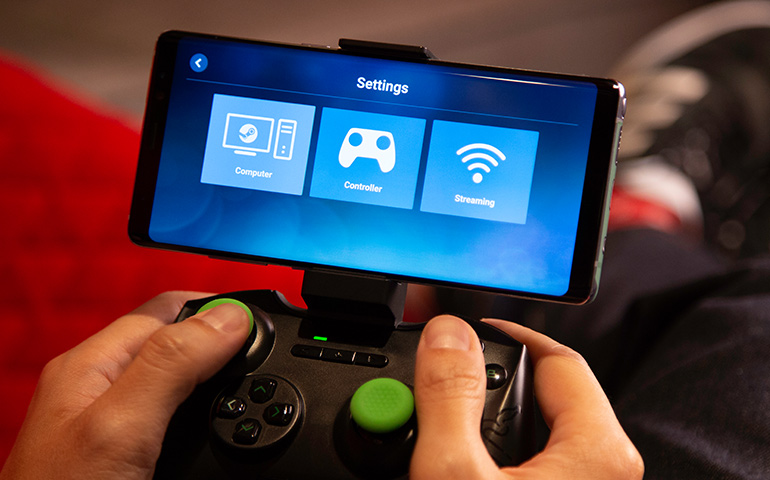
- Use gaming clips: A mobile gaming clip attaches your phone to your controller, keeping the screen stable and your hands free for comfortable play. Optional: mobile gaming clip. This connects your phone and controller. It can help stabilize your phone and makes it easier to see your screen while you play. You can buy a mobile gaming clip from various retailers, including the Microsoft Store.
- Manage battery life: Streaming games drains your phone’s battery faster than normal use. Keep a charger or power bank handy during longer sessions.
Xbox Remote Play vs. Xbox Cloud Gaming
| Feature | Xbox Remote Play | Xbox Cloud Gaming |
|---|---|---|
| Source of games | Your personal Xbox console | Microsoft’s cloud servers |
| Cost | Free (requires console and internet) | Requires Xbox Game Pass Ultimate subscription |
| Game library | Any game installed on your console | Games available in the Xbox Game Pass library |
| Device support | Android 6.0+, iOS 15.1+ via web browser | Android 6.0+ via Xbox Game Pass app |
| Best for | Playing your own library, including disc-based or purchased games | Playing Game Pass titles without installing them |
Frequently Asked Questions
Can I use Xbox Remote Play without an internet connection?
No, Xbox Remote Play requires an active internet connection on both your console and mobile device to stream the game.
Does Xbox Remote Play work on iOS devices?
Yes, Xbox Remote Play works on iPhones and iPads running iOS 15.1 or later through a supported web browser at Xbox.com/remoteplay.
Can multiple people use Remote Play at the same time?
No, only one person can play remotely from a single console at a time, regardless of how many accounts are set up for remote access. Only one person at a time can play Xbox games remotely (Yup, that’s regardless of how many others are set up to play remotely).
Do I need the Xbox mobile app to use Remote Play?
No. Recent updates moved Remote Play access primarily to a web browser at Xbox.com/remoteplay. The Xbox app now focuses on purchases and Game Pass management.
Can I use a non-Xbox Bluetooth controller with Remote Play?
Yes, you can use other Bluetooth controllers, but your experience may vary. You can use Bluetooth controllers that aren’t from Xbox. However, your gaming experience might vary with each controller. For the most reliable performance, an Xbox Wireless Controller is recommended.