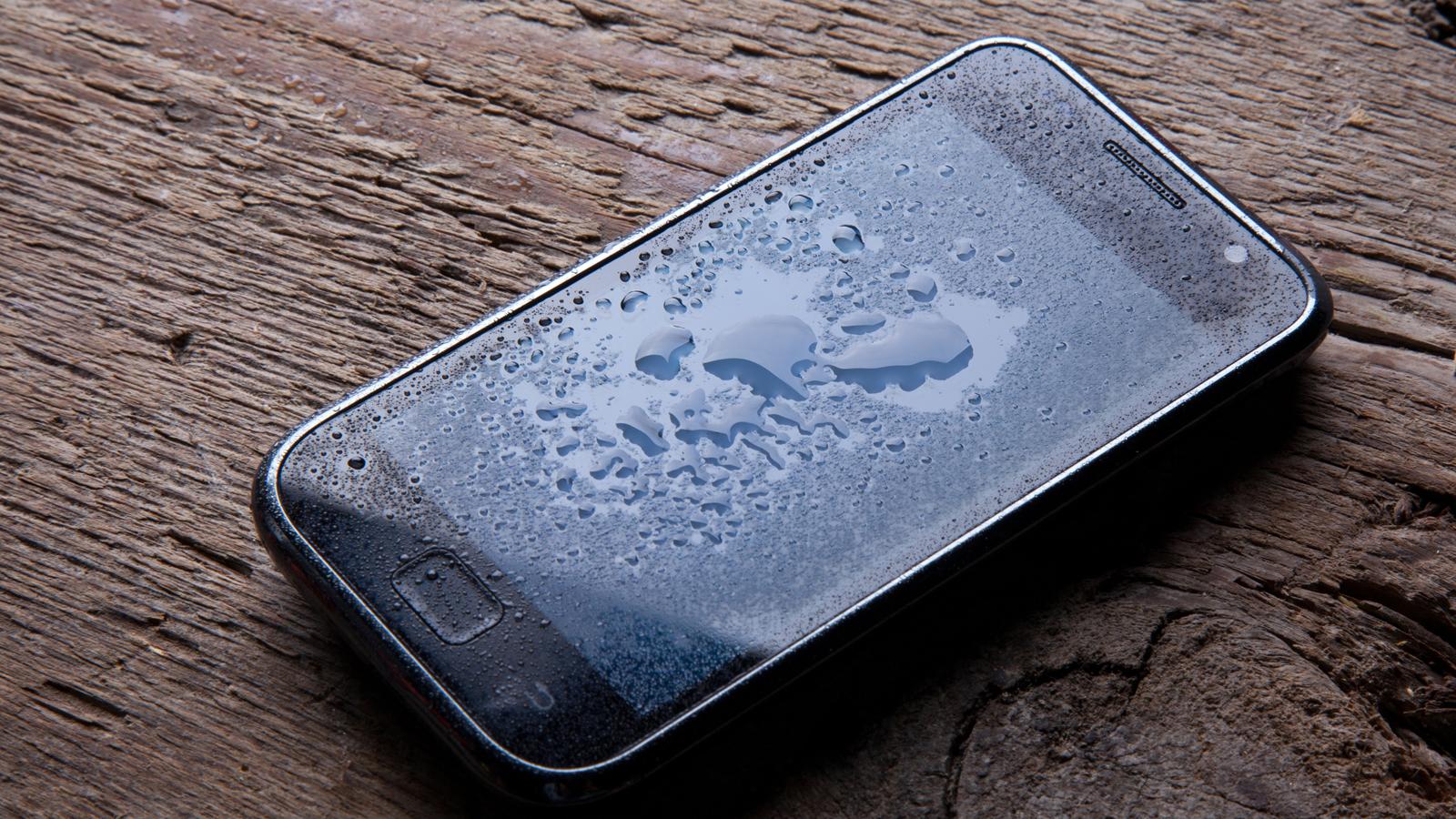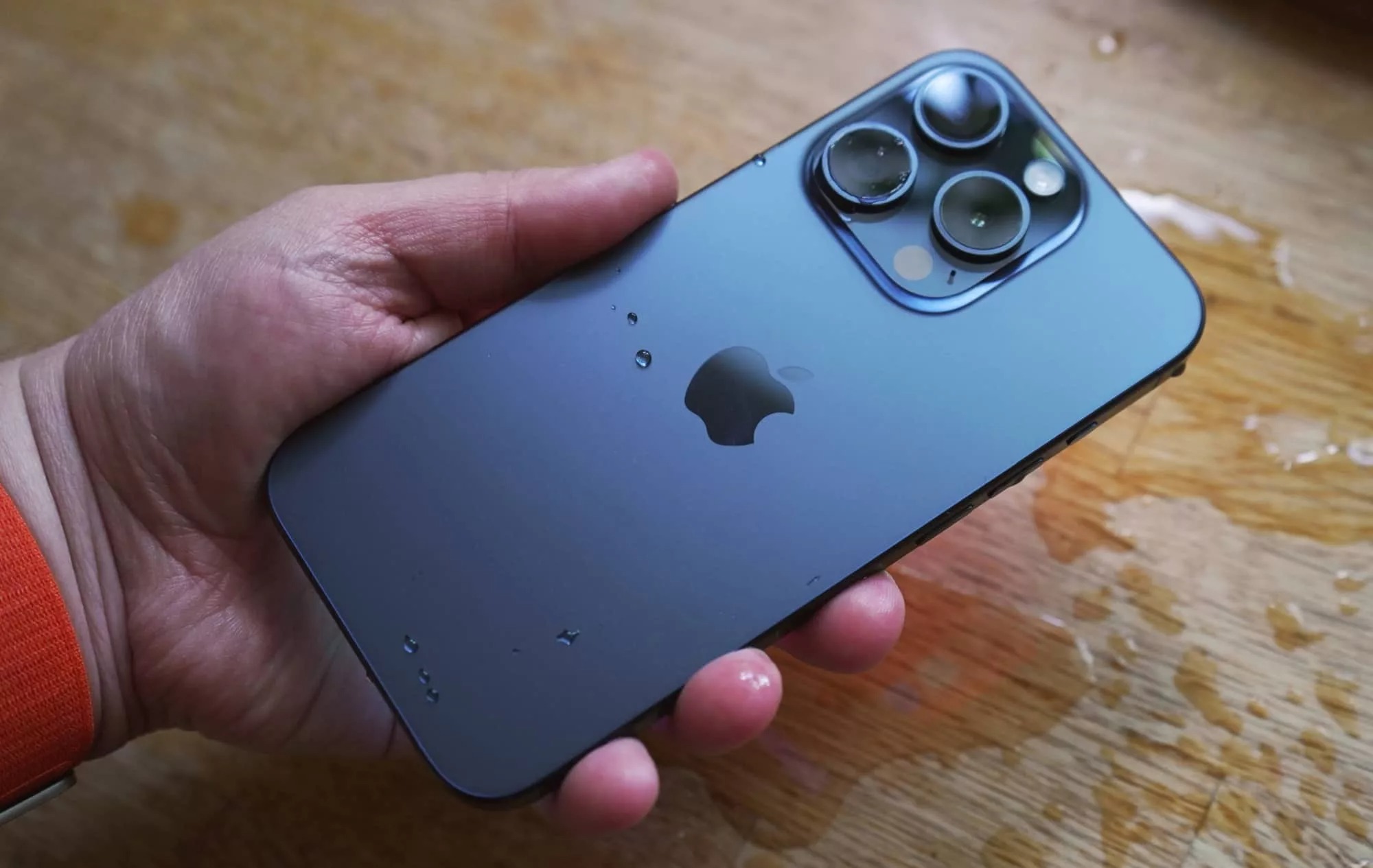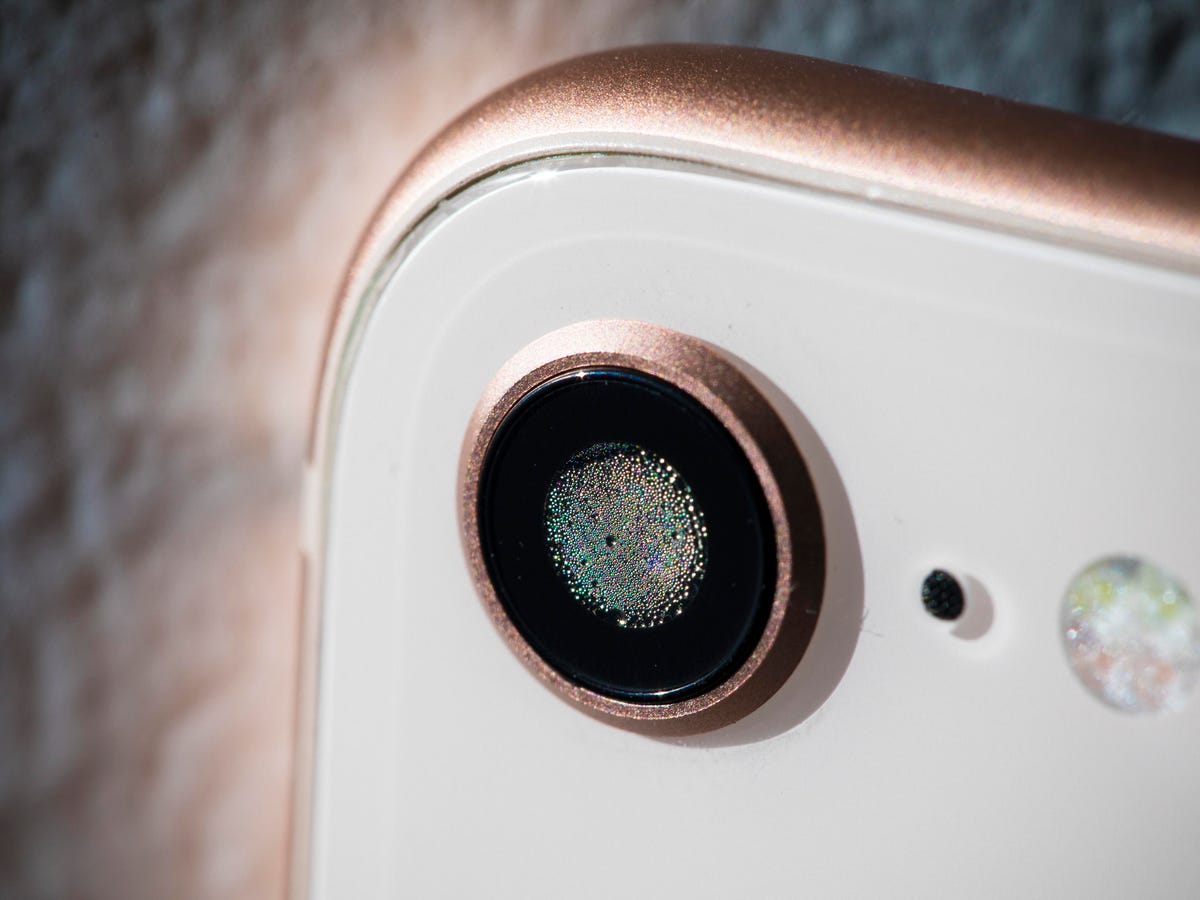
To get water out of camera lens on phone, the only safe and officially documented method is to dry the device externally with a soft, lint-free cloth and then give it time to air out, there is no iPhone setting, shortcut, or home remedy that Apple supports for this task. Apple’s guidance makes clear that liquid in the camera lens is not a user-fixable issue; the correct response is to stop using the phone, wipe it gently, wait for it to dry in a well-ventilated area, and seek professional service if moisture persists.
Common causes of water in your phone's camera lens
Water can reach your phone’s camera lens through accidental submersion in a sink, pool, or bathtub; exposure to high humidity or heavy rain; condensation from a rapid temperature change, such as moving from a cold outdoors to a warm room; or a direct spill of any liquid onto the device. Accidental submersion can force water in especially if the phone lacks proper water resistance or if water pressure is high. Manufacturing defects (improper sealing during production) can make a phone more susceptible to water accumulation in the camera lens. Even on water-resistant iPhone models, Apple states that the resistance rating is tested under controlled laboratory conditions and is not permanent, normal wear can reduce it over time, meaning liquid can still enter the device. Apple also notes that liquid damage is not covered under warranty, regardless of the model’s IP rating.
Immediate steps to take when water is present
- Remove the phone case immediately. Water can get trapped between the case and the phone and prevent proper drying.
- Wipe the phone with a soft, lint-free cloth. Use a lens cloth or similar material to gently remove any visible moisture from the exterior, including the camera lens area.
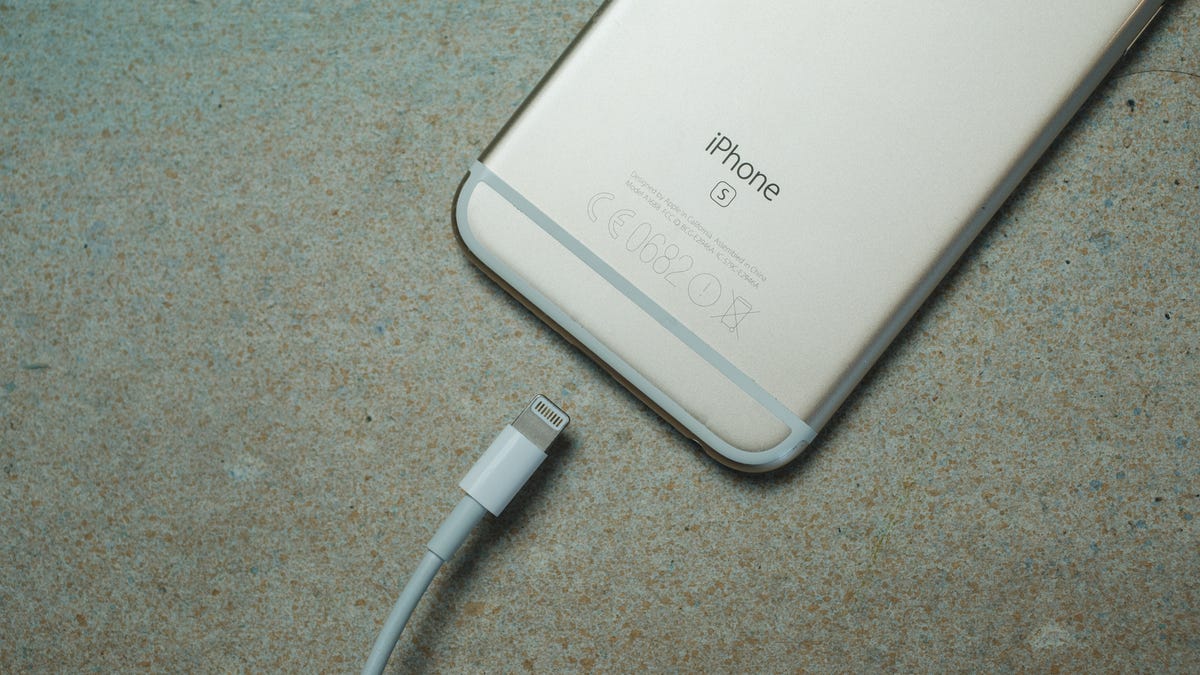
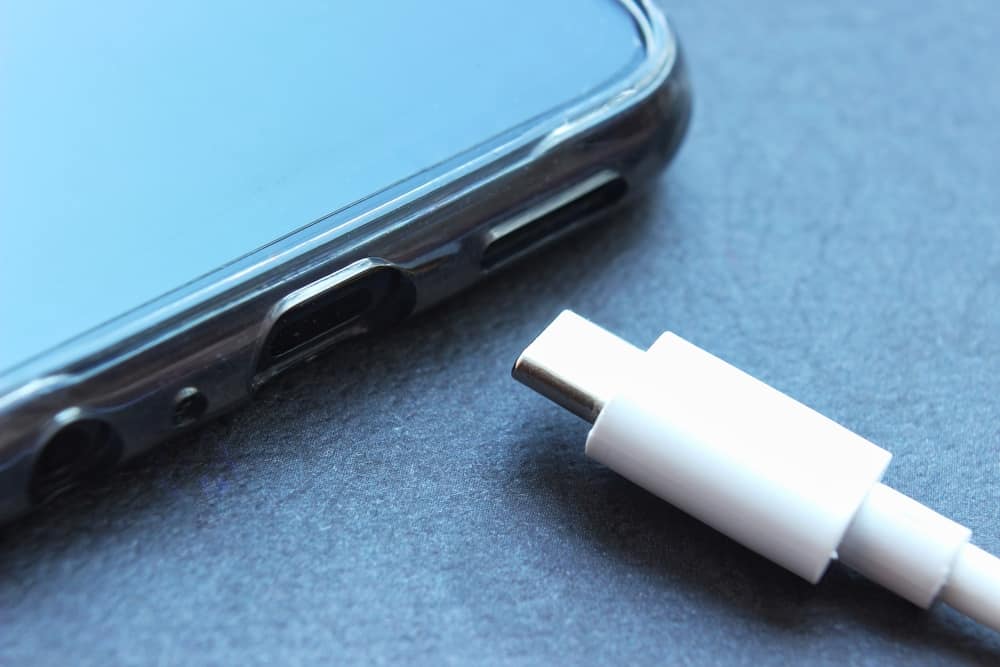
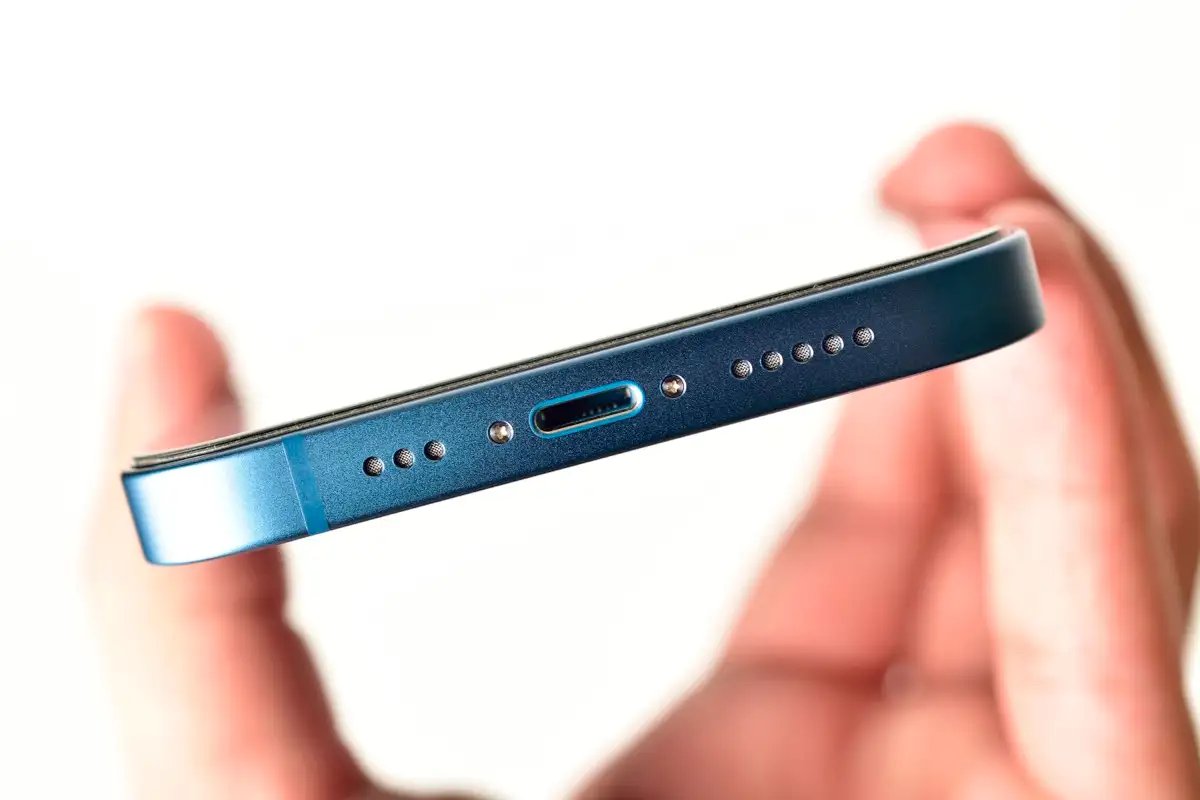
- Heed liquid-detection alerts. If the phone displays a liquid-detection alert in the Lightning or USB-C connector, disconnect any cable immediately and do not plug anything in until both the connector and the accessory are completely dry.
- Place the phone in a dry, airy area. Leave it somewhere with good airflow and avoid charging it. Apple recommends waiting at least 30 minutes before attempting to charge again, and the device may take up to a full day to dry thoroughly.
- Do not attempt to charge a wet iPhone. Charging while moisture is present can cause further damage.
- Do not shake or drop the phone while it is wet. This can move water further inside and cause more damage.
- Wait at least 48 hours before testing the camera or turning the phone back on after a drying attempt.
These steps are the entirety of Apple’s documented first aid for a wet iPhone. There is no official mode or menu path for “camera-lens water removal.”
What not to do: avoiding harmful myths
Several common internet “fixes” are not recommended by Apple and can actually cause permanent damage. Do not use heat sources like a hair dryer or oven, as excessive heat can warp components. Do not use compressed air, which can push moisture deeper into the device. Do not use a vacuum cleaner, which can create static discharge or damage delicate parts. Apple’s only guidance for moisture that remains after external drying is to have the device inspected by an Apple Authorized Service Provider, the Genius Bar, or Apple Support. The company does not document any built-in iPhone setting or “hidden shortcut” for water damage and liquid removal.
When to seek professional service
If after drying the phone in an airy location moisture still appears inside the camera lens, or if the phone shows any signs of liquid damage such as fogging, malfunctioning controls, or a liquid-detection alert that will not clear, the device needs a professional inspection. Apple states that liquid damage is not user-fixable and is not covered by the standard warranty. An authorized technician can assess internal corrosion or component failure that external drying cannot address.
Prevention and long-term solutions
- Use a waterproof case. An added protective case that is certified for water resistance can help guard against accidental exposure.
- Avoid high-humidity environments. Minimize using the phone in saunas, steam rooms, or during heavy rain without cover.
- Understand that IP ratings are not permanent. Apple’s resistance testing applies only to new devices; normal wear, drops, and repairs can reduce or eliminate water resistance over time.
- Clean the camera lens regularly. Use a dry, soft, lint-free cloth to wipe the lens area. Do not use cleaners or abrasive materials.
- Monitor liquid-detection indicators. These indicators can activate upon contact with any water-containing liquid, alerting you to potential exposure even if no performance issue is yet visible.
- Use water-detection apps. Water-detection apps exist that can alert you if internal moisture levels are rising, helping you act before damage occurs.
Frequently Asked Questions
Is there a hidden water-eject shortcut for iPhone?
No. Such shortcuts found online are not official and are not supported by Apple’s guidance.
Can I use rice to dry the camera lens?
Apple does not recommend or document rice as a drying method on its support pages. Rice can leave particles inside the device and does not reliably absorb moisture from sealed interior spaces.
Is water damage covered by Apple’s warranty?
No. Apple explicitly states that liquid damage is not covered under the standard warranty, regardless of the model’s water-resistance rating. Any moisture-related issue typically requires paid service.
Which iPhone models have water resistance?
Apple lists specific models on its splash, water, and dust resistance page, including iPhone 17 series, iPhone 16 series, iPhone 15 series, iPhone 14 series, iPhone 13 series, iPhone 12 series, iPhone 11 series, iPhone XS, iPhone XS Max, iPhone XR, and certain iPhone SE models. Resistance is not permanent and applies only to those listed models.
Related reading: How To Get Liquid Out Of Phone Speaker and How To Fix A Wet Cell Phone Or Smartphone.