To practice free kicks in FIFA Mobile, you must enter an event that contains a Skill Game with a free-kick objective; there is no dedicated free-kick training mode or practice arena in the game. This is the only way to practice free kicks in FIFA Mobile, so check the current events tab for any Skill Game that lists a free-kick challenge.
The only way to practice free kicks in FIFA Mobile
Many players search for a standalone practice mode, but the official EA documentation confirms that free-kick practice is exclusively available through Skill Games found within events. If an event does not include a Skill Game with a free-kick objective, you cannot practice free kicks outside of a live match. This means your practice opportunities are tied to the rotating event schedule, so prioritize completing these Skill Games whenever they appear.
Choosing the Right Player for Free Kicks
Consider the player's attributes when choosing a free-kick taker: Shot Power, Accuracy, Curve, Skill Moves, Height, and Player Chemistry.
Mastering the Free Kick Mechanics
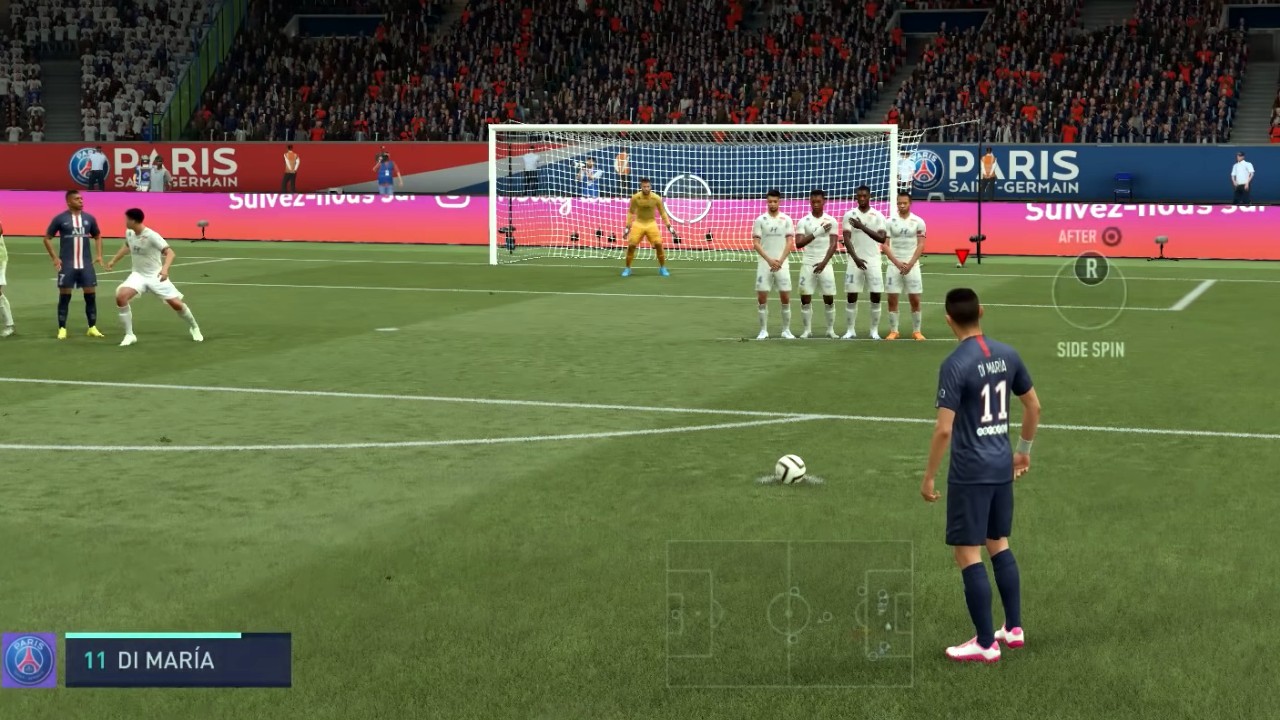
Free kicks in FIFA Mobile are executed entirely through swipe gestures on your touchscreen. The official controls guide confirms the following verified techniques:
- Standard free kick: Swipe your finger in a curved line on the screen to aim and apply power. The direction and speed of the curve determine the ball’s flight path.
- Side spin (around the wall): Swipe sideways across the screen to draw a trajectory that bends the ball around the defensive wall. This is effective for curling shots into the far corner.
- Top spin (over the wall): Swipe up, then immediately down, to make the ball dip over the wall and drop quickly toward goal. This technique is useful for close-range free kicks where you need to clear the wall’s height.
Timing is crucial; pay attention to the green or red indicator above the player's head for perfect or poor timing.
There are no documented differences in these swipe controls between iPhone and Android devices. The same gestures work on both platforms, and no special button or menu setting is required to activate spin, the swipe direction itself creates the effect.
Setting Up and Executing Effective Tactics
Analyze the defensive wall for gaps or weaknesses before taking the free kick. Consider the footedness of your player and position them accordingly. Coordinate with teammates using tactical commands to execute set-piece routines.
Using the camera to your advantage
Before you swipe, you can pan the camera using the side arrow buttons that appear on the screen during a free kick. This allows you to see the positioning of the wall, the goalkeeper, and the goal from different angles. Adjust the camera to find a clear sightline to your intended target, this is especially helpful when aiming for the top corners or trying to curve around a tall wall. The camera panning feature is documented in EA’s set-pieces guide and works identically in all free-kick situations, whether in a Skill Game or a live match.
Practicing and Perfecting Free Kicks
Create custom practice scenarios to set up free kick situations you commonly encounter. Analyze replays to identify areas for improvement and study opponent tendencies. Seek feedback and advice from more experienced players or online communities. Experiment with different techniques, shot styles, and strategies to keep opponents guessing.
Frequently Asked Questions
Where do you practice free kicks in FIFA Mobile?
You can only practice free kicks in Skill Games that are part of events, provided the event includes a free-kick objective. There is no separate training mode, practice pitch, or menu path for free kicks outside of these event-based Skill Games.
What are the free-kick controls in FIFA Mobile?
Free kicks use swipe controls: swipe in a curved line for a standard shot, swipe sideways for side spin around the wall, and swipe up then down for top spin over the wall. No buttons or on-screen sliders are involved.
Are there iPhone and Android-specific differences for free kicks?
No. The swipe gestures and camera panning work the same on both platforms.
Can I choose a specific free-kick taker in the Skill Game?
In Skill Games, the player assigned to take the free kick is predetermined by the game mode, so you cannot manually choose a taker.
How do I add side spin or top spin during a free kick?
Side spin is created by swiping sideways to draw a curved trajectory around the wall. Top spin is created by swiping up, then down, to make the ball dip. These are the only spin types documented in the official controls guide.
Can I practice free kicks offline or in a friendly match?
No. The official material states that practice is only possible through Skill Games in events with a free-kick objective. Friendly matches and offline modes do not offer a free-kick practice feature separate from live gameplay.
For the wider topic, see FIFA and Madden Mobile guides.
Related reading: How To Get Prime Tokens In FIFA Mobile and How To Change Team In FIFA Mobile.