To clear mailbox on iPhone, open the Mail app, then swipe left on a message and tap Trash, or open a message and tap the delete button. You can also select multiple emails at once by tapping Select in the upper-right corner, choosing the messages, and tapping Trash to clear your inbox quickly.
How to clear mailbox on iPhone by deleting emails individually
Deleting one email at a time gives you precise control over which messages stay and which go, making it ideal for freeing up phone storage space without losing important correspondence.
- Open the Mail app on your iPhone.
- In a message list, swipe left on an email and tap Trash.
- Alternatively, while reading a message, tap the delete or trash button for that message.
- You can also touch and hold a message in the list to reveal options, then tap Trash.
In a sender’s digest view, selecting one message can select all messages in that category from that sender, letting you remove an entire conversation thread in one action.
Google documents that in the Gmail app on Android, you open Gmail, touch and hold each message you want to delete, then tap Delete at the top.
How to delete multiple emails at once to clear your mailbox
When you need to remove several emails at once, the Select tool is the fastest way to clear mailbox on iPhone without tapping each message individually.
- Open Mail and go to your Inbox or any folder.
- Tap Select in the upper-right corner.
- Tap the checkboxes for the emails you want to remove.
- Tap Trash at the bottom of the screen to delete all selected messages.
How to archive or move emails instead of deleting them
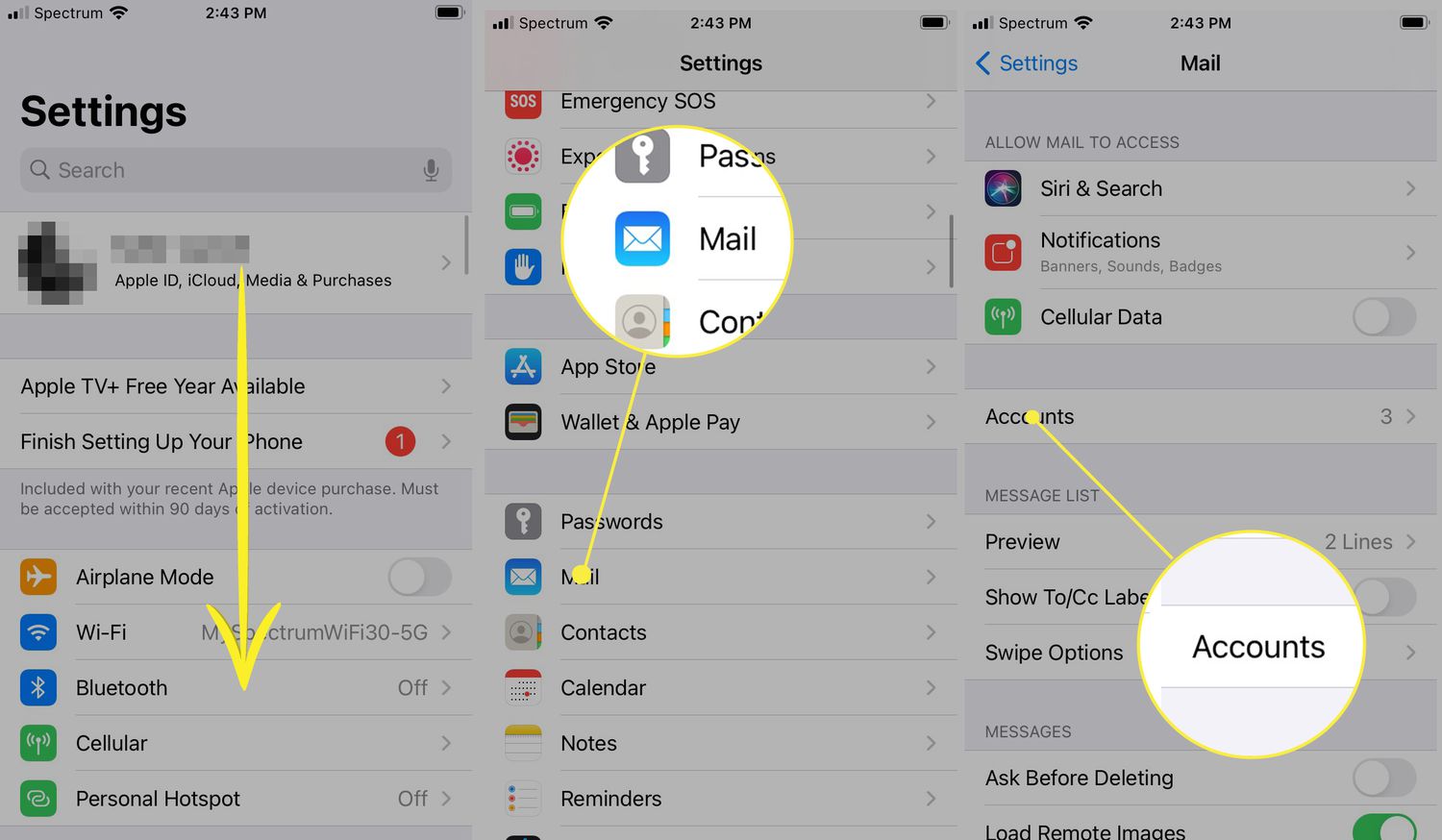
Archiving removes emails from your inbox while keeping them saved, which can help declutter without permanently losing messages. To change the delete button to Archive in Mail settings on iCloud Mail, go to Settings > Apps > Mail and adjust the option so swiping or tapping Archive moves emails instead of trashing them.
- Open Mail and navigate to the message or folder.
- Swipe left on an email and tap Archive, or if you only see Archive, touch and hold the Archive button to reveal other actions such as Trash Selected Messages. In Apple Mail, if you only see Archive, touch and hold Archive to reveal other actions such as Trash Selected Messages.
- To move emails to a different folder, tap Edit, select the emails, tap Move, then choose a destination folder like Archive or a custom folder you created. On iCloud Mail on a phone or tablet, tap Edit, select emails, tap Move, then choose Archive.
On iCloud Mail, archived emails stay in Archive until you delete them, giving you a safety net while still clearing your main inbox.
What happens to emails after you clear your mailbox
When you delete emails on iPhone, they are moved to the Trash folder. They remain there for a recovery period, typically 30 days, during which you can recover them by opening Trash, selecting the message, and moving it back to Inbox or another folder. After that period, the emails are permanently removed and cannot be recovered.
To permanently remove deleted emails sooner, open the Trash folder, tap Edit, select the messages, and tap Delete All or Trash to erase them immediately. You can also adjust deletion confirmation in Settings > Apps > Mail > Ask Before Deleting to prevent accidental removal.
Download a Third-Party Email Management App
To clear mailbox on iPhone by deleting emails individually, you can download a third-party email management app like Edison Mail, Spark, or Outlook. Research the app in the App Store, download it, set up your email accounts, and customize swipe actions or bulk delete tools to streamline clearing your mailbox.
Frequently Asked Questions
Does deleting emails on iPhone free up storage space?
Yes, deleting emails removes their content and attachments from your device, which can free up storage space, especially if you delete large emails with photos or PDFs.
Can I recover an email I accidentally deleted?
Yes, open the Trash folder, tap the email, then tap Move to move it back to your Inbox or another folder. You can recover deleted emails within the retention period set by your email provider.
Why do some emails show Archive instead of Trash when I swipe?
This happens when your Mail settings are configured to Archive instead of Delete. You can change this in Settings > Apps > Mail by toggling the Archive option for iCloud Mail accounts.
Will deleting emails on my iPhone delete them from my other devices?
For accounts synced via iCloud or IMAP, deleting an email on your iPhone also deletes it from other devices and the server. For POP accounts, deletion may only affect the iPhone.
How do I delete all emails from a specific sender at once?
In a sender’s digest view, tap Select, then tap the checkbox on one message to select all messages from that sender. Then tap Trash to remove them all.