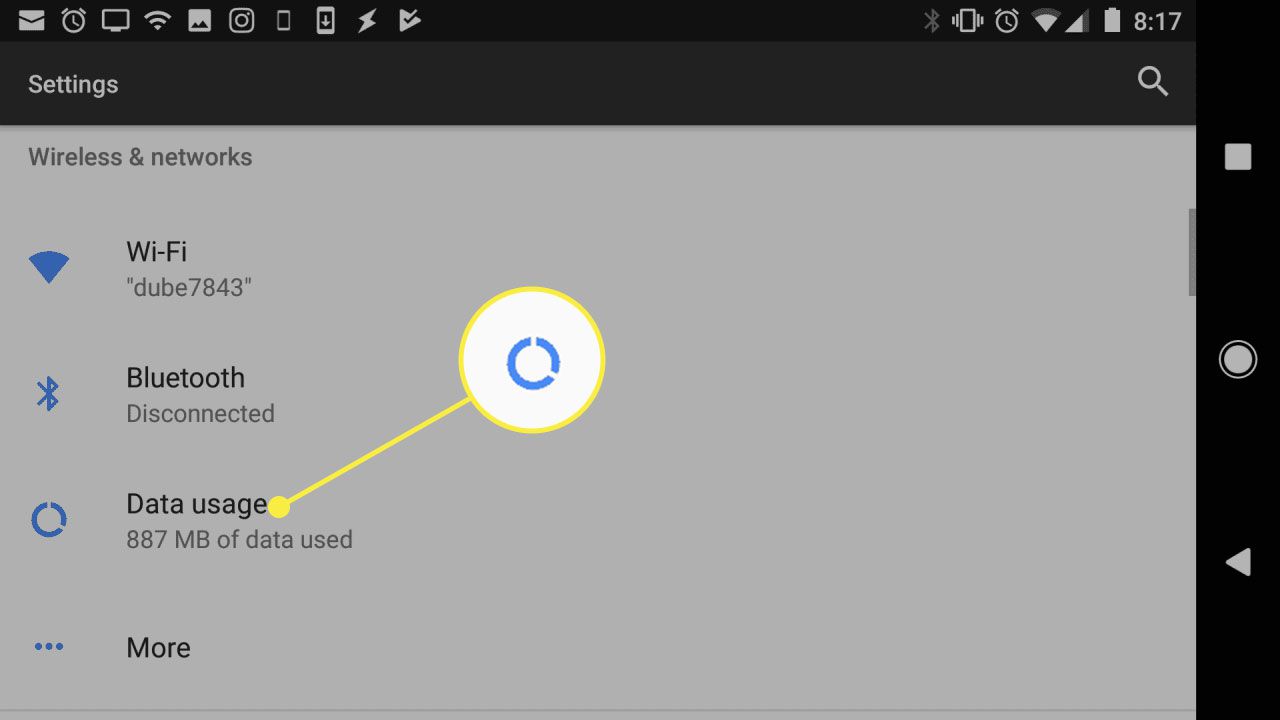
To turn on mobile data on an Android tablet, open the Settings app and look for Network & Internet or Connections; if you see Mobile data or Cellular network inside that menu, your tablet supports cellular service and you can toggle mobile data on there. The exact menu path varies by tablet maker, but the toggle is always found under a network-related section in Settings.
How to turn on mobile data on an Android tablet
Because Android tablets do not have a single universal menu path, you will need to locate the mobile data toggle inside your device’s Settings app. The most common places to check are:
- Open Settings.
- Look for Network & Internet or Connections (the label depends on the tablet manufacturer).
- Inside that menu, find Mobile network, Mobile data, or Cellular data.
- Toggle the switch next to Mobile data to turn it on.
If you see options labeled Mobile data or Cellular network, your tablet is cellular-enabled and you can enable data there. If those options are missing, the tablet likely does not support mobile data.
Check if your tablet supports mobile data
Not all Android tablets can use mobile data. To confirm yours is a cellular model, open Settings and look for Network & Internet or Connections. If those menus contain Mobile data or Cellular network, the tablet is cellular-enabled. If you do not see these options, your tablet is a Wi‑Fi‑only model and cannot connect to mobile data through settings alone.
Use the quick settings panel
For a faster way to toggle mobile data, swipe down twice from the top of the screen to open the full quick settings panel. Look for an icon labeled Mobile data, Data, or a cellular signal icon. Tap it to turn mobile data on or off. This method works on most cellular-enabled Android tablets, though the exact icon may vary by device.
What to do if mobile data still won't turn on
If the toggle does not work or mobile data remains off, first check that a SIM card is properly inserted and active. Some Android tablets have a physical SIM card tray that allows you to insert a SIM card for mobile data connectivity. Activate Mobile Data using the SIM Card Tray by inserting an active SIM, then go to Settings > Network & Internet > Mobile network and toggle Mobile data on. Cellular service requires a supported device and an active carrier plan. Verify that your data plan is current and has not run out of data. For further help, see the section on managing cellular data settings and troubleshooting connection issues.
Frequently Asked Questions
How do I monitor my data usage on an Android tablet?
Open Settings, go to Network & Internet or Connections, then tap Data usage. Here you can view your current billing cycle’s data consumption and set a warning or limit to avoid overage charges. For carrier-specific balance details, use the method for checking data usage and account balance on carriers.
How can I monitor my mobile data usage on my Android tablet?
How can I conserve mobile data on my Android tablet?
Turn on Data Saver in Settings > Network & Internet > Data Saver to restrict background data for apps. You can also disable auto-sync for individual apps, limit background data per app, and switch off mobile data when you do not need it. Using Wi‑Fi whenever possible also helps preserve your cellular data allowance.
Can I use my Android tablet as a mobile hotspot?
Yes, most cellular-enabled Android tablets can act as a mobile hotspot. Go to Settings > Network & Internet > Hotspot & tethering (or a similarly named menu) and turn on Wi‑Fi hotspot. You can set a network name and password to share your tablet’s mobile data connection with other devices.
What should I do if my tablet still cannot connect to mobile data after checking the SIM and plan?
If the SIM is inserted and the plan is active but data still does not work, try the procedure to reset network settings on Android, iPhone, and iPad. On an Android tablet, this is usually found under Settings > System > Reset options > Reset Wi‑Fi, mobile & Bluetooth. Note that this will erase saved Wi‑Fi networks and Bluetooth pairings.