Basic screen brightness
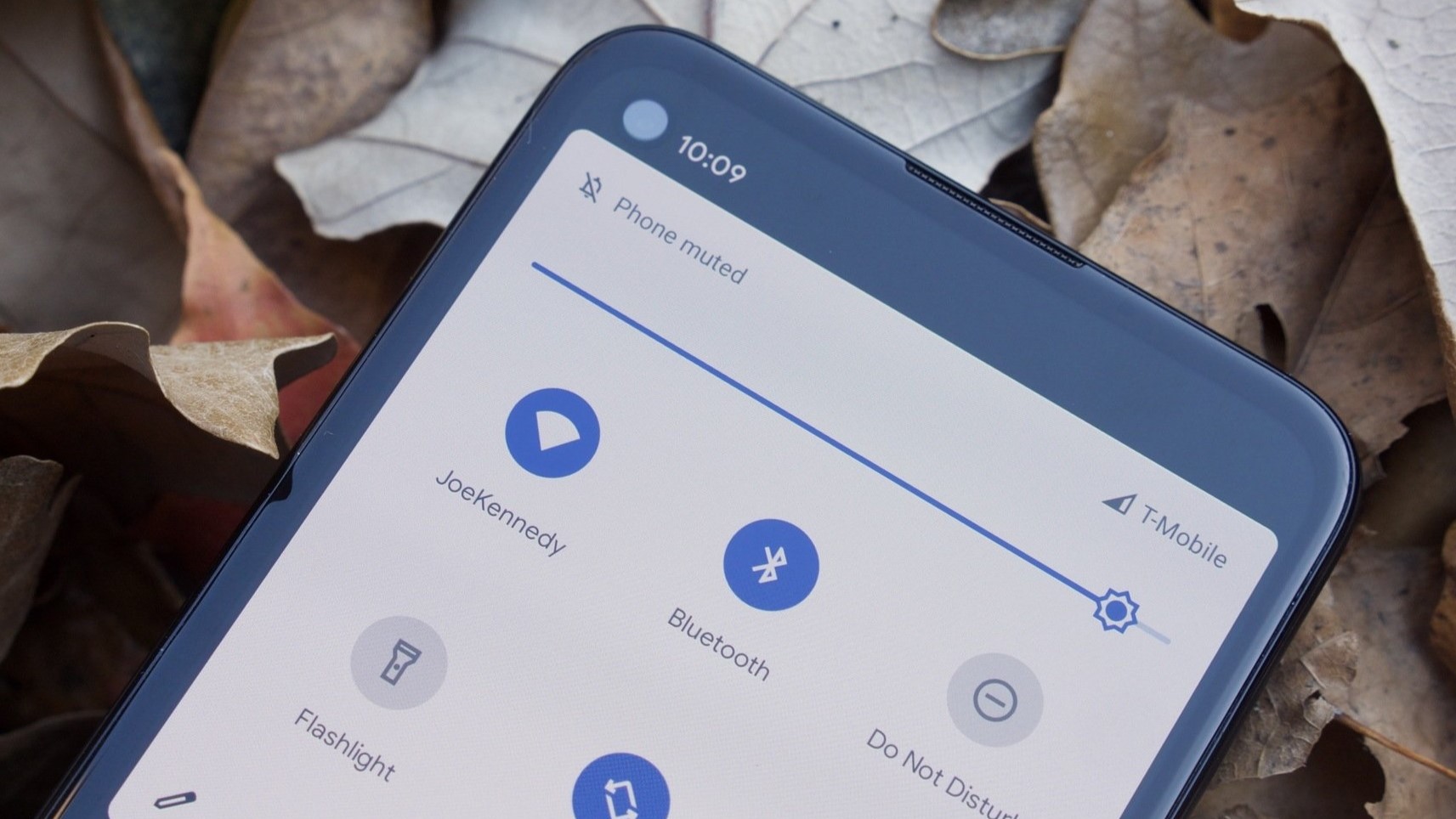
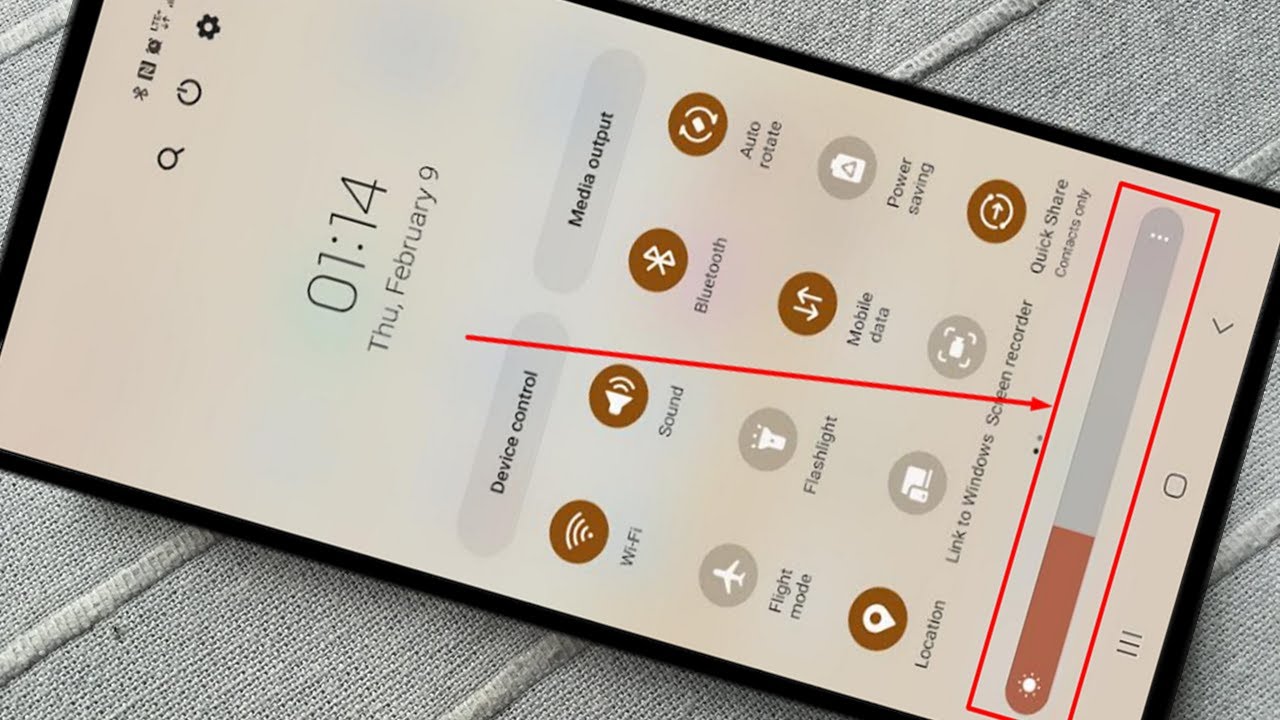
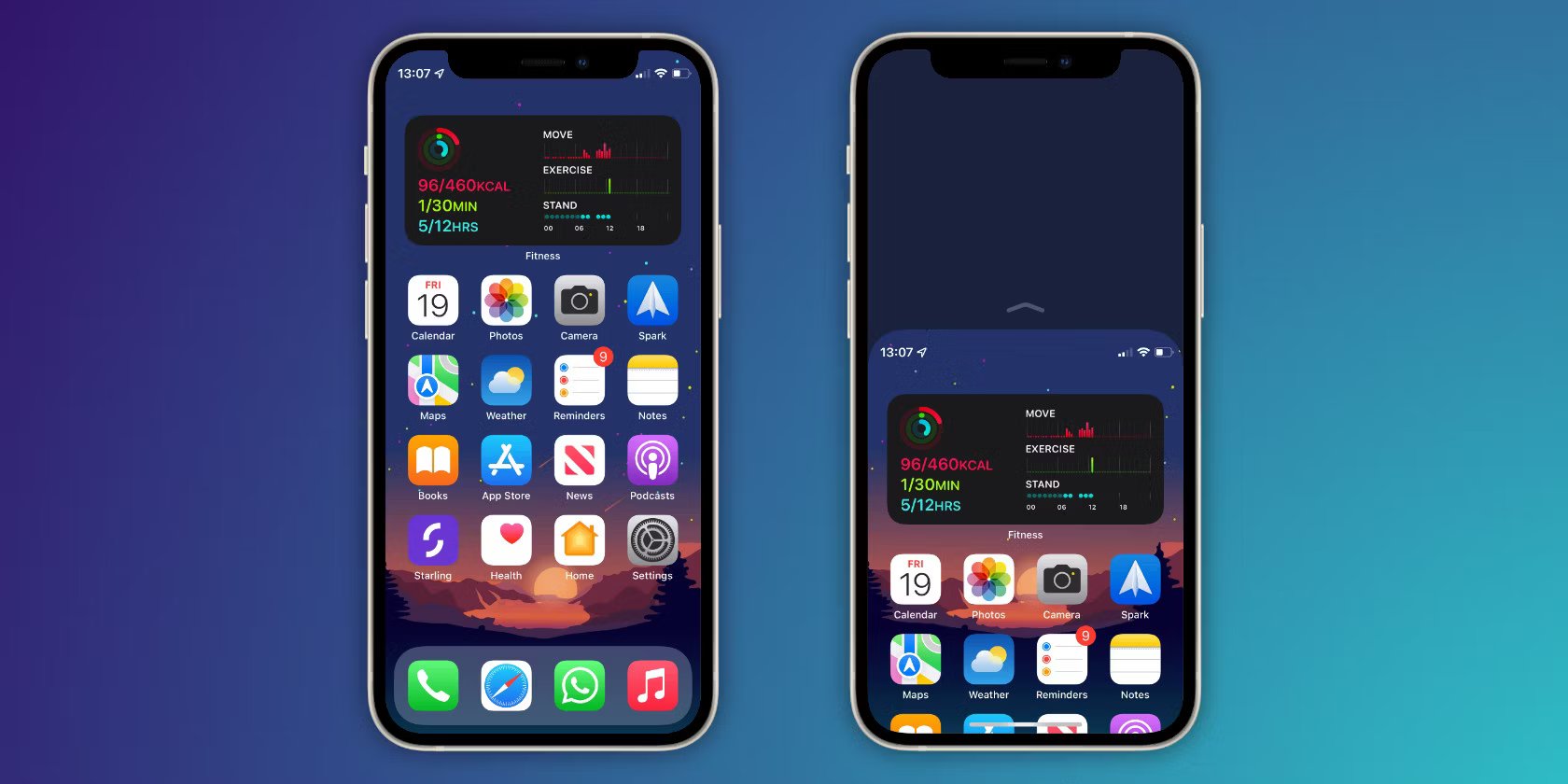
When you need to adjust screen brightness or fix display color, first check that an assistive feature isn't causing the issue. To simply make phone brighter when the room gets sunny, pull the brightness slider up from your quick settings shade or Control Center, which is exactly what you need to follow the guide on how to make phone brighter.
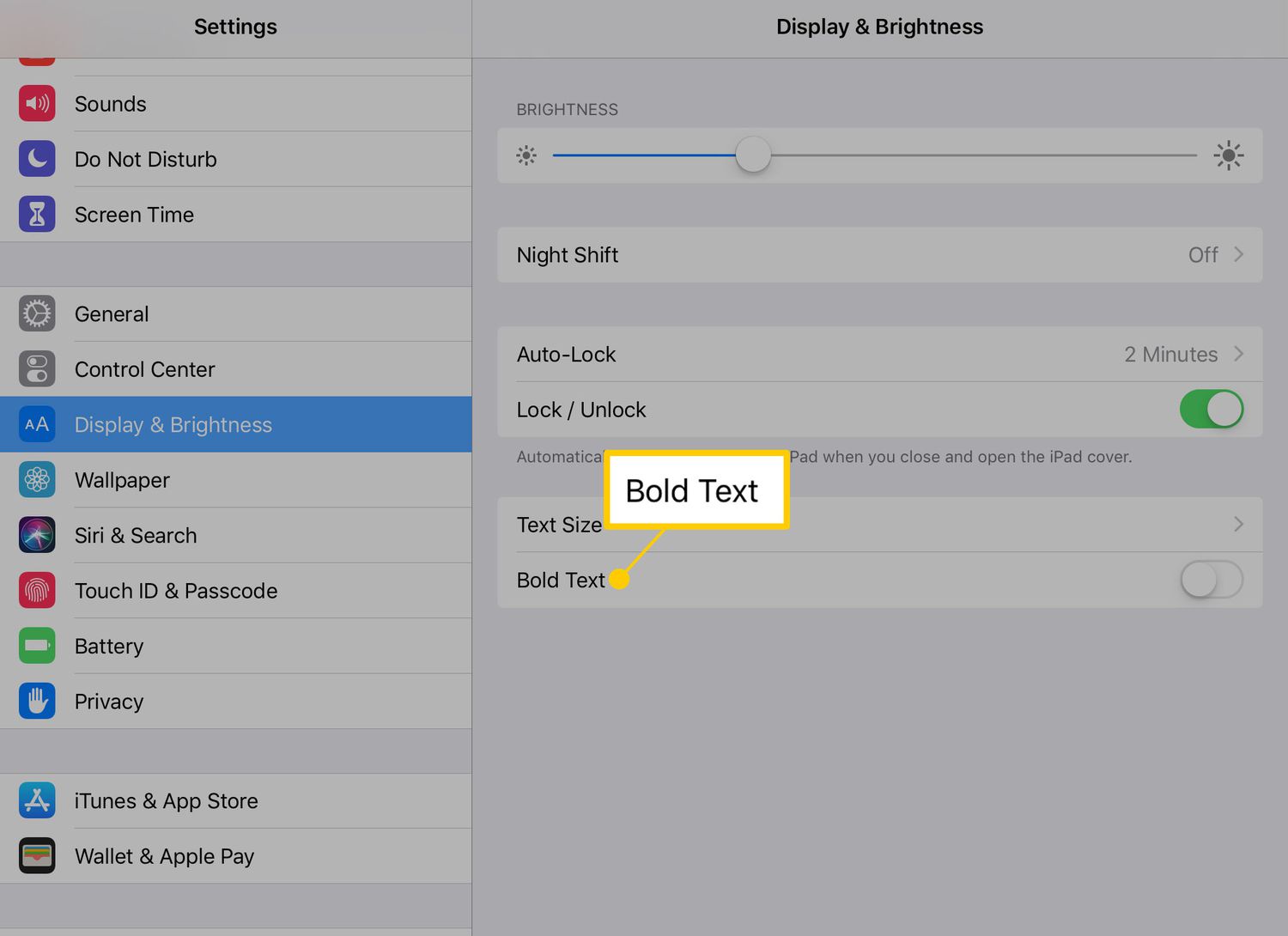
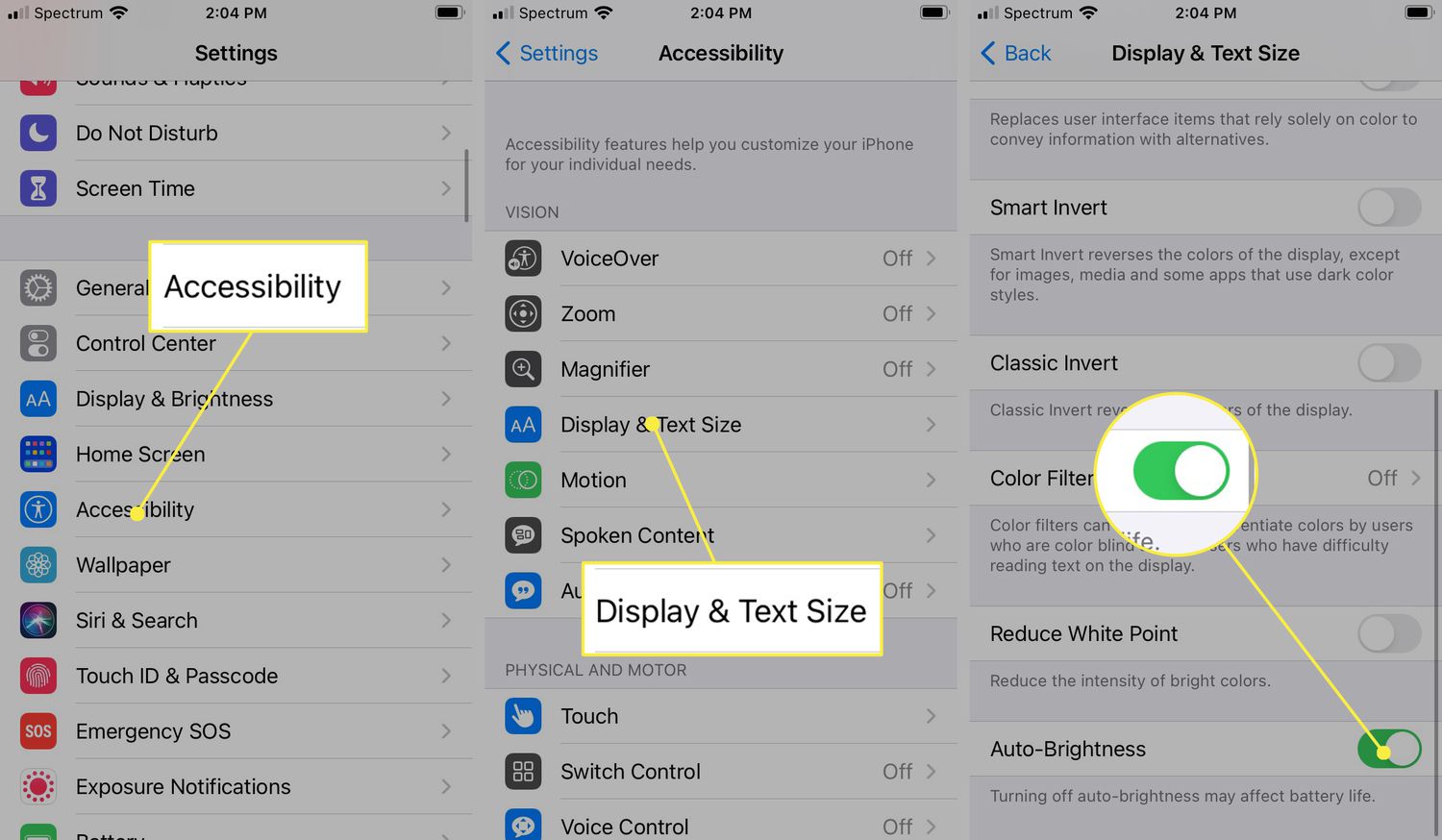
On iPhones, the fastest way to brighten iPhone screen is to open Control Center and drag the brightness control upward, and you can find full details in the article on how to brighten iPhone screen. If you have a model with Face ID, swipe down from the top-right corner; on an iPhone with a Home button, swipe up from the bottom edge. Because the iPhone uses an ambient light sensor, check that Auto-Brightness is not fighting your manual adjustments in Settings under Accessibility > Display & Text Size.
The steps to brighten screen on Android phone are provided in the complete walkthrough for that process in the article on how to brighten screen on Android phone.
Auto-brightness and dimming issues
When your screen keeps dimming or brightening unexpectedly, the culprit is usually the ambient light sensor adjusting to the room. On an iPhone, you can turn off Auto dim on iPhone by opening Settings, tapping Accessibility, then Display & Text Size, and toggling Auto-Brightness off. If brightness already seems erratic, you can try switching Auto-Brightness off completely and then turning it back on to see if the sensor recalibrates. This toggle works the same way across supported iPhones and iPads, whether you have a newer model with Face ID or an older one with a Home button. Apple offers adaptive brightness through several separate controls, including Auto-Brightness, True Tone, and Night Shift. On Android devices, the exact menu path for disabling adaptive brightness may vary by manufacturer, and you may need to dig into your Display or Battery preferences to stop the screen from shifting on its own.
Fixing wrong or missing colors
When your screen suddenly looks like an old black-and-white movie or the colors seem inverted, the fix is usually hiding in your accessibility options. On an iPhone, open Settings, tap Accessibility, then Display & Text Size, and make sure Color Filters, Smart Invert, and Classic Invert are all switched off. If the screen still has a strange tint, check Display & Brightness for Night Shift and True Tone, which can warm the colors on a schedule.
On an Android device, you can often change my phone color back to normal by going to Settings, then Accessibility, then Color and motion, and checking for Color correction or Color inversion settings. Many people who need to turn off black and white on Android find that a display shortcut was accidentally triggered, so if you are trying to get the color back on my phone after a sudden shift, also look for a Color inversion setting and turn it off. To adjust color on Android phone displays more finely, check the system's Color correction settings for available adjustment options. While a Google Phone red screen issue or the need to fix green screen on Android phone displays can feel alarming, those extreme color casts may lie outside the standard software configuration if the screen remains tinted after you have verified these system controls.
Color customization and appearance
Before you spend time hunting for a theme menu that does not exist, it helps to know that most interface colors on your phone are locked by the system. If you want to change your battery color on iPhone 13, for example, Apple does not provide a setting for that, and the icon will stay its default green, yellow, or red depending solely on charge level and Low Power Mode. Similarly, if you are trying to change black background to white on iPhone 13, you need an inversion tool instead of a standard wallpaper toggle. Open Settings, go to Accessibility, then Display & Text Size, and turn on Smart Invert to reverse most colors while keeping images intact, or select Classic Invert to reverse everything on the screen. When you want to change text bubble color on iPhone, the system ties the shade directly to the message type, with iMessages appearing in blue and SMS or RCS texts in green and no option to pick a custom hue. On the other mobile platform, if you look for a way to change message color on Android, the documented path leads you to Settings > Accessibility, then either Color correction or Color inversion, which adjust the whole display’s appearance rather than giving you per-conversation bubble controls inside your messaging app.
Dark mode and special display modes
When an app insists on its own look, the answer usually lives in the system controls, not inside the application itself. To enable Instagram dark mode on Android and iOS, switch your entire phone to dark mode. On an iPhone running iOS 13 or later, open Settings, tap Display & Brightness, and select Dark, while Android follows your phone’s dark theme. A handful of apps let you break away from the system choice. To turn on dark mode on Roblox mobile, open the app, head into More, then Settings, tap Device preferences, then Device level theme, and choose Dark or pick System to make it match the rest of your phone automatically.
Sometimes a strange overlay has nothing to do with dark mode at all. If you are trying to fix green box on Android phone screens, first rule out an accidental assistive shortcut.
Flashlight and external lights
If you are fumbling in the dark, the quickest way to find the flashlight on my phone usually starts with a swipe down from the top edge of the screen. On a Samsung Galaxy, the Flashlight tile lives in the Quick settings panel, while on an iPhone you can open Control Center. If you own an iPhone 15 Pro or iPhone 15 Pro Max, you can press and hold the Action button you have assigned to the torch. Some third-party apps claim you can turn on your flashlight by shaking your phone, but neither Apple nor Samsung document a built-in shake gesture for this, and if that shortcut suddenly stops working, the app likely lost its permission to run in the background.
You may also want a visible alert when the screen is off. If you are trying to set notification light on Samsung S20, the device does not have a dedicated notification LED, so open Settings, go to Accessibility, then Advanced settings, and enable Camera flash notification under Flash notifications to blink the rear flash for incoming alerts. For ambient room lighting, the process to connect your LED lights to your phone depends entirely on the brand’s companion app and whether the strip supports Wi‑Fi or Bluetooth, requiring you to follow the pairing sequence inside that specific manufacturer’s application rather than a universal phone menu.
Frequently Asked Questions
How do I turn off True Tone on my iPhone?
Open Settings, tap Display & Brightness, and toggle True Tone off. True Tone adjusts the screen color to match ambient light, so disabling it stops the display from warming or cooling automatically as you move between rooms.
Why does my Samsung phone screen keep getting darker?
The adaptive brightness setting uses a sensor to adjust the screen to your lighting. On a Samsung Galaxy, open Settings, tap Display, and turn off Adaptive brightness to stop the screen from dimming on its own.
How do I schedule Night Shift on my iPad?
Go to Settings, tap Display & Brightness, then Night Shift. From there you can set a custom schedule or choose Sunset to Sunrise, which uses your location to warm the screen colors automatically in the evening.
Can I change the flashlight brightness on iPhone 15 Pro?
Yes, open Control Center and press and hold the Flashlight tile to reveal a brightness slider with four levels. This works on any iPhone with Control Center, though the Action button on iPhone 15 Pro models only toggles the light on or off.
How do I fix color correction on a Google Pixel?
Open Settings, tap Accessibility, then Color and motion, and turn off Use color correction. If the screen still looks wrong, also check the Color inversion toggle in the same menu and make sure it is switched off.