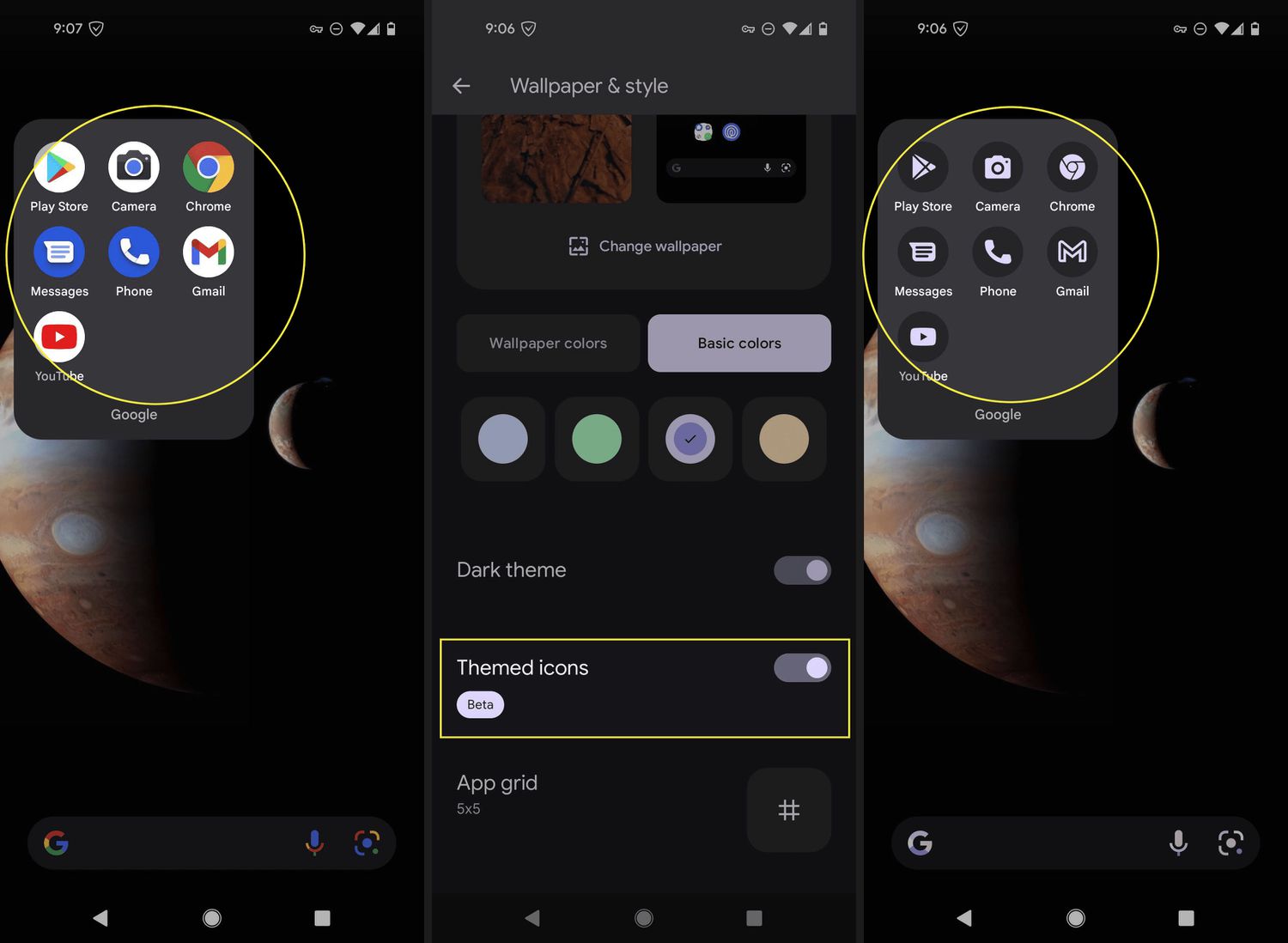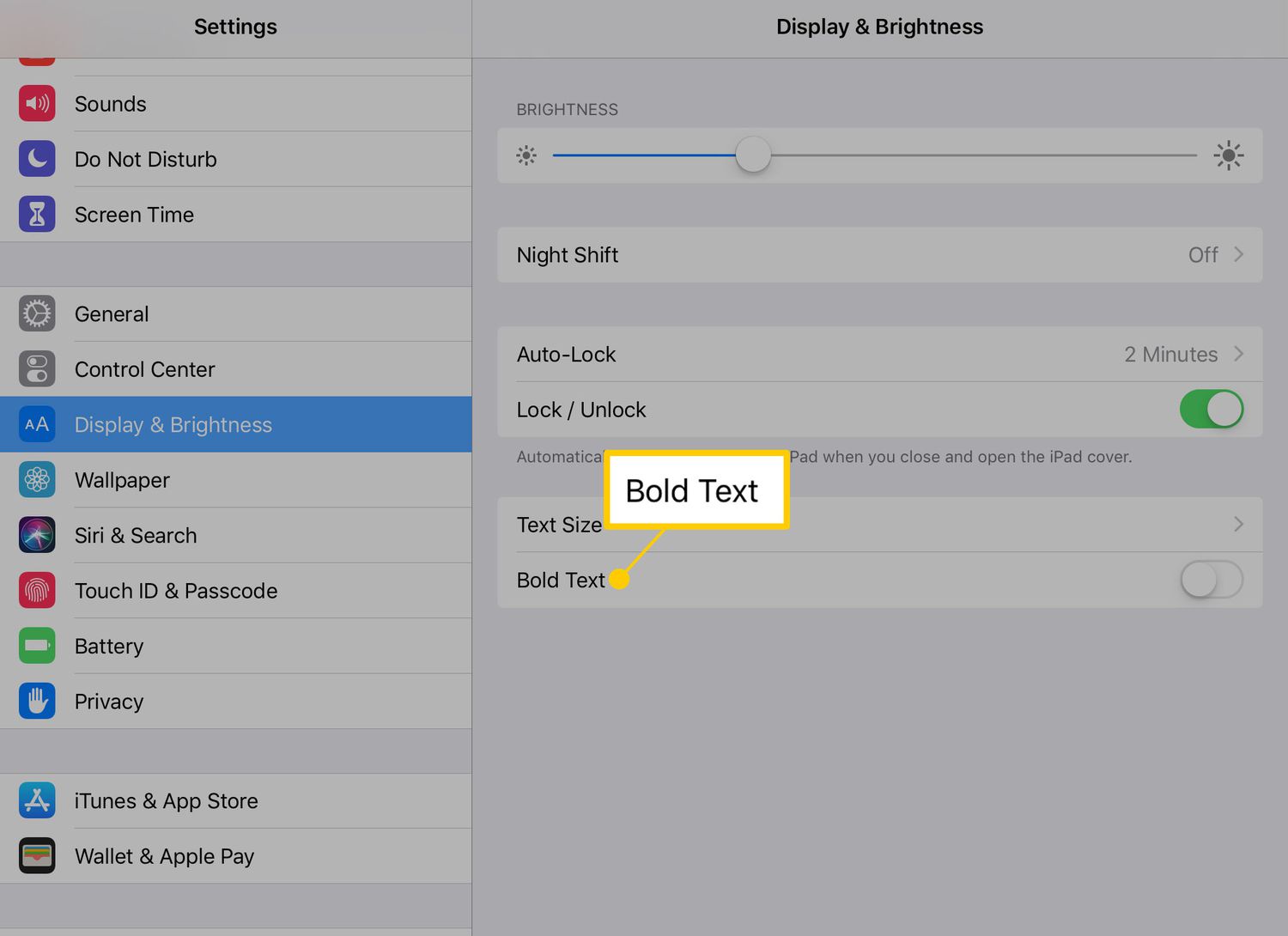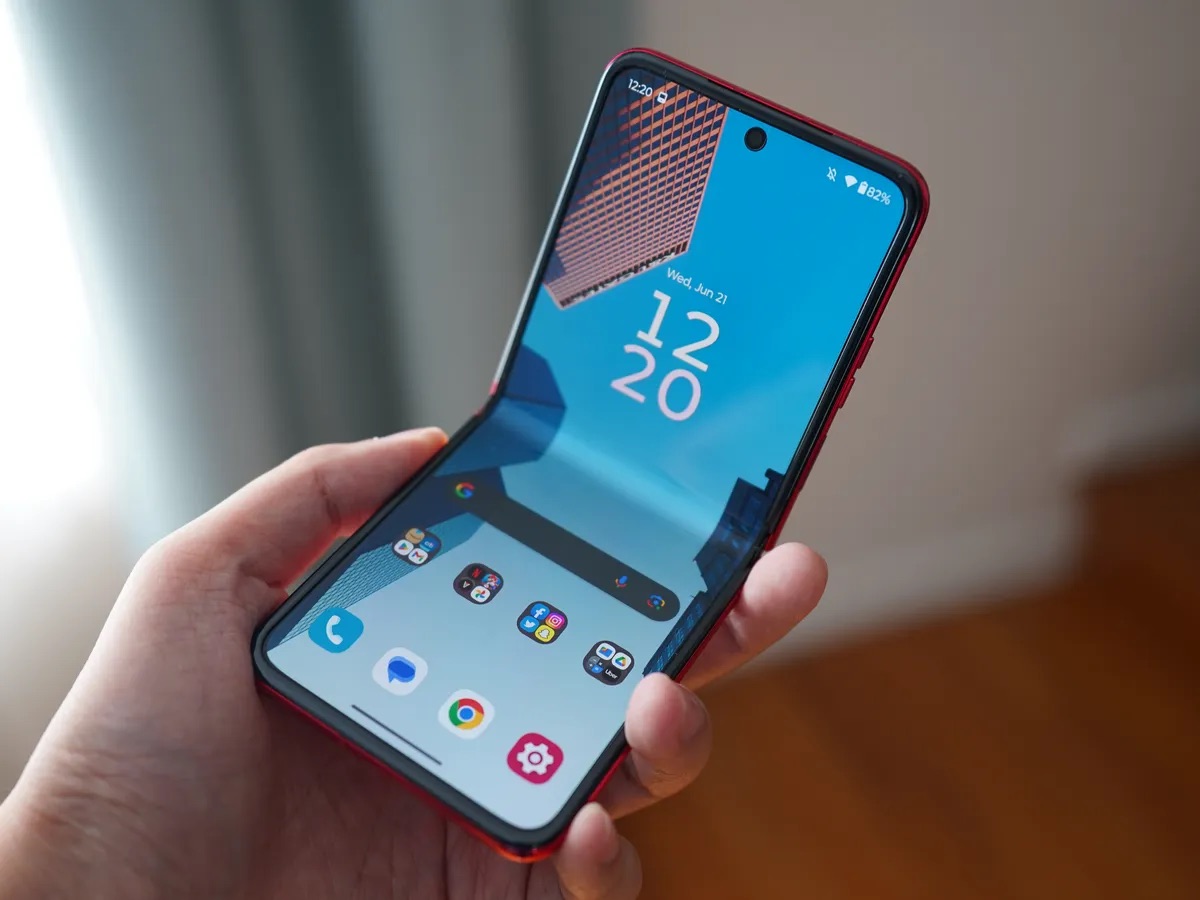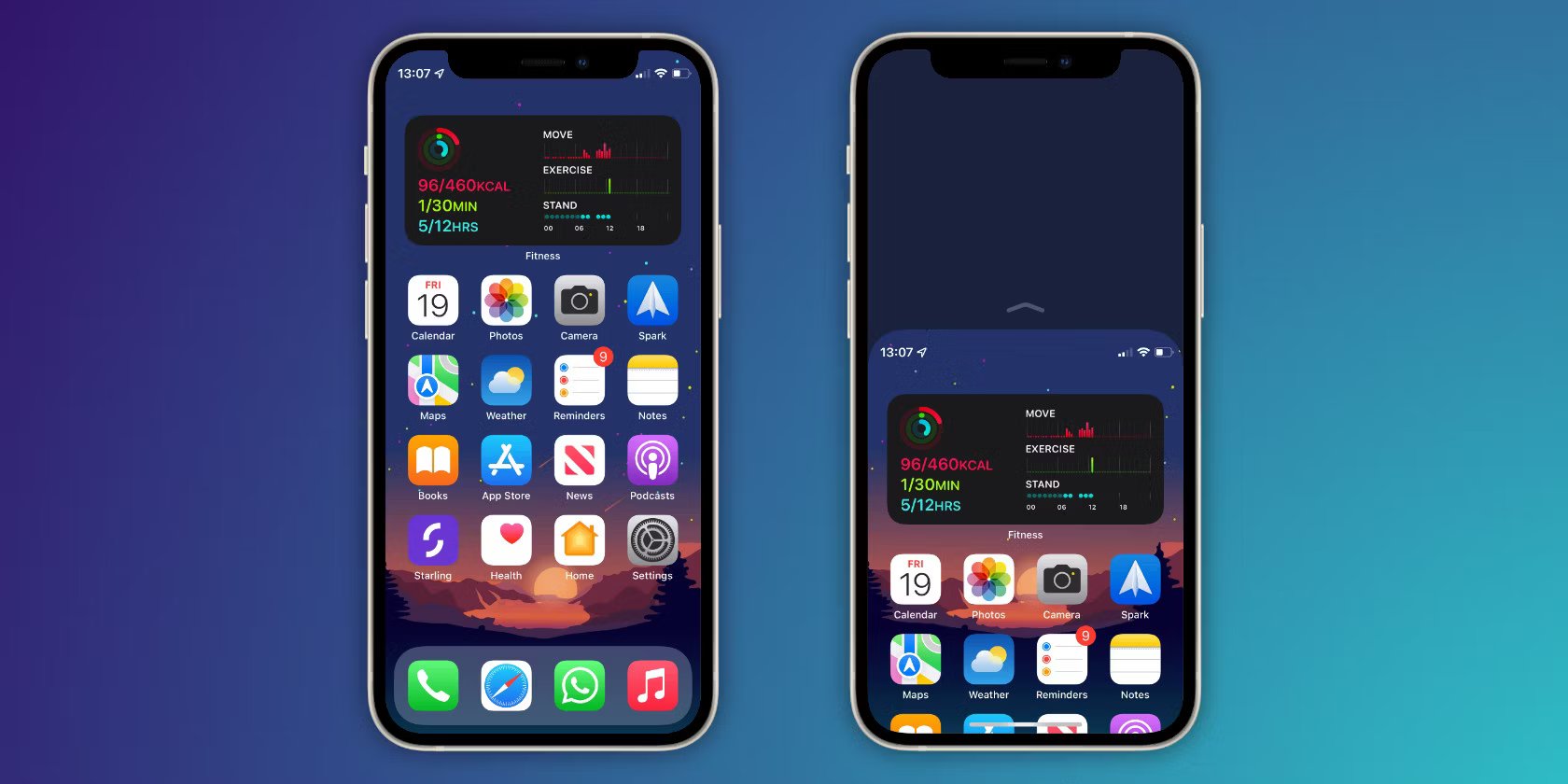
To get the color back on my phone, the most likely fix is to turn off an accessibility filter that was accidentally switched on. This is almost always a software setting, not a hardware problem, so restoring normal color is usually quick and simple.
Why your phone screen lost its color
The most common cause of a black-and-white or washed-out screen is an accessibility feature like grayscale or color correction being turned on by accident. These settings are designed to help users with color blindness or visual sensitivity, but they can be triggered unintentionally, for example, by a triple-press of the side button or a quick settings shortcut. This is not a display hardware fault, and it can be reversed in your phone’s settings.
How to get the color back on an iPhone
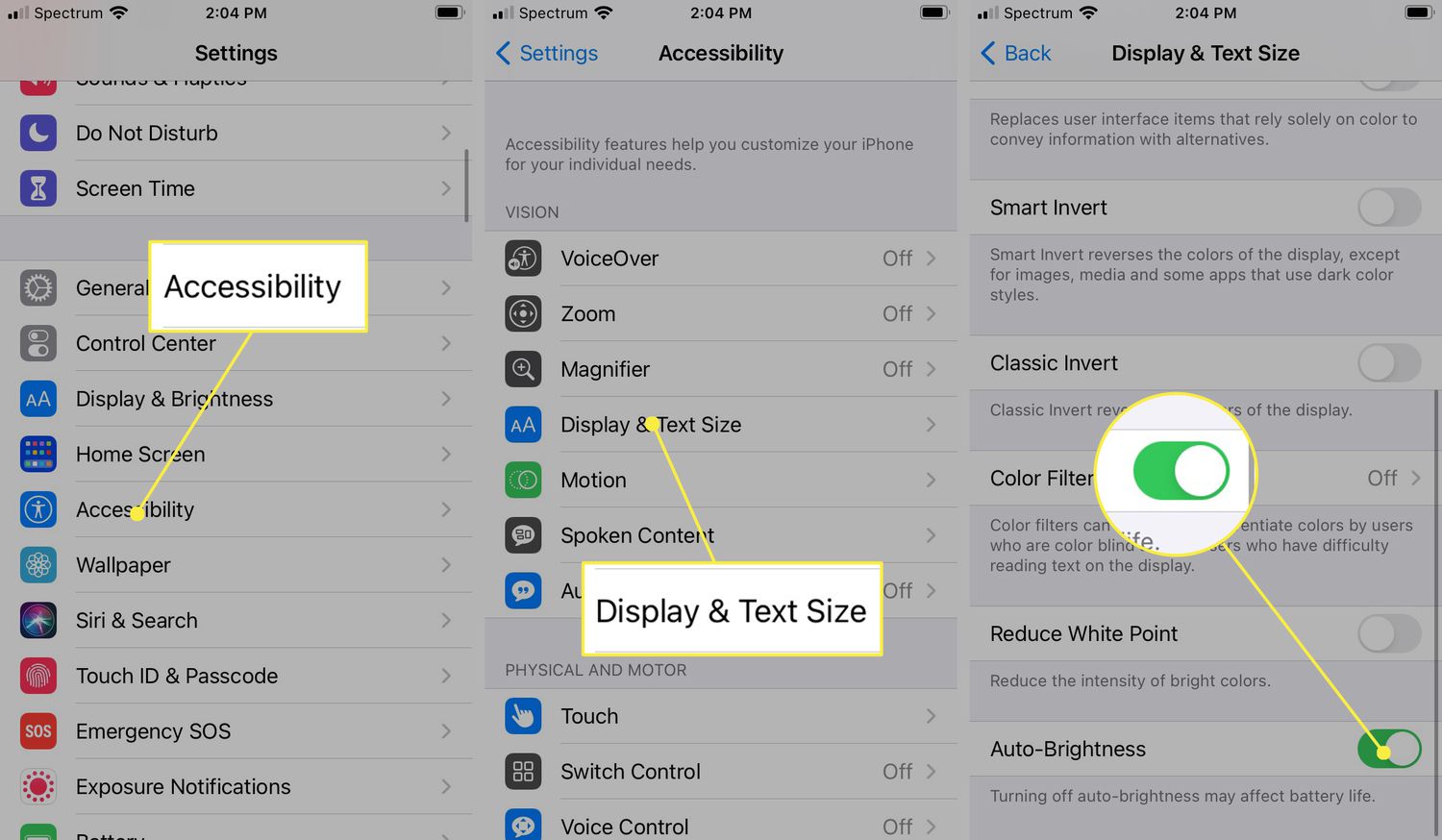
- Open Settings and tap Accessibility.
- Tap Display & Text Size.
- Tap Color Filters.
- If the toggle for Color Filters is on, turn it off to restore normal color. When a Color Filter is selected, you can adjust the slider for intensity or hue.
If the screen is still black and white after turning Color Filters off, check the Zoom setting. Go to Settings > Accessibility > Zoom > Zoom Filter and make sure it is set to None. A filter like Grayscale can be applied through Zoom independently of the Color Filters setting.
How to get the color back on an Android phone
- Open Settings and tap Accessibility.
- Tap Color and motion (on some devices, this may be labeled Vision or Accessibility directly).
- Tap Color correction.
- If the toggle for Use color correction is on, turn it off to return to normal color. When a correction mode is selected, you can optionally adjust the intensity slider.
Android’s color correction and grayscale modes are accessibility tools for compensating for color blindness. There is no separate “restore color” button, turning the feature off is the only documented method.
Still no color? What to try next
If your phone screen remains black-and-white after checking the settings above, try restarting your phone. A reboot can clear any temporary glitch that might be keeping a filter active. Next, check for a software update in your phone’s system settings; an update can resolve bugs that affect display behavior.
Frequently Asked Questions
Can a screen protector cause my phone to lose color?
A screen protector itself cannot make your display black-and-white. However, some privacy or anti-glare screen protectors can slightly reduce perceived brightness or color vibrancy, but they will not remove all color as an accessibility filter does.
Will a factory reset fix the color on my phone?
A factory reset would revert all settings, including any accessibility filters, to their defaults, so it could restore color. However, it is an extreme step, try the simpler settings checks first, as a factory reset erases all your data unless backed up.
Why did my phone screen turn black and white after a software update?
Some software updates can reset or alter accessibility settings, potentially turning on grayscale or color correction without your knowledge. After an update, always check the Color Filters (iPhone) or Color correction (Android) settings to ensure they are off.
Can adjusting brightness and display color help if the screen is black-and-white?
Adjusting brightness and display color will not fix a black-and-white screen caused by an accessibility filter. The filter overrides the normal color output, so you must turn the filter off to restore full color. However, once color is restored, you can use brightness and color settings to fine-tune the display to your preference.
How to make phone brighter if the screen looks washed out but not fully black-and-white?
If your screen appears washed out but still shows some color, try increasing the brightness in your display settings. Also check for any power-saving modes that might be reducing display quality, and disable them. If the issue persists, review the color balance or color temperature settings in your display menu.
How to brighten iPhone screen if the colors seem dull?
To brighten iPhone screen and improve dull colors, open Control Center and drag the brightness slider up. You can also go to Settings > Display & Brightness and adjust the brightness there. If the screen still looks muted, ensure Color Filters are off and check that Reduce White Point is not enabled under Accessibility > Display & Text Size.