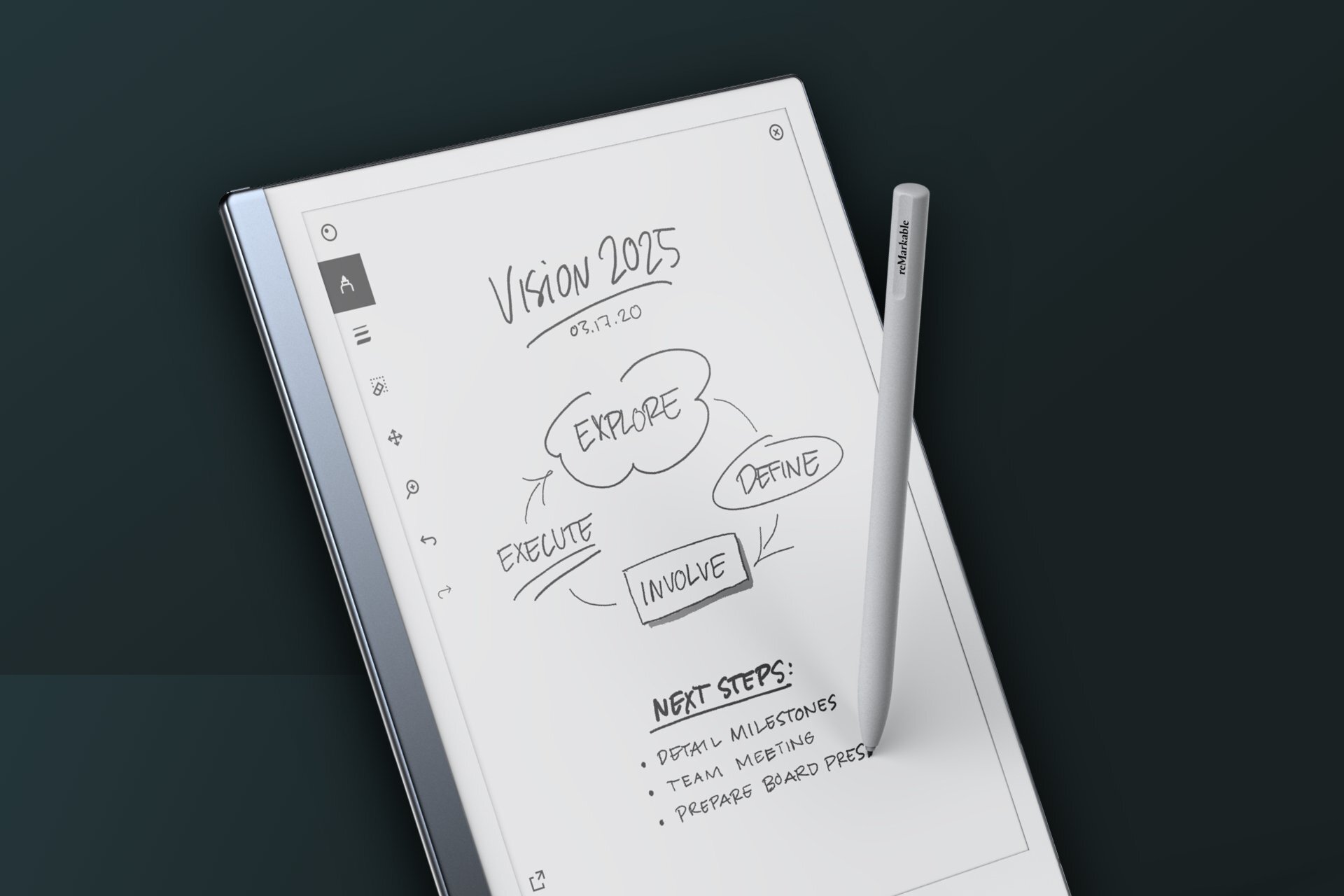
The reMarkable tablet feels like paper because it combines a textured E-Ink display with a pressure-sensitive stylus and palm rejection, creating a writing experience that closely mimics pen on paper. This is the core of what makes the remarkable tablet feels like paper, and it’s why it stands apart from glass-screen tablets.
How the remarkable tablet feels like paper
The paper-like sensation starts with the E-Ink display. Unlike the glossy, backlit screens on standard tablets, this display has a matte surface that reduces glare and replicates the texture of real paper. The screen produces high-contrast, ink-like text and graphics, so reading and writing on it feels closer to interacting with a physical page than a digital one.
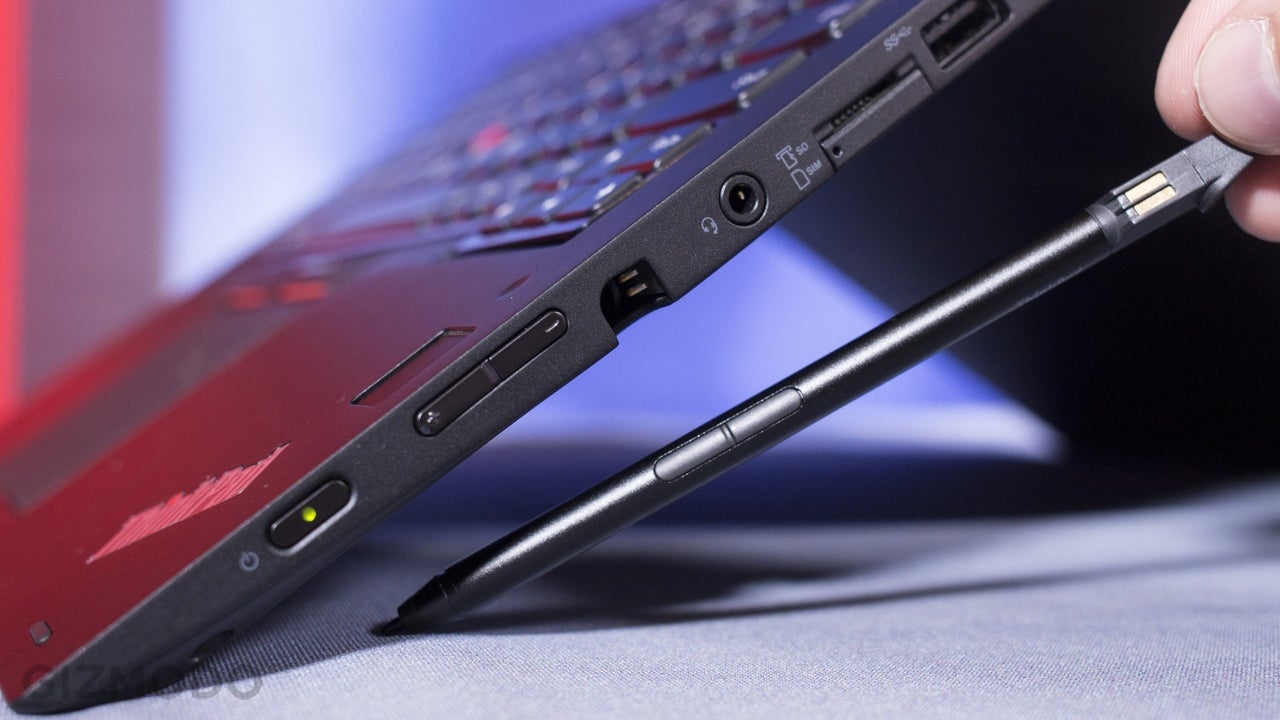
The stylus pen is equally important. It is designed to offer the right amount of resistance against the screen, giving you a sense of control and precision similar to using a traditional pen or pencil. The pen’s advanced pressure sensitivity captures every stroke accurately, allowing for natural variations in line thickness based on how hard you press. Combined with palm rejection, you can rest your hand on the display while writing or drawing without causing accidental marks, ensuring a seamless and uninterrupted experience.
A focused tool for note-takers and artists
This paper-like experience transforms how you handle handwritten notes and sketches. For note-takers, the tablet provides a digital canvas that feels just like a notepad, allowing you to jot down ideas, sketch diagrams, and write by hand without the distraction of notifications or apps. It replaces bulky notebooks and endless stacks of paper with a lightweight, portable device that stores everything in one place.
Artists benefit from the realistic paper-like texture and precise pen control. The combination of pressure sensitivity and a responsive stylus makes it a valuable tool for sketching, drawing, and creating detailed illustrations. Whether you are a professional or a hobbyist, the tablet offers a natural and fluid drawing experience that encourages creativity. Reading is also enhanced, as the E-Ink display eliminates eye strain and glare, making it comfortable to review documents and e-books for extended periods.
How to set up and pair your reMarkable tablet
Getting started with your reMarkable tablet involves creating an account, pairing the device, and installing the mobile app. The entire process is straightforward and uses a one-time code for security.
- Create a reMarkable account by going to my.remarkable.com and clicking Sign up.
- On the tablet, navigate to the account page and click Pair device. Enter the one-time code that is displayed on the reMarkable screen.
- On your phone, install the reMarkable mobile app from the App Store (for iPhone) or Google Play (for Android). The app requires iOS 17 or newer, or Android 11 or newer.
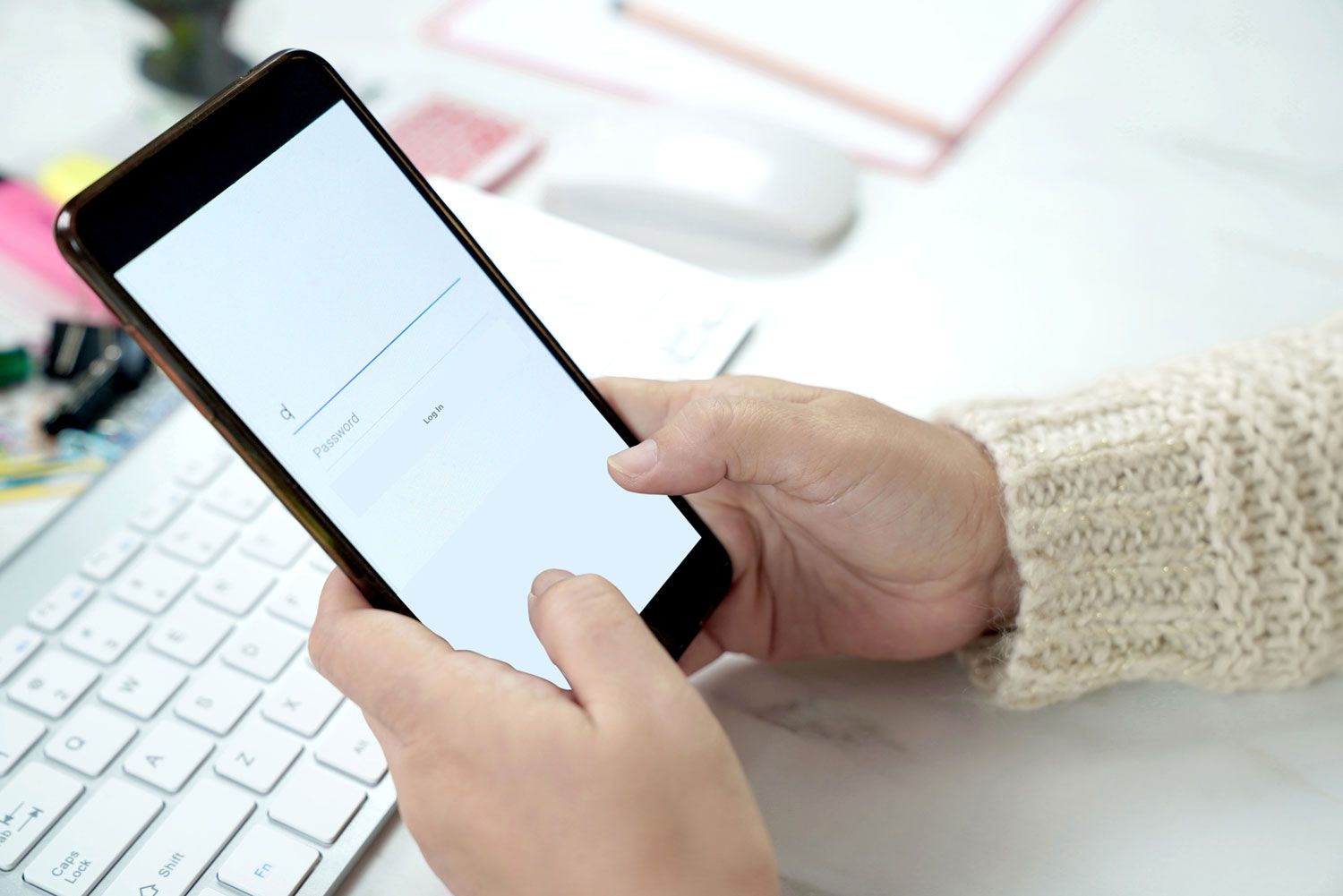
- Open the app, log in with your reMarkable account, and enter the one-time verification code provided by the app.
- Tap Pair the app to complete the connection.
If you are setting up a company-provided device, the official flow remains the same: use my.remarkable.com, click Pair device, enter the one-time code, and then complete the company login when redirected.
Importing files from your phone
Once paired, you can easily import documents from your phone to the reMarkable tablet. The process differs slightly between iPhone and Android devices, but both are quick.
On an iPhone, open a supported file (such as a PDF or EPUB), tap the Share button, and then choose Import with reMarkable from the share sheet. This sends the file directly to your tablet.
On an Android device, you have two options. You can open the reMarkable app, tap Import, select the PDF or EPUB file, and then tap Accept to allow file access. Alternatively, from any other app, tap Share and choose Import with reMarkable to send the file to your tablet.
Understanding syncing and cloud features
Your documents sync through the reMarkable cloud, which stores your files and makes them available across your devices. This syncing works even without a Connect subscription, so you can access your notes and sketches on your phone, tablet, or computer without paying extra.
There is one important limitation to be aware of: files stop syncing to the mobile and desktop apps if they have not been opened and synced for more than 50 days. To keep everything current, open your documents periodically.
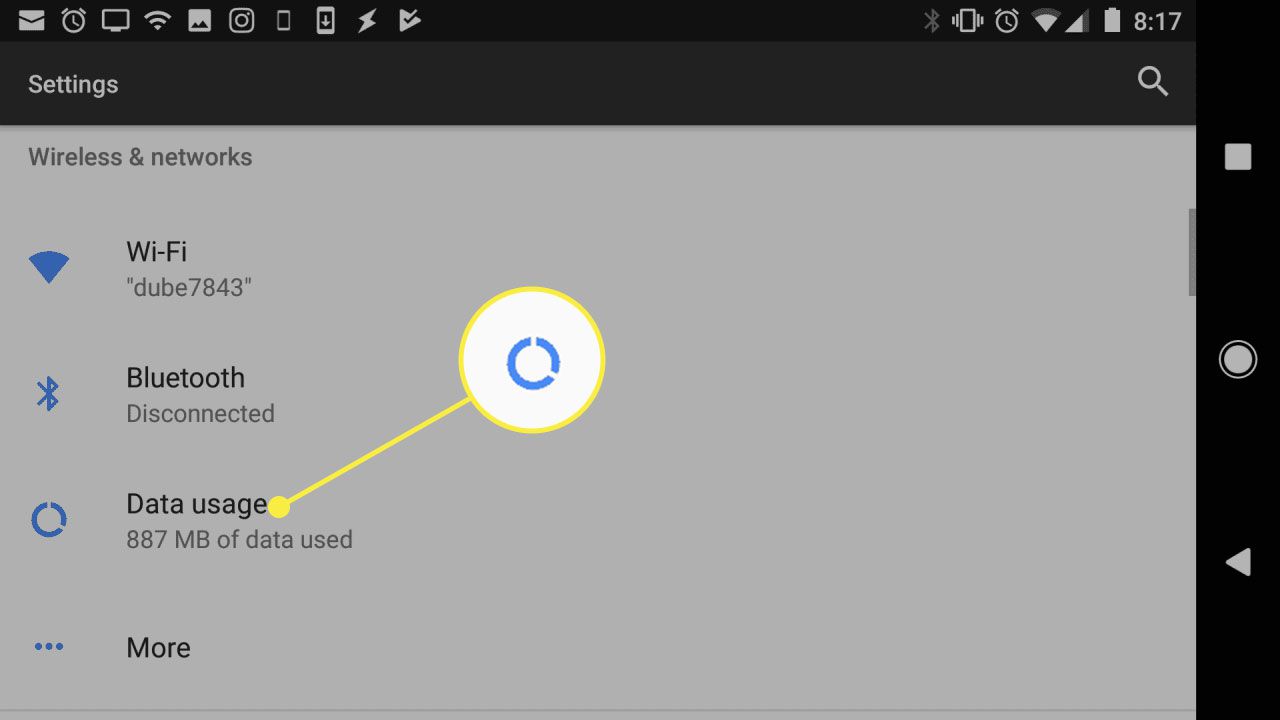
If you encounter syncing issues, reMarkable’s documented troubleshooting steps include checking for updates in the App Store or Google Play, restarting your phone, and unpairing and re-pairing the app with the same account. You can also try using mobile data instead of Wi-Fi. On the tablet itself, open Menu (☰) > Settings > Software > Check for updates. If the problem is with a hotspot, Android users should use 2.4 GHz if possible, WPA-2, no special characters, and disable Wi-Fi 6 if available. On iPhone, turn on Maximize Compatibility. You can verify which account is paired to the tablet under Menu > Settings > General > Account.
Frequently Asked Questions
Can I use the reMarkable tablet like a traditional paper notebook?
Yes. The screen is designed to mimic the texture and feel of paper, and the stylus pen usage and basics are straightforward, allowing you to write, draw, and take notes with a natural sensation. There is no glare or backlit display, so it feels like a physical notebook without the clutter.
What file types can I import from my phone?
The mobile app supports PDF and EPUB files for import and export. You can send these file types from your phone to the tablet using the Share sheet or the Import option in the app.
How do I check which account is paired to my tablet?
You can verify the account on the device by going to Menu > Settings > General > Account. This shows the reMarkable account currently linked to the tablet.
What should I do if my files are not syncing?
First, check for updates in the App Store or Google Play and restart your phone. If that does not work, unpair and pair the app again with the same account, and try using mobile data instead of Wi-Fi. On the tablet, check for software updates under Menu > Settings > Software.
Can I access my notes on other devices?
Yes. The reMarkable cloud syncs your documents to the mobile app on iPhone or Android, as well as to the desktop app. This allows you to view, edit, organize, and import files from your phone or computer.