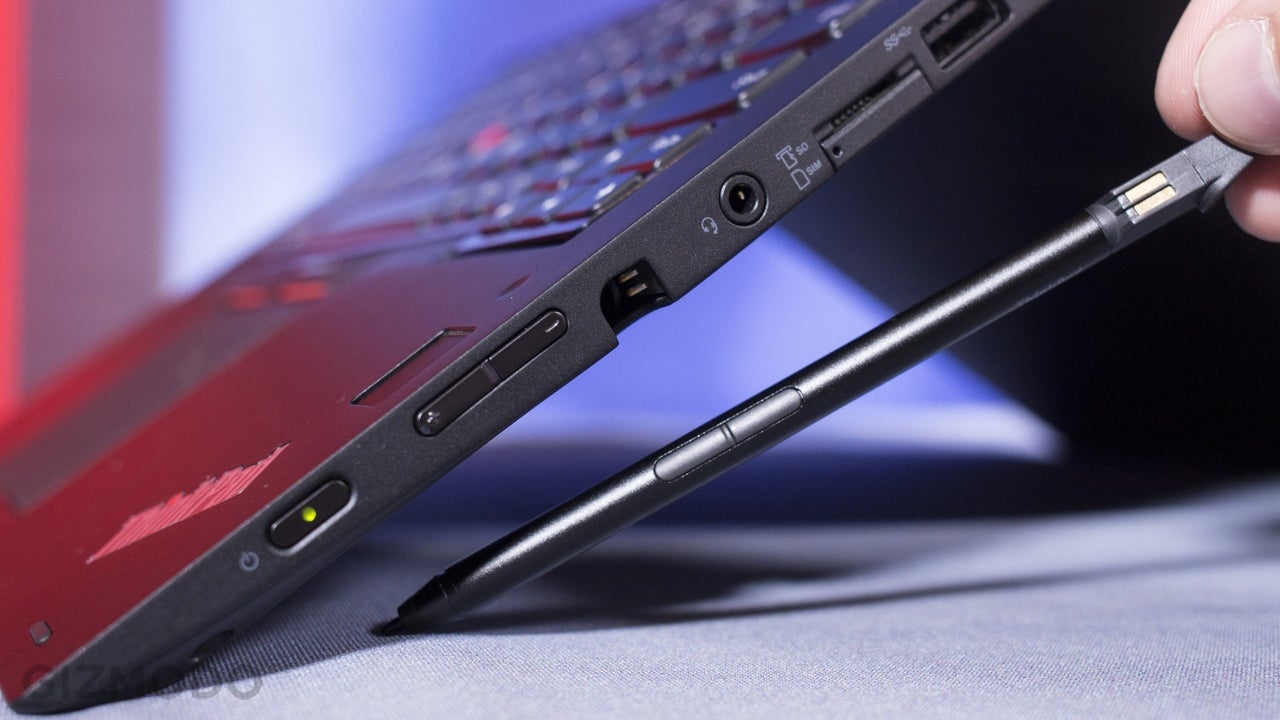
How to use a stylus: fundamentals
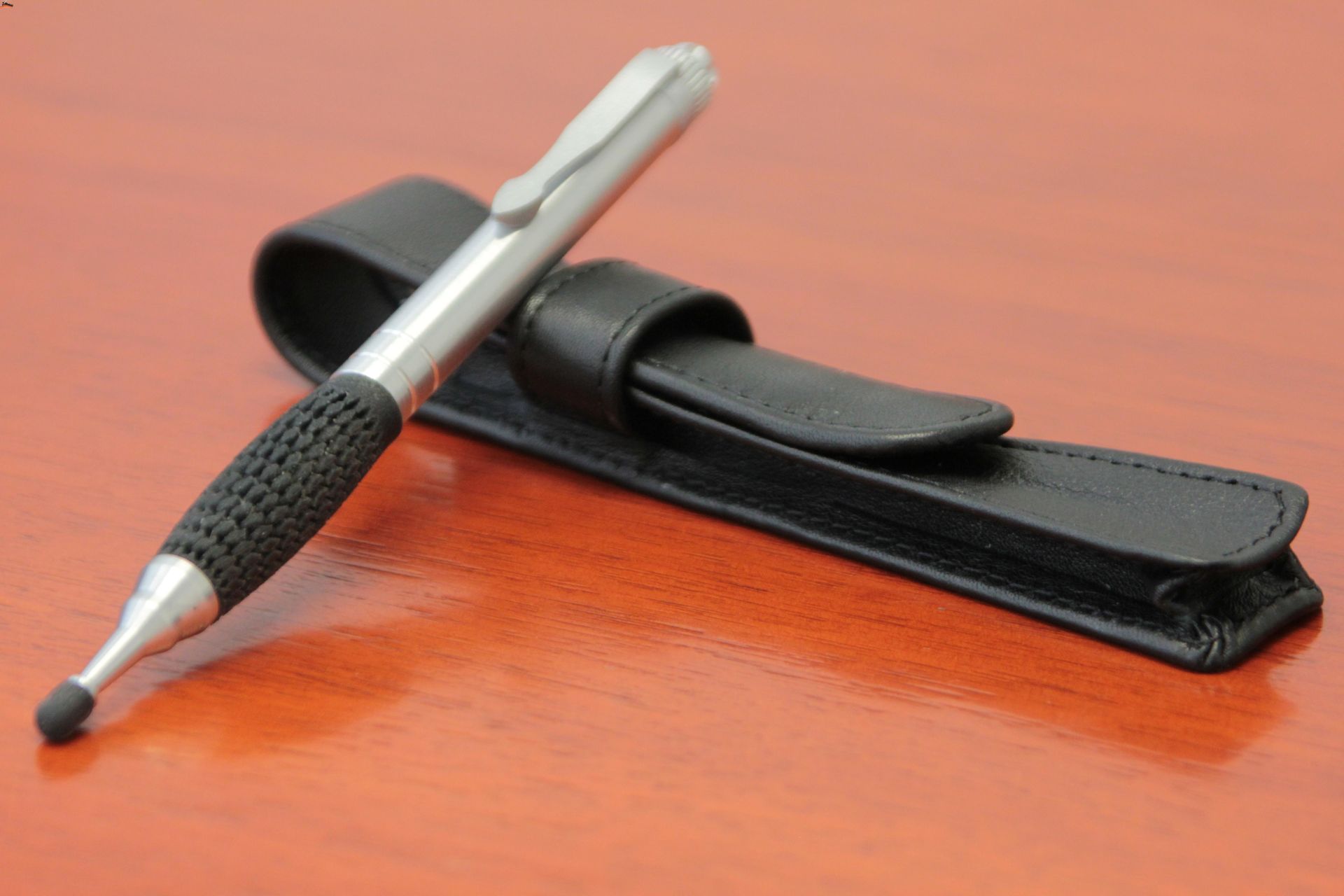
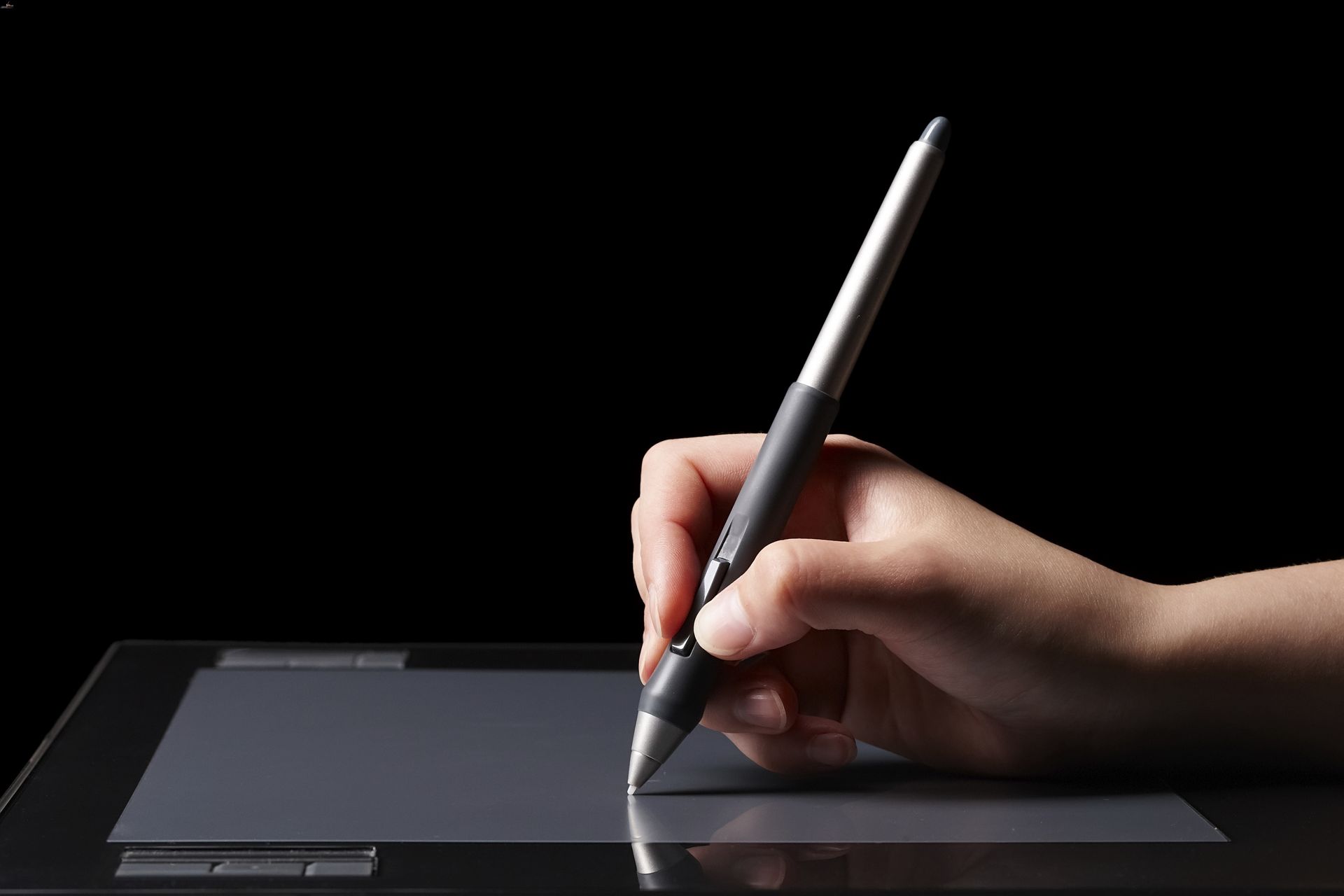
If you want to understand how to use a stylus, it helps to know exactly what you are holding. A passive capacitive model with no battery and no wireless pairing will work as a stylus on any capacitive screen, including an iPhone, Samsung device, Amazon Fire, or Kindle. If you see a stylus made of a simple conductive shaft and a rubber-like tip, it falls into this category and requires no setup beyond touching the glass. Other pens take a different approach. The purpose of a disc tip stylus is to give you a clearer view of your contact point, and you make it ready by rotating the disc tip outward before use.
Active stylus pens may require charging because they pack internal electronics for pressure sensitivity and palm rejection. If you want to understand the reason active stylus pens need charging. A charged pen still depends on your device’s own configuration. In fact, before you use a stylus pen on a tablet or laptop, you should confirm whether the panel can ignore your hand independently. On some machines that toggle lives in the operating system or device settings. For drawing apps, you might find relevant stylus behavior in the app's settings or preferences menu. Keep in mind that an iPhone does not support Apple Pencil. A third-party connected stylus may only respond inside an app that explicitly supports that specific type.
Powering and charging your stylus
Active stylus pens rely on internal hardware. To turn on a stylus pen, you typically press the physical power button until the status LED indicates it is on. On some models, a quick double tap on the top of the pen accomplishes the same thing without hunting for a button. Once awake, the pen broadcasts its pressure and tilt data. On one model, the battery indicator flashes a slow warning if capacity drops below 10 percent. On that model, the pen shuts itself off after a short period to protect the cell.
When the pen stops responding, you charge a stylus pen by connecting the supplied USB-C cable to its port, or by attaching it magnetically to a compatible device or charging base. Plug the other end into a computer, a wall adapter, or a power bank. Pens that support magnetic attachment snap onto a dedicated charger or a compatible tablet’s docking strip. Some models accept a charge whether they are switched on or off. Stylus pen charging time varies considerably across the hardware you might own. One manual documents a full charge in roughly 15 minutes. Others cite 60, 80, or 90 minutes. A few settle in the 1-to-2-hour range. A quick 5-minute top-up on certain pens buys you about an hour of use. On some models, the charging indicator shows when the battery is full. One manual advises to fully charge the pen before first use.
Connecting and pairing your stylus
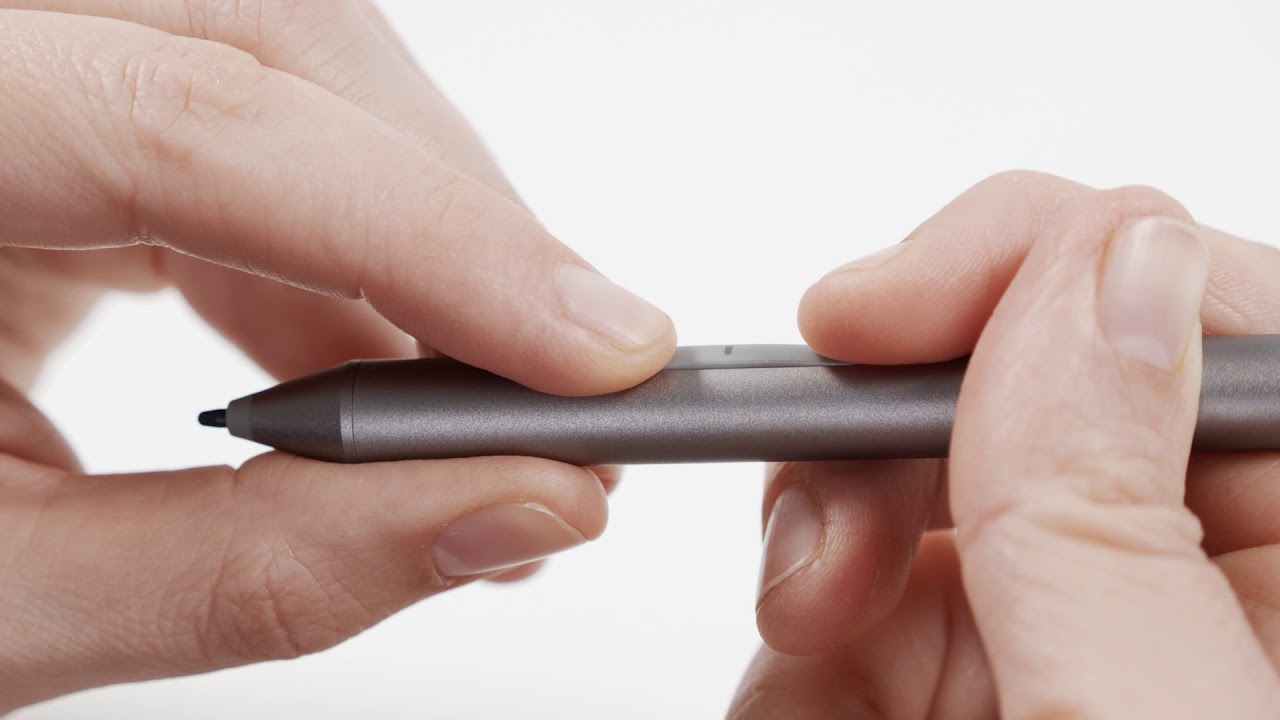
Before you try to connect a stylus pen to any device, you will want to read the article about how to connect a stylus pen to understand the general principles that apply across different hardware. Confirm which category your hardware falls into, as the process is not universal. If you need to connect a stylus to a Chromebook, you will want to read the article about how to connect a stylus to a Chromebook because the experience depends entirely on your specific model and the pen’s own instructions, since no single support page documents a universal pairing menu for ChromeOS. Many try to connect Apple pen to iPhone, but you'll want to read the article on connect Apple pen to iPhone to see why Apple's official pairing guide only lists iPad models, with no iPhone option confirmed. When you need to connect a stylus pen to a surface pro, you will want to read the article about how to connect a stylus pen to a surface pro because Microsoft documents a clear wireless path: open Start, navigate to Settings > Devices, select Add Bluetooth or other device > Bluetooth, and hold the pen's top button for five to seven seconds until its LED flashes white. If you use a stylus pen on an Android phone or tablet, you will want to read the article about how to use a stylus pen on an Android because the pairing steps are device- and manufacturer-specific, and a passive capacitive pen requires no connection at all.
Writing, drawing, and note-taking with a stylus
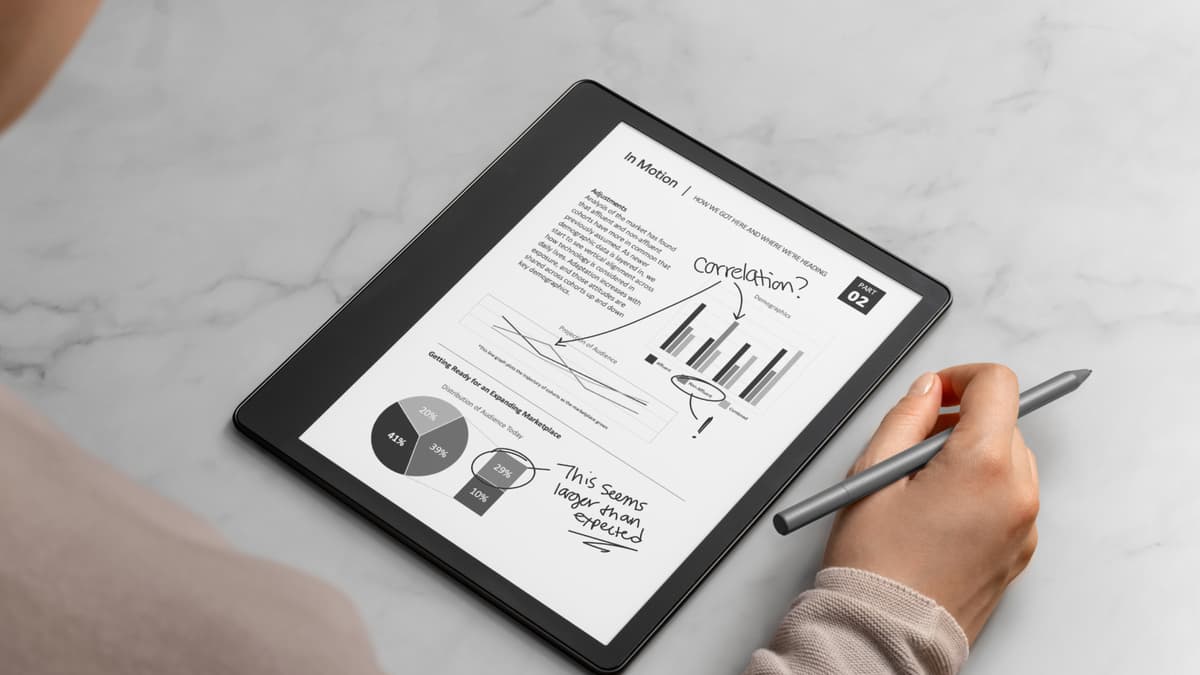
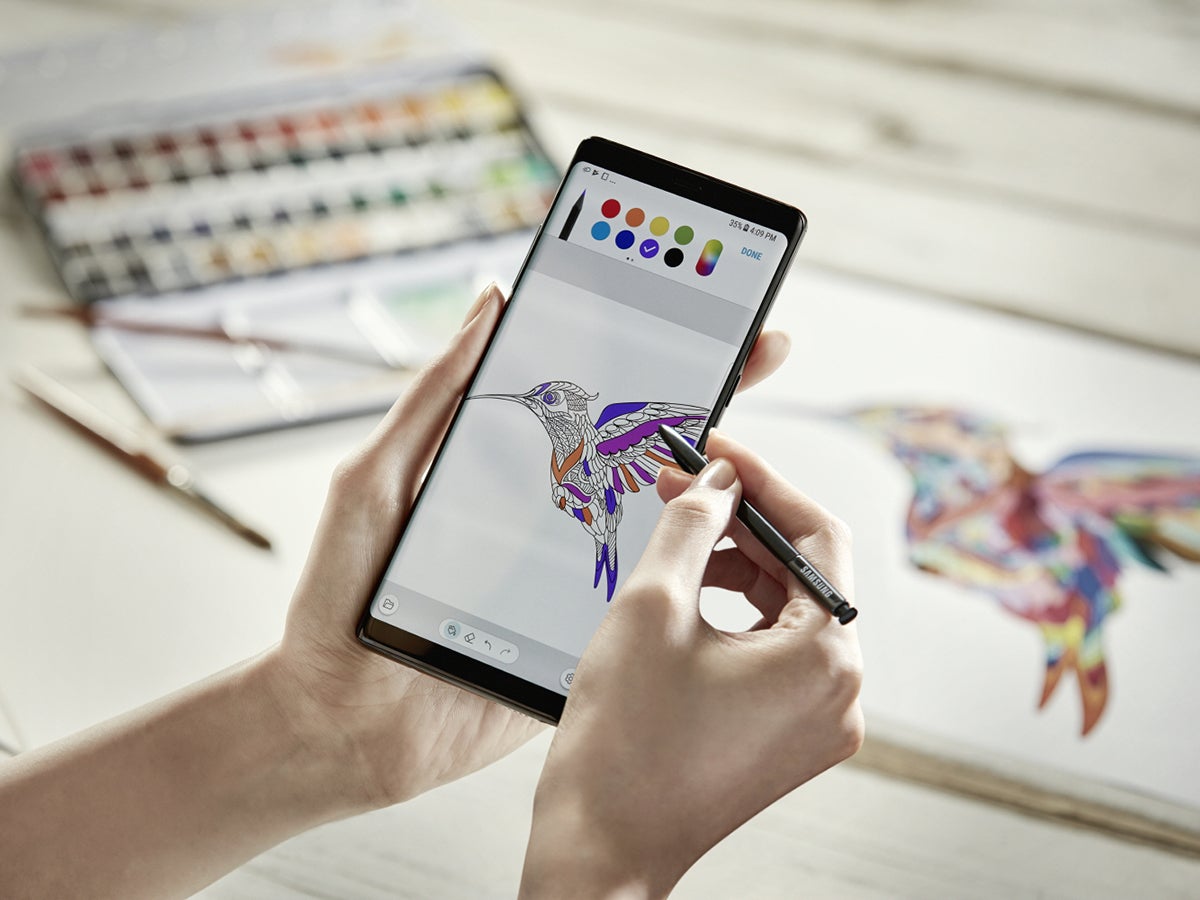
When you need to mark up a document directly, the process depends on where the file lives. In the Android app, you can write with a stylus on Google Docs by opening a document and using annotation tools to draw directly on the file rather than converting handwriting into body text, making it easy to see why you would want to write with a stylus on Google Docs for collaborative feedback.
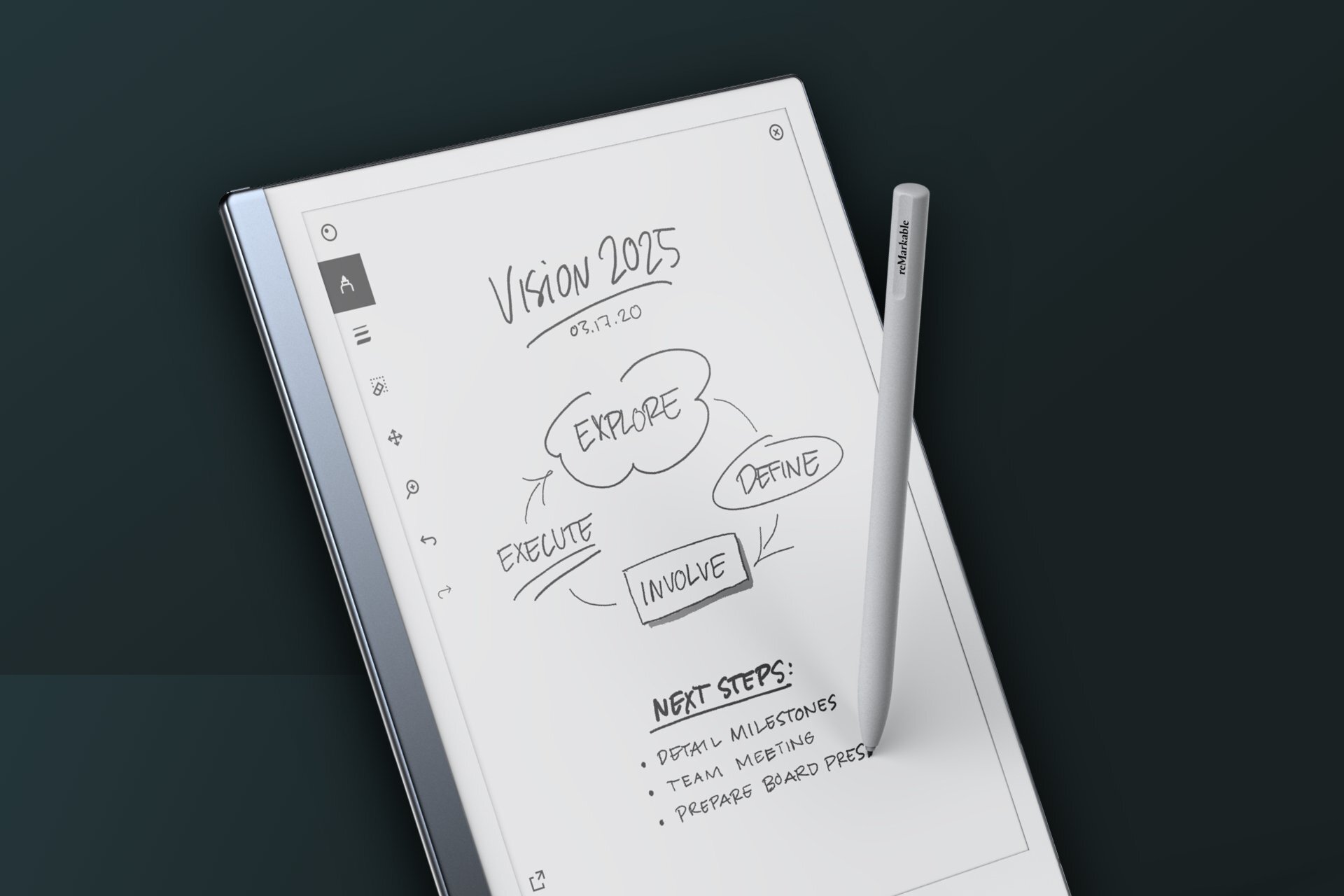
On a Chromebook or Windows laptop, the handwriting experience shifts toward text entry. To use a stylus pen on a laptop for filling in fields, tap any text box in an app like Docs or Gmail until the handwriting pad appears; if it does not surface automatically, enable handwriting input from the virtual keyboard options, demonstrating why you would want to use a stylus pen on a laptop for efficient note-taking. The pad gives you undo and enter controls, and scrolling kicks in after you write past the third line. For a completely different feel that mimics pen on paper without the glassy drag of a standard screen, the ReMarkable is a tablet that feels like paper and its stylus feels like paper when writing on it.
Fixing and finding your stylus
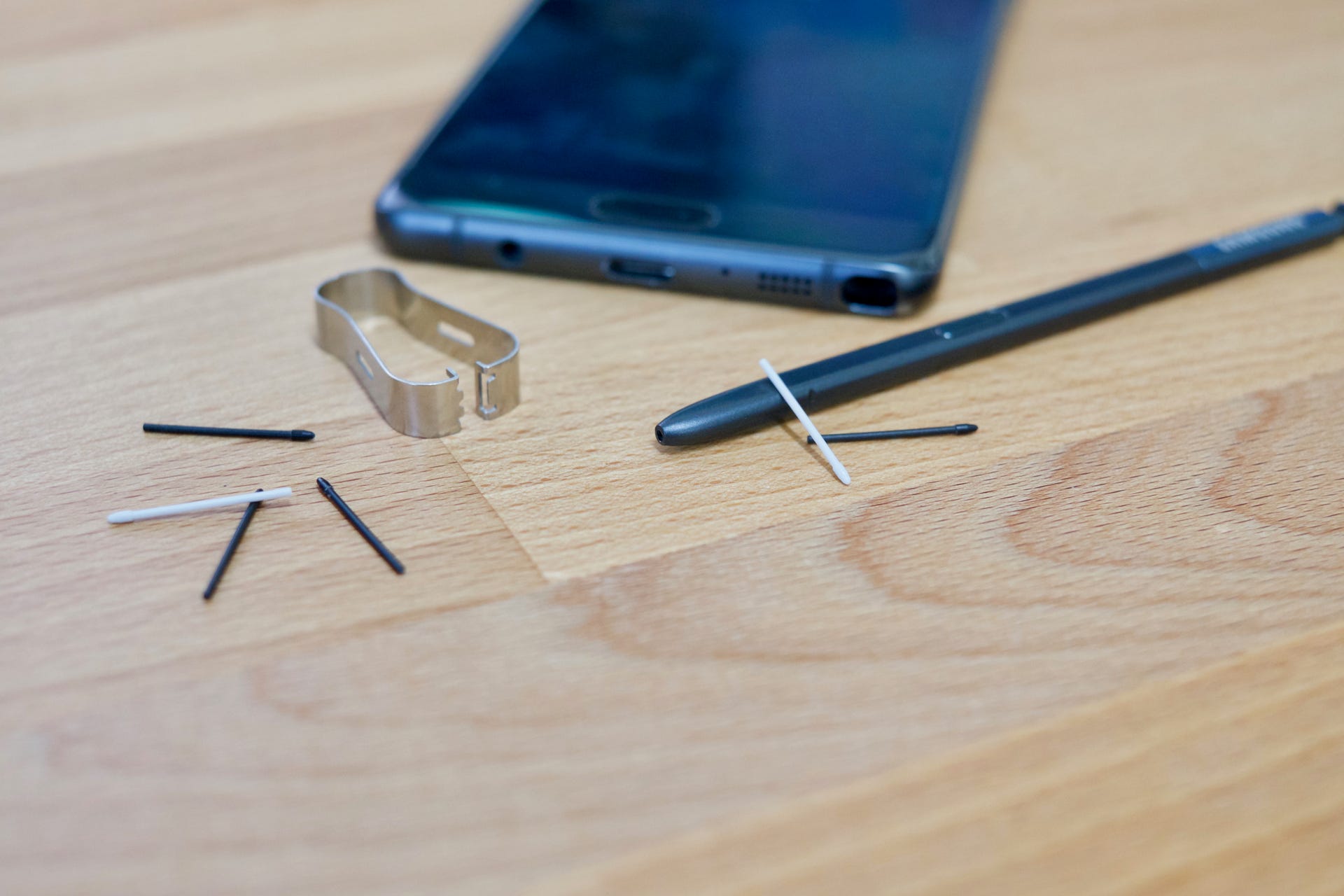
When you begin troubleshooting an unresponsive stylus pen, start by confirming that your device’s screen isn’t intercepting your taps before the pen can register, and check whether a simple restart or wireless re-pair clears the fault. For an Apple Pencil that has stopped drawing, Apple documents forgetting the device in Settings > Bluetooth and reconnecting, while removing any iPad case that might interfere with the magnetic attachment often resolves pairing failures for second-generation or Pro models. If the nib feels loose or the stroke has become scratchy, you can fix a stylus pen tip by unscrewing the worn piece and threading on a replacement until it sits finger-tight with a tiny visible gap, restoring a clean contact point without requiring service. Samsung owners can find a lost stylus pen through the SmartThings app, though this feature is specific to the S Pen Pro and won’t locate other models. If you are trying to get the stylus out of a Chromebook, be aware that no single official removal method is documented across all models, so you will need to consult your specific device’s manual for the correct release mechanism.
Managing touchscreens on laptops and chromebooks
Before you depend on a stylus for precise work, it helps to know that the display can get in the way by registering stray palm brushes or accidental taps, especially on devices where the digitizer responds to both finger and pen input. Disabling finger detection temporarily gives you a cleaner canvas, which is why you might want to read how to turn off the touchscreen on my HP laptop; the most direct route is through Device Manager: expand Human Interface Devices, locate the HID-compliant touch screen entry, right-click it and select Disable device. A restart will re-enable it unless you reverse the step. To turn off the touchscreen on Asus laptop machines, no official support page was retrieved, making the Device Manager method the most reliable starting point, and that is precisely why a dedicated guide on how to turn off the touchscreen on Asus laptop would be helpful. Chromebook users can turn off the touchscreen on a Chromebook by enabling a debug shortcut: visit chrome://flags/#ash-debug-shortcuts, switch it to Enabled, restart the device, then press Search + Shift + T to toggle the screen’s touch response off and on, which is exactly the procedure you would find in an article explaining how to turn off the touchscreen on a Chromebook.
- turn off the touchscreen on a Chromebook
- turn off the touchscreen on Asus laptop
- turn off the touchscreen on my HP
- turn touchscreen off on Lenovo
Keyboard basics and phone connections
Before you rely on a stylus as your only input tool, it helps to understand the role of a key and how a physical board can share the workload. Every press on a QWERTY keyboard sends a distinct character or command, making shortcuts far more reliable than hunting for a tiny on-screen icon with a pen tip. When you need to capture exactly what is on your display, reaching for a print screen key on a Windows-style board is muscle memory for many, though phone operating systems do not always honor that same command. To bring that efficiency into a hybrid setup, you can connect keyboard to phone wirelessly. On an iPhone, open Settings > Bluetooth and choose the wireless accessory from the Other Devices list once it is in pairing mode, while Android tablet users head to Settings > Connected devices and tap Pair new device. Keep in mind that Apple’s Full Keyboard Access feature is what lets you navigate the entire interface with keys instead of touching the glass panel, found under Settings > Accessibility > Keyboards & Typing. It works with Magic Keyboard models on iPhones from the XS generation onward running iOS 14.5 or later.
Touchscreen typing and gaming modes
Before you rely on a stylus for every interaction, it is worth understanding the direct input methods your device already offers, as some of them are designed to be faster than tapping with a pen tip. On an iPad, you can slide to type on the iPad floating keyboard and then drag your finger from letter to letter without lifting it. This only works on the floating variant, and Apple notes the feature is not available for all languages. When you switch from writing to gaming, the way your screen interprets contact changes again; if you play on a phone or tablet, you can use Minecraft touchscreen mode to control the game directly with your fingers. You will need to explore the in-game options to see if the feature appears for your version.
Device-specific stylus and touchscreen history
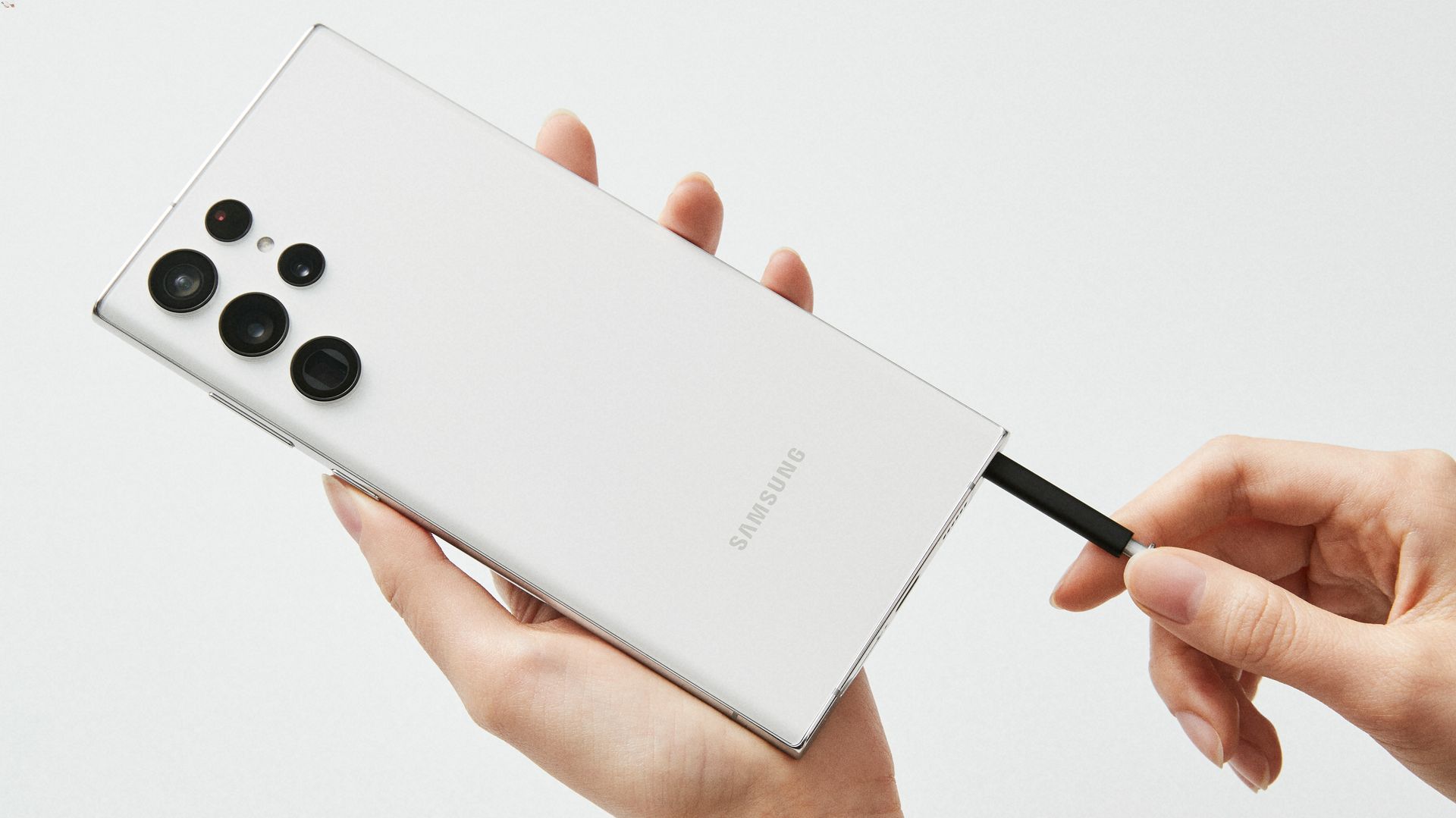
If you are shopping for a stylus-driven phone, knowing which Samsung phones have a stylus narrows the field considerably. The Galaxy Note line ended with the Note20 Ultra, and the S Pen now ships inside Galaxy S Ultra models from the S21 Ultra onward, while also folding into the Z Fold3, Fold4, Fold5, and Fold6 chassis. That built-in slot changes how you carry the pen, though the screen itself still responds to both your fingertip and the tip.
The question of when was the first touchscreen invented does not have a single documented date in the official records available, leaving a gap in the manufacturer history you can pull up right now. You will need to cross-check retailer listings before committing to a mount that holds your tablet at the right angle for long sketching sessions, and knowing the typical tripod price ranges helps you budget accordingly.
Frequently Asked Questions
How do I replace the disc tip on my disc tip stylus?
Pull out the old disc tip, including the metal part if it is still attached, then insert a new disc tip into the stylus body. No tools or pairing are required for this replacement.
What does the flashing blue LED on my active stylus mean?
A slow flashing blue LED indicates the battery capacity has dropped below 10 percent. The pen will then switch itself off after about 10 seconds to protect the cell.
Which Samsung phones have a built-in S Pen slot?
The Galaxy S Ultra models from the S21 Ultra onward ship with an S Pen inside the chassis, as do the Z Fold3, Fold4, Fold5, and Fold6. The Galaxy Note line ended with the Note20 Ultra.
How do I annotate a PDF with a stylus on an Android device?
Open the PDF in the Google Drive app’s preview mode and tap the annotate button in the bottom-right corner. You can then use the toolbar tools to draw with your stylus or finger and save the original or a new copy.