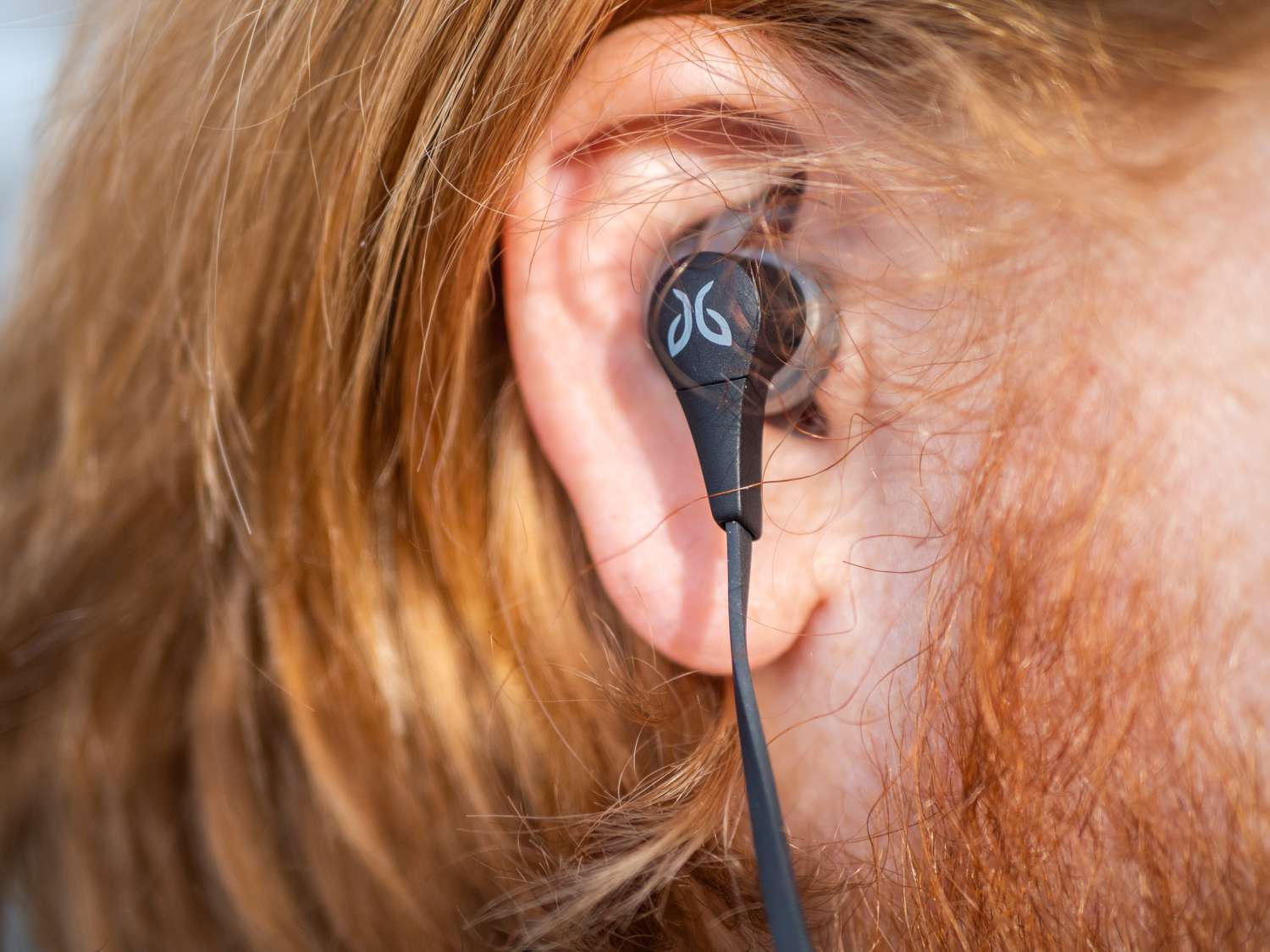
To use Jaybird wireless headphones, start by charging them fully and then pairing via Bluetooth in your device's settings. The Jaybird App offers sound customization, but it is only compatible with specific models like Freedom, RUN, X3, X4, Tarah, and Tarah Pro.
How to use Jaybird wireless headphones: a quick start
A critical note: the Jaybird App is not compatible with all models, only the Freedom, Freedom 2, Freedom Special Edition, RUN, RUN XT, X3, X4, Tarah, and Tarah Pro are supported. If your model is not listed, you will rely solely on standard Bluetooth pairing and physical controls.
Charging your Jaybird headphones
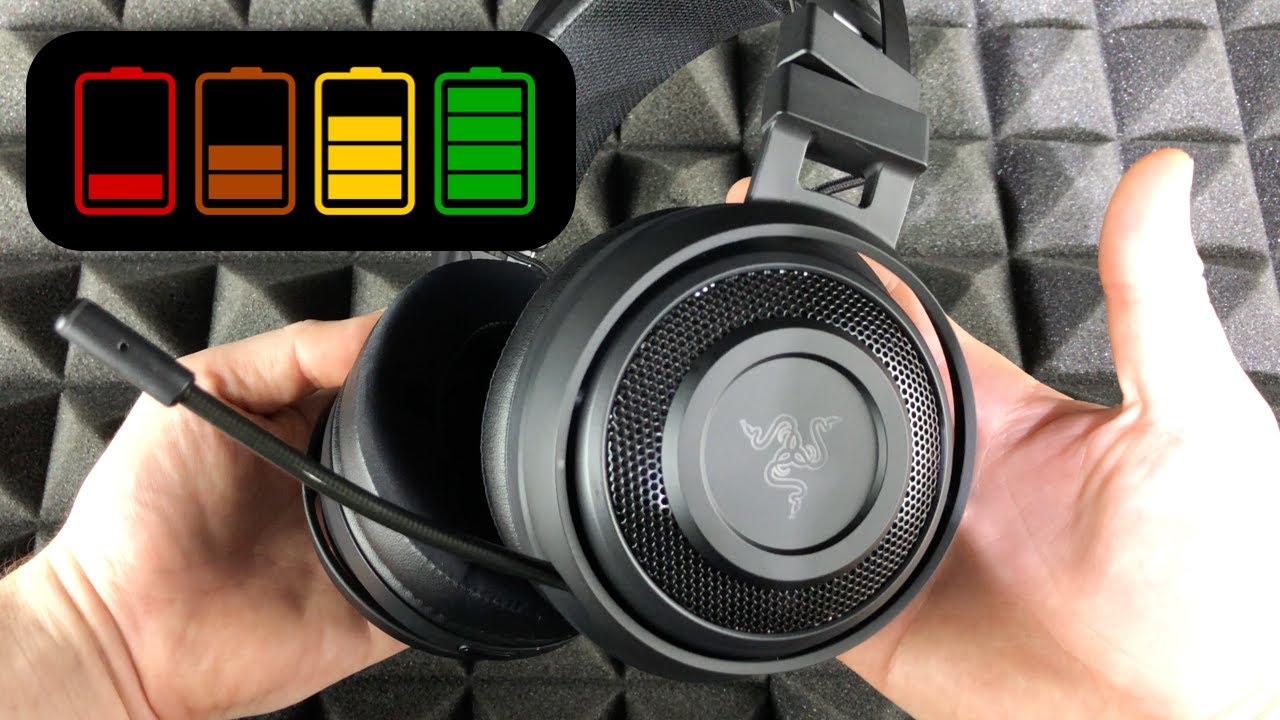
Before first use, charge your headphones fully. Locate the charging port on the earbuds or control module, connect the included charging cable, and plug it into a USB power source such as a computer or wall adapter. The indicator light will show that charging has started. Charging time is usually around 2-3 hours. Disconnect the cable once charging is complete. Registering headphones on the Jaybird website for warranty or support services is also recommended.
Pairing Jaybird headphones with your phone or tablet
Follow this standard Bluetooth pairing process to connect your Jaybird headphones to any Bluetooth-enabled device.
- Ensure the headphones are charged and turned on.
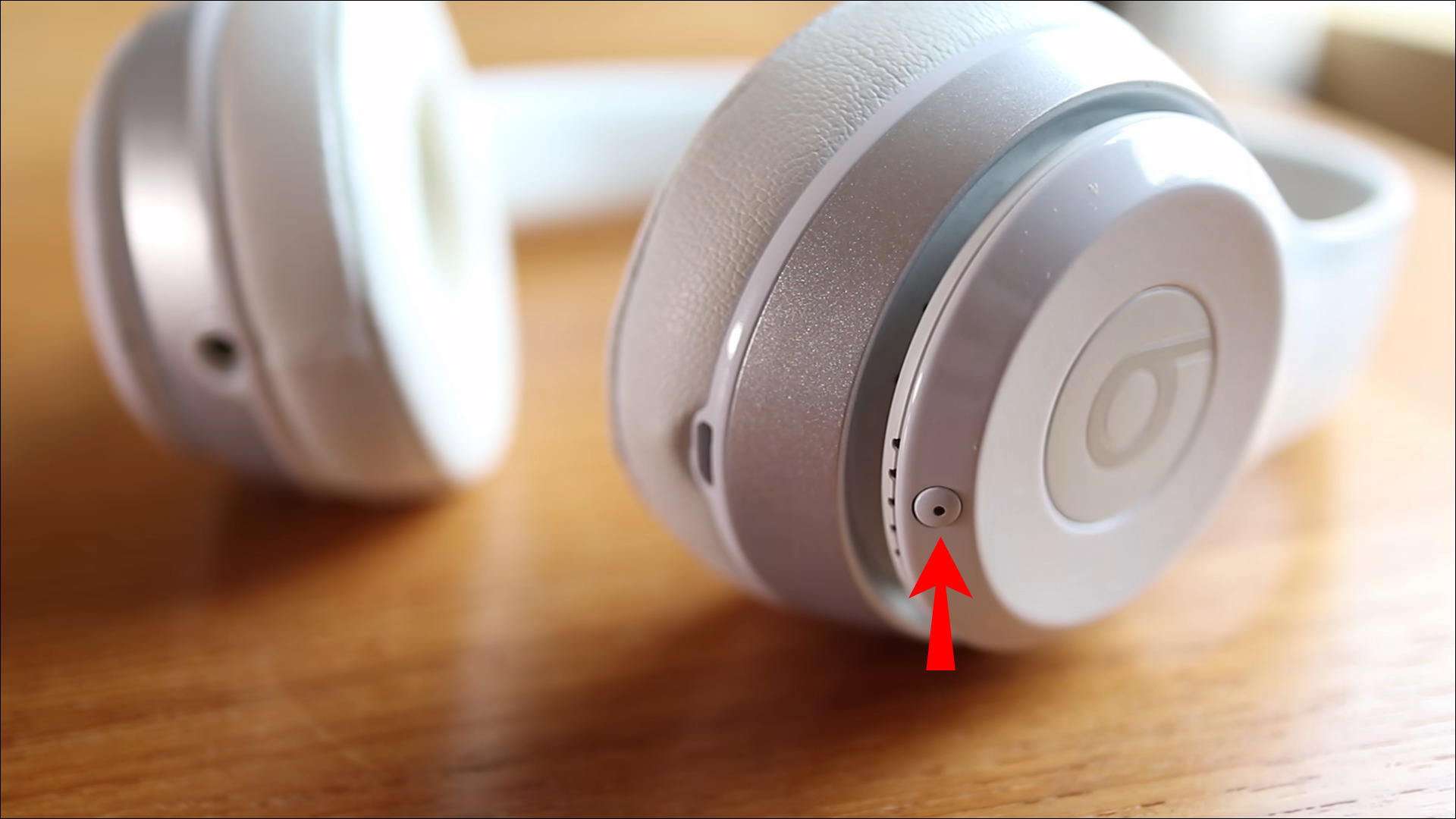
- Press and hold the power button until the LED light blinks, indicating pairing mode.
- On your phone or tablet, open the Bluetooth settings and ensure Bluetooth is enabled.
- Scan for available devices. Your Jaybird headphones should appear as "Jaybird" or a similar name.
- Select the headphones from the list. If prompted, confirm the pairing request.
- Once the LED stops blinking and stays solid, the connection is established. Play audio to test.
If you have trouble pairing, ensure the headphones and device are within range and that no significant interference is present. The exact menu names on your device may vary, but the general process is consistent across models.
Using the Jaybird App (for compatible models only)
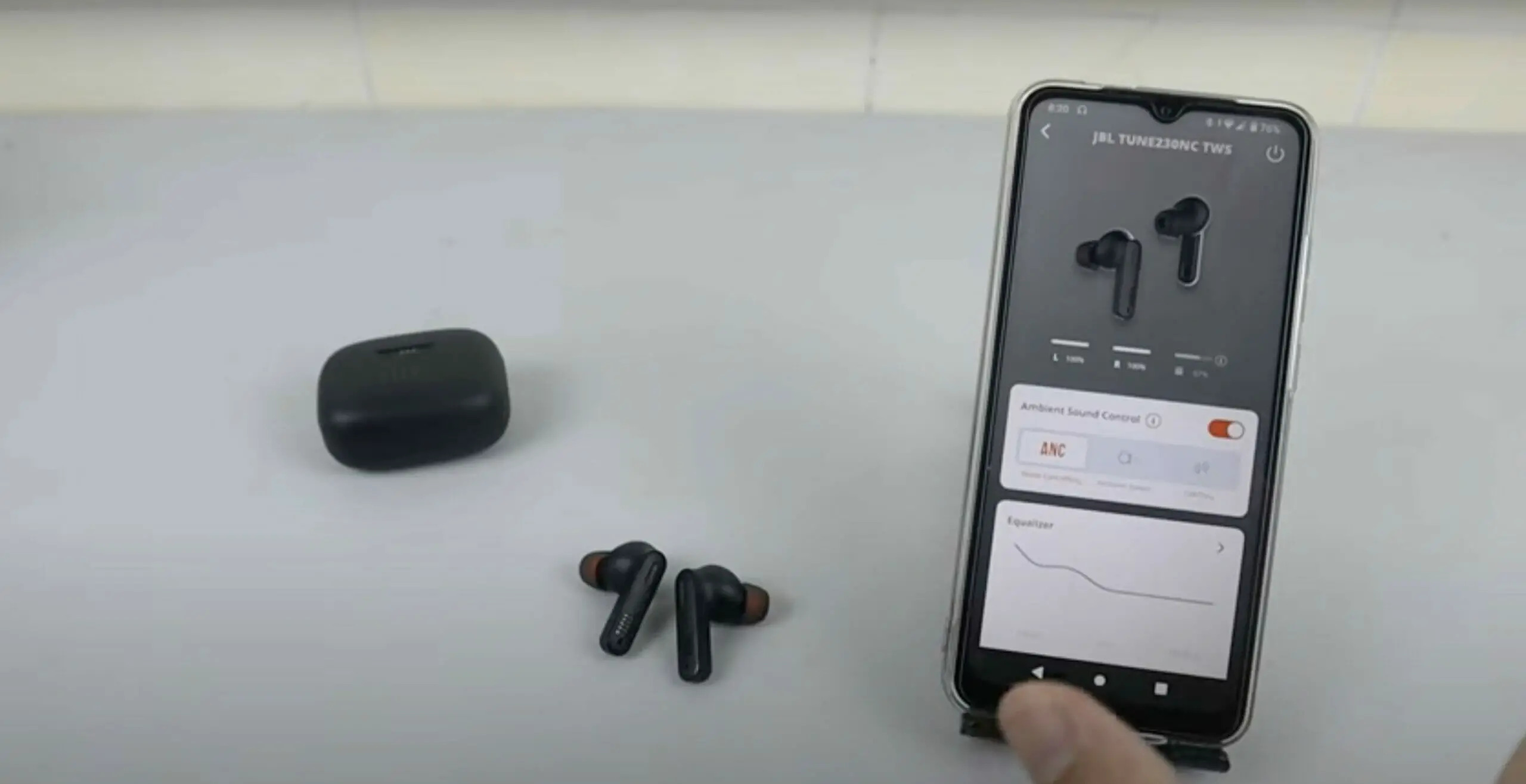
Other Jaybird headphones and Android versions are not officially documented for app support. The app allows you to adjust the equalizer, create a personalized sound profile through a hearing test, map buttons to commands, and use the "Find My Buds" feature to locate misplaced headphones. The Jaybird app can track workouts for models with built-in fitness features. The app can be used to update firmware. Battery optimization settings like auto power-off timer and voice prompts can be adjusted. For models not listed, these features are not available.
Basic button controls and fit
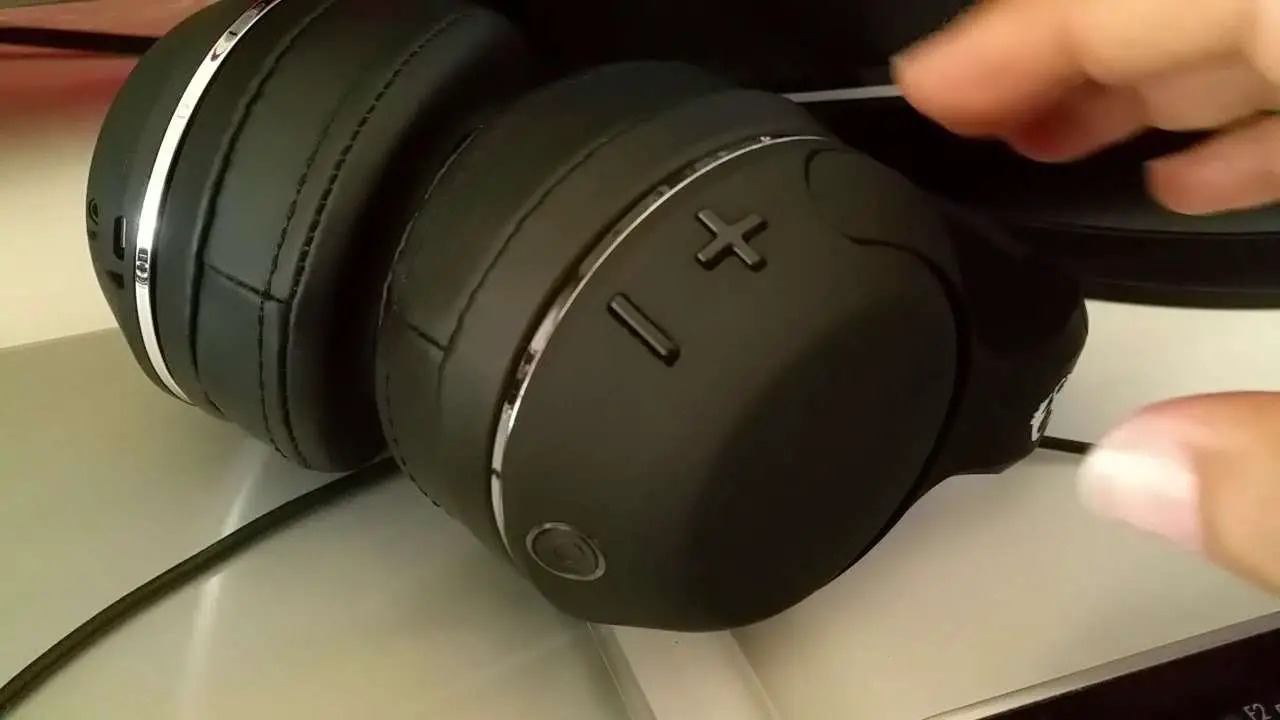
Use the physical buttons on your Jaybird headphones to control playback, adjust volume, skip tracks, and answer calls. The exact button layout varies by model, but the controls are generally intuitive. For a secure fit, especially during exercise, use the included ear tips and wingtips. Choose the size that provides a snug, comfortable seal, and adjust the wingtips to hold the earbuds in place. This fit is designed to stay secure during running, cycling, or gym workouts.
Frequently Asked Questions
Can I use my Jaybird wireless headphones with multiple devices?
Yes, Jaybird headphones can be paired with multiple devices like a phone, tablet, and computer, but they can only connect to one device at a time. To switch devices, disconnect from the current one and follow the pairing process with the new device.
How long does the battery last on Jaybird wireless headphones?
Battery life varies by model and usage, but you can typically expect 5-8 hours of playback on a full charge. Using features like higher volume may reduce this time. Refer to your specific model's documentation for exact figures.
Can I use my Jaybird wireless headphones while exercising?
Yes, Jaybird wireless headphones are designed to be sweatproof and stay secure during physical activity. The included ear tips and wingtips help maintain a comfortable fit for running, cycling, or gym workouts.
How do I pair true wireless earbuds like the Jaybird RUN or RUN XT?
Pairing true wireless earbuds follows the same standard Bluetooth process: put them in pairing mode (usually by pressing and holding a button until the LED blinks), then select them from your device's Bluetooth settings. The Jaybird App is compatible with RUN and RUN XT models for additional customization.
What should I do if my Jaybird headphones won't pair?
Ensure the headphones are charged and in pairing mode (LED blinking). Turn Bluetooth off and on your device, then rescan. If problems persist, check for interference or refer to your model's user manual for model-specific troubleshooting steps.
For the wider topic, see pairing true wireless earbuds.
Related reading: How To Pair Philips Wireless Headphones and How To Pair Wireless Skullcandy Headphones.